First identify whether Rocket League is frozen before reaching the menus, showing an explicit Load Failure message, or reaching the menus but failing to connect to servers. Epic Games treats these as different problems, and the right troubleshooting steps depend on your platform. Start with the matching branch below rather than applying every fix indiscriminately.
Identify the problem before troubleshooting
If the game stops responding or crashes while starting, use the crash and launch steps for your platform. If you see Load Failure, follow the separate save-data guidance below. Messages such as “You are currently not connected to the Rocket League Servers,” “Not Logged in to Rocket League Servers,” or “No servers online, Please try again later” point toward a connection or service issue—not necessarily a local loading freeze. Epic separates these cases in its PC crash guide, Switch crash guide, PlayStation crash guide, and connection guide.
| # | Preview | Product | Price | |
|---|---|---|---|---|
| 1 |

|
Rocket League Ultimate Edition - Nintendo Switch | $109.91 | Buy on Amazon |
| 2 |

|
Rocket League: Collector's Edition - PlayStation 4 (Renewed) (EU Version) | $32.44 | Buy on Amazon |
| 3 |

|
Rocket League Collector's Edition (Xbox One) | $37.99 | Buy on Amazon |
| 4 |
|
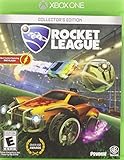
Rocket League: Collector's Edition - Xbox One | $29.96 | Buy on Amazon |
- Frozen or crashing before menus: begin with the steps for PC, Switch, or PlayStation below.
- Load Failure: consult the save-data section before creating a new save.
- Menus work, but online play does not: check service status, region, and network indicators.
PC: troubleshoot a freeze, crash, or launch failure
Epic lists its PC suggestions in sequence. Work through the relevant checks one at a time, restarting the game after a change where appropriate. That makes it easier to tell whether a particular step affected the problem; it does not guarantee a fix.
- Disable mods and third-party applications that interact with the game, then test the launch.
- Close background applications and try again.
- Update .NET Framework and make sure the game is using DirectX 11.
- Delete the Rocket League cache using Epic’s current instructions.
- Check for store error messages associated with the launch.
- Confirm that the PC meets the game’s minimum system requirements.
- Verify the game files through the launcher or store where you installed Rocket League.
- Update the video-card drivers.
- Install the Microsoft C++ packages specified in Epic’s support guide.
- If the problem persists, try the guide’s remaining launch checks: a clean startup, windowed mode, administrator mode, or default launch settings.
- Reduce your friends list or remove blocked players as described in Epic’s guide.
- If none of these steps resolves the issue, Epic advises contacting the hardware manufacturer when needed.
These are general PC crash and launch suggestions, not fixes guaranteed to address every loading-screen symptom. Follow Epic’s current PC troubleshooting guide for its exact file-verification and settings instructions.
PC Slower Than It Used to Be?
A free scan shows the junk files, broken settings and background clutter dragging Windows down - then fixes them in one click.Free scan · Windows 10 & 11Outdated Drivers Are Slowing You Down
One free scan finds every outdated or missing driver and matches the right update for your exact hardware.Free scan · exact hardware match#1 Best Overall
- Winner or nominee of more than 150 “game of the year” awards
- High powered Hybrid of arcade style soccer and vehicular mayhem with easy to understand controls and physics driven competition
- Includes more than 100 billion possible customization combinations
- Offline season mode
Nintendo Switch: check system and game installation
For a freeze or crash, Epic’s Switch guidance focuses on the console and the game installation. Follow the steps in the official Switch crash guide:
- Check any Switch error message and install available system updates.
- Clear the system cache and check Rocket League for corrupted files.
- Reboot the console.
- If the game is installed on an SD card, try installing it on the Switch’s internal storage.
- Try reducing your friends list or removing blocked players.
Do not treat a loading freeze as a Wi-Fi problem without evidence. If the game opens but cannot connect, use the separate Switch connection branch: check Epic service status and the selected region, consider regional restrictions, try internal storage, and follow Epic’s instructions for Switch MTU settings, other devices on the network, and restarting the Wi-Fi system. These network checks are in Epic’s Switch connection guide; they do not establish that Wi-Fi caused a local freeze.
Rank #2
- Extensive Battle-Car customizations with more than 100 billion possible combinations.
- Unlockable items and vehicles, stat tracking, leaderboards, and more
- Addictive 8-player online action with a variety of different team sizes and configurations
- Amazing 4-player splitscreen mode that can be played locally or taken online
- Rocket League Collector's Edition includes every item from the previously released DLC Packs: Supersonic Fury, Revenge of the Battle-Cars, and Chaos Run, plus 4 additional Battle-Cars
PlayStation: update, clear cache, or rebuild the database
For a PlayStation crash or freeze, Epic recommends checking PlayStation error messages, updating system software, clearing the cache, rebuilding the database, reinstalling Rocket League, and reducing friends or blocked players. Use the PlayStation crash guide for the procedure that matches your console.
PS5: clear the system software cache for Load Failure
For the PS5 procedure associated with Rocket League Load Failure, Epic directs players to shut down the console, enter Safe Mode, connect the controller with a USB cable, and choose Clear Cache and Rebuild Database, then Clear System Software Cache, before restarting. Epic says the hard reboot does not delete save data. Follow its PS5 cache instructions exactly. Do not apply PS5 button or menu instructions to PS4.
The Tool Desk
Outbyte Driver Updater FREEFix the driver behind crashes, sound loss and screen glitchesFind Drivers →Outbyte PC Repair FREERepair Windows errors before they cause bigger problemsFix Now →Rank #3
- Includes every item from the previously-released DLC alongside four exclusive vehicles
- Fantastic Multiplayer: 4-Player Splitscreen, 8-Player Online, Ranked and Unranked play
- Game modes include Exhibition , Unfair Mode and a full Offline Season Mode
- Personalize your vehicle with hundreds of different items for more THAN 100 BILLION possible combinations!
- Includes Replay Viewer, customizable controls, Mutator game-variants (Ball Type, Speed, Boost Strength etc), and more!
Load Failure: understand the save-data trade-off
Epic says corrupted Rocket League save files can cause Load Failure; unexpected crashes or sudden power outages are among the causes it identifies. Its guidance offers creating a new save that uses account data. Epic says this does not affect progress or inventory, but it removes local training sequences, video settings, and tutorial-completion data. You will need to set those items up again manually.
Before choosing a new save, read the platform-specific Load Failure guide and decide whether losing those local settings and tutorial records is acceptable. The save-data option is a distinct response to Load Failure, not a routine first step for every loading freeze.
Rank #4
- Extensive Battle Car customizations with more than 100 billion possible combinations
- Unlockable items and vehicles, stat tracking, leader boards, and more
- Addictive 8 player online action with a variety of different team sizes and configurations
- Amazing 4 player split screen mode that can be played locally or taken online
- Rocket League Collector's Edition includes every item from the previously released DLC Packs: Supersonic Fury, Revenge of the Battle Cars, and Chaos Run, plus 4 additional Battle Cars
If Rocket League reaches the menus but cannot connect
For PC connection errors, Epic’s ordered checks include reviewing the Epic Games status page, verifying the in-game region, restarting the router, deleting Rocket League’s cache, trying a wired connection, disconnecting other devices from the network, and synchronizing the Windows clock. Use the steps in Epic’s PC connection guide rather than assuming a server message means the game itself is frozen.
You can also enable Connection Quality Indicators in Rocket League’s Interface settings. The indicators include Disconnected, Server Health, Packet Loss, Latency Variation, and High Latency. They can help distinguish a connection or server problem from a game that becomes unresponsive before reaching online services. See Epic’s Connection Quality Indicators explanation.
Recommended Free Tools
What to do if these steps do not help
Keep the platform and symptom separate when you seek more help: note whether the game freezes before menus, crashes with an error, displays Load Failure, or reaches menus but cannot connect. Then use the matching official platform or connection guide. The cited support guidance provides recommendations, not success-rate figures, so no particular step can be promised to work. It also does not establish that buying hardware or a third-party optimizer is necessary for a loading-screen problem.
Quick Recap
Product prices and availability are accurate as of the date/time indicated and are subject to change. Any price and availability information displayed on Amazon at the time of purchase will apply.



