To use a Cronus Zen, first identify your console, controller model, and whether you need a wired, wireless, or cross-console setup. Then follow the current Cronus guide for that exact combination, update the device with the official software, connect the required controller or adapter, and configure mappings or a GamePack. There is no universal wiring diagram: requirements vary by platform, and the current guide says full PS5 console support requires Zen LINK.
What Cronus Zen does—and what it does not guarantee
Cronus Zen is a physical controller adapter and configuration device. Cronus describes it as supporting controller and input-device use across supported console platforms; that is the manufacturer’s compatibility description, not an independent test of every controller, game, or console combination. Its software, Zen Studio, provides tools for remapping, settings, GamePacks, and GPC scripts.
Check the current Cronus Zen Guide before buying accessories or wiring the device. It states: “For full PS5® console support, you will need the Zen LINK™ Wi-Fi Expansion module”. Older FAQ and quick-start materials contain compatibility language that may not reflect current requirements.
Before you connect anything, identify your setup
Write down the details below, then open the corresponding setup tutorial in Cronus’s tutorial index. The index includes instructions for consoles, PC, Zen Studio, GamePacks, scripts, mouse and keyboard, and racing wheels.
Recommended Free Tools
#1 Best Overall

- Sires X|S wireless connection for the Cronus Zen
- Use the Cronus Zen to play with your Wireless Controller on Series X|S and other consoles
- Console and generation: Record the exact console model and whether you are configuring for that platform’s games or a different generation.
- Controller: Note the make and model, including its console generation.
- Connection: Decide whether the controller will connect by USB or wirelessly.
- Crossover: Identify whether the controller is designed for a different console than the one you are using.
- Authentication and accessories: Check whether the platform-specific instructions require a wired licensed controller, a separate adapter, Zen LINK, or particular audio/headset handling.
These details matter because authentication controllers, adapters, and ports vary with the console/controller combination. Do not treat a tutorial for one setup as a universal wiring recipe.
Update Zen and install the official software
Get software from Cronus’s Downloads page, rather than a third-party mirror. At the time this guide was checked, the page listed Zen Studio 1.6.1 Build 82 and said it included firmware update tool 2.2.14 and the latest ZenLINK Config tool. Those version numbers can change; check the live page before installing. The guide also links to a browser-based update tool.
Rank #2

- 【The popular P5Mate has been significantly upgraded】 【Converter that can be directly inserted into PS5, graduated from remote play, and can be used with all PS5, PC game software】Just plug and play. No complicated settings required.
- 【120FPS, Wired/Wireless connection without delays, disconnections, and stability,1000Hz】You can now enjoy popular Wired/Wireless devices including popular converters Cronus Zen, Titan,XIM Matrix APEX, REASNOW and PS5, PS4, Xbox Elite2, G7 SE, Xbox One S, Xbox Series X/S, Switch Pro controllers with all PS5 game software.
- 【Equipped with high-precision macros】motion aiming & gyro functions, Button Mapping, Combo/Rapid Fire, Recoil Reduction, Automatic Looping, two-player play on PS5, Controller vibration function, Reproduces all functions of the PS5 touchpad
- Open the official Downloads page and select the current software or update route for your device.
- Follow the current platform-specific update instructions to install or access Zen Studio and update the Zen firmware.
- Use the matching tutorial for your console and controller before making hardware connections. The printed Quick Start Guide (copyright 2020) describes the general order as firmware update, Zen Studio installation, connection to the console, and then connection of the required pass-through and input controllers. It is orientation only; use current platform documentation for exact steps.
Connect the controller using the matching setup tutorial
Follow the official instructions for your precise console and controller model. The 2020 quick-start guide offers two useful cautions, but not a universal port map:
- A wired licensed controller may be needed for pass-through authentication in some configurations; it is not a universal requirement for every Zen user.
- If using a wireless controller by USB, the guide says the cable must carry data, not just power. The connector type depends on the controller.
Ports and additional hardware depend on the setup. For example, Cronus’s PS4 DualShock 4 v2 tutorial illustrates one specific crossover arrangement: it uses a licensed PS4 controller on A1 and an Xbox Wireless Adapter on A3. Treat that as an example for the configuration shown, not as instructions for other consoles or controllers.
The Tool Desk
Outbyte PC Repair FREERepair Windows errors before they cause bigger problemsFix Now →Outbyte Driver Updater FREEFix the driver behind crashes, sound loss and screen glitchesFind Drivers →Rank #3

- 【The popular Besavior P5Mate has been significantly upgraded】 【Converter that can be directly inserted into PS5, graduated from remote play, and can be used with all PS5, PC game software】Just plug and play. No complicated settings required.
- 【120FPS, Wired/Wireless connection without delays, disconnections, and stability,1000Hz】You can now enjoy popular Wired/Wireless devices including popular converters Cronus Zen, Titan,XIM Matrix APEX, REASNOW and PS5, PS4, Xbox Elite2, G7 SE, Xbox One S, Xbox Series X/S, Switch Pro controllers with all PS5 game software.
- 【Equipped with high-precision macros】motion aiming & gyro functions, Button Mapping, Combo/Rapid Fire, Recoil Reduction, Automatic Looping, two-player play on PS5, Controller vibration function, Reproduces all functions of the PS5 touchpad
PS5 setups
Use the current guide’s PS5 instructions and confirm whether your intended use needs Zen LINK. The current guide specifically ties the module to full PS5 console support; do not infer broader compatibility from older setup pages.
Independent reader supportYour contribution helps us test, update, and keep practical guides available for everyone.Configure mappings, settings, or a GamePack
Zen Studio is Cronus’s configuration environment for controller remapping and settings, GamePacks, and GPC scripts. Use the instructions for your selected GamePack or script; options and controls are not interchangeable across titles.
Rank #4
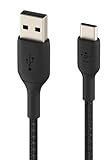
- For new Cronus Zen USB-C Models
- Connect Zen and open Zen Studio using the current official setup instructions.
- Choose the configuration route you intend to use—remapping/settings, a GamePack, or a GPC script—and follow its current documentation.
- If using a GamePack, Cronus’s guide describes loading GamePacks into one of eight memory slots and adjusting them through the Zen’s OLED menu. Consult the instructions for that particular GamePack for its settings and controls.
- Apply and test the configuration in the intended game, using the game’s own control settings where relevant.
These are manufacturer-described features, not a promise of improved performance, reduced input delay, or compatibility with every game.
Troubleshoot without guessing at ports or firmware
Start with the current help material for the exact platform, controller, and software version. The 2020 quick-start guide names old firmware and a bad script as possible causes of errors and includes a reset procedure, but its recovery steps are dated. Use the current help center rather than relying on that PDF for a device reset or firmware recovery. Cronus’s tutorial index also points users to its community for script support.
- Controller is not recognized: Recheck the exact model’s tutorial, any authentication-controller requirement, and whether the USB cable supports data.
- A crossover setup does not connect: Confirm the prescribed adapter and port arrangement for that specific tutorial. Do not copy the PS4 example unless your hardware matches it.
- Configuration behaves unexpectedly: Check the current firmware and the selected script or GamePack instructions before changing unrelated settings.
Online play and account risk
Cronus’s FAQ warns that using third-party devices with online services may result in a ban or block and says it offers no guarantee. This is the manufacturer’s statement, not a platform-holder policy. Check the rules for the specific game and service you use; do not assume a Zen is undetectable, approved, or safe for an account.
Quick Recap
Product prices and availability are accurate as of the date/time indicated and are subject to change. Any price and availability information displayed on Amazon at the time of purchase will apply.



