Crashes, No Sound, or Screen Glitches?
Random freezes, missing sound and display glitches usually trace back to one bad driver. Find and replace yours safely.Free scan · under a minutePC Slower Than It Used to Be?
A free scan shows the junk files, broken settings and background clutter dragging Windows down - then fixes them in one click.Free scan · Windows 10 & 11To invert a camera control in Microsoft Flight Simulator, open Controls Options, find the binding for the camera mode and direction you want to change, then open its settings and enable Invert Axis if that binding is an axis. If the binding is a button or directional action, you may need to swap the actions instead. The available options depend on your device, preset and camera mode.
Start by identifying the camera and input
Before changing a setting, identify the camera mode—cockpit, external, drone or Developer Camera—and the input that moves it. A right stick, mouse or other control may be assigned as an axis in one mode and as separate directional actions in another. Don’t assume that every camera control will have an axis-inversion checkbox.
Microsoft documents customizable controls and multiple schemes for one device through the Preset Manager in its Microsoft Flight Simulator (2020) accessibility guidance. Menu labels and available settings can vary by version, device and selected binding, so use the Controls menu shown in your own installation as the reference.
Invert a camera binding that uses an axis
- Open Controls Options and select the device or preset you use.
- Find the camera action for the mode and direction you want to change. Check that the assigned input is the axis you intend to invert.
- Open that binding’s settings. If the menu offers Invert Axis, enable it.
- Return to the camera and check the direction of movement. If the control still behaves incorrectly, revisit the binding and confirm that you changed the intended mode, direction and input.
The checkbox is only relevant when the selected assignment exposes axis inversion. A community forum report describes an inversion problem that the toggle did not resolve, so treat it as an option to verify rather than a guaranteed fix: community discussion of camera inversion.
The Tool Desk
Outbyte PC Repair FREEClear out junk files and repair common Windows errorsFree Scan →Outbyte Driver Updater FREEFix the driver behind crashes, sound loss and screen glitchesFind Drivers →#1 Best Overall
![Microsoft Flight Simulator 2024 Standard Edition (Pre-Purchase/Launch Day) – Play on Xbox Series X|S and Windows PC [Digital Code]](https://m.media-amazon.com/images/I/51wzIlxO80L._SL160_.jpg)
- CONTENT IS PLAYABLE AT 6AM PST ON NOV-19-2024.**
- MICROSOFT FLIGHT SIMULATOR 2024: Explore the world with our largest fleet of aircraft and take simulation to new heights while pursuing your aviation career within Microsoft Flight Simulator 2024
- STANDARD EDITION: Includes over 65 aircraft and 150 handcrafted airports
- FLY WITH PURPOSE: Pursue your aviation career throughout the world with dynamically generated missions ranging from Medevac and Search & Rescue to Aerial Firefighting and Passenger Transport
- CHALLENGE LEAGUE: Compete against other pilots in the iconic Reno and Red Bull Air Races
If Invert Axis is missing, reverse the camera actions
Some controls are mapped as actions rather than axes, so there may be no axis toggle to use. For the default Xbox Controller and Mouse preset, a forum moderator reported that cockpit and external camera inputs were not configured as axes, while drone-camera inputs were. The moderator’s suggested workaround was to create a new preset and configure the relevant actions in the opposite direction. This advice is specific to that reported preset and may not match another device, platform or build: forum instructions for the default preset workaround.
- In Controls Options, create a new preset rather than overwriting the default.
- Locate the relevant camera actions for the mode you want to adjust.
- Assign the directions to the opposite actions, then check the result in that camera mode.
Use this approach only when the binding is represented as actions and does not offer the axis-inversion setting. The exact action names and available assignments may differ.
Rank #2
![Microsoft Flight Simulator 2024 Premium Deluxe Edition (Pre-Purchase/Launch Day) – Play on Xbox Series X|S and Windows PC [Digital Code]](https://m.media-amazon.com/images/I/51p9VlYT7TL._SL160_.jpg)
- CONTENT IS PLAYABLE AT 6AM PST ON NOV-19-2024.**
- MICROSOFT FLIGHT SIMULATOR 2024: Explore the world with our largest fleet of aircraft and take simulation to new heights while pursuing your aviation career within Microsoft Flight Simulator 2024
- PREMIUM DELUXE EDITION: Includes everything from the Standard Edition plus 25 additional aircraft and 10 additional handcrafted international airports
- FLY WITH PURPOSE: Pursue your aviation career throughout the world with dynamically generated missions ranging from Medevac and Search & Rescue to Aerial Firefighting and Passenger Transport
- CHALLENGE LEAGUE: Compete against other pilots in the iconic Reno and Red Bull Air Races
Drone and Developer Camera controls
In Microsoft Flight Simulator 2024, the Developer Camera uses the in-sim Drone Camera controls as its basis, according to the official Developer Camera documentation. Editing drone-camera controls may therefore affect inputs used by the Developer Camera. The documentation also lists developer-mode defaults, including Alt plus mouse buttons for look-at operations and keyboard inputs for camera movement; these are Developer Camera details, not general instructions for inverting cockpit or external views.
Independent reader supportYour contribution helps us test, update, and keep practical guides available for everyone.Why the same control may feel different in 2020 and 2024
Community posts describe users encountering camera-direction differences between Microsoft Flight Simulator 2020 and 2024, including external-camera inversion reports. Those reports establish that players have encountered the issue, not that every version, preset or controller behaves the same way. Check the binding and input type in the Controls menu for the version and camera mode you are using; a setting that applies to one mode may not change another.
Quick wins for a faster PC:
Fix the driver behind crashes, sound loss and screen glitchesFind Drivers →Repair Windows errors before they cause bigger problemsFix Now →Quick Recap
Best Value
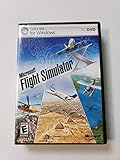
- Product Description Microsoft Flight Simulator X Deluxe Edition - complete package Category GamesSub
- License Type Complete package ESRB Rating Everyone (6+) - WARNING: The solder used in this product contains lead, a chemical known to the State of California to cause birth defects and other reproductive harm. Please wash hands after handling internal components and circuit boards and avoid inhalation of fumes if heating the solder.
- PEGI Rating 3+ License Qty 1 user License Pricing Standard Language(s) English
- Localization North America Platform Windows Distribution Media DVD-ROM Package Type Retail
- Compatibility PC - NOTE: THIS PRODUCT CANNOT BE SHIPPED TO MASSACHUSETTS OR DISTRICT OF COLUMBIA (WASHINGTON, D.C.)
Rank #4
![Microsoft Flight Simulator: Premium Deluxe Edition – Windows 10 [Digital Code]](https://m.media-amazon.com/images/I/51N9fK2dhWL._SL160_.jpg)
- From light planes to wide-body jets, fly highly detailed and accurate aircraft in the next generation of Microsoft Flight Simulator.
- The Premium Deluxe Edition includes everything from Microsoft Flight Simulator plus 10 additional highly accurate planes with unique flight models and 10 additional handcrafted international airports.
Rank #3

- MICROSOFT FLIGHT SIMULATOR 2024: Explore the world with our largest fleet of aircraft and take simulation to new heights while pursuing your aviation career within Microsoft Flight Simulator 2024.
- PREMIUM DELUXE STEELBOOK EDITION: Includes the Jumbo SteelBook case, custom pilot's lanyard with Standard Edition digital game code, and a message from the developer.
- FLY WITH PURPOSE: Pursue your aviation career throughout the world with dynamically generated missions ranging from Medevac and Search & Rescue to Aerial Firefighting and Passenger Transport.
- CHALLENGE LEAGUE: Compete against other pilots in the iconic Reno and Red Bull Air Races.
- ADVANCED SIMULATION: Enhanced physics and aircraft systems and a groundbreaking flight planner create an unparalleled simulation experience.
When the change does not work
- No Invert Axis option: Check whether the binding is an action rather than an axis. If it is, try reversing the directional actions in a separate preset.
- The wrong view still moves: Recheck which camera mode and direction the binding controls. Cockpit, external and drone controls may have separate assignments.
- Developer Camera changed too: In MSFS 2024, check the drone-camera assignments as well, because the Developer Camera is based on those controls.
- The checkbox did not fix the direction: Confirm that the intended axis is assigned to the binding, then test the relevant camera mode. Forum reports do not establish a universal fix.
Product prices and availability are accurate as of the date/time indicated and are subject to change. Any price and availability information displayed on Amazon at the time of purchase will apply.



