Recommended Free Tools
Deadlock’s co-op fantasy hits hardest when you’re locking lanes and coordinating ult timers with people you actually trust. Valve clearly designed the game around team synergy, but because Deadlock is still in an active playtest phase, the party system isn’t as plug-and-play as longtime Steam users might expect. Understanding how parties work right now saves you from failed queues, mismatched lobbies, and the classic “why can’t I invite you?” spiral.
At its core, Deadlock uses Steam’s native social framework layered on top of Valve’s internal matchmaking rules. That means your ability to squad up is governed just as much by backend restrictions as it is by what you see in the UI. Before you even open the invite menu, there are a few system-level realities you need to understand.
Playtest Status and Why It Matters
Deadlock is not fully released, and that changes everything about how parties behave. Access is tied to Valve’s playtest permissions, so every player in your group must be individually approved to play Deadlock on Steam. If one friend lacks access, they simply won’t appear as inviteable, even if they’re online and in your friends list.
Because this is a controlled test environment, features are intentionally limited and subject to rapid iteration. Party tools may feel barebones compared to Dota 2 or CS2, and that’s by design. Valve is prioritizing matchmaking data and gameplay balance over social convenience for now.
Free tools Windows power users keep installed
One-click scans. No signup required.
#1 Best Overall

- TRIFORCE 50MM DRIVERS GEN-2 — Tuned for improved clarity and positional performance, the Gen-2 drivers not only deliver more powerful audio, but have an improved soundstage to clearly hear every footstep and audio cue
- DETACHABLE HYPERCLEAR CARDIOID 9.9MM MIC — The mic’s unidirectional pickup pattern ensures more voice and less noise, while its detachable design allows for easy removal when not in use
- HYPERSPEED WIRELESS — Featuring an ultra-fast 2.4 GHz wireless connection, enjoy high-performance, low-latency competitive play with sound that’s perfectly synced to the game
- 3 MODES OF CONNECTIVITY — Gain the competitive edge when gaming on PC, console or mobile; seamlessly switch between 2.4 GHz and Bluetooth with SmartSwitch Dual Wireless or stay plugged in for non-stop gaming via USB
- 7.1 SURROUND SOUND — With our advanced 7.1 surround sound, enjoy true-to-life acoustics that optimizes the game’s sound design to hear everything like being right in the middle of it all
Party Size Limits and Role Expectations
Deadlock currently supports small, fixed-size parties that align with its core team structure. You can’t stack an oversized group and expect the system to split you up intelligently. If your party exceeds the allowed size, matchmaking will simply be locked until someone leaves.
This restriction directly affects role selection and hero overlap. Coordinated groups have a real advantage, which is why Valve keeps party sizes controlled to protect solo and duo players from getting steamrolled by full premades.
Matchmaking Rules for Grouped Players
When you queue as a party, Deadlock treats your group as a single competitive unit. Matchmaking will attempt to place you against other grouped players with comparable MMR, not just equivalent individual skill. This can increase queue times, especially during off-peak hours or if your party has a wide skill spread.
Mixed-skill parties are allowed, but expect tougher matches if one player’s rating is significantly higher. The system compensates aggressively, often matching you against mechanically stronger opponents to balance the advantage of coordination. If games suddenly feel sweatier after grouping up, that’s not RNG—it’s intentional.
Do these 3 things before closing this tab:
1Repair Windows errors before they cause bigger problems2Fix the driver behind crashes, sound loss and screen glitches3Clear out junk files and repair common Windows errorsSteam Integration and Visibility Rules
Deadlock’s party system pulls directly from your Steam friends list, with no in-game friend system of its own. Both players must be online, visible, and not set to Offline or Invisible mode on Steam. If someone doesn’t show up, it’s almost always a Steam presence issue, not a Deadlock bug.
Additionally, Steam Family Sharing does not bypass playtest access. Even if Deadlock appears in your library through sharing, you won’t be eligible for invites unless Valve has granted access to that specific account.
Known Limitations and Common Friction Points
You cannot invite friends while actively searching for a match or loading into one. Parties must be formed from the main menu hub before queueing. If someone crashes or disconnects, re-invites may require backing out to reset the party state.
Cross-region partying is technically possible but comes with latency trade-offs. Matchmaking prioritizes server stability over party convenience, so international groups may experience longer queues or inconsistent performance. For now, Deadlock rewards tight coordination, similar ping, and patience with a system that’s still evolving.
Quick wins for a faster PC:
Repair Windows errors before they cause bigger problemsFix Now →Fix the driver behind crashes, sound loss and screen glitchesFind Drivers →Clear out junk files and repair common Windows errorsFree Scan →Prerequisites Before Inviting Friends (Steam Friends, Access Requirements, and Version Checks)
Before you even look for the invite button, Deadlock has a few hard gates you need to clear. Most party issues don’t come from broken UI or bad netcode—they come from missing one of these baseline requirements. Lock these in first, and the actual invite process becomes painless.
Steam Friends List and Presence Status
Deadlock does not support manual friend codes or in-game searches. If someone isn’t on your Steam friends list, they simply cannot be invited, full stop. Make sure the friendship is accepted on both ends and not stuck in a pending request state.
Equally important is Steam presence. Both players must be online and visible; Offline or Invisible mode will prevent Deadlock from detecting them as invite-eligible. If a friend isn’t showing up in your party panel, have them toggle their Steam status to Online and relaunch the game.
Playtest Access and Account Eligibility
Deadlock is still access-gated, and Valve enforces this at the account level. Every player in a party must have direct playtest access granted to their Steam account. Family Sharing does not count, even if the game appears playable in the library.
If your friend can’t launch Deadlock on their own account, they won’t appear in your invite list. This is one of the most common pain points for new squads, especially among groups mixing longtime Valve players with newcomers.
Game Version and Client Sync
Both players must be running the same Deadlock build. If one of you is mid-update or stuck on an older client version, invites will fail silently or not appear at all. Always let Steam fully patch the game before attempting to party up.
This matters even more during frequent playtest updates, where hotfixes can roll out without much warning. If invites suddenly stop working after a patch, a quick restart and version check usually fixes it.
Platform and Region Considerations
Deadlock currently supports PC only, and all party members must be on Steam. There’s no cross-platform layer or workaround, so everyone needs to be launching from the same ecosystem. Running through Proton or alternative setups can sometimes interfere with presence detection.
Outdated Drivers Are Slowing You Down
One free scan finds every outdated or missing driver and matches the right update for your exact hardware.Free scan · exact hardware matchPC Slower Than It Used to Be?
A free scan shows the junk files, broken settings and background clutter dragging Windows down - then fixes them in one click.Free scan · Windows 10 & 11Region doesn’t block invites, but it can affect how the party behaves once formed. Cross-region groups may experience slower party syncing or delayed invites, especially during peak hours. If something feels off, re-forming the party from the main menu often stabilizes it.
Main Menu State and Invite Availability
Invites can only be sent from the main hub. If you’re in a queue, a post-match screen, or transitioning between menus, the invite option will be locked out. Back all the way out until your player card is idle and visible.
This also applies after disconnects or crashes. Deadlock can sometimes think a party still exists when it doesn’t, so resetting to the main menu ensures the system is clean before you start sending invites again.
Inviting Friends From the Main Menu (In-Game Party UI Walkthrough)
Once you’ve confirmed everyone meets the prerequisites, the actual invite process is handled entirely through Deadlock’s main menu party interface. Valve keeps this system intentionally lightweight, but that also means it’s easy to miss key UI elements if you’re rushing between matches.
This is the cleanest and most reliable way to squad up, especially during the playtest phase where backend hiccups are more common.
Rank #2

- Enjoy expansive cinematic sound. Big 50 mm audio drivers deliver an incredible sound experience
- Hear Enemies From All Sides. DTS Headphone:X 2.0 surround sound(1) lets you hear enemies sneaking behind you, special ability cues, and immersive environments. It’s positional clarity that can make the difference between victory and defeat. Experience three-dimensional audio that goes beyond 7.1 channels to make you feel like you’re right in the middle of the action. (1) DTS Headphone:X 2.0 requires Logitech G HUB Software.
- Be Heard Loud and Clear. The big 6 mm boom mic makes sure you’re heard by gaming partners and mutes when flipped up.
- Use One Headset For Most Game Platforms. Your headphones work with your PC or Mac via USB DAC or 3.5 mm cable, mobile devices with 3.5 mm cable or with gaming consoles including PlayStationⓇ 5 and PlayStationⓇ 4 (USB wireless stereo sound only), Nintendo Switch (wireless stereo sound when docked)
- Game for Hours in Comfort. Everything about these headphones is about comfort: The deluxe lightweight leatherette ear cups and headband are made to keep pressure off your ears. Ear cups rotate up to 90 degrees for convenience.
Accessing the Party Panel
From the main menu hub, look to the top-left portion of the screen where your player card is displayed. This is your anchor point for all social actions in Deadlock, including party management and presence status.
Click your player card to open the party panel. If you’re solo, it will show empty party slots with an option to invite friends. If you’re already grouped, this panel becomes your control center for managing the squad.
Inviting Friends Through the In-Game List
Inside the party panel, select the Invite Friends option. Deadlock pulls directly from your Steam friends list, filtering out anyone who doesn’t meet the requirements discussed earlier.
Only friends who are online, running Deadlock, and have valid playtest access will appear as inviteable. If someone is missing from the list, it’s almost always due to access or client version issues, not a UI bug.
Steam Overlay Integration and Manual Invites
If the in-game list feels limited or doesn’t refresh correctly, you can use the Steam overlay as a backup. Press Shift+Tab to bring up Steam, right-click your friend’s name, and select Invite to Play or Invite to Game if the option appears.
This sends a direct Steam-level invite that Deadlock can interpret, often bypassing minor presence sync issues. It’s especially useful if a friend just launched the game and hasn’t fully appeared in your in-game list yet.
Accepting Invites and Party Sync Behavior
When your friend receives an invite, it will appear as a Steam notification and an in-game prompt if they’re already at the main menu. Accepting immediately pulls them into your party without requiring a restart or reload.
What’s actually slowing this PC down?
Pick the symptom - the matching free tool is one click away.
Deadlock will briefly resync the party state once everyone is grouped. During this moment, avoid queuing or changing modes, as doing so can cause the party to desync or kick a member back to solo.
Common UI Pitfalls and Quick Fixes
If an invite button is greyed out or unresponsive, back out to the main menu and reopen the party panel. Deadlock sometimes fails to refresh party permissions after matches or canceled queues.
If invites are sent but never received, have both players return to the main menu and restart the Steam client if necessary. This hard refreshes Steam presence, which Deadlock relies on heavily for party functionality.
Confirming Party Status Before Queuing
Before jumping into matchmaking, double-check that every party slot is filled correctly and showing a green, connected status. If someone appears as loading or idle for too long, the party may not be fully synced.
Starting a match with a partially synced party is one of the fastest ways to get split into separate queues. Taking five extra seconds here saves a lot of frustration later.
Inviting Friends Directly Through Steam Overlay (Shift+Tab Method Explained)
When Deadlock’s in-game party menu is being stubborn, the Steam overlay is your most reliable fallback. Because Deadlock is tightly integrated with Steam’s social layer, overlay invites operate at the client level rather than the UI layer, which means fewer sync hiccups and faster party formation.
This method is especially valuable during playtests, hotfix windows, or right after a match ends, when the in-game friends list may lag behind real-time Steam presence.
Prerequisites Before Using the Steam Overlay
Before opening the overlay, make sure both you and your friend are logged into Steam, set to Online status, and actively running Deadlock. If either player is Offline, Invisible, or launching the game, the invite options may not appear at all.
It also helps if both players are already at the main menu. While invites can work mid-session, Deadlock is far more consistent when the receiving player isn’t transitioning between menus or loading screens.
Opening the Steam Overlay and Sending an Invite
While Deadlock is running, press Shift+Tab to open the Steam overlay. This pauses nothing in-game, so avoid doing this mid-match or during hero selection if you don’t want distractions.
From the overlay, open your Friends List, right-click the friend you want to invite, and select Invite to Play or Invite to Game. The exact wording can vary, but both function the same for Deadlock and send a direct party invite through Steam’s backend.
How Deadlock Interprets Steam Invites
Once the invite is sent, Deadlock listens for the Steam event and automatically translates it into a party request. If your friend accepts while at the main menu, they’ll be pulled directly into your lobby with no extra prompts or confirmation screens.
The Tool Desk
Outbyte PC Repair FREEClear out junk files and repair common Windows errorsFree Scan →Outbyte Driver Updater FREEFix the driver behind crashes, sound loss and screen glitchesFind Drivers →If they’re already in Deadlock but not fully loaded, the invite may queue briefly before triggering. This is normal behavior and usually resolves within a few seconds as Steam updates presence and session data.
Accepting Steam Overlay Invites Without Issues
On the receiving end, the invite appears as a Steam pop-up and, in most cases, an in-game notification. Clicking either does the same thing, but accepting from the Steam notification tends to be more reliable if Deadlock’s UI is slow to respond.
Rank #3

- 100+ GAME AUDIO PRESETS — Unlock tailored audio presets for top games like GTA V, FIFA, Call of Duty, and more, with the Arctis Nova 5 Companion App
- 60-HOUR BATTERY — Play longer than ever with the next-gen battery. Go 8 hours a day all week; plus with USB-C Fast Charge get 6 hours of use in just 15 minutes
- QUICK-SWITCH WIRELESS — Toggle between 2.4GHz gaming and Bluetooth 5.3 with a tap of a button to take a call or listen to media; notification beeps keep you posted on incoming calls while gaming
- NEODYMIUM MAGNETIC DRIVERS — These drivers create an ultra-detailed soundscape of crystal clear highs, pinpoint mids, and deep bass for your space journey
- NEXT-GEN MIC — Our upgraded, fully retractable ClearCast 2.X microphone has 2X the clarity with a high-bandwidth chipset supporting 32KHz/16Bit audio
If nothing happens after accepting, have the receiving player back out to the main menu. Deadlock won’t force a party join if the player is locked into a sub-menu or post-match screen.
Common Steam Overlay Problems and Fixes
If Invite to Play is missing when you right-click a friend, it usually means Steam hasn’t registered both players as being in the same game ecosystem yet. Closing and reopening the overlay, or briefly returning to the Deadlock main menu, often forces a refresh.
Quick wins for a faster PC:
Scan for outdated or missing drivers - takes under a minuteDriver Scan →Repair Windows errors before they cause bigger problemsFix Now →In rare cases, the overlay itself may be disabled. Check Steam’s settings under In-Game and confirm that the Steam Overlay is enabled globally and for Deadlock specifically.
Why the Overlay Method Is the Most Reliable Backup
The Steam overlay bypasses Deadlock’s front-end party UI and talks directly to Steam’s session system. That makes it the best option when invites fail, buttons are greyed out, or friends refuse to appear despite being online.
If you’re trying to squad up quickly and avoid desyncs, the Shift+Tab method is the closest thing Deadlock has to a hard-reset invite. Mastering it ensures you can always form a party and get back into matches without fighting the UI.
Joining a Friend’s Party or Accepting Invitations (What the Invitee Sees)
Once an invite is sent, the ball is fully in the invitee’s court. This is where Deadlock’s tight Steam integration can either feel seamless or confusing, depending on what screen you’re on and how quickly you respond. Understanding what the game prioritizes helps you avoid failed joins and silent timeouts.
The Tool Desk
Outbyte PC Repair FREERepair Windows errors before they cause bigger problemsFix Now →Outbyte Driver Updater FREEScan for outdated or missing drivers - takes under a minuteDriver Scan →Where the Invite Actually Appears
Most of the time, you’ll see a Steam notification pop up in the lower-right corner of your screen saying you’ve been invited to play Deadlock. If you’re already in-game, Deadlock may also show a smaller in-client prompt, but Steam’s notification is the authoritative one.
Clicking Accept from either source should work, but Steam’s pop-up is more reliable if the Deadlock UI is mid-refresh or partially loaded. If you miss the pop-up, you can still accept by opening the Steam overlay and checking recent invites or your friend’s profile.
What Happens After You Click Accept
If you’re sitting at Deadlock’s main menu, the transition is nearly instant. You’ll be pulled into your friend’s party lobby with no confirmation screen, no ready check, and no extra input required.
If you’re loading into the game, browsing menus, or sitting on post-match screens, Deadlock may delay the join. This isn’t a rejection or bug; the game is waiting for a safe state before transferring you into the party session.
Do these 3 things before closing this tab:
1Scan for outdated or missing drivers - takes under a minute2Clear out junk files and repair common Windows errors3Fix the driver behind crashes, sound loss and screen glitchesStates That Can Block or Delay Party Joins
Deadlock will not interrupt active gameplay, hero select, or end-of-match reward screens. If you accept an invite during one of these moments, the request can silently fail or stall without feedback.
To force the join, manually return to the main menu after accepting the invite. This gives Deadlock a clean handoff point to complete the party transfer through Steam’s session system.
Joining Directly From a Friend’s Steam Profile
If invites aren’t popping up at all, you can still join manually. Open the Steam overlay, right-click your friend’s name, and select Join Game if it’s available.
This method bypasses Deadlock’s front-end entirely and tells Steam to attach you directly to your friend’s active party. It’s especially useful during playtests, where UI elements may be unfinished or temporarily disabled.
Free tools Windows power users keep installed
One-click scans. No signup required.
How Deadlock Confirms You’re in a Party
Once the join succeeds, you’ll see your friend’s name and hero slot appear in the party panel. You don’t need to click Ready unless the party leader queues for matchmaking.
If you don’t see yourself in the party after accepting, you’re not actually connected yet. Backing out to the main menu and re-accepting the invite is faster than waiting and hoping the session syncs.
When to Decline and Re-Accept an Invite
If you accept an invite and nothing happens within five to ten seconds, treat it as a soft failure. Ask your friend to resend the invite once you’re fully at the main menu.
Deadlock does not stack or refresh old invites reliably. A clean resend after resetting your menu state is often all it takes to lock the party and move on to matchmaking.
Starting a Match Together (Party Leader Controls, Queues, and Game Modes)
Once everyone is visibly locked into the same party panel, control shifts almost entirely to the party leader. Deadlock does not use a shared voting system or ready check at this stage. Whoever created the party decides when and how matchmaking starts.
This is where most confusion happens for new groups, especially players expecting each person to confirm separately. In Deadlock, silence usually means things are working as intended.
What the Party Leader Actually Controls
The party leader is the only player who can queue for a match, cancel matchmaking, or switch game modes. Non-leaders cannot override these actions, even if they’re the ones who joined last.
Rank #4
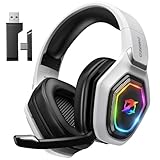
- 【Amazing Stable Connection-Quick Access to Games】Real-time gaming audio with our 2.4GHz USB & Type-C ultra-low latency wireless connection. With less than 30ms delay, you can enjoy smoother operation and stay ahead of the competition, so you can enjoy an immersive lag-free wireless gaming experience.
- 【Game Communication-Better Bass and Accuracy】The 50mm driver plus 2.4G lossless wireless transports you to the gaming world, letting you hear every critical step, reload, or vocal in Fortnite, Call of Duty, The Legend of Zelda and RPG, so you will never miss a step or shot during game playing. You will completely in awe with the range, precision, and audio quality your ears were experiencing.
- 【Flexible and Convenient Design-Effortless in Game】Ideal intuitive button layout on the headphones for user. Multi-functional button controls let you instantly crank or lower volume and mute, quickly answer phone calls, cut songs, turn on lights, etc. Ease of use and customization, are all done with passion and priority for the user.
- 【Less plug, More Play-Dual Input From 2.4GHz & Bluetooth】 Wireless gaming headset adopts high performance dual mode design. With a 2.4GHz USB dongle, which is super sturdy, lag<30ms, perfectly made for gamers. Bluetooth mode only work for phone, laptop and switch. And 3.5mm wired mode (Only support music and call).
- 【Wide Compatibility with Gaming Devices】Setup the perfect entertainment system by plugging in 2.4G USB. The convenience of dual USB work seamlessly with your PS5,PS4, PC, Mac, Laptop, Switch and saves you from swapping cables.
If you’re not the leader and nothing is happening, you’re waiting on them. There is no visual countdown, prompt, or confirmation for party members until the queue begins.
Outdated Drivers Are Slowing You Down
One free scan finds every outdated or missing driver and matches the right update for your exact hardware.Free scan · exact hardware matchWindows Errors? Fix Them Before They Spread
Repair common Windows errors and clear accumulated junk for a smoother, more stable PC - no reinstall needed.Free scan · no reinstallSelecting Game Modes and Queues
Deadlock currently ties party matchmaking to the leader’s selected mode. Whether it’s standard matchmaking, unranked testing queues, or limited playtest modes, everyone in the party is pulled into the same queue automatically.
If a mode is unavailable for parties, it simply won’t queue. Deadlock doesn’t always explain why, so if the Queue button does nothing, have the leader switch modes and try again.
Party Size, Matchmaking Rules, and Silent Restrictions
Some queues enforce party size limits behind the scenes. If your party exceeds the allowed size, the queue may fail without a clear error message.
When this happens, break the party down, re-form it, and try again with fewer players. During playtests, these restrictions change frequently and aren’t always communicated in the UI.
What Happens When the Leader Queues
The moment the leader hits Queue, all party members are automatically pulled into matchmaking. There is no individual accept prompt, no ready toggle, and no pop-up to confirm participation.
If someone is still transitioning menus or stuck on a results screen, they may not get pulled in. This is why it’s critical that everyone is at the main menu before the leader queues.
Canceling, Re-Queuing, and Leader Changes
Only the party leader can cancel the queue once matchmaking starts. If the leader leaves the party, leadership automatically passes to another member, but the queue may drop.
If something feels desynced, the fastest fix is to disband the party entirely and reform it. Deadlock’s party system favors clean restarts over trying to salvage a broken session.
Loading Into the Match Together
Once matchmaking succeeds, the entire party loads into the same match instance. You don’t need to re-invite, rejoin, or confirm anything during hero select.
If one player fails to load while others get in, that’s almost always a connection or state issue on their end. At that point, backing out and reforming the party before re-queuing is more reliable than waiting for a reconnect.
Independent reader supportYour contribution helps us test, update, and keep practical guides available for everyone.Common Problems and Fixes (Invites Not Showing, Offline Status, Region Issues)
Even if you follow every step correctly, Deadlock’s party system can still misfire. Most invite issues aren’t user error—they’re side effects of Steam presence, playtest flags, or backend sync problems.
If invites fail, don’t spam buttons. Treat it like troubleshooting a broken queue: identify the state issue, reset it cleanly, and try again.
What’s actually slowing this PC down?
Pick the symptom - the matching free tool is one click away.
Invites Not Showing Up
If you send an invite and your friend never receives it, the most common culprit is menu state desync. Both players must be fully loaded into Deadlock’s main menu, not hero select, post-match screens, or background loading.
Have both players return to the main menu, wait a few seconds, then resend the invite. If that fails, disband any existing party, restart Deadlock on both ends, and try again before joining any queues.
Another silent blocker is Steam overlay failure. If Shift+Tab doesn’t open Steam while Deadlock is running, invites may silently fail. Restart Steam entirely, then relaunch Deadlock from the Steam library, not a desktop shortcut.
Friends Appearing Offline or Uninviteable
If your friend shows as Offline or Away inside Deadlock but Online on Steam, it’s a presence sync issue. Deadlock reads Steam status at launch and doesn’t always refresh it correctly.
The fastest fix is for the affected player to toggle their Steam status manually. Set it to Offline, wait a few seconds, then switch back to Online before restarting Deadlock.
Also check Steam’s Friends Network settings. If either player has limited visibility, private profiles, or blocked communications, Deadlock may fail to populate invite options even though Steam chat still works.
Playtest Access Mismatch
During Deadlock playtests, invite visibility is gated by access flags. If one player is in the playtest build and the other isn’t, invites will not appear at all, with no warning.
Both players must be running the same Deadlock build branch. Verify this by checking the game version in Steam and confirming both accounts are enrolled in the same playtest or test wave.
Recommended Free Tools
Best Value

- ADVANCED PASSIVE NOISE CANCELLATION — sturdy closed earcups fully cover ears to prevent noise from leaking into the headset, with its cushions providing a closer seal for more sound isolation.
- 7.1 SURROUND SOUND FOR POSITIONAL AUDIO — Outfitted with custom-tuned 50 mm drivers, capable of software-enabled surround sound. *Only available on Windows 10 64-bit
- TRIFORCE TITANIUM 50MM HIGH-END SOUND DRIVERS — With titanium-coated diaphragms for added clarity, our new, cutting-edge proprietary design divides the driver into 3 parts for the individual tuning of highs, mids, and lowsproducing brighter, clearer audio with richer highs and more powerful lows
- LIGHTWEIGHT DESIGN WITH BREATHABLE FOAM EAR CUSHIONS — At just 240g, the BlackShark V2X is engineered from the ground up for maximum comfort
- RAZER HYPERCLEAR CARDIOID MIC — Improved pickup pattern ensures more voice and less noise as it tapers off towards the mic’s back and sides
If access was granted recently, a full Steam restart is often required. Steam sometimes delays entitlement updates, which makes players appear incompatible until the client refreshes.
Region and Server Restrictions
Region mismatch can block party formation even if invites technically go through. Deadlock prioritizes server regions behind the scenes, especially during limited tests.
If players are in different regions, the party may form but fail to queue, or the invite may not appear at all. Have the party leader manually change their preferred matchmaking region to a neutral or shared option before inviting.
Using a VPN can also break invites entirely. Deadlock’s backend may flag the connection as unstable or mismatched, causing silent failures. Disable VPNs on all party members before attempting to invite.
When All Else Fails: The Hard Reset Fix
If nothing works, perform a full reset. All players should close Deadlock, exit Steam completely, wait 30 seconds, then relaunch Steam and the game.
Once back in, confirm Steam overlay works, check Online status, return to the main menu, and reform the party from scratch. As frustrating as it sounds, Deadlock’s party system responds best to clean states, not partial fixes.
Advanced Tips for Squads and Playtests (Re-invites, Party Persistence, and Social Features)
Once you’ve cleared the common invite blockers, it’s time to optimize how your squad actually functions inside Deadlock. Valve’s party systems are deceptively simple on the surface, but there are several behaviors under the hood that matter a lot during playtests and long sessions. Understanding these quirks will save you from constant reinvites, broken queues, and mid-session desyncs.
Re-inviting After Disconnects and Crashes
If a player crashes or disconnects mid-session, Deadlock does not always release their party slot cleanly. From the party leader’s perspective, the game may still think the player is present, even though they’re gone. In this state, invites will silently fail.
Do these 3 things before closing this tab:
1Repair Windows errors before they cause bigger problems2Fix the driver behind crashes, sound loss and screen glitches3Clear out junk files and repair common Windows errorsThe fastest fix is for the party leader to leave the party and immediately reform it. This hard refreshes the party state and clears ghost slots. Once reformed, send a fresh invite through the in-game social menu or Steam overlay rather than using the recent players list, which is often stale.
How Party Persistence Actually Works
Deadlock does not support true party persistence across restarts. If the party leader closes the game or loses connection, the entire party is effectively dissolved, even if members still see each other listed.
Because of this, always designate a stable connection as party leader. If you know someone is on shaky Wi-Fi or testing a new region, make them a regular member instead. This reduces the chance of the whole squad being kicked back to menu after a single drop.
Playtest Queue Behavior and Locked Parties
During playtests, Deadlock aggressively locks parties once matchmaking begins. If a player joins late or accepts an invite while the party is already queuing, they may appear in the lobby but won’t actually be registered for the match.
Recommended Free Tools
To avoid this, only queue once all players are fully visible in the party panel and showing a ready state. If someone joins after queueing starts, cancel the search, wait a few seconds, then requeue. Rushing this step is one of the most common reasons squads get split into separate matches.
Steam Overlay vs In-Game Invites
Deadlock supports both Steam overlay invites and in-game party invites, but they don’t behave identically. Steam overlay invites are more reliable if the in-game social panel fails to refresh, especially right after launching the game.
However, once inside Deadlock, stick to one method consistently. Mixing overlay invites and in-game invites in the same session can confuse the party state, particularly during playtests. If invites stop appearing, pick one method, restart the game, and use only that until the session ends.
Using Steam Social Features to Stay Synced
Steam’s social tools are more than just a backup. Setting a custom status like “Playing Deadlock – Squadding” makes it easier for friends to join or know when not to queue solo. This is especially useful during limited tests when invite windows are short.
Voice chat also matters. Even if you’re using Discord for comms, keeping Steam voice enabled helps Deadlock confirm social connectivity. In some cases, fully disabling Steam voice has caused invite options to disappear until re-enabled.
Best Practices for Long Squad Sessions
For extended play sessions, return to the main menu between matches instead of chaining queues endlessly. This gives Deadlock a chance to resync party data and reduces the risk of invite desyncs building up over time.
If someone needs to step away, have them leave the party intentionally rather than idling. Re-inviting a cleanly removed player is far more reliable than trying to recover a half-disconnected slot.
Deadlock is still evolving, especially in playtest environments, and its social systems reflect that experimental edge. Treat party formation like any other high-level mechanic: respect the rules, reset when things feel off, and don’t brute-force broken states. Do that, and squadding up becomes frictionless, letting you focus on team comps, map control, and winning the match instead of fighting the UI.
Quick Recap
Product prices and availability are accurate as of the date/time indicated and are subject to change. Any price and availability information displayed on Amazon at the time of purchase will apply.



