Windows Errors? Fix Them Before They Spread
Repair common Windows errors and clear accumulated junk for a smoother, more stable PC - no reinstall needed.Free scan · no reinstallOutdated Drivers Are Slowing You Down
One free scan finds every outdated or missing driver and matches the right update for your exact hardware.Free scan · exact hardware matchBattlefield 6 doesn’t stutter because your PC is weak. It stutters because Frostbite is ruthless about how it uses CPU resources, and BF6 pushes that engine harder than almost any previous Battlefield. When the game spikes to 90–100% CPU usage, what you’re feeling isn’t random hitching or bad optimization in the traditional sense. It’s Frostbite doing exactly what it was designed to do, just without mercy for unprepared systems.
At its core, Battlefield 6 is a large-scale simulation first and a shooter second. Every explosion, every collapsing wall, every vehicle physics calculation, and every AI-driven background system competes for CPU time in real time. Unlike GPU-bound games where settings scale cleanly, BF6 often becomes CPU-limited even on high-end rigs, especially in 128-player modes or dense urban maps.
Frostbite’s Heavy Reliance on CPU Threads
Frostbite thrives on parallelism, but it also punishes CPUs with weaker single-core performance. While the engine can spread tasks across many threads, key systems like player movement, hit registration, and world-state synchronization still rely on fast main threads. If those threads choke, frame pacing collapses even if your GPU is sitting at 60% usage.
This is why players with older 8-core CPUs or modern CPUs with weaker per-core clocks see stutters during gunfights, not while standing still. Combat multiplies calculations instantly: ballistics, destruction updates, audio occlusion, animation blending, and network reconciliation all fire at once. The CPU becomes the bottleneck long before your GPU breaks a sweat.
#1 Best Overall
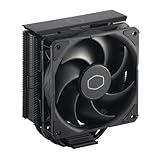
- Cool for R7 | i7: Four heat pipes and a copper base ensure optimal cooling performance for AMD R7 and Intel i7.
- Quiet Cooling Fan: SickleFlow 120 Edge with Dynamic PWM control (690–2,500 RPM), designed for low noise and peak cooling performance.
- Simplify Brackets: Redesigned brackets simplify installation on AM5 and LGA 1851|1700 platforms.
- Versatile Compatibility: 152mm tall design offers performance with wide chassis compatibility.
- Easy Installation: Easy to install with included thermal paste for hassle-free setup and optimal cooling performance.
Destruction, Physics, and Real-Time World Updates
Battlefield 6 doubles down on dynamic destruction, and that comes at a brutal CPU cost. Every crumbling wall isn’t just a visual effect; it’s a physics event with debris tracking, collision checks, and replication across the server. Those calculations happen constantly, not just when something explodes in front of you.
Vehicle-heavy maps amplify this problem. Tanks, helicopters, and transport vehicles all run physics simulations alongside player hitboxes and environmental damage checks. When multiple vehicles clash in a dense area, CPU usage spikes sharply, often causing microstutter or full frame drops that feel like lag but are actually local processing stalls.
Player Count and Network Simulation Overhead
Large player counts are Frostbite’s signature flex, and Battlefield 6 leans into it hard. Every player adds networking overhead: position updates, hit validation, animation states, and latency compensation. The CPU must constantly reconcile what you see versus what the server authoritatively decides happened.
This is why CPU usage skyrockets in full 128-player matches but feels manageable in smaller modes. Even if your ping is low, your CPU is still doing heavy lifting to predict movement, smooth animations, and correct discrepancies. When that system gets overwhelmed, you see stutters, delayed hitmarkers, or uneven frame pacing during chaotic firefights.
Free tools Windows power users keep installed
One-click scans. No signup required.
Background Systems and Windows-Level Interference
Battlefield 6 is extremely sensitive to background CPU usage. Frostbite expects consistent access to CPU time, and Windows doesn’t always cooperate. Background apps, RGB software, browser tabs, overlays, and even certain antivirus scans can steal just enough CPU cycles to cause frame drops.
On high-end PCs, this feels infuriating because raw specs look fine on paper. In reality, Frostbite doesn’t tolerate CPU scheduling interruptions well. One poorly timed background process can disrupt the engine’s frame pipeline, resulting in spikes that feel like the game is broken when it’s actually being starved.
Why GPU Power Alone Won’t Save You
Many players crank graphics settings down expecting CPU relief, only to see no improvement. That’s because most CPU-heavy tasks in Battlefield 6 are independent of visual fidelity. Lowering textures or shadows helps the GPU, not the CPU systems handling physics, players, and networking.
This creates the classic Battlefield trap: ultra-smooth performance in the firing range, followed by chaos in live matches. Until CPU load is balanced properly through engine-aware settings and system-level tweaks, even flagship GPUs won’t prevent stutter when Frostbite decides your processor is the limiting factor.
Quick wins for a faster PC:
Repair Windows errors before they cause bigger problemsFix Now →Fix the driver behind crashes, sound loss and screen glitchesFind Drivers →Clear out junk files and repair common Windows errorsFree Scan →Quick Diagnostics: How to Identify a True CPU Bottleneck vs GPU Limitation
Before you start tweaking settings or blaming Frostbite, you need to know exactly what’s holding your system back. Battlefield 6 can look like a GPU problem while secretly choking your CPU, especially in large-scale modes. Misdiagnosing the bottleneck is how players waste hours changing the wrong settings and see zero improvement.
This section is about fast, practical checks you can do mid-match to pinpoint the real culprit. No guesswork, no placebo fixes.
Watch GPU Usage First, Not CPU Percentage
The fastest tell is GPU utilization during an actual 64v64 match, not the menu or firing range. If your GPU is sitting below 90 percent usage while your frame rate is unstable, that’s a classic CPU bottleneck. Your graphics card is waiting around because the CPU can’t feed it frames fast enough.
High CPU usage alone doesn’t automatically mean a bottleneck. Frostbite will happily use multiple cores aggressively, especially on modern CPUs. What matters is whether that CPU load is preventing your GPU from staying fully engaged.
Do these 3 things before closing this tab:
1Repair Windows errors before they cause bigger problems2Fix the driver behind crashes, sound loss and screen glitches3Clear out junk files and repair common Windows errorsFrame Time Spikes Are the Real Smoking Gun
Average FPS lies in Battlefield 6. Frame time consistency tells the truth. If you’re seeing sudden spikes during explosions, vehicle-heavy pushes, or dense infantry fights, that’s almost always CPU-related.
GPU limits tend to cause steady, predictable drops when visuals ramp up. CPU limits cause chaotic hitching that feels like micro-freezes, even if the FPS counter barely moves. If the stutter lines up with chaos rather than visuals, you’ve found your answer.
Resolution Scaling Test: A Simple Reality Check
Drop your resolution scale by 20 to 30 percent while keeping everything else the same. If performance barely improves, your GPU was never the problem. The CPU workload doesn’t care about resolution, so this test cleanly separates the two.
If FPS jumps noticeably after lowering resolution, congratulations, you’re GPU-limited. If nothing changes, your CPU is already maxed out handling simulation, networking, and draw calls.
Core Saturation Matters More Than Total Usage
Battlefield 6 doesn’t distribute load evenly across all cores. One or two primary threads often carry the heaviest burden. That means you can be CPU-bottlenecked even when total CPU usage looks “fine” at 60 or 70 percent.
Use tools like Task Manager’s per-core view or MSI Afterburner to check for cores pinned near 100 percent. When those cores spike, frame pacing collapses, regardless of how many unused threads you have left.
Compare Match Types to Expose the Bottleneck
Jump between smaller modes and full 128-player warfare using the same settings. If performance feels flawless in 32-player modes but degrades hard in large matches, you’re dealing with a CPU limitation tied to player count and simulation load.
A GPU bottleneck doesn’t care how many players are on the map. A CPU bottleneck absolutely does. This contrast is one of the most reliable Battlefield-specific diagnostics you can run.
Overlay Overload Can Fake a CPU Problem
Performance overlays themselves consume CPU time, especially when stacked. Running multiple monitoring tools, capture software, RGB controllers, and overlays can artificially create CPU spikes that vanish the moment you disable them.
Test Battlefield 6 with the bare minimum running in the background. If stutters disappear, the engine wasn’t the problem, Windows scheduling was. Frostbite is brutally honest about system overhead and exposes weak links fast.
Why Misdiagnosis Breaks Optimization Efforts
If you treat a CPU bottleneck like a GPU problem, you’ll lower graphics settings and gain nothing. If you treat a GPU limit like a CPU issue, you’ll disable background apps and see no change. Battlefield 6 punishes blind tweaking harder than most shooters.
Once you’ve correctly identified where the bottleneck lives, every optimization step becomes intentional instead of random. That clarity is what turns frustration into measurable performance gains.
Recommended Free Tools
In-Game Battlefield 6 Settings That Directly Reduce CPU Load
Once you’ve confirmed the bottleneck is CPU-side, in-game settings become your most powerful lever. Battlefield 6 runs on Frostbite, and Frostbite is extremely sensitive to simulation density, draw call pressure, and real-time destruction logic. Tweaking the right options can free up entire CPU threads without nuking visual clarity.
Player Count and Mode Selection Matter More Than Graphics
This sounds obvious, but it’s foundational. Large-scale modes multiply CPU work through player physics, hitbox updates, vehicle logic, and network sync. Every extra soldier is more than a model on screen; it’s constant simulation overhead.
If your CPU is struggling, prioritize 64-player modes over 128-player chaos. You’ll often gain smoother frame pacing without touching a single graphics slider.
Mesh Quality Is a Hidden CPU Killer
Mesh Quality controls how detailed object geometry is at distance, and more importantly, how many draw calls the CPU has to manage. High mesh settings dramatically increase CPU overhead in dense urban maps.
The Tool Desk
Outbyte PC Repair FREERepair Windows errors before they cause bigger problemsFix Now →Outbyte Driver Updater FREEScan for outdated or missing drivers - takes under a minuteDriver Scan →Dropping Mesh Quality from Ultra to High or Medium can free up a surprising amount of CPU time with minimal visual loss. This is one of the highest-impact changes for mid-to-high-end GPUs paired with weaker CPUs.
Destruction and Effects Quality Hammer Simulation Threads
Battlefield’s signature destruction isn’t just eye candy; it’s real-time physics. Explosions, collapsing cover, debris persistence, and environmental damage all hit CPU simulation threads hard.
Lowering Effects Quality reduces how long debris and particles remain active in the world. The firefight still feels explosive, but your CPU stops tracking dozens of unnecessary physics objects every second.
Terrain and Environmental Detail Scale CPU Load Over Time
Terrain Quality affects more than textures. Higher settings increase environmental interaction fidelity, especially on maps with deformable terrain or heavy vehicle traffic.
What’s actually slowing this PC down?
Pick the symptom - the matching free tool is one click away.
On long matches, this compounds CPU strain as the world state becomes more complex. Dropping Terrain Quality stabilizes performance deep into rounds when stutters usually appear.
Threaded Rendering and API Choice Can Make or Break Performance
If Battlefield 6 offers Threaded Rendering, leave it enabled unless you’re troubleshooting. Disabling it forces more work onto fewer cores, which is the last thing Frostbite wants.
API choice matters too. DirectX 12 can improve CPU efficiency on newer architectures, but on older or mid-range CPUs it can introduce frame pacing issues. If DX12 causes spikes, reverting to DX11 often results in steadier CPU behavior even if peak FPS drops slightly.
Audio Quality Isn’t Free on the CPU
High audio settings increase the number of simultaneous sound sources the CPU must process. In large battles with vehicles, explosions, and voice lines overlapping, this can become non-trivial.
Reducing audio quality by one step keeps spatial awareness intact while lowering CPU overhead during peak combat moments.
Frame Rate Caps Reduce CPU Thrashing
An uncapped frame rate lets Battlefield 6 push the CPU as hard as possible, even when those extra frames don’t improve gameplay. This leads to heat spikes, inconsistent frame times, and stutter during combat transitions.
Set an in-game FPS cap slightly below your monitor’s refresh rate. This stabilizes CPU workload and dramatically improves frame pacing in firefights.
Rank #2
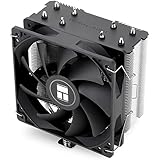
- [Brand Overview] Thermalright is a Taiwan brand with more than 20 years of development. It has a certain popularity in the domestic and foreign markets and has a pivotal influence in the player market. We have been focusing on the research and development of computer accessories. R & D product lines include: CPU air-cooled radiator, case fan, thermal silicone pad, thermal silicone grease, CPU fan controller, anti falling off mounting bracket, support mounting bracket and other commodities
- [Product specification]AX120R SE; CPU Cooler dimensions: 125(L)x71(W)x148(H)mm (4.92x2.8x 5.83 inch); Product weight:0.645kg(1.42lb); heat sink material: aluminum, CPU cooler is equipped with metal fasteners of Intel & AMD platform to achieve better installation
- 【PWM Fans】TL-C12C; Standard size PWM fan:120x120x25mm (4.72x4.72x0.98 inches); fan speed (RPM):1550rpm±10%; power port: 4pin; Voltage:12V; Air flow:66.17CFM(MAX); Noise Level≤25.6dB(A), the fan pairs efficient cool with low-noise-level, providing you an environment with both efficient cool and true quietness
- 【AGHP technique】4×6mm heat pipes apply AGHP technique, Solve the Inverse gravity effect caused by vertical / horizontal orientation. Up to 20000 hours of industrial service life, S-FDB bearings ensure long service life of air-cooler radiators. UL class a safety insulation low-grade, industrial strength PBT + PC material to create high-quality products for you. The height is 148mm, Suitable for medium-sized computer case
- 【Compatibility】The CPU cooler Socket supports: Intel:1150/1151/1155/1156/1200/1700/17XX/1851,AMD:AM4 /AM5; For different CPU socket platforms, corresponding mounting plate or fastener parts are provided
Field of View Quietly Increases Simulation Work
Higher FOV means more objects, players, and effects inside the simulation bubble at all times. The GPU draws more, but the CPU also tracks more active entities.
If you’re running extreme FOV values, reducing it by even five degrees can lower CPU load without hurting awareness or aiming consistency.
Every one of these settings targets Frostbite’s real bottleneck: real-time simulation under scale. Adjust them intentionally, and Battlefield 6 stops fighting your CPU and starts flowing the way it was meant to.
Advanced Frostbite Tweaks: Threading, DX12 Behavior, and CPU Scheduling
Once you’ve stabilized the obvious settings, Frostbite’s deeper behavior starts to matter more than raw hardware. This is where high-end CPUs still stumble, not because they’re weak, but because the engine is extremely sensitive to how threads are fed and scheduled.
These tweaks don’t boost FPS on paper. They eliminate the micro-stutters, mid-round drops, and sudden CPU spikes that ruin consistency in long matches.
Free tools Windows power users keep installed
One-click scans. No signup required.
How Frostbite Actually Uses CPU Threads
Frostbite doesn’t scale linearly across cores. It leans heavily on a few dominant threads handling simulation, physics, and draw call submission, while auxiliary threads support them.
On CPUs with many cores but lower per-core clocks, this can create a false bottleneck where total CPU usage looks fine, but one or two threads are pegged at 100%. That’s when frame time spikes appear even at modest FPS.
Avoid forcing custom thread limits through launch options or config edits. Frostbite dynamically allocates threads better than most manual overrides, and hard limits often make performance worse under load.
DX12 Isn’t Automatically Better for CPU Load
DirectX 12 reduces driver overhead, but it also shifts more responsibility onto the engine and CPU scheduler. When it works, CPU usage drops and frame times smooth out. When it doesn’t, you’ll see erratic spikes that feel like hitching during explosions or vehicle-heavy fights.
Crashes, No Sound, or Screen Glitches?
Random freezes, missing sound and display glitches usually trace back to one bad driver. Find and replace yours safely.Free scan · under a minutePC Slower Than It Used to Be?
A free scan shows the junk files, broken settings and background clutter dragging Windows down - then fixes them in one click.Free scan · Windows 10 & 11Mid-range CPUs are the most vulnerable here. If your GPU utilization drops while CPU usage spikes under DX12, the API is likely stalling on synchronization rather than helping.
Test DX12 and DX11 back-to-back in identical scenarios. If DX11 delivers slightly lower FPS but cleaner frame pacing, that’s the better competitive choice. Consistency wins fights, not peak numbers.
Windows CPU Scheduling Can Fight Frostbite
Windows doesn’t always understand Frostbite’s priority needs, especially on hybrid CPUs with performance and efficiency cores. If the main simulation thread gets bounced to an E-core, stutters are inevitable.
Enable Windows Game Mode, but disable unnecessary overlays and capture tools that inject scheduling hooks. These can steal CPU time at the worst possible moments.
What’s actually slowing this PC down?
Pick the symptom - the matching free tool is one click away.
If you’re on Windows 11, test Hardware-Accelerated GPU Scheduling both on and off. On some systems it reduces CPU overhead, while on others it introduces latency spikes. There’s no universal win here, only what behaves best on your rig.
Background Processes Create Invisible CPU Pressure
Battlefield 6 is extremely sensitive to sudden CPU interruptions. RGB software, browser tabs, launchers, and hardware monitors can all cause brief scheduling conflicts that show up as stutter, not sustained FPS loss.
Before playing, close anything that polls the CPU frequently. This includes temperature monitors running at high refresh rates and cloud sync tools doing background scans.
You’re not freeing raw horsepower here. You’re protecting Frostbite’s critical threads from being preempted mid-frame.
Driver-Level Scheduling and Shader Behavior
Keep GPU drivers updated, but avoid beta branches unless you’re troubleshooting a known issue. Driver regressions often hit DX12 CPU behavior first.
Enable shader cache in the driver control panel and avoid clearing it frequently. Rebuilding shaders mid-match causes CPU spikes that feel like random hitching, especially after updates.
If your system supports it, prefer driver defaults over aggressive low-latency overrides. Forcing ultra-low latency can increase CPU submission pressure, which backfires in large-scale Battlefield matches.
At this level, you’re no longer chasing FPS. You’re shaping how Frostbite, Windows, and your hardware cooperate under stress. When the scheduling is right, Battlefield 6 stops stuttering under chaos and starts feeling locked-in, even when the map is on fire.
Windows & System-Level Optimizations for Battlefield 6 CPU Usage
Once in-game settings and driver behavior are dialed in, Windows itself becomes the final boss. Battlefield 6 leans heavily on consistent CPU scheduling, and even small OS-level inefficiencies can cascade into frame-time spikes when the match gets chaotic.
This is where you stop thinking like a casual player and start thinking like the operating system.
Lock Frostbite to the Right Cores
On modern Intel and AMD CPUs, core behavior matters more than raw clock speed. Battlefield 6’s main simulation and render submission threads hate being migrated between cores mid-frame.
Use tools like Process Lasso or Windows’ built-in affinity controls to ensure Battlefield 6 stays on performance cores. Hybrid CPUs are especially vulnerable here, because Windows can still misjudge workload intensity during large explosions or player density spikes.
Do these 3 things before closing this tab:
1Clear out junk files and repair common Windows errors2Scan for outdated or missing drivers - takes under a minute3Repair Windows errors before they cause bigger problemsYou’re not chasing higher FPS. You’re preventing the engine from losing cache locality and blowing its frame pacing.
Power Plans and CPU Boost Behavior
Windows Balanced mode can downclock your CPU at the worst possible moment. Battlefield 6 doesn’t ramp evenly; it spikes hard during destruction events, vehicle combat, and large player clusters.
Switch to the High Performance or Ultimate Performance power plan before launching the game. This keeps boost clocks responsive and reduces latency when Frostbite suddenly demands CPU time.
Laptop players should also disable CPU power limits imposed by OEM utilities. If the CPU can’t boost freely, the game’s main thread becomes the bottleneck long before the GPU does.
Memory Management and Page File Stability
High CPU usage isn’t always pure compute. It’s often the CPU waiting on memory. Battlefield 6 streams massive amounts of data in real time, and poor virtual memory behavior can cause stutter disguised as CPU load.
Ensure your page file is enabled and system-managed on an SSD. Disabling it or setting it too low forces Windows into aggressive memory compression, which spikes CPU usage during heavy action.
If you have 32GB of RAM or more, this becomes less critical, but it’s still a safety net Frostbite expects to exist.
Windows Security and Real-Time Scanning
Real-time antivirus scanning can interrupt Battlefield 6 at the file system level, especially during map loads and shader compilation. These interruptions don’t tank average FPS, but they destroy consistency.
The Tool Desk
Outbyte Driver Updater FREEScan for outdated or missing drivers - takes under a minuteDriver Scan →Outbyte PC Repair FREEClear out junk files and repair common Windows errorsFree Scan →Add the Battlefield 6 installation folder to your antivirus exclusion list. This prevents background scans from firing during gameplay without compromising overall system security.
Windows Defender is usually fine, but even it can cause brief CPU spikes if left unchecked.
Disable Non-Essential Windows Features During Play
Widgets, background app refresh, live tiles, and system telemetry all add micro-load to the CPU scheduler. Individually they’re harmless, but together they create jitter under stress.
Disable Windows Widgets, background app permissions, and unnecessary startup services before long sessions. Competitive players should treat Battlefield 6 like a tournament environment, not a desktop multitasking scenario.
The goal is a predictable CPU workload, not a clean Task Manager screenshot.
Network and Input Drivers Matter More Than You Think
Faulty network drivers can cause CPU spikes when packet handling goes sideways during high player density matches. Make sure your Ethernet or Wi-Fi drivers are up to date, especially on Windows 11.
Rank #3
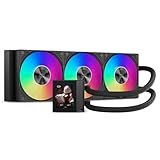
- 310W Cooling for High-End CPUs: Engineered for up to 310W TDP, the DC360 Pro efficiently dissipates heat from demanding processors. Whether gaming, streaming, content creation, or rendering, the large 360mm radiator keeps temperatures under control while maintaining consistent boost performance.
- Customizable 2.4-Inch IPS LCD Display: Stand out with a vivid 2.4-inch IPS LCD (240×320) integrated into the pump housing. Display hardware monitoring information, custom images, or animated content to personalize your gaming setup with a premium appearance. Adjustable screen orientation helps the display remain readable across different mounting positions.
- High Airflow with Low Noise: Three 120mm PWM FDB fans operate from 500–2500 RPM, delivering up to 90.56 CFM airflow and 4.07 mmH₂O static pressure for efficient radiator cooling. Fluid Dynamic Bearings reduce vibration and extend fan lifespan while maintaining quiet operation.
- Reliable Ceramic Pump: The integrated ceramic pump runs at 2600 RPM ±10% with only 15 dBA operating noise, providing stable coolant circulation and long-term durability. Combined with the 394×120×27mm radiator, it delivers efficient thermal performance under sustained workloads.
- Easy Installation & Wide Compatibility: Supports Intel LGA1851/1700/1200/115X and AMD AM5/AM4 platforms. The pre-engineered mounting system simplifies installation while ARGB lighting synchronizes with compatible motherboards for a clean, modern build.
The same goes for mouse software running at extreme polling rates. 8000Hz polling sounds great on paper, but it increases CPU interrupt frequency and can cause stutter in CPU-bound games.
If you’re seeing unexplained spikes, drop polling to 1000Hz and test again.
Quick wins for a faster PC:
Repair Windows errors before they cause bigger problemsFix Now →Fix the driver behind crashes, sound loss and screen glitchesFind Drivers →Clear out junk files and repair common Windows errorsFree Scan →At this stage, Battlefield 6 isn’t fighting your hardware. It’s reacting to how Windows schedules, interrupts, and feeds data to Frostbite under pressure. When the OS gets out of the way, the game finally gets to breathe.
Driver, BIOS, and Firmware Updates That Actually Matter for BF6
Once Windows is no longer tripping over itself, the next CPU bottleneck usually comes from outdated low-level code. Drivers and firmware don’t just affect stability; they directly control how efficiently Frostbite talks to your hardware under full combat load.
This is where a lot of players waste time updating everything blindly. Battlefield 6 doesn’t care about every driver on your system. It cares about the ones that sit between the CPU scheduler, the GPU command queue, and high-frequency I/O.
GPU Drivers: Chasing Stability, Not Just FPS
For Battlefield 6, the newest GPU driver isn’t always the best driver. Frostbite is extremely sensitive to driver-level threading changes, shader compilation behavior, and CPU-side draw call handling.
If a brand-new NVIDIA or AMD driver introduces higher CPU overhead, you’ll feel it immediately as stutter during explosions or vehicle-heavy fights. Look for drivers labeled as Game Ready or Adrenalin releases specifically mentioning Battlefield or Frostbite optimizations.
If your CPU usage spiked after a driver update, rolling back one version is often more effective than tweaking in-game settings. Stability beats theoretical FPS every time in a CPU-limited shooter.
Chipset Drivers: The Silent CPU Performance Killer
Chipset drivers control how Windows schedules threads across CPU cores, how fast memory requests are handled, and how power states shift under load. When these are outdated, Battlefield 6 ends up fighting the OS instead of scaling cleanly across cores.
AMD users should install the latest Ryzen chipset drivers directly from AMD, not Windows Update. These include updated power plans and scheduler optimizations that dramatically reduce CPU spikes in large multiplayer matches.
Recommended Free Tools
Intel users aren’t off the hook either. Updated chipset and MEI drivers can fix erratic boost behavior that causes frame pacing issues when the CPU is bouncing between clocks mid-fight.
BIOS Updates: When They Matter and When They Don’t
A BIOS update won’t magically boost your FPS, but it can eliminate some of the worst CPU behavior in Battlefield 6. Modern BIOS updates often include microcode fixes that improve core scheduling, cache behavior, and memory stability under sustained load.
This is especially important on newer CPUs with hybrid architectures. If E-cores and P-cores aren’t being managed properly, Frostbite’s heavy main thread can get shoved onto the wrong core at the worst possible moment.
Only update your BIOS if the release notes mention CPU stability, memory compatibility, or performance fixes. Flashing for no reason is risky, but skipping critical updates can leave performance on the table.
SSD Firmware and Storage Drivers Affect CPU Load
Battlefield 6 streams massive amounts of data during matches, especially in destruction-heavy maps. If your SSD firmware is outdated, the CPU ends up compensating for inefficient storage behavior.
NVMe drives with old firmware can cause higher CPU usage during texture streaming and shader caching. Check your drive manufacturer’s utility and update firmware if available, especially on drives used exclusively for games.
Also ensure you’re using the correct NVMe or storage controller driver, not a generic fallback. Lower storage latency means fewer CPU stalls when Frostbite requests data mid-match.
USB, Audio, and Peripheral Firmware Isn’t Optional
USB controllers and audio drivers generate constant CPU interrupts. When they’re buggy or outdated, those interrupts stack up fast during intense gameplay.
Update motherboard USB controller drivers and audio firmware from the board manufacturer’s site. Battlefield 6’s positional audio pipeline is CPU-heavy, and bad drivers can amplify spikes during explosions and voice chat.
Peripheral firmware matters too. Mice, keyboards, DACs, and capture devices running old firmware can flood the CPU with unnecessary polling overhead, especially during rapid input bursts.
Why “Optional” Updates Aren’t Optional for Frostbite
Battlefield 6 pushes the CPU harder than most shooters, not through raw calculations, but through coordination. Every driver layer adds or removes friction from that process.
Skipping updates that improve scheduling, reduce interrupt latency, or stabilize boost behavior leaves Frostbite stuck compensating in software. That compensation shows up as high CPU usage, uneven frame times, and lost gunfights you never should’ve lost.
At this level, optimization isn’t about chasing numbers. It’s about removing friction from every layer between your inputs and the engine’s simulation loop.
Independent reader supportYour contribution helps us test, update, and keep practical guides available for everyone.Background Processes, Overlays, and Software Conflicts That Spike CPU Usage
Once your drivers and firmware are clean, the next battlefield is your own operating system. Battlefield 6 doesn’t exist in a vacuum. Every overlay, background service, and “helpful” utility competes with Frostbite for CPU time, and the engine is brutally sensitive to interference during its simulation loop.
This is where a lot of high-end PCs still fall apart. Not because the CPU is weak, but because it’s being asked to juggle too many real-time tasks while also simulating 128-player chaos, destruction physics, audio propagation, and netcode.
Overlays Are the Silent CPU Killers
Overlays hook directly into the rendering and input pipeline. Discord, Steam, EA App, GeForce Experience, Xbox Game Bar, and third-party FPS counters all inject themselves into the game loop.
PC Slower Than It Used to Be?
A free scan shows the junk files, broken settings and background clutter dragging Windows down - then fixes them in one click.Free scan · Windows 10 & 11Crashes, No Sound, or Screen Glitches?
Random freezes, missing sound and display glitches usually trace back to one bad driver. Find and replace yours safely.Free scan · under a minuteIndividually, they seem harmless. Together, they create extra CPU overhead every frame, especially during alt-tabbing, opening the scoreboard, or spawning into dense combat zones.
Disable every overlay you don’t actively need. That means turning off in-game overlays inside Discord, Steam, EA App, and GeForce Experience. If you want an FPS counter, use one source only. Stacking them is asking for frame-time spikes.
Monitoring Software vs Frostbite’s Scheduling
Hardware monitoring tools are notorious for spiking CPU usage at the worst possible moments. Apps like HWMonitor, MSI Afterburner, iCUE, Armoury Crate, NZXT CAM, and RGB control suites constantly poll sensors.
That polling generates interrupts. During Battlefield 6’s heavy simulation ticks, those interrupts collide with Frostbite’s job threads and cause micro-stutters that feel like inconsistent aim or delayed hit registration.
Quick wins for a faster PC:
Scan for outdated or missing drivers - takes under a minuteDriver Scan →Clear out junk files and repair common Windows errorsFree Scan →Close non-essential monitoring tools before launching the game. If you need Afterburner for fan curves, set it once, then fully exit it. Frostbite would rather have fewer sensors than more RGB effects.
Browser Tabs and Background Apps Still Matter in 2026
Yes, even on a 12 or 16-core CPU. Chrome, Edge, and Firefox don’t just sit idle. Video tabs, Discord web, Twitch streams, and even idle pages with animations can wake CPU threads constantly.
Battlefield 6’s CPU load isn’t steady. It spikes during explosions, vehicle engagements, and mass player convergence. If a browser decides to wake a core during that moment, you get a frame-time hitch.
Before launching Battlefield 6, close your browser entirely. Not minimized. Closed. Competitive players already do this instinctively for a reason.
What’s actually slowing this PC down?
Pick the symptom - the matching free tool is one click away.
Antivirus and Real-Time Scanning Conflicts
Real-time antivirus scanning can clash hard with Battlefield 6’s constant file access, especially shader cache writes and anti-cheat activity.
Windows Security is generally well-behaved, but third-party antivirus suites often aren’t. They can spike CPU usage during map loads, respawns, and even mid-match asset streaming.
Add Battlefield 6’s install folder and EA Anti-Cheat to your antivirus exclusion list. If you’re using a heavy third-party suite, consider switching to Windows Security for gaming. Less interference means smoother frame pacing.
Startup Bloat and Services You Don’t Need Mid-Match
Many systems accumulate background services over time. Updaters, launchers, cloud sync tools, printer services, phone link apps, and OEM utilities all start with Windows by default.
Recommended Free Tools
Each one consumes small amounts of CPU, but Battlefield 6 exposes their combined impact. Frostbite doesn’t like sharing, especially on systems where CPU boost behavior depends on thermal and power headroom.
Rank #4

- Build and Support in USA
- Experience elite performance with the Intel processor Core i9-11900KF processor, delivering turbo speeds up to 5.3 GHz for intense gaming, streaming, and multitasking. Paired with the NVIDIA GeForce RTX 5060 Ti 8GB GDDR7 GPU, this build ensures next-gen graphics with real-time ray tracing and DLSS support for ultra-smooth gameplay and realistic visuals.
- 32GB DDR4 high-speed dual-channel RAM and 1 TB NVMe M.2 SSD storage
- Stay cool under heavy loads with a 360mm liquid cooler and ARGB fans that combine performance with customizable lighting. All housed in the stylish Cooler Master TD500 Mesh White case, optimized for airflow and aesthetics.
- 850W Gold Rated PSU ; KB and Mouse are included
Open Task Manager, go to Startup, and disable anything that isn’t essential. If it doesn’t help you aim better, hear footsteps clearer, or improve network stability, it doesn’t belong in a live match.
Why Frostbite Punishes Background Noise More Than Other Engines
Frostbite relies on tight synchronization between simulation, audio, rendering prep, and networking. When background processes interrupt that flow, the engine can’t always smooth it out with buffering.
Other engines hide CPU hiccups behind GPU-bound workloads. Battlefield 6 doesn’t. It exposes them as stutters, delayed inputs, or inconsistent frame pacing right when it matters most.
Do these 3 things before closing this tab:
1Repair Windows errors before they cause bigger problems2Scan for outdated or missing drivers - takes under a minute3Clear out junk files and repair common Windows errorsReducing background CPU noise isn’t about chasing higher average FPS. It’s about protecting your worst moments. The gunfights you lose to stutters aren’t skill issues. They’re scheduling issues.
CPU–GPU Load Balancing: When to Increase Graphics Settings to Improve Performance
After cleaning up background noise, the next big mistake players make is cranking everything to Low and wondering why CPU usage still hits 100 percent. In Battlefield 6, that approach can backfire hard.
Frostbite behaves differently when it’s starved of GPU work. Lower settings don’t always mean lower load overall. Sometimes they just shove more responsibility onto your CPU, and that’s where the stutters begin.
Why “Low Settings” Can Actually Make CPU Usage Worse
When graphics settings are too low, your GPU finishes frames almost instantly. That forces the CPU to feed draw calls, physics updates, destruction data, and network simulation at a much higher rate.
The Tool Desk
Outbyte PC Repair FREEClear out junk files and repair common Windows errorsFree Scan →Outbyte Driver Updater FREEScan for outdated or missing drivers - takes under a minuteDriver Scan →The result is a CPU-bound scenario where your processor is sprinting while your GPU is barely breaking a sweat. You’ll see high CPU usage, low GPU usage, and inconsistent frame pacing, especially during explosions or 128-player chaos.
This is why competitive players with powerful GPUs often get worse performance than expected on Low. They accidentally remove the GPU as a bottleneck.
How Increasing GPU Load Can Smooth Out Frame Times
Raising certain graphics settings shifts work back to the GPU, where it belongs. This gives the CPU breathing room to handle Frostbite’s heavy simulation and networking tasks without spiking.
You’re not chasing prettier visuals here. You’re deliberately balancing the workload so neither component overwhelms the other during intense moments.
When done correctly, average FPS may stay similar, but 1% lows improve dramatically. That’s the difference between winning a gunfight and dying mid-spray to a frame hitch.
Settings That Reduce CPU Pressure Without Killing FPS
Start with resolution scale. Bumping it from 100 percent to 110 or 120 percent is one of the cleanest ways to load the GPU without touching CPU-heavy systems.
Texture quality is another safe increase. Textures live almost entirely on the GPU and VRAM, and higher settings barely affect CPU usage on modern cards.
Anti-aliasing can also help. TAA or similar post-process AA adds GPU work while leaving the CPU mostly untouched, which stabilizes frame delivery in motion-heavy fights.
Free tools Windows power users keep installed
One-click scans. No signup required.
Settings That Look Expensive but Are Actually CPU Traps
Be careful with settings tied to visibility and simulation. View distance, terrain quality, and destruction-related options often increase CPU workload, not GPU load.
On Frostbite, more objects on screen means more draw calls and more simulation updates. Raising these can push an already stressed CPU over the edge, especially during large-scale engagements.
If your goal is balance, increase GPU-centric settings first before touching anything that affects world complexity.
How to Tell If You’re Properly Balanced
Use an overlay like MSI Afterburner or the built-in Windows performance overlay. In a healthy setup, GPU usage should sit consistently above 90 percent during gameplay.
CPU usage doesn’t need to be low, but it shouldn’t be pinned across multiple cores. Spikes are fine. Sustained saturation is not.
When Battlefield 6 feels smooth during explosions, vehicle pushes, and mass respawns, that’s balance. Not a perfect FPS number, but consistent frame delivery when chaos peaks.
When High CPU Usage Is Normal—and When It Signals a Hardware Upgrade Bottleneck
At this point, it’s critical to separate expected behavior from a hard performance ceiling. Battlefield 6 is a CPU-hungry game by design, and seeing high usage doesn’t automatically mean something is broken.
Frostbite aggressively scales across cores, pushing AI logic, destruction physics, audio occlusion, and network synchronization simultaneously. In 64v64 matches, your CPU is constantly juggling hit registration, vehicle physics, and player state updates in real time.
Do these 3 things before closing this tab:
1Clear out junk files and repair common Windows errors2Scan for outdated or missing drivers - takes under a minute3Repair Windows errors before they cause bigger problemsThe key question isn’t “Is my CPU busy?” It’s “Is my CPU the thing stopping my FPS from being stable?”
When High CPU Usage Is Completely Normal
If your CPU usage sits between 70 and 90 percent during large matches, that’s expected. Battlefield 6 is built to use what you give it, especially on modern 6- to 8-core processors.
Short spikes to 100 percent during explosions, mass respawns, or skyscraper-level destruction are also normal. Those moments involve sudden simulation recalculations and network bursts, and Frostbite will briefly max out threads to keep the game state accurate.
As long as those spikes don’t coincide with frame drops, input delay, or stutters, you’re fine. High utilization with smooth frame pacing means your CPU is doing its job.
Recommended Free Tools
The Red Flags That Point to a Bottleneck
Problems start when CPU usage is pinned at or near 100 percent across multiple cores for extended periods. If your GPU usage drops into the 60–70 percent range while FPS tanks, that’s a textbook CPU bottleneck.
This usually shows up as inconsistent 1% lows rather than low average FPS. Gunfights feel uneven, mouse input loses its crispness, and you die mid-spray even though your aim was on point.
Another warning sign is performance that doesn’t improve when lowering graphics settings. If dropping everything to Low barely changes FPS, the CPU is already the limiting factor.
Common Hardware Scenarios That Struggle
Older quad-core CPUs, especially those without strong single-core performance, are hit the hardest. Frostbite loves threads, but it still relies heavily on fast main threads for draw calls and simulation coordination.
Mid-range CPUs paired with very powerful GPUs can also run into imbalance. An RTX-class card waiting on an older CPU creates wasted GPU potential and erratic frame delivery.
Laptop CPUs and thermally constrained systems are another frequent culprit. Even strong mobile processors can throttle under sustained Battlefield loads, turning what should be a smooth match into a stutter fest.
What You Can Fix—and What You Can’t
Before assuming you need new hardware, make sure the basics are covered. Update your chipset drivers, ensure Windows is in High Performance or Ultimate Performance mode, and close background apps that love stealing CPU cycles like browsers, RGB software, and overlays.
Enable XMP or EXPO in BIOS if your RAM isn’t running at its rated speed. Slow memory directly hurts Frostbite’s simulation performance and can exaggerate CPU bottlenecks.
The Tool Desk
Outbyte PC Repair FREERepair Windows errors before they cause bigger problemsFix Now →Outbyte Driver Updater FREEScan for outdated or missing drivers - takes under a minuteDriver Scan →If all that’s done and the CPU still caps out constantly, that’s the upgrade line. No settings tweak or driver update can compensate for a processor that simply can’t keep up with Battlefield 6’s scale.
Knowing When to Upgrade for Battlefield 6
If your GPU rarely hits full usage, your CPU is pegged, and your 1% lows are dragging the experience down, you’re looking at a CPU-bound system. At that point, upgrading the processor—or the platform if necessary—will deliver a bigger performance gain than any graphics card swap.
Battlefield rewards balance more than raw power. A well-matched CPU and GPU combo will feel smoother than a lopsided monster build that collapses under chaos.
The goal isn’t chasing max FPS in an empty test range. It’s holding frame consistency when the map is on fire, vehicles are flooding objectives, and every millisecond decides the outcome of a fight.
If Battlefield 6 feels stable when everything goes wrong at once, your system is doing exactly what it should.
Quick Recap
Product prices and availability are accurate as of the date/time indicated and are subject to change. Any price and availability information displayed on Amazon at the time of purchase will apply.



