Hytale was built with modding in mind from day one, and that design choice shows up everywhere once you peel back the surface. This isn’t a game where mods are an afterthought duct-taped onto a finished product; they’re treated as first-class content alongside vanilla gameplay. If you’ve ever bounced off a sandbox because modding felt risky, unstable, or borderline exploitative, Hytale is aiming to flip that script.
Modding as a Core System, Not a Side Hobby
At its core, Hytale separates game logic, assets, and player-created content in a way that actively encourages experimentation without breaking the base experience. Mods are meant to plug into clearly defined systems rather than brute-force overrides, reducing conflicts and making updates less of a minefield. That philosophy matters because it means fewer broken saves, fewer desyncs in multiplayer, and far less guesswork when something goes wrong.
This also sets expectations early: you’re not hacking the game, you’re extending it. Hytale’s developers have been explicit that creativity should thrive without compromising stability, performance, or security.
What Hytale Officially Supports (and What It Doesn’t)
Officially supported mods are designed to run within Hytale’s sanctioned modding framework, using provided APIs and tools rather than external injectors or memory edits. This includes gameplay systems, custom mobs, items, world generation tweaks, UI changes, and even fully custom game modes that run parallel to the main adventure. If you’ve modded games where one bad DLL tanks your FPS or flags anti-cheat, this is the opposite approach.
Quick wins for a faster PC:
Fix the driver behind crashes, sound loss and screen glitchesFind Drivers →Clear out junk files and repair common Windows errorsFree Scan →#1 Best Overall

- TRIFORCE 50MM DRIVERS GEN-2 — Tuned for improved clarity and positional performance, the Gen-2 drivers not only deliver more powerful audio, but have an improved soundstage to clearly hear every footstep and audio cue
- DETACHABLE HYPERCLEAR CARDIOID 9.9MM MIC — The mic’s unidirectional pickup pattern ensures more voice and less noise, while its detachable design allows for easy removal when not in use
- HYPERSPEED WIRELESS — Featuring an ultra-fast 2.4 GHz wireless connection, enjoy high-performance, low-latency competitive play with sound that’s perfectly synced to the game
- 3 MODES OF CONNECTIVITY — Gain the competitive edge when gaming on PC, console or mobile; seamlessly switch between 2.4 GHz and Bluetooth with SmartSwitch Dual Wireless or stay plugged in for non-stop gaming via USB
- 7.1 SURROUND SOUND — With our advanced 7.1 surround sound, enjoy true-to-life acoustics that optimizes the game’s sound design to hear everything like being right in the middle of it all
What isn’t supported are mods that bypass the game’s sandbox, manipulate the client at a low level, or interfere with protected multiplayer systems. Those may exist on the fringes, but they’re intentionally outside the official ecosystem and come with higher risk and zero guarantees.
Client, Server, and the Line Between Them
One of Hytale’s smartest design decisions is its clear separation between client-side and server-side mods. Client mods focus on visuals, UI, and quality-of-life tweaks, while server mods control rulesets, progression, and world behavior. This split keeps multiplayer fair, predictable, and far less prone to exploits.
For players, this means you’ll often need the right mod setup depending on where you’re playing. Joining a modded server isn’t just about downloading files; it’s about matching the server’s expectations so nothing desyncs mid-fight or during world generation.
Safety, Stability, and the Long Game
Hytale’s official modding tools are designed to sandbox mods, limiting what they can access and how they interact with the game. That’s a big deal for long-term saves and community trust, especially as the game evolves through updates and balance passes. Mods that play by the rules are far less likely to corrupt worlds, tank performance, or introduce hard-to-track bugs.
The Tool Desk
Outbyte PC Repair FREEClear out junk files and repair common Windows errorsFree Scan →Outbyte Driver Updater FREEScan for outdated or missing drivers - takes under a minuteDriver Scan →It also means the ecosystem will evolve alongside the game, not against it. Understanding this philosophy upfront makes the rest of the modding process smoother, safer, and a lot more rewarding once you start installing and managing your own setup.
Prerequisites: Accounts, Game Version, and Tools You Need Before Modding
Before you download your first mod or tweak a single config file, it’s worth slowing down and making sure your setup is actually ready. Hytale’s modding ecosystem is designed to be accessible, but it still expects players to meet a few baseline requirements. Skipping these steps is how you end up with missing assets, version conflicts, or servers refusing your connection.
Think of this as your pre-flight checklist. Get these pieces locked in, and everything that follows becomes smoother, safer, and far less frustrating.
A Valid Hytale Account and Launcher Access
First things first: you need a legitimate Hytale account and access to the official launcher. Mods are tied directly into the game’s sanctioned ecosystem, and the launcher handles authentication, updates, and mod compatibility checks behind the scenes. If the launcher can’t verify your account, most mod tools simply won’t initialize.
Free tools Windows power users keep installed
One-click scans. No signup required.
This also matters for multiplayer. Servers can and will check client integrity, and unofficial or modified launchers are likely to get blocked outright. Staying within the official ecosystem isn’t just safer; it’s mandatory if you plan to play with others.
Correct Game Version and Update Awareness
Hytale mods are version-sensitive, especially in early access. A mod built for one patch may break outright after a balance pass, world-gen tweak, or API update. Before installing anything, confirm that your game version matches the mod’s supported build.
This is where many players trip up. Auto-updates are great for stability and security, but they can temporarily outpace mod authors. If a favorite mod suddenly stops working after a patch, it’s usually a version mismatch, not user error or corrupted files.
Official Modding Tools and APIs
Hytale’s developers provide official modding tools and APIs, and these aren’t optional extras. They define how mods hook into gameplay systems, UI layers, world generation, and server logic. Using these tools ensures mods stay sandboxed, performant, and compatible with future updates.
Recommended Free Tools
Depending on what you’re installing, this may include a built-in mod browser, developer toolkit downloads, or server-side mod loaders bundled with the game. Avoid third-party injectors or “shortcut” tools that bypass these systems; they’re exactly the kind of thing the framework is designed to prevent.
Basic File System Access and Folder Structure Knowledge
You don’t need to be a programmer, but you do need to know where Hytale stores its files. Mods typically live in clearly defined directories, separated by client-side and server-side content. Understanding this structure helps you troubleshoot missing mods, duplicate installs, or load order issues without panic.
If you’ve ever modded sandbox games before, this will feel familiar. If you haven’t, take a minute to explore the folders once the game is installed. Knowing what “belongs” where saves hours of trial-and-error later.
Optional but Smart: Mod Managers and Backup Habits
While not strictly required, mod managers are a massive quality-of-life upgrade. They help enable and disable mods cleanly, track dependencies, and reduce the risk of conflicts that can tank performance or break saves. For players planning to experiment heavily, this is borderline essential.
What’s actually slowing this PC down?
Pick the symptom - the matching free tool is one click away.
Equally important is backing up your worlds before major changes. Even sandboxed mods can introduce bugs, especially when stacked together. A quick backup turns a potential disaster into a minor inconvenience, and that habit pays off fast once your mod list starts growing.
Where to Find Safe and Legit Hytale Mods (Official Hub vs Community Sites)
Once you understand the tools, folder structure, and why version mismatches happen, the next question is obvious: where should you actually get mods from? In Hytale’s ecosystem, not all download sources are created equal, and choosing the wrong one can turn a fun customization session into a crash-fest or security headache.
This is where knowing the difference between official channels and community-driven sites really matters.
The Official Hytale Mod Hub: Your Safest Starting Point
Hytale’s official mod hub is designed to be the backbone of its modding scene. Mods hosted here are built using approved APIs, tested against current game versions, and packaged in formats the game expects. That dramatically reduces the risk of broken dependencies, missing assets, or performance hits.
Windows Errors? Fix Them Before They Spread
Repair common Windows errors and clear accumulated junk for a smoother, more stable PC - no reinstall needed.Free scan · no reinstallCrashes, No Sound, or Screen Glitches?
Random freezes, missing sound and display glitches usually trace back to one bad driver. Find and replace yours safely.Free scan · under a minuteFor new players, this hub should be your default. Installation is usually one-click or fully integrated into the launcher, which means no manual file dragging and no guessing which folder a mod belongs in. If a mod breaks after an update, it’s typically flagged or temporarily delisted until the author patches it.
Rank #2

- Enjoy expansive cinematic sound. Big 50 mm audio drivers deliver an incredible sound experience
- Hear Enemies From All Sides. DTS Headphone:X 2.0 surround sound(1) lets you hear enemies sneaking behind you, special ability cues, and immersive environments. It’s positional clarity that can make the difference between victory and defeat. Experience three-dimensional audio that goes beyond 7.1 channels to make you feel like you’re right in the middle of the action. (1) DTS Headphone:X 2.0 requires Logitech G HUB Software.
- Be Heard Loud and Clear. The big 6 mm boom mic makes sure you’re heard by gaming partners and mutes when flipped up.
- Use One Headset For Most Game Platforms. Your headphones work with your PC or Mac via USB DAC or 3.5 mm cable, mobile devices with 3.5 mm cable or with gaming consoles including PlayStationⓇ 5 and PlayStationⓇ 4 (USB wireless stereo sound only), Nintendo Switch (wireless stereo sound when docked)
- Game for Hours in Comfort. Everything about these headphones is about comfort: The deluxe lightweight leatherette ear cups and headband are made to keep pressure off your ears. Ear cups rotate up to 90 degrees for convenience.
Just as important, the official hub enforces sandboxing rules. Mods can’t inject shady code, mess with protected systems, or bypass server-side checks. You’re trading a bit of experimental freedom for stability, but for most players, that’s a win.
Community Mod Sites: More Variety, More Responsibility
Community-hosted mod sites are where things get interesting. This is where experimental mechanics, total overhauls, niche QoL tweaks, and wild sandbox ideas tend to show up first. If a mod adds new combat systems, rewrites progression, or pushes world generation to its limits, it’s probably living here.
The tradeoff is that you’re responsible for vetting what you download. Always check the mod’s update date, supported Hytale version, and required dependencies. A mod built for an older patch can easily cause crashes, broken hitboxes, or desynced server behavior if you force it to load.
Do these 3 things before closing this tab:
1Repair Windows errors before they cause bigger problems2Fix the driver behind crashes, sound loss and screen glitches3Clear out junk files and repair common Windows errorsReputation matters. Stick to well-known community hubs, established mod authors, and projects with active comment sections or changelogs. If a download page is vague, locked, or pushing external installers, that’s your cue to back out.
Red Flags That Should Stop You Immediately
Any site asking you to disable antivirus, run an executable installer, or “inject” files into the game is a hard no. Hytale mods should never require system-level permissions or background processes to function. If it’s not a clean archive or an officially supported package format, it doesn’t belong on your PC.
Be cautious of reupload sites that scrape mods without permission. These often host outdated versions, missing files, or modified builds that don’t match the original author’s intent. Even if the mod technically works, you’re increasing your odds of save corruption or unexplained bugs.
If something feels off, trust that instinct. There will always be another mod, but there won’t always be another unbroken world save.
Matching Mods to Your Setup and Playstyle
Before downloading anything, think about where you’re playing. Client-side mods that tweak UI, visuals, or controls won’t work on most servers unless explicitly allowed. Server-side mods, on the other hand, may require every player to have matching files to avoid desyncs or missing content.
This is where the habits from earlier sections pay off. Check folder placement, confirm load order, and use a mod manager when possible. Keeping things organized makes it much easier to test new mods without nuking your entire setup.
Hytale’s modding scene is built to grow over time, not explode overnight. Starting with trusted sources and layering complexity slowly lets you enjoy that growth without fighting crashes, conflicts, or RNG-breaking bugs every session.
How to Download Mods: File Types, Versions, and Compatibility Checks
Once you’ve picked a trustworthy source and confirmed the mod fits your playstyle, the real work begins. Downloading mods in Hytale isn’t just about grabbing a file and dropping it into a folder. Understanding file types, version targeting, and compatibility checks is what separates a smooth modded experience from a crash-filled nightmare.
Understanding Hytale Mod File Types
Most Hytale mods will come as compressed archives, typically .zip files. These contain scripts, assets, and metadata that Hytale’s mod loader reads at launch. You should never see a standalone .exe, installer wizard, or anything that wants to run outside the game’s ecosystem.
Inside the archive, expect a clearly labeled mod folder or manifest file that defines what the mod does and which game version it targets. If the contents look messy, unlabeled, or stuffed with unrelated files, that’s a warning sign. Clean structure usually reflects a mod author who knows what they’re doing.
Checking Game Versions and Mod Targets
Version matching is non-negotiable. Every mod should list the exact Hytale build or update it was designed for, whether that’s a major patch or a minor hotfix window. Running a mod built for an older version can break world generation, mess with AI aggro, or outright prevent the game from launching.
Pay close attention to update dates and changelogs. A mod updated recently is far more likely to survive balance passes, combat tweaks, or backend changes to scripting APIs. If the last update was months ago during early testing phases, expect issues even if the download page claims compatibility.
Dependencies, Libraries, and Required Frameworks
Some mods don’t function alone. They rely on shared libraries, scripting frameworks, or core utility mods that other creators build on top of. These dependencies are usually listed clearly on the download page and missing even one can cause infinite loading screens or silent failures.
Always download dependencies from the same source as the main mod when possible. Mixing versions from different mirrors increases the risk of mismatched APIs or deprecated functions. Treat dependencies like required gear score checks before a dungeon run: skip them, and you’re asking to wipe.
Client-Side vs Server-Side Compatibility
Before hitting download, confirm where the mod actually runs. Client-side mods affect your UI, visuals, controls, or performance and usually won’t impact other players. Server-side mods change gameplay systems, mobs, items, or world rules and often require everyone on the server to have the same files.
Trying to load a server-only mod in single-player or a client-only tweak on a locked server can cause connection errors or missing assets. This is especially important for multiplayer worlds where desyncs can lead to rubberbanding, broken hitboxes, or invisible entities wrecking your DPS.
Reading Comments, Issues, and Known Conflicts
The comment section is part of the mod. Skim recent posts for reports of crashes, incompatibilities, or conflicts with popular mods. If multiple players mention the same bug or workaround, that’s valuable intel you won’t find in the description.
Look for notes about incompatibility with other mods you already use. Two mods that touch the same systems, like combat calculations or worldgen layers, can clash hard. Knowing this before you install saves you from hours of trial-and-error debugging later.
Rank #3

- 100+ GAME AUDIO PRESETS — Unlock tailored audio presets for top games like GTA V, FIFA, Call of Duty, and more, with the Arctis Nova 5 Companion App
- 60-HOUR BATTERY — Play longer than ever with the next-gen battery. Go 8 hours a day all week; plus with USB-C Fast Charge get 6 hours of use in just 15 minutes
- QUICK-SWITCH WIRELESS — Toggle between 2.4GHz gaming and Bluetooth 5.3 with a tap of a button to take a call or listen to media; notification beeps keep you posted on incoming calls while gaming
- NEODYMIUM MAGNETIC DRIVERS — These drivers create an ultra-detailed soundscape of crystal clear highs, pinpoint mids, and deep bass for your space journey
- NEXT-GEN MIC — Our upgraded, fully retractable ClearCast 2.X microphone has 2X the clarity with a high-bandwidth chipset supporting 32KHz/16Bit audio
Safe Download Practices Before You Install
Download mods directly, without third-party downloaders or forced redirects. A clean click that delivers a single archive file is the gold standard. If the site throws pop-ups, countdown timers, or fake download buttons at you, slow down and make sure you’re grabbing the real file.
Once downloaded, don’t install immediately. Take a moment to check the file name, size, and contents. That extra minute is often the difference between expanding Hytale’s sandbox and corrupting a world you’ve already poured dozens of hours into.
Installing Mods Step-by-Step: Using the Hytale Mod Manager and Manual Methods
With your files vetted and compatibility checked, it’s time to actually get those mods into the game. Hytale’s ecosystem is being built with creators in mind, so installation is designed to be flexible, whether you want a clean, launcher-driven experience or full manual control. The method you choose depends on how deep you plan to go and how comfortable you are managing files under the hood.
Installing Mods with the Hytale Mod Manager
The Hytale Mod Manager is the safest on-ramp for most players, especially if you’re new to sandbox modding. It handles load order, dependency checks, and version mismatches automatically, which cuts down on crashes before they ever reach the main menu. Think of it as matchmaking for your mods, making sure everyone plays nice together.
Start by launching Hytale and opening the Mods or Community tab from the main menu or launcher. From there, browse available mods, check their descriptions and version tags, and click install. The manager downloads the files, places them in the correct directories, and flags any missing dependencies before you boot a world.
Once installed, you can toggle mods on or off per profile or world. This is huge if you’re testing builds or running different setups for single-player versus multiplayer. If something breaks, disabling a mod here is faster than digging through folders mid-rage quit.
Free tools Windows power users keep installed
One-click scans. No signup required.
Managing Load Order and Updates in the Mod Manager
Some mods rely on being loaded before or after others, especially those that touch combat logic, UI layers, or world generation. The Mod Manager usually auto-sorts these, but advanced users should still glance at the load order panel. A bad load order can cause anything from missing textures to enemies ignoring aggro entirely.
Updates are handled directly through the manager. When a mod author pushes a new version, you’ll see an update prompt instead of hunting for files manually. Always skim the changelog before updating, because even a small balance tweak can ripple through your build like a stealth nerf to your favorite DPS setup.
Manual Mod Installation for Advanced Players
Manual installation is for players who want maximum control or are using mods not yet indexed by the manager. This method is also common for testing dev builds, private server mods, or experimental tools. The trade-off is that you’re responsible for every file you drop into the game.
After downloading the mod archive, extract it and look for a clearly labeled mod folder or package file. Navigate to Hytale’s installation directory and locate the mods folder, which is typically created after your first launch. Drop the mod directly inside, making sure you’re not nesting folders incorrectly, as that’s a classic rookie mistake.
Verifying Manual Installs and Avoiding Common Mistakes
Before launching the game, double-check that each mod sits one level deep in the mods directory. If Hytale can’t see the mod’s manifest or metadata file, it won’t load it, even if the files are technically present. This is the equivalent of equipping gear without meeting the stat requirements.
On first launch after a manual install, watch the loading screen or log output closely. Warnings about missing dependencies, deprecated APIs, or failed hooks are early indicators of problems. Catching these now saves you from corrupted saves, broken hitboxes, or worlds that refuse to load after dozens of hours invested.
Enabling, Disabling, and Testing Mods Safely
Whether you use the Mod Manager or manual installs, never test new mods on a long-term world first. Create a throwaway test world and stress it a bit, spawn mobs, explore new biomes, and poke at any new systems the mod introduces. If something breaks here, you’ve lost minutes instead of a campaign.
If a mod causes crashes or weird behavior, disable it and reintroduce your mods one at a time. This isolates conflicts fast and keeps troubleshooting from turning into a full RNG nightmare. Modding in Hytale rewards patience, and a methodical approach keeps your sandbox fun instead of fragile.
What’s actually slowing this PC down?
Pick the symptom - the matching free tool is one click away.
Managing and Organizing Mods: Load Order, Profiles, and Updates
Once you’re comfortable installing and testing mods safely, the next skill gap is management. As your mod list grows, raw installation knowledge stops being enough, and organization becomes the difference between a stable sandbox and a crash-prone mess. This is where load order discipline, profiles, and update habits start carrying real weight.
Understanding Load Order and Why It Matters
Load order determines which mods initialize first and which ones get the final say when files overlap. In Hytale, this is especially important for mods that touch core systems like world generation, combat logic, UI layers, or AI behavior. If two mods tweak the same system, the one loaded later usually overrides the earlier one.
Most mod managers will auto-sort based on dependencies, but don’t blindly trust it. If a mod author explicitly recommends a load priority, follow it. Ignoring load order is how you end up with broken aggro behavior, missing textures, or mechanics that work one minute and fail the next.
Identifying Dependencies and Soft Conflicts
Some mods are standalone, others are frameworks that exist purely to support additional content. If a mod lists required dependencies and you skip them, Hytale won’t politely warn you; it’ll just fail to load or crash outright. Always read the mod’s description and check for required libraries before launching.
Do these 3 things before closing this tab:
1Repair Windows errors before they cause bigger problems2Fix the driver behind crashes, sound loss and screen glitches3Clear out junk files and repair common Windows errorsSoft conflicts are trickier. These happen when two mods technically load fine but fight over balance, animations, or logic. If combat feels off, hitboxes act weird, or RNG spikes unexpectedly, it’s often a silent conflict caused by overlapping design intent rather than missing files.
Using Profiles to Separate Playstyles
Profiles are your best friend once you stop running a single vanilla-plus setup. Create separate profiles for different experiences, like a survival-focused build, a creative sandbox, or a heavily modded RPG-style campaign. This keeps experimental mods from contaminating your main worlds.
Profiles also make troubleshooting faster. If something breaks, you immediately know which mod stack is responsible, instead of combing through everything you’ve ever installed. Think of profiles like loadouts; you wouldn’t bring a PvP build into a PvE dungeon and expect clean results.
Rank #4
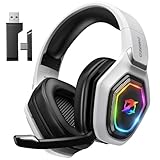
- 【Amazing Stable Connection-Quick Access to Games】Real-time gaming audio with our 2.4GHz USB & Type-C ultra-low latency wireless connection. With less than 30ms delay, you can enjoy smoother operation and stay ahead of the competition, so you can enjoy an immersive lag-free wireless gaming experience.
- 【Game Communication-Better Bass and Accuracy】The 50mm driver plus 2.4G lossless wireless transports you to the gaming world, letting you hear every critical step, reload, or vocal in Fortnite, Call of Duty, The Legend of Zelda and RPG, so you will never miss a step or shot during game playing. You will completely in awe with the range, precision, and audio quality your ears were experiencing.
- 【Flexible and Convenient Design-Effortless in Game】Ideal intuitive button layout on the headphones for user. Multi-functional button controls let you instantly crank or lower volume and mute, quickly answer phone calls, cut songs, turn on lights, etc. Ease of use and customization, are all done with passion and priority for the user.
- 【Less plug, More Play-Dual Input From 2.4GHz & Bluetooth】 Wireless gaming headset adopts high performance dual mode design. With a 2.4GHz USB dongle, which is super sturdy, lag<30ms, perfectly made for gamers. Bluetooth mode only work for phone, laptop and switch. And 3.5mm wired mode (Only support music and call).
- 【Wide Compatibility with Gaming Devices】Setup the perfect entertainment system by plugging in 2.4G USB. The convenience of dual USB work seamlessly with your PS5,PS4, PC, Mac, Laptop, Switch and saves you from swapping cables.
Keeping Mods Updated Without Breaking Your Game
Updates are double-edged swords. They fix bugs, improve performance, and add features, but they can also introduce incompatibilities or break saves. Never update mods mid-playthrough unless the author explicitly confirms backward compatibility.
The Tool Desk
Outbyte PC Repair FREEClear out junk files and repair common Windows errorsFree Scan →Outbyte Driver Updater FREEScan for outdated or missing drivers - takes under a minuteDriver Scan →Before updating, back up your worlds and your mod configuration files. Update mods in small batches, launch the game, and verify stability before moving on. This controlled approach prevents one bad update from wiping hours of progress or corrupting a long-running server.
Version Matching and Early-Access Realities
Hytale’s evolving ecosystem means version mismatches will happen, especially early on. A mod built for a previous game version might load but behave unpredictably due to API changes. Always check the supported game version listed by the mod author.
If you’re running experimental builds or snapshots, expect more breakage and plan accordingly. Stable mods belong on stable game versions, and bleeding-edge content belongs in isolated profiles. Respecting this boundary saves you from blaming mods for problems caused by version drift.
Launching Hytale with Mods Enabled and Verifying They Work
Once your profiles are clean and your versions line up, it’s time to actually boot the game with mods active. This is where theory meets reality, and where a clean install either proves itself or immediately starts throwing red flags. Treat your first modded launch like a systems check, not a casual play session.
Recommended Free Tools
Starting Hytale Through the Correct Modded Profile
From the Hytale launcher, make sure you’re selecting the profile that contains your mod stack, not the default vanilla environment. Early-access launchers live and die by profiles, and it’s surprisingly easy to click the wrong one when you’re moving fast. If your mods aren’t enabled at launch, nothing else in this section will matter.
Before hitting Play, quickly scan the mod list in the launcher. Look for disabled toggles, warning icons, or version mismatch notices. These are the launcher telling you something is wrong before the game even loads, and ignoring them usually leads to crashes or half-functional systems.
Watching the Load Process for Errors and Warnings
Your first launch with new mods should be hands-off. Let the game load fully and pay attention to the splash screen, loading bars, and any pop-up warnings. Long pauses, repeated reloads, or sudden returns to the launcher are classic signs of dependency issues or broken initialization.
If Hytale exposes a console or log window during startup, use it. Warnings about missing assets, deprecated API calls, or failed scripts don’t always crash the game, but they often explain future bugs like broken animations, non-functional items, or AI that drops aggro randomly. Logs are your early-warning radar.
Verifying Mods In-Game Without Risking Your Save
Never verify mods on a long-term world. Create a fresh test world specifically for validation, preferably with cheats or creative tools enabled. This lets you spawn items, force encounters, and stress-test mechanics without risking corruption.
Check each mod’s core functionality. If it adds weapons, swing them and confirm hitboxes feel right. If it alters combat logic, test DPS output and I-frame behavior. For world-gen or biome mods, teleport around and confirm assets load correctly instead of popping in late or not at all.
Using Mod Menus, Commands, and Debug Tools
Many Hytale mods expose in-game menus, keybinds, or slash commands. Open these immediately and confirm settings actually apply when changed. A menu that opens but doesn’t save values is often a sign the mod loaded visually but failed logically.
If debug overlays or performance readouts are available, enable them briefly. Spikes in CPU usage, memory leaks, or script errors during simple actions like opening inventories or entering combat usually mean a deeper compatibility problem. Catching this now saves you from losing a 20-hour world later.
Common Signs Something Isn’t Working Right
Not all failures are loud. Subtle issues like delayed animations, enemies ignoring line-of-sight rules, or RNG behaving inconsistently are often mod conflicts masquerading as “early-access jank.” If the game feels off rather than broken, trust that instinct and start isolating mods.
When in doubt, disable half your mod stack and relaunch. Binary testing sounds tedious, but it’s the fastest way to pinpoint a problem mod. In a game as modular as Hytale, clean verification isn’t optional; it’s part of playing modded content responsibly.
Independent reader supportYour contribution helps us test, update, and keep practical guides available for everyone.Common Modding Problems and How to Fix Them
Once you start stacking mods, problems aren’t a matter of if, but when. The key difference between a ruined setup and a smooth one is knowing which issues are normal growing pains and which ones demand immediate action. Hytale’s modular design is powerful, but it also means small mistakes ripple outward fast.
Game Won’t Launch After Adding Mods
This is the most common failure state, and it’s almost always load order, version mismatch, or a missing dependency. Remove the last mod you added and try launching again before doing anything drastic. If the game boots, you’ve already narrowed the culprit down to a single file.
Check the mod’s supported Hytale version and API requirements. Early-access builds change quickly, and a mod built for a previous patch may hard-stop the game before it reaches the main menu. If the mod depends on a shared library or framework, install that first or nothing else matters.
Mods Load, But Features Don’t Work
This is more dangerous than a crash because it gives you false confidence. A weapon that appears in-game but deals zero damage, or a skill tree that doesn’t apply bonuses, usually means the mod loaded visually but failed its backend scripts.
Open the logs and look for warnings instead of errors. Script timeouts, deprecated calls, or permission failures often don’t crash Hytale but quietly disable mechanics. Reinstalling the mod cleanly and confirming it’s placed in the correct folder structure fixes this more often than players expect.
Severe FPS Drops or Stuttering After Installing Mods
Performance issues are rarely about raw graphics and almost always about logic loops. Mods that constantly scan entities, recalculate world data, or hook into combat ticks can tank FPS even on high-end PCs. If your frame rate nosedives during combat or exploration, suspect a script-heavy mod first.
Quick wins for a faster PC:
Scan for outdated or missing drivers - takes under a minuteDriver Scan →Clear out junk files and repair common Windows errorsFree Scan →Fix the driver behind crashes, sound loss and screen glitchesFind Drivers →Best Value

- ADVANCED PASSIVE NOISE CANCELLATION — sturdy closed earcups fully cover ears to prevent noise from leaking into the headset, with its cushions providing a closer seal for more sound isolation.
- 7.1 SURROUND SOUND FOR POSITIONAL AUDIO — Outfitted with custom-tuned 50 mm drivers, capable of software-enabled surround sound. *Only available on Windows 10 64-bit
- TRIFORCE TITANIUM 50MM HIGH-END SOUND DRIVERS — With titanium-coated diaphragms for added clarity, our new, cutting-edge proprietary design divides the driver into 3 parts for the individual tuning of highs, mids, and lowsproducing brighter, clearer audio with richer highs and more powerful lows
- LIGHTWEIGHT DESIGN WITH BREATHABLE FOAM EAR CUSHIONS — At just 240g, the BlackShark V2X is engineered from the ground up for maximum comfort
- RAZER HYPERCLEAR CARDIOID MIC — Improved pickup pattern ensures more voice and less noise as it tapers off towards the mic’s back and sides
Disable performance overlays and test mods one at a time in a clean world. If stutters occur during idle actions like inventory management or camera movement, the mod is likely misfiring updates every frame. Removing or updating it is safer than hoping a future patch fixes the behavior.
Worlds Fail to Load or Become Corrupted
This is the nightmare scenario, and it usually happens when mods that affect world-gen, biomes, or core systems are removed mid-save. Hytale worlds expect those systems to exist once they’re written into the save file. Pulling them out breaks references the game can’t resolve.
Always back up worlds before changing your mod list. If a world won’t load, re-enable the exact mods used when it was created and try again. If that works, migrate your character or items to a fresh world instead of forcing a broken save to cooperate.
Mods Conflict With Each Other
Conflicts happen when two mods touch the same system, like combat formulas, AI targeting, or inventory logic. The result is unpredictable behavior: enemies dropping aggro, skills overwriting each other, or RNG outcomes that feel completely off.
PC Slower Than It Used to Be?
A free scan shows the junk files, broken settings and background clutter dragging Windows down - then fixes them in one click.Free scan · Windows 10 & 11Outdated Drivers Are Slowing You Down
One free scan finds every outdated or missing driver and matches the right update for your exact hardware.Free scan · exact hardware matchUse binary testing to isolate the issue, then check documentation to see which mod should load last. Some conflicts are unavoidable, especially in early-access ecosystems, and the only real fix is choosing which mod matters more to your playstyle. Compatibility patches may arrive later, but don’t plan your setup around promises.
Updates Break Previously Working Mods
Hytale updates are double-edged swords. They bring new features and fixes, but they can also invalidate mods overnight. If a mod stops working after an update, it’s rarely your fault and almost never fixable on your end.
Disable auto-updating if possible and wait for mod authors to patch their work. Playing on a stable version with a locked mod list is safer than chasing every update and rebuilding your setup weekly. In an evolving ecosystem, patience is as important as technical skill.
Installing Mods in the Wrong Location
This sounds basic, but it’s still a top-tier mistake. Mods placed one folder too deep or dropped into the wrong directory simply won’t load, even if everything else is correct. Hytale expects a clean structure, and it won’t hunt for files you misplace.
Double-check the official mod directory and ensure each mod has its own folder. Avoid nesting archives or leaving zip files unextracted. If the game doesn’t see the mod, it might as well not exist.
Assuming Modding Is “Set and Forget”
Modded Hytale isn’t a fire-and-forget experience, especially early on. Mods require monitoring, updates, and occasional pruning as the ecosystem evolves. Treat your mod list like a loadout, not a permanent installation.
Regularly review what you’ve installed and remove anything you’re no longer using. Fewer mods mean fewer conflicts, faster load times, and a much lower chance of catastrophic failure. Smart mod management is what separates smooth sandbox creativity from endless troubleshooting.
Best Practices for Mod Safety, Performance, and Long-Term Stability
Once you’ve accepted that modding Hytale is an ongoing process, the next step is protecting your game from unnecessary crashes, save corruption, and performance death spirals. Mods can elevate exploration, combat depth, and world generation, but unmanaged installs will chew through FPS and stability faster than a badly tuned DPS build. Think of this phase as learning how to mod like a veteran, not just how to install files.
Do these 3 things before closing this tab:
1Fix the driver behind crashes, sound loss and screen glitches2Clear out junk files and repair common Windows errors3Scan for outdated or missing drivers - takes under a minuteStick to Trusted Sources and Verified Creators
Early Hytale modding will live and die by community trust. Only download mods from official hubs, well-known community repositories, or directly from creators with an established track record. Random file hosts and reuploads are how you end up with broken scripts, outdated dependencies, or worse, malicious code.
Check comments, update history, and version compatibility before you install anything. A mod that hasn’t been updated in months during active development is a red flag, especially if it touches core systems like world gen, AI behavior, or combat logic.
Understand What Each Mod Actually Changes
Not all mods are equal in terms of risk. Cosmetic tweaks and UI improvements rarely cause problems, while mods that rewrite progression, physics, or mob behavior can introduce cascading issues across your save. If a mod alters hitboxes, aggro rules, or RNG tables, expect it to interact with far more systems than advertised.
Read the description fully and scan the changelog if one exists. Knowing whether a mod touches client-side visuals or server-side logic helps you predict conflicts before they happen, not after your save starts behaving strangely.
Manage Performance Like You Manage Your Loadout
Every mod adds overhead, even well-optimized ones. Stack too many and you’ll feel it in longer load times, stuttering chunk generation, or frame drops during combat-heavy encounters. This is especially noticeable when multiple mods hook into the same systems, like AI ticks or lighting calculations.
Test performance after every major install. If your FPS tanks or input latency creeps in, remove the last mod added and reassess. Smooth gameplay beats feature bloat every time, especially in a sandbox where moment-to-moment feel matters.
Back Up Worlds Before Major Changes
This is non-negotiable. Before installing, removing, or updating a mod that affects world data, back up your saves. Mods can permanently alter terrain, entities, or progression flags, and once a world is corrupted, there’s no rollback without a backup.
Store backups outside the Hytale directory so updates or reinstalls don’t wipe them. A 30-second copy-paste can save hundreds of hours of exploration, builds, and progression.
The Tool Desk
Outbyte Driver Updater FREEFix the driver behind crashes, sound loss and screen glitchesFind Drivers →Outbyte PC Repair FREERepair Windows errors before they cause bigger problemsFix Now →Respect Version Locking and Mod Dependencies
If a mod specifies a required Hytale version or dependency, treat that as law. Forcing compatibility is how subtle bugs creep in, like quests failing to trigger or mobs behaving inconsistently. These issues often don’t crash the game, which makes them harder to diagnose and far more dangerous long-term.
Keep a simple text file listing your mod versions and dependencies. When something breaks, you’ll know exactly what changed, and rolling back becomes trivial instead of guesswork.
Plan for the Long Game
Hytale’s mod ecosystem will evolve fast, and not every mod you love today will survive future updates. Build your mod list around core experiences you can’t play without, not novelty features you’ll forget in a week. Stability comes from restraint, not from installing everything that looks cool.
If you approach modding with intention, patience, and a bit of discipline, Hytale becomes a platform, not just a game. Treat your setup like a living system, and it’ll reward you with deeper creativity, smoother performance, and a sandbox that grows with you instead of fighting you.
Quick Recap
Product prices and availability are accurate as of the date/time indicated and are subject to change. Any price and availability information displayed on Amazon at the time of purchase will apply.



