To use Xbox networking to check your connection to Xbox Live services, open Profile & system > Settings > General > Network settings and select Test network connection on Xbox One or Xbox Series X|S. If the test passes but multiplayer fails, run Test multiplayer connection and check Xbox service status.
The two console tests answer different questions. The basic test checks the console’s network access; the multiplayer test checks a more specific path used for online play. Xbox service status adds a third essential check because a platform outage can cause sign-in, store, game, or multiplayer symptoms while your household internet remains functional.
Key takeaways
- Test network connection is the first Xbox diagnostic for checking whether the console can reach the Xbox network.
- Test multiplayer connection checks a different layer and is the next step when the basic network test passes but online multiplayer does not work.
- The official Xbox service-status page should be checked before changing router settings.
- A wired Ethernet comparison can isolate Wi-Fi problems, but Ethernet cannot repair an Xbox service outage, an ISP fault, or every NAT problem.
- NAT, UPnP, alternate ports, and manual port forwarding are escalation steps for persistent multiplayer reachability problems, not default fixes for every Xbox connection issue.
How do I use Xbox networking to check my connection to Xbox Live services?
On Xbox One and Xbox Series X|S, open the guide with the Xbox button and select Profile & system > Settings > General > Network settings > Test network connection. If that test passes but multiplayer still fails, use Test multiplayer connection, then check the official Xbox service-status page before changing your router.
Xbox networking checks several different connections, so one successful result does not prove that every Xbox service or game server is working. The useful distinction is between the console reaching the network, Xbox platform services being available, and multiplayer traffic reaching other players or a particular game.
Crashes, No Sound, or Screen Glitches?
Random freezes, missing sound and display glitches usually trace back to one bad driver. Find and replace yours safely.Free scan · under a minutePC Slower Than It Used to Be?
A free scan shows the junk files, broken settings and background clutter dragging Windows down - then fixes them in one click.Free scan · Windows 10 & 11#1 Best Overall
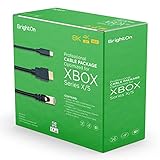
- BrightOn Optimized Cable Package Compatible with XBOX Series X/S. Contains 3 cables. Each cable has a length of 2 meters.
- Achieve optimized connections between your network, your display and your controllers with the BrightOn optimized cable set for your new XBOX controller. Your gaming experience can be greatly improved with a professional cable package from BrightOn specifically designed for your console.
- With the BrightOn HDMI 2.1 HDR 8K at 60hz 4K at 120hz Black Gold-plated display cable you will have a state of the art connector to your display. This cable is capable of transferring every frame your console can deliver at speeds even faster than its output.
- The BrightOn Cat 7 Ethernet cable with Gold-plated connectors gives you the best physical connection to your high speed internet network. Many home wifi and routers systems can create latency and with this cable you create the least amount of lag.
- Fast Charge Black Cable (USB A to USB C). Decreased latency to optimize your gaming experience, every spare microsecond counts when gaming!
What does the basic Xbox network test check?
The basic Test network connection check is the first-line test for whether the console can reach the Xbox network through your home connection. The live labels on the console are the primary authority because Microsoft can change diagnostic wording and result screens.
- Press the Xbox button on the controller.
- Open Profile & system.
- Select Settings.
- Choose General, then Network settings.
- Select Test network connection.
A successful basic test means the console was able to complete that network check at the time you ran it. It does not guarantee that Xbox multiplayer, a game publisher’s servers, voice chat, the Microsoft Store, or every Xbox platform service is operating normally.
For additional background on the Xbox networking menu and related troubleshooting, see this Xbox networking guide. The guide is secondary information; the current menu and result shown on the console take priority.
Why is my Xbox connected to the internet but not Xbox Live?
An Xbox can have a working local internet path while an Xbox platform service, multiplayer path, or game-specific service is unavailable. Run the tests in layers instead of treating “connected to the internet” as proof that Xbox Live services are healthy.
| Check | What it primarily investigates | What a pass or failure tells you | Next action |
|---|---|---|---|
| Test network connection | Console-to-network and Xbox network access | A failure points first toward the console’s Wi-Fi, Ethernet, password, router, or local connection. | Verify the intended network, restart the console and networking equipment, and test again. |
| Xbox service-status page | Xbox platform availability | An incident can explain sign-in, store, game, or multiplayer symptoms even when household internet works. | Wait for recovery and avoid unnecessary local configuration changes. |
| Test multiplayer connection | Multiplayer reachability | A failure after the basic test passes points toward NAT, UPnP, router behavior, or service availability. | Compare wired and wireless connections, then investigate NAT and router configuration if needed. |
| Game publisher’s service information | A particular game’s online service | One game can fail while Xbox networking and other games work. | Check the game’s own support or service-status information. |
How do I check if Xbox Live is down?
Open the official Xbox service-status page before making router changes. The page is the authoritative place to check Xbox platform availability, although service status is volatile and can change after you inspect it.
Rank #2

- 🎮ORIGINAL OEM🎮Best quality HDMI cable optimized for Xbox Series X & Xbox Series S
- 🎮TRUE 4K GAMING🎮Provide sensationally smooth frame rates of up to 120FPS with the visual pop of HDR while playing
- 🎮AMAZING VISUALS🎮Deliver true-to-life lighting, shadows and accurate reflections to create more dynamic, realistic environments. Immerse yourself with sharper characters, brighter worlds and impossible details with 4K experience
- 🎮OTHER FEATURES🎮Auto low latency mode / HDMI variable refresh rate / 4K UHD Blu-Ray
- 🎮WHAT ELSE YOU GET🎮Offer the free replacement without asking within 1 year and helpful customer service anytime
Record the date, time, and affected service if you are documenting the problem for support. If the status page shows an outage or degraded service, waiting is usually more appropriate than changing NAT rules, forwarding ports, replacing a router, or repeatedly resetting the console. Local troubleshooting cannot restore a platform service that is down.
The official page is presented for the United States in the supplied URL. Availability and service information can vary by region, so readers elsewhere should use the Xbox service-status page appropriate to their location when one is provided by Xbox. Xbox maintains a separate supported countries and regions page for regional availability information.
What should I do if the basic Xbox network test fails?
Treat a failed basic test as a local connection problem first, rather than starting with port forwarding or buying new networking hardware.
Quick wins for a faster PC:
Repair Windows errors before they cause bigger problemsFix Now →Fix the driver behind crashes, sound loss and screen glitchesFind Drivers →Clear out junk files and repair common Windows errorsFree Scan →- Confirm the intended network. Check that the console is connected to the correct Wi-Fi network or to the intended Ethernet connection.
- Recheck Wi-Fi credentials. If the console is wireless, verify the network password and reconnect if necessary.
- Restart the local equipment. Restart the Xbox and networking equipment, then run Test network connection again.
- Try Ethernet if available. A wired comparison removes the wireless path from the test and can reveal whether signal, interference, distance, band selection, or local congestion is involved.
- Separate local and platform problems. If the basic test later passes but an online game still fails, move to the multiplayer test and Xbox service-status check instead of repeating the same basic test.
A general internet connection on a phone or computer is useful context, but it does not prove that the Xbox console has a healthy multiplayer path. Test the Xbox itself and record which diagnostic succeeds or fails.
Should I use Ethernet instead of Wi-Fi on Xbox?
Use Ethernet as a diagnostic comparison when Wi-Fi is suspected, especially when the Xbox works intermittently, disconnects during play, or behaves differently near the router. If multiplayer works over Ethernet but not Wi-Fi, the result points toward the wireless path rather than proving that the console or Xbox services are defective.
Rank #3

- 3ft is a convenient length for your game console setups, reducing cord clutter and keeping your desk tidy
- Compatible with: Xbox One S, Xbox One X, Xbox Series X, Xbox Series S ; Sony PS5 / PS5 Slim / PS5 Pro / PS4 / PS4 Slim / PS3 Slim/ PS3 Super Slim
- UL Listed / Safety: this power cord are Tested, Approved and Certified by UL to ensure safety for you and your connected devices
- Wide Compatibility: works with most Speakers, TVs, Printers and Other Devices that use the same 2-prong figure-8 power connector
- Power Cord Type: Non Polarized 2 Prong IEC C7 Figure 8 Power Cord, 125V 7A, 18 AWG (American wire gauge)
Xbox Series X specifies Ethernet 802.3 10/100/1000 connectivity on its official specification page, and Xbox Series S lists the same Ethernet 802.3 10/100/1000 specification on its official page: Xbox Series X specifications and Xbox Series S specifications. Those specifications describe the console’s wired network capability; they do not guarantee a particular download speed, latency, packet-loss level, or multiplayer experience.
An optional Ethernet cable for Xbox can make the comparison straightforward. Use the cable to isolate Wi-Fi instability, not as a guaranteed fix for an Xbox outage, NAT behavior, or an ISP routing problem. If the wired and wireless results are identical, purchasing a cable alone has not demonstrated that Wi-Fi is the cause.
Do these 3 things before closing this tab:
1Scan for outdated or missing drivers - takes under a minute2Clear out junk files and repair common Windows errors3Fix the driver behind crashes, sound loss and screen glitches| Method | Diagnostic layer | Cause it can help isolate | Cost and reversibility | Evidence produced |
|---|---|---|---|---|
| Test network connection | Basic console connectivity | Wi-Fi credentials, Ethernet link, router access, or local network failure | No cost; immediately reversible | Basic network-test result |
| Check Xbox service status | Xbox platform availability | Sign-in, store, game, or multiplayer symptoms caused by an Xbox incident | No cost; no configuration change | Current service-status result and timestamp |
| Test multiplayer connection | Multiplayer reachability | NAT, UPnP, router behavior, or multiplayer-service problems | No cost; immediately reversible | Multiplayer-test result |
| Compare Ethernet with Wi-Fi | Wireless path versus wired path | Signal strength, interference, distance, band choice, or congestion | Optional cable cost; simple to undo | Different behavior on wired and wireless connections |
| Change router or port settings | Advanced multiplayer path | UPnP, NAT mapping, alternate-port, or multiple-router behavior | More complex; changes may affect other devices | NAT or multiplayer behavior after a controlled change |
What should I do if the basic test passes but multiplayer fails?
Return to Settings > General > Network settings and choose Test multiplayer connection. A multiplayer-test failure after a successful basic test narrows the problem toward multiplayer reachability, NAT, router behavior, or service availability rather than basic internet access.
Use this order:
- Check the Xbox service-status page again, because a platform incident can affect multiplayer.
- Run the multiplayer test again after noting whether the failure is consistent or intermittent.
- Compare Wi-Fi with Ethernet if possible.
- Check the NAT information displayed in the Xbox network settings.
- Inspect UPnP and router configuration only if the problem persists and the evidence points to the router path.
Multiplayer can also fail because a particular game’s own online service is having trouble. If other Xbox games or multiplayer services work, investigate the affected game’s support channel before changing your entire home network.
What does NAT type mean on Xbox?
NAT describes how the router maps the Xbox’s private home-network connection to the wider internet. NAT behavior matters most when joining friends, hosting matches, using party features, or connecting to other players fails even though the console has basic network access.
Rank #4
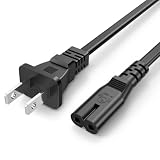
- Compatible with: Sony PS5 / PS5 Slim / PS5 Pro / PS4 / PS4 Slim / PS3 Slim/ PS3 Super Slim ; Xbox Series S, Xbox Series X, Xbox One S, Xbox One X
- UL Listed / Safety: this power cord are Tested, Approved, and Certified by UL to ensure safety for you and your device. UL testing is authorized by OSHA - US Federal Agency, this certification provides peace of mind that this power cord meets rigorous safety standards for electrical products
- Power Cord Type: Non Polarized 2 Prong C7 Figure 8 Power Cord, 125V 7A, 18 AWG (American wire gauge)
- Durable & Sturdy: built with pure copper wire / heavy-duty flame-retardant cable Jacket, resistant to bending and daily wear for long-lasting use
- Wide Compatibility: works with most Game Consoles, TVs, Printers, Speakers and Other Devices that use the same 2-prong figure-8 power connector
NAT is not the first thing to change when Test network connection fails, and a NAT result is not evidence that Xbox services are down. First establish whether the issue is local connectivity, an Xbox incident, or multiplayer reachability. Then use the multiplayer result and the NAT information together.
Xbox networking discussions have covered UPnP, port forwarding, quality-of-service tagging, and alternate port selection as mechanisms relevant to multiplayer connectivity. The official Xbox Podcast discussion identifies port 3074 as the registered Xbox port and describes alternate-port selection as a fallback when automatic port mapping does not work; see the official Xbox Podcast networking discussion.
Independent reader supportYour contribution helps us test, update, and keep practical guides available for everyone.Should I enable UPnP or forward Xbox ports?
Do not begin with manual port forwarding. UPnP, alternate-port selection, and port forwarding are advanced remedies for a persistent multiplayer reachability problem after the basic test, service-status check, multiplayer test, and wired comparison have supplied evidence that the router path is involved.
Manual forwarding can be inappropriate or ineffective on networks with carrier-grade NAT, multiple routers, or ISP-managed equipment. Multiple routers can create more than one NAT layer, while carrier-grade NAT may prevent the household router from receiving a public address that allows conventional inbound mapping. ISP-managed equipment may also restrict which settings are available.
If you do change router settings, make one controlled change at a time, record the original setting, restart or reconnect only as required by the equipment, and rerun the multiplayer test. Avoid applying a long list of port rules without a clear symptom and a recovery plan. If the change makes other devices or games worse, restore the recorded settings.
Recommended Free Tools
Best Value

- FOR 2-PRONG DEVICES: Works with most TVs, monitors, printers, and other devices that require a 2-pin power connector
- COMPATIBILITY: compatible with PS3, PS3 Slim, PS4, PS4 Slim, PS5, Xbox One S, Xbox One X, Xbox Series S, Xbox Series X, Apple TV, many printer, consumer electronics, and power brick models
- FEATURES: High Quality 2 Prong 10ft AC Power Cord, universal power cable is perfect for bedroom, living room office and home use.
- PACKAGE INCLUDE: 1 x High Quality 10ft AC 2 Prong Power Cord
How do I identify the cause from the test results?
Use the result combination, not a single “connected” message, to choose the next action.
| Observed result | Most useful interpretation | Recommended response |
|---|---|---|
| Basic network test fails | The console’s path to the local network or Xbox network is not working normally. | Verify Wi-Fi or Ethernet, check credentials, restart the console and network equipment, and compare with Ethernet. |
| Basic test passes; service-status page shows an incident | Xbox platform availability may be causing the symptom. | Wait for recovery and avoid unnecessary router changes. |
| Basic test passes; multiplayer test fails | The problem is more specific to multiplayer reachability, NAT, UPnP, router behavior, or service availability. | Check status, compare wired and wireless, then investigate NAT and router configuration. |
| Wi-Fi fails or is unstable; Ethernet works | The wireless path is implicated. | Improve access-point placement, reduce interference or distance, consider band selection, and use the wired connection when practical. |
| Xbox tests pass; one game fails | The game-specific service, account, game installation, or game-side matchmaking path may be involved. | Check that game’s support and service information rather than replacing the router immediately. |
| Several devices and services fail | The issue may be broader than the Xbox console. | Check the router, ISP connection, and any current regional outage information. |
What should I avoid when troubleshooting Xbox networking?
- Do not confuse internet access with multiplayer access. A browser or phone working on the same household connection does not validate the Xbox multiplayer path.
- Do not change ports during a service outage. Wait until Xbox status is normal before judging a local configuration.
- Do not treat Ethernet as a universal cure. Ethernet isolates Wi-Fi; it does not fix platform downtime, carrier-grade NAT, or an ISP route.
- Do not forward ports as a routine first step. Manual rules can be ineffective on multi-router or carrier-grade-NAT networks and can create new configuration problems.
- Do not assume a router purchase is necessary. The core tests are free, and a router upgrade should follow evidence of a persistent home-network limitation.
Fast Xbox connection checklist
- Open Profile & system > Settings > General > Network settings.
- Run Test network connection.
- If the test fails, verify the network, restart local equipment, and try Ethernet.
- Check the official Xbox service-status page before changing router settings.
- If the basic test passes but multiplayer fails, run Test multiplayer connection.
- Compare Wi-Fi and wired behavior.
- Only then investigate NAT, UPnP, alternate ports, multiple routers, or manual port forwarding.
- Check the affected game’s own service information if Xbox tests pass but one game remains unavailable.
The sequence produces useful evidence at each stage: a basic network result, a platform-status result, a multiplayer result, and—if tested—a wired-versus-wireless comparison. That evidence is more valuable than repeatedly restarting equipment or changing several router settings at once.
Frequently Asked Questions
Can my Xbox be connected to the internet while Xbox Live is unavailable?
Yes. A successful Test network connection result shows that the console passed the basic network check, but Xbox Live services, multiplayer reachability, or a particular game’s servers can still be unavailable. Run Test multiplayer connection and check the official Xbox service-status page.
Does Ethernet fix Xbox multiplayer connection problems?
Ethernet is useful when you need to determine whether Wi-Fi interference, distance, signal strength, band selection, or congestion is causing the problem. Ethernet does not fix an Xbox service outage, an ISP fault, or every NAT issue.
Free tools Windows power users keep installed
One-click scans. No signup required.
When should I troubleshoot NAT on Xbox?
NAT matters mainly when multiplayer joining, hosting, party features, or connections to other players fail despite a successful basic network test. Check service status and run the multiplayer test before changing NAT or router settings.
Should I forward ports for Xbox?
Manual port forwarding is an advanced escalation step, not the first Xbox networking fix. It can be ineffective or inappropriate on carrier-grade NAT, multiple-router, or ISP-managed networks, so use it only after basic tests, service-status checks, multiplayer testing, and a wired comparison point toward the router.
The Bottom Line
Start with Test network connection, check Xbox service status, and use Test multiplayer connection only when the basic test passes but online play still fails. A wired Ethernet comparison can expose Wi-Fi trouble; NAT, UPnP, alternate ports, and port forwarding belong at the end of the diagnostic sequence.
Quick Recap
Product prices and availability are accurate as of the date/time indicated and are subject to change. Any price and availability information displayed on Amazon at the time of purchase will apply.
What’s actually slowing this PC down?
Pick the symptom - the matching free tool is one click away.



