Some links on this page are affiliate links: if you buy through them we may earn a commission, at no extra cost to you.
If you’ve dropped back into Fortnite after a break, or you’re finally trying to step beyond casual Zero Build habits, Simple Build and Simple Edit can feel like the game is fighting you. Walls place themselves when you don’t expect it, edits auto-confirm, and suddenly your muscle memory feels useless. That frustration isn’t a bug or bad timing, it’s Fortnite quietly steering you toward a more automated control style.
Simple Build and Simple Edit are Epic’s answer to accessibility and onboarding. They’re designed to lower the skill floor, especially for controller players and newcomers who don’t want to memorize dozens of inputs before they can survive their first hot drop.
What Simple Build Actually Does
Simple Build streamlines traditional building by reducing the number of actions required to place structures. Instead of manually selecting a build piece and confirming placement, the game predicts what you want and places it automatically based on your movement, camera angle, and context.
For new players, this removes a massive execution barrier. You can throw up defensive walls under fire without juggling buttons or worrying about timing windows. The tradeoff is control. You lose precision over piece selection, fast swaps, and advanced techniques like piece control chains, tunneling, or consistent high-ground retakes.
#1 Best Overall

- 8-piece game-themed figurines – This figurine set contains 8 game characters, each with a unique weapon, perfectly restoring the classic game image, suitable for collection and display.
- High-quality materials & exquisite details – Made of high-quality environmentally friendly PVC material, it feels smooth, non-toxic and odorless, and the fine carving and coloring process make the characters lifelike.
- Multi-purpose collection ornaments – Suitable for game enthusiasts to collect, birthday gifts, cake decorations, party decorations, desktop ornaments, etc., to add a personalized atmosphere.
- Perfect gift choice – Suitable for relatives, friends, game fans and collectors, suitable for various holiday occasions such as birthdays, Christmas, Children's Day, etc.
- Moderate size, easy to place – The height of the figurine is about 5in, suitable for placing on desks, cabinets, display racks, etc., so that you can enjoy your favorite game characters at any time.
How Simple Edit Changes Editing Mechanics
Simple Edit takes the same philosophy and applies it to edits. Rather than manually selecting edit tiles and confirming the edit, Fortnite auto-selects common patterns and finalizes them instantly once you release the input.
This makes basic window edits, doors, and escape routes much easier under pressure. But it also removes flexibility. Complex edits, fake-outs, edit resets, and rapid edit-confirm-cancel plays become slower or outright impossible, especially in close-range box fights where milliseconds decide who wins the DPS race.
Why Epic Enabled Them by Default
Fortnite’s player base is more diverse than ever, spanning casual console players, mobile converts, and competitive grinders. By enabling Simple Build and Simple Edit by default, Epic ensures new players can jump into Build mode without immediately getting overwhelmed or punished by veterans with years of muscle memory.
Recommended Free Tools
From a design standpoint, it keeps engagement high and reduces early churn. From a competitive standpoint, though, these settings cap your growth. They’re training wheels, not a long-term solution, and Epic expects players who want full mechanical freedom to eventually turn them off.
Who Simple Build and Simple Edit Are Really For
These systems are ideal for absolute beginners, younger players, or anyone who only builds defensively and avoids high-speed engagements. They’re also useful for controller players easing into Build mode after spending most of their time in Zero Build playlists.
If your goal is to learn traditional building, master edits, or compete in ranked and tournaments, Simple Build and Simple Edit will eventually hold you back. Understanding what they do is the first step toward disabling them and unlocking Fortnite’s full mechanical depth.
Who Should Turn Off Simple Build & Simple Edit — Casual vs Competitive Breakdown
At this point, the question isn’t whether Simple Build and Simple Edit are good or bad. It’s whether they match how you actually play Fortnite. The answer changes drastically depending on your goals, your control scheme, and how often you find yourself in real build fights instead of passive cover scenarios.
Casual Players: When Leaving Them On Still Makes Sense
If you mostly play public matches, team-based modes, or hop between Zero Build and Build playlists, keeping Simple Build and Simple Edit enabled can still be the right call. These settings reduce cognitive load, letting you focus on positioning, aim, and survival instead of fumbling inputs under pressure.
They’re especially helpful for controller players who build defensively, place walls to reset aggro, or throw up ramps for basic height. If you rarely box fight, rarely edit aggressively, and don’t care about optimal piece placement, the limitations won’t punish you often enough to matter.
Transitioning Players: The Hidden Plateau
This is where most players get stuck without realizing it. You start feeling inconsistent in fights, losing trades you should win, or getting boxed and edited on faster than you can react. That’s not RNG or bad ping. It’s the ceiling imposed by simplified mechanics.
Simple Build and Simple Edit slow down your decision-making because the game is choosing for you. Turning them off is the only way to build true muscle memory, learn precise tile selection, and understand why certain edits win fights while others get you eliminated.
Competitive and Ranked Players: Turn Them Off Immediately
If you play Ranked, scrims, Cash Cups, or even just sweaty public lobbies, Simple Build and Simple Edit are actively hurting your performance. High-level Fortnite is about control: owning space, forcing bad edits, and chaining builds faster than your opponent can react.
Advanced techniques like crosshair placement-based edits, piece control traps, peanut butter edits, and instant resets require manual input. Without full control, you’re locked out of entire layers of the meta, no matter how strong your aim or game sense is.
Controller vs Keyboard and Mouse: Why the Difference Matters
Controller players often assume Simple settings are necessary due to input limitations, but that’s a misconception. With optimized binds, confirm-on-release, and proper sensitivity tuning, traditional building and editing are not only viable on controller, they’re mandatory at higher levels.
Keyboard and mouse players, on the other hand, lose even more by keeping these settings on. The precision advantage of a mouse is wasted when the game auto-selects builds or edits, removing the micro-adjustments that separate average players from mechanical monsters.
What’s actually slowing this PC down?
Pick the symptom - the matching free tool is one click away.
The Moment You Should Turn Them Off
If you’ve ever tried to perform an edit and the game gave you the wrong pattern, or placed a build you didn’t intend, that’s your signal. The moment Fortnite feels like it’s fighting your inputs instead of responding to them, Simple Build and Simple Edit have outlived their usefulness.
Disabling them isn’t about becoming a pro overnight. It’s about reclaiming full control of your character and allowing your mechanics to grow naturally. From here, the next step is learning exactly where these settings live and how to turn them off properly without breaking your existing binds.
How to Turn Off Simple Build in Fortnite (Step-by-Step for Controller & Keyboard/Mouse)
Now that you know why Simple Build is holding you back, it’s time to actually shut it off. Fortnite doesn’t exactly hide the setting, but the wording and menu layout can trip up returning players or anyone jumping between control schemes.
The key thing to understand is this: Simple Build is not a bind, not a preset, and not tied to your sensitivity. It’s a gameplay assistance toggle, and once it’s off, Fortnite hands full building control back to you instantly.
Do these 3 things before closing this tab:
1Fix the driver behind crashes, sound loss and screen glitches2Clear out junk files and repair common Windows errors3Scan for outdated or missing drivers - takes under a minuteStep 1: Open the Settings Menu
From the main lobby or while in-game, open the pause menu. Select the gear icon to access Settings.
This works the same way on controller and keyboard/mouse. You don’t need to be in a match, but changes apply immediately if you are.
Step 2: Navigate to the Game Settings Tab
At the top of the Settings screen, move to the tab with the cog and sliders icon. This is the Game tab, not Controls or Controller Mapping.
This distinction matters. Simple Build is a gameplay option, not a binding or input layout setting, which is why many players overlook it.
Outdated Drivers Are Slowing You Down
One free scan finds every outdated or missing driver and matches the right update for your exact hardware.Free scan · exact hardware matchWindows Errors? Fix Them Before They Spread
Repair common Windows errors and clear accumulated junk for a smoother, more stable PC - no reinstall needed.Free scan · no reinstallStep 3: Find the Simple Build Option
Scroll down until you see Simple Build. Depending on your platform and UI scaling, it usually appears in the Building or Combat-related section of the Game tab.
If Simple Build is enabled, Fortnite is currently auto-selecting build pieces and placing structures with minimal input, which limits precision and speed under pressure.
Step 4: Turn Simple Build Off
Set Simple Build to Off. That’s it.
The moment you do this, Fortnite reverts to traditional building behavior. You’ll now manually select walls, ramps, floors, and cones, which is essential for piece control, protected takes, and reactive defense.
What Controller Players Should Expect After Turning It Off
Controller players will immediately notice that builds no longer “snap” automatically. This is normal, and it’s exactly what you want.
The Tool Desk
Outbyte Driver Updater FREEFix the driver behind crashes, sound loss and screen glitchesFind Drivers →Outbyte PC Repair FREEClear out junk files and repair common Windows errorsFree Scan →You’ll now rely on your build binds and timing instead of the game guessing your intent. If building feels slower at first, that’s not a regression. It’s the early stage of rebuilding muscle memory that leads to faster box-ups, cleaner retakes, and fewer misplacements in real fights.
What Keyboard and Mouse Players Should Expect After Turning It Off
For keyboard and mouse users, this change usually feels like removing handcuffs. Your scroll wheel, key binds, and mouse precision finally work the way they’re supposed to.
Every build placement now respects your exact input and crosshair position. That precision is what enables tight tunneling, rapid defensive walls, and clean build layering without RNG interfering.
Important Check: Make Sure Your Build Binds Are Active
After disabling Simple Build, quickly jump into Creative or Battle Royale and place each structure manually. If something doesn’t place, head to the Controls or Keyboard Binds tab and confirm your build inputs are assigned correctly.
Free tools Windows power users keep installed
One-click scans. No signup required.
This isn’t Fortnite breaking your settings. It’s simply switching you from assisted building to full manual control, and your binds need to support that shift.
Why Turning Off Simple Build Is a Mechanical Reset Point
This is the moment where Fortnite stops making decisions for you. Every wall you place, every ramp you turn, and every floor you miss or hit is now a direct reflection of your inputs.
That feedback loop is crucial. It’s how you learn faster builds, tighter defense, and smarter structure choices under pressure, instead of relying on automation that collapses the moment fights get chaotic.
How to Turn Off Simple Edit in Fortnite (Exact Menu Path and Settings Explained)
Once Simple Build is disabled, the next critical step is turning off Simple Edit. This setting is just as impactful, especially in real fights where edit speed, precision, and confirmation timing decide who wins the box.
Quick wins for a faster PC:
Clear out junk files and repair common Windows errorsFree Scan →Scan for outdated or missing drivers - takes under a minuteDriver Scan →Repair Windows errors before they cause bigger problemsFix Now →Simple Edit is designed to help new players, but it fundamentally changes how edits register. If you’re aiming for consistent wall takes, clean window edits, or fast resets, this is a setting you want fully under your control.
Exact Menu Path to Disable Simple Edit
From the main lobby, open the Settings menu by clicking the gear icon. Navigate to the Game tab, represented by the cogwheel, not Controls.
Scroll down until you find the Building section. Look for Simple Edit, then toggle it to Off. Make sure you apply the change before backing out, or Fortnite may revert it.
Rank #2
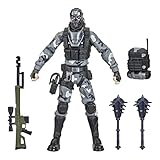
- UNLOCK VICTORY ROYALE SERIES: Unlock the Fortnite universe in the real world with the Victory Royale Series! Upgrade your collection with premium figures based on the Fortnite video game. You never know who’s dropping next, so ready up!
- SHOW YOUR STYLE: What lies behind that sinister smile? This 6-inch Metal Mouth action figure shows the fan-favorite character outfit in game-level detail, taking the on-shelf Battle Royale to the next level!
- EXPAND YOUR LOCKER: Comes with 2 Spiked Mace Harvesting Tools, Catalyst Back Bling, and weapon accessories. Mix and match accessories between figures (Each sold separately. Subject to availability)
- POSE WITH PERSONALITY: Pose out the Metal Mouth figure in an epic battle stance or bust a move in a dance emote with more than 20 points of articulation!
- UPGRADE YOUR COLLECTION: Look for other Fortnite Victory Royale Series figures to level up your collection! (Each sold separately. Subject to availability)
What Simple Edit Actually Does Behind the Scenes
With Simple Edit enabled, Fortnite tries to predict your edit intent based on camera movement and timing. That sounds helpful, but in practice it adds input delay and removes fine control.
Instead of selecting tiles manually, the game auto-completes edits for you. This can lead to accidental open walls, missed peanut butters, or edits triggering when you’re just repositioning your crosshair.
What Changes Immediately After Turning It Off
Once Simple Edit is disabled, every edit becomes fully manual. You’ll select tiles, confirm the edit, and reset structures based entirely on your inputs.
This is the standard competitive system Fortnite has always been balanced around. It’s what enables edit-baiting, fake opens, right-hand peeks, and defensive resets without the game interfering.
Controller-Specific Notes for Simple Edit
Controller players will feel this change more sharply at first. You’ll now need a dedicated edit button and a confirm input, unless you’re using Confirm Edit on Release.
This is where muscle memory starts to matter. Edits may feel slower for a few sessions, but once timing locks in, your consistency skyrockets, especially in box fights and endgame tunnels.
Keyboard and Mouse Notes for Simple Edit
For keyboard and mouse players, turning off Simple Edit restores full tile-level control. Your edit key, mouse drag, and confirm input now behave exactly as expected.
This is essential for high-speed edits like triple edits, instant resets, and scroll-wheel-based workflows. No forced animations, no misreads, just raw mechanical execution.
Important Follow-Up: Check Your Edit Bind and Confirm Settings
After disabling Simple Edit, head to the Controls or Keyboard Binds tab. Make sure your Edit, Select, Confirm, and Reset inputs are all assigned correctly.
If edits feel inconsistent, the issue isn’t the setting itself. It’s usually a missing bind or an unoptimized confirm method, which becomes obvious once Fortnite stops auto-editing for you.
Controller vs Keyboard/Mouse: Key Differences After Disabling Simple Build & Edit
Once Simple Build and Simple Edit are turned off, Fortnite stops compensating for your inputs. That’s where controller and keyboard/mouse start to feel fundamentally different, not better or worse, just demanding in their own ways.
Understanding these differences is critical. It’s the line between feeling “clunky” for a week versus actually unlocking the classic Fortnite building system the game is balanced around.
Controller: Precision Comes From Bind Discipline
On controller, disabling Simple Build means every structure is now tied directly to a build bind. No auto-swapping, no predictive placements, just raw input. If your wall or ramp doesn’t place, it’s because the button wasn’t pressed cleanly or the timing was off.
Do these 3 things before closing this tab:
1Fix the driver behind crashes, sound loss and screen glitches2Repair Windows errors before they cause bigger problems3Scan for outdated or missing drivers - takes under a minuteThis is why optimal controller layouts matter so much after the switch. Most competitive controller players rely on Builder Pro with custom binds, paddles, or claw grips to reduce finger travel and input delay.
Controller Editing Without Training Wheels
Without Simple Edit, controller players must fully commit to the edit process. Enter edit mode, select tiles, then confirm or release. There’s no safety net correcting sloppy camera movement anymore.
This exposes weak edit timing immediately, but it also enables real skill expression. Clean window edits, consistent resets, and controlled peeks become repeatable instead of RNG-driven.
Keyboard and Mouse: Mechanical Ceiling Unlocks Instantly
Keyboard and mouse players feel the change more as freedom than friction. Disabling Simple Build restores exact placement logic, meaning walls place where your crosshair points, not where Fortnite thinks you want them.
What’s actually slowing this PC down?
Pick the symptom - the matching free tool is one click away.
This is essential for high-level play. Piece control, instant 90s, and pre-placed builds rely on predictable inputs. With Simple Build off, muscle memory finally lines up with on-screen results.
Editing Speed and Flow on Keyboard/Mouse
Simple Edit being off is effectively mandatory for keyboard/mouse. It allows full control over tile selection, drag speed, and confirm timing. Scroll wheel reset, instant confirms, and edit chaining only work correctly without automation interfering.
If edits ever feel delayed or inconsistent after disabling it, the fix isn’t practice, it’s checking your confirm and reset binds. The system itself is now pure and brutally honest.
Why Neither Input Should Use Simple Build or Edit Long-Term
Simple settings are designed to reduce early frustration, not to support long-term improvement. They introduce hidden delays, misreads, and forced behaviors that actively fight advanced mechanics.
Free tools Windows power users keep installed
One-click scans. No signup required.
Once disabled, both controller and keyboard/mouse players are finally playing the same core game. That’s the version Fortnite’s competitive meta, tutorials, and muscle memory are built around, and it’s where real improvement actually starts.
Recommended Follow-Up Settings for Traditional Building & Editing
Turning off Simple Build and Simple Edit is only half the equation. Once those training wheels are gone, Fortnite exposes your raw inputs, which means a few follow-up settings are mandatory if you want consistency instead of chaos.
These adjustments don’t raise your skill for you, but they remove friction, reduce input delay, and let your mechanics scale naturally as you improve.
Confirm You’re Fully Off Simple Build and Simple Edit
First, double-check the obvious because Fortnite occasionally reverts settings after updates. In the Settings menu under the Game tab, ensure Simple Build is Off and Simple Edit is Off.
PC Slower Than It Used to Be?
A free scan shows the junk files, broken settings and background clutter dragging Windows down - then fixes them in one click.Free scan · Windows 10 & 11Crashes, No Sound, or Screen Glitches?
Random freezes, missing sound and display glitches usually trace back to one bad driver. Find and replace yours safely.Free scan · under a minuteIf either is still enabled, traditional mechanics will never feel right. Builds may snap incorrectly, edits might auto-complete, and muscle memory will never fully lock in.
This is the baseline. Every other setting assumes you’re playing the raw version of Fortnite’s build system.
Enable Turbo Building and Hold to Edit
Turbo Building must be On for traditional building to function correctly. This allows continuous placement while holding a build input, which is essential for 90s, tunneling, and reactive defense under pressure.
Hold to Edit should be enabled for most players, especially on controller. It reduces the number of discrete button presses needed, lowering finger fatigue and shaving milliseconds off edit timing.
Recommended Free Tools
If edits feel sticky or delayed, this setting is often the silent culprit.
Controller: Prioritize Edit Speed and Camera Control
Controller players should immediately lower Edit Hold Time to the minimum comfortable value. This directly affects how fast you enter edit mode and is critical for box fighting and rapid resets.
Next, fine-tune Look Sensitivity and ADS Sensitivity so your crosshair doesn’t overshoot tiles during edits. Clean edits aren’t about speed alone; they’re about camera precision inside tight hitboxes.
If you use paddles or claw, bind Edit and Reset to separate inputs. Shared binds create hesitation, and hesitation gets punished instantly in close-range fights.
Keyboard and Mouse: Lock In Confirm and Reset Binds
Keyboard and mouse players should use a dedicated Edit key with a separate Confirm or release-to-confirm setup. This ensures edits register exactly when you intend, not a frame later.
Scroll Wheel Reset is effectively non-negotiable. Bind Reset Edit to Scroll Wheel Down or Up and pair it with Confirm Reset. This allows instant wall resets with zero timing variance.
If your edits feel inconsistent, it’s almost always a bind conflict or confirm delay, not a mechanical issue.
Disable Edit Assist Features That Add Input Lag
With Simple Edit off, any remaining automation becomes more noticeable. Features that try to predict edits or smooth camera movement can introduce micro-delays that ruin edit chains.
Turn off unnecessary camera smoothing and keep deadzones as low as possible without causing drift. Raw input is king once you’re playing traditional Fortnite.
The goal is simple: what you see, what you input, and what happens on screen should all line up perfectly.
Rank #3

- GILDED TROOPER: Board the Battle Bus and drop in with Fortnite Legendary Skull Trooper (Gilded)!
- FORTNITE: 6-inch action figure is inspired by the video game Fortnite
- ARTICULATED: Feature 28 points of articulation to win any Battle Royale
- ACCESSORIES: Comes equipped with Back Bling and Harvesting Tools
- BONUS CODE: Code for virtual item included: Mecha-jolly
Why These Settings Matter More Than Raw Practice
Practicing with bad settings builds bad habits faster than no practice at all. Simple mechanics mask timing errors, while poorly tuned traditional settings exaggerate them.
Once these follow-up options are dialed in, every edit failure is real feedback, not system interference. That’s when muscle memory actually forms and improvements stick.
This is the version of Fortnite high-level players are training in every day, and these settings ensure you’re finally playing on the same mechanical foundation.
Independent reader supportYour contribution helps us test, update, and keep practical guides available for everyone.Common Issues After Turning Them Off (Build Not Placing, Edit Feels Slower, Fixes)
Once Simple Build and Simple Edit are disabled, Fortnite stops holding your hand entirely. That freedom is powerful, but it also exposes every weak link in your binds, sensitivity, and timing.
If something suddenly feels “broken,” it usually isn’t. It’s your settings asking to be finished properly.
Builds Not Placing When You Click or Press
This is the most common panic moment after switching to traditional building. You press the build input, nothing happens, and it feels like the game ate your command.
The Tool Desk
Outbyte Driver Updater FREEScan for outdated or missing drivers - takes under a minuteDriver Scan →Outbyte PC Repair FREERepair Windows errors before they cause bigger problemsFix Now →The cause is almost always build mode timing. Simple Build places structures automatically, but traditional building requires you to enter Build Mode first, then place. If your Build Mode bind is awkward or delayed, the placement never registers.
Controller players should ensure Build Mode is on a dedicated button, not shared with Edit or Jump. Keyboard players should avoid using the same finger for Build Mode and primary build pieces, as overlap causes missed inputs during fast box fights.
Edits Feel Slower or Less Responsive
This isn’t actually a speed issue. It’s a confirmation issue.
Simple Edit hides confirm timing by auto-completing edits. With it off, every edit now requires a clean sequence: enter edit, select tiles, confirm. If your confirm bind is slow or tied to release, it will feel like edits are lagging even though the game is responding correctly.
Quick wins for a faster PC:
Scan for outdated or missing drivers - takes under a minuteDriver Scan →Repair Windows errors before they cause bigger problemsFix Now →Fix the driver behind crashes, sound loss and screen glitchesFind Drivers →Lower your Look Sensitivity slightly if you’re overflicking tiles. Missing a single square forces a re-edit, which kills tempo and makes everything feel sluggish.
Edits Cancel or Reset Themselves
If your edit keeps canceling, you’re either leaving edit mode too early or triggering a conflicting input. This is common when Edit and Reset share the same button or paddle.
Separate these binds immediately. Reset should be instant and deliberate, not something that triggers accidentally when you’re trying to confirm.
On keyboard and mouse, confirm that Scroll Wheel Reset isn’t also bound to an action like weapon swap. Any overlap introduces RNG into what should be a deterministic mechanic.
Turbo Build Feels Inconsistent
Traditional building relies heavily on Turbo Build timing. If walls or ramps place inconsistently while holding the button, check two things: Turbo Build is enabled, and your ping isn’t masking input delay.
High ping exaggerates poor build order. Place defensive pieces like walls before ramps when boxing, and slow down your initial placement rhythm until your muscle memory recalibrates.
This isn’t about building slower. It’s about building cleaner under real network conditions.
Controller-Specific Issues: Accidental Edits and Missed Tiles
Controller players often experience accidental edits after disabling Simple Edit because edit holds and triggers are too sensitive. Slight pressure can pull you into edit mode unintentionally.
What’s actually slowing this PC down?
Pick the symptom - the matching free tool is one click away.
Increase edit hold time slightly if needed, but avoid going too high. The goal is eliminating misfires without adding input lag.
Also check deadzones. High deadzones make tile selection feel sticky, while ultra-low deadzones can cause over-selection. You want precise stick movement that snaps cleanly between tiles.
Why These Problems Are Actually a Good Sign
Every issue you’re feeling now existed before. Simple Build and Simple Edit just masked them.
Traditional mechanics don’t lie. When a build fails or an edit whiffs, it’s actionable feedback tied directly to your inputs and settings.
The Tool Desk
Outbyte PC Repair FREERepair Windows errors before they cause bigger problemsFix Now →Outbyte Driver Updater FREEFix the driver behind crashes, sound loss and screen glitchesFind Drivers →Fix these friction points now, and Fortnite transforms from a system that guesses what you want into one that executes exactly what you command. That’s the foundation competitive players rely on, and it’s where real mechanical growth finally begins.
Final Checklist: Confirming You’re Fully on Advanced Building & Editing
By this point, you’ve stripped away the training wheels. Now it’s time to verify that Fortnite is actually respecting your inputs and not quietly helping behind the scenes. This final checklist ensures Simple Build and Simple Edit are completely gone, and that you’re operating on the same mechanical foundation competitive players rely on.
Simple Build and Simple Edit Are Fully Disabled
First, return to the Settings menu and open the Game tab. Simple Build and Simple Edit should both be set to Off, with no contextual prompts or helper overlays appearing when you place or edit structures.
Load into a Creative island and attempt a manual edit. If the game ever auto-completes a window, door, or corner without you selecting tiles, something is still wrong. Traditional editing always requires explicit tile selection and a confirm input.
Free tools Windows power users keep installed
One-click scans. No signup required.
Manual Edit Confirmation Is Required Every Time
Confirm that every edit demands intent. You should be entering edit mode, selecting tiles, and confirming the edit with a separate button press or release depending on your bind.
If edits are triggering on release without tile selection, or completing the moment you touch a structure, Simple Edit behavior is still influencing your setup. Advanced editing never guesses. It waits for confirmation.
Build Pieces Are Placing Individually, Not Auto-Chaining
When you hold a build input, each piece should place based on your crosshair position and timing. Walls should not snap around you automatically, and ramps should never appear behind or beside you unless you aimed them there.
Test this by free-building slowly. Place a wall, then a ramp, then a floor with intentional pauses. If the game is filling gaps for you, you’re not fully on traditional building.
Quick wins for a faster PC:
Clear out junk files and repair common Windows errorsFree Scan →Fix the driver behind crashes, sound loss and screen glitchesFind Drivers →Repair Windows errors before they cause bigger problemsFix Now →Controller Players: Confirm Builder Pro or Custom Is Active
Controller users should double-check that Builder Pro or a fully custom layout is enabled. Simple Build often forces hidden contextual logic that overrides traditional piece selection.
Cycle through wall, floor, ramp, and cone manually. Each piece should require its own input, and swapping between them should feel deterministic, not assistive. If the game feels like it’s predicting your next move, it still is.
Keyboard and Mouse: No Contextual Conflicts
On keyboard and mouse, verify that no build or edit keys are sharing functions with interact, weapon swap, or scroll wheel actions. Overlapping binds reintroduce randomness into what should be a zero-RNG system.
Test edits while rapidly switching weapons. If your edit cancels, confirms early, or misfires during movement, revisit your binds. Clean inputs equal clean mechanics.
Windows Errors? Fix Them Before They Spread
Repair common Windows errors and clear accumulated junk for a smoother, more stable PC - no reinstall needed.Free scan · no reinstallOutdated Drivers Are Slowing You Down
One free scan finds every outdated or missing driver and matches the right update for your exact hardware.Free scan · exact hardware matchCreative Test: The No-Assistance Proof Check
The easiest way to confirm everything is correct is a short Creative stress test. Box yourself in, perform a wall edit, reset it, and repeat at varying speeds.
If every success and failure feels earned, you’re set. Missed edits should come from timing or crosshair placement, not from the game overriding your intent. That’s the defining difference between Simple and Advanced systems.
What “Correct” Actually Feels Like
Advanced building feels heavier at first. There’s no safety net, no invisible I-frames for bad edits, and no auto-correction when your crosshair drifts.
That weight is control. Once your muscle memory adapts, your builds become faster, your edits become deliberate, and your confidence in fights skyrockets because the game is finally doing exactly what you tell it to do.
If Fortnite now feels brutally honest, congratulations. You’ve fully exited Simple Build and Simple Edit, and you’re playing on the same mechanical ruleset that defines high-level play. From here on out, improvement is real, measurable, and entirely in your hands.
Quick Recap
Product prices and availability are accurate as of the date/time indicated and are subject to change. Any price and availability information displayed on Amazon at the time of purchase will apply.

