gearaspi.dll is a 32-bit component of GEAR Software GEARAspi, an optical-disc driver set used by some older CD, DVD, burning, backup, and media applications. It is not a Windows system file, Microsoft Visual C++ runtime, DirectX component, or .NET file.
The safest fix is to identify the application that installed GEARAspi, then repair or reinstall that application using its official installer. Do not download a replacement gearaspi.dll from a random DLL website and copy it into System32. That can introduce malware, install the wrong architecture, and leave the related driver files or registry entries broken.

What the gearaspi.dll error means
Windows may display messages such as:
- “The program can’t start because gearaspi.dll is missing from your computer.”
- “The code execution cannot proceed because gearaspi.dll was not found.”
- “There was a problem starting gearaspi.dll.”
- “Error loading gearaspi.dll. The specified module could not be found.”
- “gearaspi.dll is either not designed to run on Windows or it contains an error.”
- “gearaspi.dll is not a valid Windows image.”
The named DLL may genuinely be missing, but the message does not prove that the file itself is defective. The actual problem may be:
- A damaged installation of the parent application
- A missing related driver
- A 32-bit and 64-bit architecture mismatch
- Antivirus quarantine
- A stale or incomplete filter-driver registration
- Windows 11 Memory Integrity blocking
GEARAspiWDM.sys - A missing dependency beside the DLL
- A corrupted Windows component
Older versions of iTunes, WaveLab, DiscWrite, Pyramix, Norton Ghost, and Norton System Recovery are examples of software that may use or have used GEARAspi components. The exact application matters because different programs may require different builds of the driver set.
#1 Best Overall
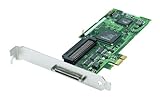
- Device Type: Storage controller - plug-in card - low profile
- Interface Type: PCI Express x1
- Dimensions (WxDxH): 6.6 in x 2.6 in
- Data Transfer Rate: 320 MBps
- Controller Interface Type: Ultra320 SCSI
Fix 1: Repair or reinstall the application named in the error
Time needed: 10–30 minutes
This is the most likely solution. GEARAspi is normally installed as part of another program, so restoring the parent program restores the matching DLL and driver files together.
Identify the parent application
First, look closely at the error window. Note the executable named in the title or message, such as:
iTunes.exeVProTray.exeWaveLab.exeDiscWrite.exe- A backup or disc-burning executable
If the message appears only when opening one application, that application is your starting point.
Also ask what changed immediately before the failure:
- Did you reinstall or update iTunes?
- Did you reinstall WaveLab or another audio application?
- Did a disc-burning or backup program recently update?
- Did Windows update?
- Did antivirus software report a threat?
- Did the problem begin after restoring an old system image?
Use Windows repair options
- Press Windows + I to open Settings.
- Select Apps.
- Select Installed apps.
- Find the application associated with the error.
- Select the three-dot button beside it.
- Choose Advanced options, if available.
- Select Repair.
- Restart Windows and test the application.
Not every desktop program provides a Repair button. If it does not, open the application’s own installer or Control Panel entry.
For classic desktop programs:
- Press Windows + R.
- Type
appwiz.cpl. - Press Enter.
- Select the affected application.
- Choose Change, Repair, or Modify, if offered.
- Complete the repair.
- Restart Windows.
If there is no repair option, uninstall the application, restart Windows, and reinstall it from the developer’s official installer. Back up application settings and projects first if the program stores them locally.
For iTunes, Apple guidance has historically recommended reinstalling iTunes when the CD burner or required drivers are not present. Use the installer intended for your Windows version and application architecture.
Check whether the repair worked
Open the application that produced the message and try the same operation again. If the program starts but cannot see the optical drive, continue with the driver and Device Manager checks below.
Do these 3 things before closing this tab:
1Repair Windows errors before they cause bigger problems2Scan for outdated or missing drivers - takes under a minute3Clear out junk files and repair common Windows errorsIf reinstalling the parent application restores the DLL but produces a new error mentioning GEARAspi64.dll or GEARAspiWDM.sys, the application needs the complete GEARAspi driver set rather than only the 32-bit DLL.
Fix 2: Check the GEARAspi files and application architecture
Time needed: 5–15 minutes
On 64-bit Windows, the GEARAspi set commonly uses these files:
| Component | Purpose | Common location |
|---|---|---|
GEARAspi.dll |
32-bit user-mode component | C:WindowsSysWOW64 |
GEARAspi64.dll |
64-bit user-mode component | C:WindowsSystem32 |
GEARAspiWDM.sys |
Kernel-mode CD/DVD filter driver | C:WindowsSystem32drivers |
The directory names are confusing. On 64-bit Windows, SysWOW64 is where 32-bit system components are commonly stored, while System32 contains 64-bit system components.
Rank #2

- High-Speed Data Transfer: Experience lightning-fast data transfer rates of up to 160 MBps with this dual-channel Ultra160 SCSI controller card, ensuring swift and efficient data handling for your enterprise servers
- Supports Up to 30 Devices: Connect and manage up to 30 SCSI peripherals simultaneously, ideal for mirroring and striping multiple SCSI hard disk drives, delivering ultimate performance in demanding environments
- 64-Bit PCI Interface: Equipped with a 64-bit PCI interface, this card takes full advantage of your system's capabilities, providing seamless integration and optimal performance
- Versatile Connectivity: Offers a mix of 68-pin VHDCI external and 68-pin LVD, 50-pin Ultra SCSI internal connectors, ensuring compatibility with a wide range of SCSI devices
- Easy Setup and Compatibility: Comes with Adaptec EZ SCSI software and operating system drivers for a hassle-free setup, supporting various operating systems and compatible with Intel PCs and available PCI slots
The file in this guide, gearaspi.dll, is a 32-bit file. A 32-bit application generally needs that component even when it is running on 64-bit Windows. A 64-bit application may instead require GEARAspi64.dll, and some applications need both user-mode files and the kernel driver.
Do not:
- Rename
gearaspi.dlltoGEARAspi64.dll - Copy the 32-bit file over a 64-bit file
- Move files between
System32andSysWOW64 - Mix files from unrelated application installers
- Replace only the DLL when the error involves the
.sysdriver
Check the expected locations
- Press Windows + E.
- Browse to
C:WindowsSysWOW64. - Search for
GEARAspi.dll. - Browse to
C:WindowsSystem32. - Search for
GEARAspi64.dll. - Browse to
C:WindowsSystem32drivers. - Search for
GEARAspiWDM.sys.
A missing file is useful evidence, but its presence does not prove that it works. Right-click a file, select Properties, and open the Digital Signatures tab if it is available. Check that the signer is GEAR Software Inc. and that Windows reports the signature as valid.
Historical public metadata lists gearaspi.dll as a 32-bit GEAR Software GEARAspi file, including observed builds numbered 2.1.3.1 and 2.1.1.1. These are historical records, not a recommendation to download or mix those builds.
Fix 3: Check antivirus quarantine
Time needed: 5–10 minutes
Security software may remove or quarantine an older GEAR component because it is a legacy low-level optical-drive driver. Do not restore it blindly.
- Open Start.
- Type Windows Security.
- Open Windows Security.
- Select Virus & threat protection.
- Select Protection history.
- Review recent detections.
- Open any detection that refers to the affected application,
GEARAspi.dll,GEARAspi64.dll, orGEARAspiWDM.sys.
Restore the file only when all of the following are true:
The Tool Desk
Outbyte PC Repair FREEClear out junk files and repair common Windows errorsFree Scan →Outbyte Driver Updater FREEFix the driver behind crashes, sound loss and screen glitchesFind Drivers →- You recognize the parent application.
- The file was originally installed in an expected location.
- The publisher and digital signature are valid.
- The application was installed from an official source.
- A current security scan does not report additional suspicious files.
If you cannot verify those details, leave the file quarantined and reinstall the parent application from its official installer instead. Reinstalling gives you a cleaner way to restore the complete, matching file set.
If multiple unrelated DLLs were suddenly quarantined, run a full Windows Security scan before restoring anything.
Fix 4: Reinstall the complete GEAR driver set
Time needed: 15–30 minutes
Use this step when the application specifically requires GEARAspi, the optical drive is missing inside that application, or the error names GEARAspi64.dll or GEARAspiWDM.sys.
The historical GEAR package was named Driver_Installer_x86_x64.exe. GEAR also published a historical cleanup utility named GEARAspi_Remover.exe, along with verification utilities named GEARAspi_Check32.exe and GEARAspi_Check64.exe.
GEAR’s historical driver page and download availability cannot be assumed to be current. Use the parent application’s official support channel or a verified installer supplied by the application vendor. Do not substitute a standalone DLL from a download site.
A typical clean reinstall procedure is:
- Close the affected application.
- Eject any disc and close software that may be using the optical drive.
- Uninstall the application that installed GEARAspi, if its installer provides that option.
- Restart Windows.
- Use the vendor-provided GEAR cleanup utility only if the application vendor specifically directs you to do so.
- Restart Windows again.
- Install the matching complete x86/x64 GEAR driver package supplied by the application vendor.
- Restart Windows.
- Open the application and test the optical drive.
Do not manually delete GEARAspiWDM.sys while the drive is in use. Do not edit UpperFilters or other filter-driver registry values unless the application’s documented repair procedure requires it and you have created a restore point first.
Rank #3
If the application is a newer version of WaveLab or another media program, do not assume GEARAspi is still required. Some current applications can use Windows directly, while older versions used GEAR drivers for CD import or burning. Reinstalling an obsolete filter driver can create a new compatibility problem.
Check the optical drive in Device Manager
- Right-click Start.
- Select Device Manager.
- Expand DVD/CD-ROM drives.
- Check whether the optical drive is listed.
- Look for a yellow warning symbol.
- Expand Storage controllers and IDE ATA/ATAPI controllers, if those categories are present.
- Look for a warning symbol or an unknown device.
If the optical drive is missing:
- In Device Manager, select Action.
- Choose Scan for hardware changes.
- Restart Windows.
- Check the optical drive again.
If a device has an error code, open Properties and read the message under General. That information can distinguish a Windows hardware-detection problem from an application-specific GEARAspi problem.
Free tools Windows power users keep installed
One-click scans. No signup required.
When you are already hunting through Device Manager and trying to determine which storage or optical-drive driver is stale, Outbyte Driver Updater can scan and show the driver state; its free scan identifies problems, while the full version performs the driver installation. Reinstalling the affected application remains the definitive fix when that application owns the GEARAspi files.
Fix 5: Check Windows 11 Memory Integrity
Time needed: 5–15 minutes
This step applies primarily when the error names GEARAspiWDM.sys, Windows reports that a driver cannot load, or the optical drive stopped working after a Windows security change.
Memory Integrity can block an old kernel-mode filter driver. That is different from a missing gearaspi.dll user-mode file.
- Open Start.
- Type Core isolation.
- Select Core isolation.
- Review Memory integrity.
- If Windows identifies
GEARAspiWDM.sysas incompatible, note the exact message. - Prefer updating the parent application or removing software that is no longer needed.
Disabling Memory Integrity lowers a Windows security protection. If you temporarily disable it for troubleshooting, do so only long enough to confirm whether the old driver is the cause, then update or remove the incompatible software and turn the protection back on.
Quick wins for a faster PC:
Clear out junk files and repair common Windows errorsFree Scan →Scan for outdated or missing drivers - takes under a minuteDriver Scan →Repair Windows errors before they cause bigger problemsFix Now →Do not treat a disabled security feature as a permanent repair. If the application has a newer version that no longer requires the old filter driver, upgrading or replacing that application is safer.
Fix 6: Repair Windows components with DISM and SFC
Time needed: 15–30 minutes
SFC and DISM repair Windows components. They do not normally download or replace a third-party GEAR file, so this step is a fallback rather than the primary fix.
- Open Start.
- Type Command Prompt.
- Right-click Command Prompt.
- Select Run as administrator.
- Select Yes at the User Account Control prompt.
- Run this command:
DISM.exe /Online /Cleanup-Image /RestoreHealth
- Wait for it to finish.
- Then run:
sfc /scannow
- Wait until the scan reaches 100 percent.
- Restart Windows.
If SFC reports that it repaired corrupted files, test the application again. If it reports that it could not fix some files, run the DISM command again, restart, and repeat SFC once.
If both commands complete without finding a problem, return to the parent application’s installer. A clean Windows component store does not prove that GEARAspi is correctly installed.
Crashes, No Sound, or Screen Glitches?
Random freezes, missing sound and display glitches usually trace back to one bad driver. Find and replace yours safely.Free scan · under a minutePC Slower Than It Used to Be?
A free scan shows the junk files, broken settings and background clutter dragging Windows down - then fixes them in one click.Free scan · Windows 10 & 11When repeatedly running SFC and DISM leaves you unsure which Windows components are actually damaged, Outbyte PC Repair can provide a scan that shows the detected issues; its free scan identifies problems, while the full version performs repairs. It is not a substitute for reinstalling the application that owns gearaspi.dll.
Fix 7: Check for a missing dependency or wrong path
Time needed: 10–20 minutes
The message “specified module could not be found” can refer to a dependency required by gearaspi.dll, not necessarily the named DLL itself.
First, check the exact path shown in the error or application log. A file in an unusual user-writable folder deserves extra caution, especially if it has no valid publisher signature.
Then:
- Open the parent application’s installation folder.
- Look for duplicate GEARAspi files in different locations.
- Check whether the application is 32-bit or 64-bit according to its documentation or installer.
- Use the application’s repair or verify-files option.
- If no repair option exists, reinstall the application.
For a game or application installed through a launcher, use the launcher’s Verify files, Repair, or equivalent command. Do not copy a DLL from another computer. The other installation may use a different build, architecture, or driver registration.
Recommended Free Tools
If several unrelated applications begin reporting DLL errors, stop replacing files manually. Run a malware scan and inspect recent software changes instead.
Fix 8: Use System Restore after a recent change
Time needed: 15–30 minutes
System Restore is useful when the error started immediately after a driver, application, or Windows change and a restore point is available.
- Press Windows + R.
- Type:
rstrui.exe
- Press Enter.
- Select Next.
- Choose a restore point created before the problem began.
- Select Scan for affected programs if available.
- Review the changes.
- Select Next, then Finish.
- Let Windows restart.
System Restore does not remove personal documents, but it can roll back applications and drivers installed after the selected restore point. Afterward, update or reinstall the parent application instead of restoring a loose DLL.
Why regsvr32 usually does not fix gearaspi.dll
regsvr32 is for registering COM and ActiveX DLLs that expose a DllRegisterServer entry point. gearaspi.dll is a runtime or driver-support component, not a normal COM control.
What’s actually slowing this PC down?
Pick the symptom - the matching free tool is one click away.
Running a command such as this is therefore usually irrelevant:
regsvr32 gearaspi.dll
It may produce an error stating that DllRegisterServer was not found. That does not mean the DLL needs a different copy. It means the file is not designed for that registration process.
The correct repair is to reinstall the software and driver package that uses GEARAspi.
Common causes of gearaspi.dll errors
| Likely cause | What to do |
|---|---|
| Incomplete application installation | Repair or reinstall the parent application |
| Wrong 32-bit or 64-bit component | Install the complete matching x86/x64 package |
| Antivirus quarantine | Verify the publisher and reinstall if uncertain |
Missing GEARAspiWDM.sys |
Use the vendor’s driver repair procedure |
| Memory Integrity blocking the driver | Update or remove the legacy application |
| Stale filter-driver registration | Use the vendor cleanup and reinstall path |
| Missing dependency | Use application repair or verify files |
| Windows component corruption | Run DISM, then SFC |
| Recent driver or application change | Use System Restore |
| Unsafe manual DLL replacement | Remove the replacement and reinstall officially |
Avoid these failed fixes
Independent reader supportYour contribution helps us test, update, and keep practical guides available for everyone.Do not use random DLL download sites
A matching filename is not enough. A downloaded file may be:
Recommended Free Tools
- The wrong architecture
- An incompatible historical build
- Modified or malicious
- Missing the related 64-bit DLL
- Missing the kernel driver
- Unsigned or incorrectly signed
- Unable to repair the application’s registry state
The safe sources are the affected application’s official installer, its official support channel, and a verified GEAR package supplied through that application. Microsoft’s repair commands can repair Windows itself, but they are not a source for this third-party file.
Do not copy the file into System32
This can make the error harder to diagnose and can break the architecture relationship between GEARAspi.dll and GEARAspi64.dll. It also does nothing for a missing or blocked GEARAspiWDM.sys.
Best Value

- Comply with PCI Express 1.0 a standard, support for Ultra ATA 133 hard drive, and downward support for Ultra ATA 100/66/33 standard.
- The adapter card supports hard drives with a capacity of 137 GB or more (48-bit LBA mode).
- Support 1 external ESATA interface and 1 internal SATA interface, the transfer rate can be up to 3Gb/s.
- Support for RAID 0/RAID 1/RAID 0+1 mode, support JBOD, with various storage methods.
- The is simple, insert the adapter into the corresponding PCI Expres slot, read the drive disk and insert the hard disk to use.
Do not disable security permanently
Turning off antivirus protection or Memory Integrity may hide the symptom while leaving an old driver exposed. Confirm the publisher, repair the parent application, and remove software that is no longer needed.
Frequently asked questions
Is gearaspi.dll a Windows file?
No. gearaspi.dll is a 32-bit GEAR Software GEARAspi component supplied with or used by certain third-party applications.
Do these 3 things before closing this tab:
1Repair Windows errors before they cause bigger problems2Scan for outdated or missing drivers - takes under a minute3Clear out junk files and repair common Windows errorsWhat installed gearaspi.dll?
Usually an older optical-disc, media, burning, backup, or recovery application. Older iTunes, WaveLab, DiscWrite, Pyramix, and Norton software are examples of applications associated with GEARAspi components. Check the executable named in the error and the application’s installation history.
Should I download gearaspi.dll separately?
No. Reinstall the parent application or use its verified complete driver package. A standalone DLL may be unsafe or incompatible and cannot restore the related driver registration.
Is gearaspi.dll the same as GEARAspi64.dll?
No. gearaspi.dll is the 32-bit component. GEARAspi64.dll is the related 64-bit component. Do not rename one into the other.
Why does the error mention a module when the DLL is present?
A required dependency may be missing, the architecture may be wrong, or the related driver installation may be incomplete. Repair or reinstall the parent application rather than registering the DLL manually.
Can SFC restore gearaspi.dll?
Usually not. SFC repairs protected Windows components, while GEARAspi is a third-party component. Run SFC for possible Windows corruption, but obtain GEARAspi through the application or vendor installer.
Why does Windows 11 mention Memory Integrity?
The blocked item may be GEARAspiWDM.sys, the kernel-mode filter driver, rather than gearaspi.dll. Update or remove the legacy application where possible instead of permanently disabling Memory Integrity.
What if the optical drive works in File Explorer but not in the application?
That points toward an application-specific driver or compatibility problem. Repair the application, confirm whether it requires GEARAspi, and check whether a newer application version uses Windows directly.
What if reinstalling the app does not help?
Check antivirus Protection history, verify the file signature and expected path, inspect Device Manager, look for GEARAspi64.dll and GEARAspiWDM.sys, and check whether Memory Integrity is blocking the driver. If the issue began after a recent change, System Restore is another fallback.
What’s actually slowing this PC down?
Pick the symptom - the matching free tool is one click away.
The correct repair is usually not a replacement DLL. It is a clean, matching installation of the application and the GEARAspi driver components that application actually needs.
Quick Recap
Product prices and availability are accurate as of the date/time indicated and are subject to change. Any price and availability information displayed on Amazon at the time of purchase will apply.



