Black Ops 6 multiplayer is brutal in the best and worst ways. Time-to-kill is fast, aim assist and hit registration are unforgiving, and every gunfight is decided in fractions of a second. If your PC settings are even slightly off, you will lose fights you should have won, not because of aim, but because your screen lied to you or your input arrived late.
This is not a campaign or Zombies experience where atmosphere and effects carry the moment. Multiplayer in Black Ops 6 is about information, reaction time, and consistency under pressure. Your goal is simple: see enemies faster, react sooner, and ensure the game responds instantly to every input you make.
FPS Is King, But Consistency Wins Games
Raw FPS matters in Black Ops 6, but stable frame pacing matters more than chasing a flashy number. A locked, consistent framerate reduces micro-stutter, improves aim tracking, and keeps recoil patterns predictable during sustained fire. Dropping from 180 FPS to 110 in a gunfight is worse than holding a steady 140 the entire match.
High FPS directly impacts how often your game updates enemy positions on screen. More frames mean smoother motion clarity, easier target acquisition, and less visual noise when enemies slide, jump, or shoulder peek. This is especially critical in close-quarters maps where movement speed is aggressive and gunfights happen instantly.
The Tool Desk
Outbyte Driver Updater FREEScan for outdated or missing drivers - takes under a minuteDriver Scan →Outbyte PC Repair FREEClear out junk files and repair common Windows errorsFree Scan →#1 Best Overall

- 【INTEGRATED SPEAKERS】Whether you're at work or in the midst of an intense gaming session, our built-in speakers provide rich and seamless audio, all while keeping your desk clutter-free.
- 【EASY ON THE EYES】 Protect your eyes and enhance your comfort with Blue-Light Shift technology. This feature reduces harmful blue light emissions from your screen, helping to alleviate eye strain during long hours of use and promoting healthier viewing habits.
- 【WIDEN YOUR PERSPECTIVE】Our sleek minimal bezel design ensures undivided attention. The nearly bezel-free display seamlessly connects in a dual monitor arrangement, delivering an unobstructed view that lets you focus on more at once, completely distraction-free.
Input Latency Decides Close Gunfights
Latency is the silent killer of competitive performance. Input lag determines how long it takes for your mouse click to become a bullet on screen, and Black Ops 6 heavily rewards first-shot accuracy. Even a few milliseconds of extra delay can be the difference between winning a trade or getting deleted before your shot registers.
Graphics settings, frame caps, V-Sync behavior, and background processes all affect end-to-end latency. Lowering latency doesn’t just help flick shots; it improves tracking, recoil control, and camera responsiveness during chaotic engagements. When your inputs feel immediate, your confidence and consistency increase dramatically.
Visual Clarity Beats Visual Fidelity Every Time
Black Ops 6 has excellent visual effects, but many of them actively work against competitive clarity. Excessive shadows, volumetric lighting, film grain, motion blur, and particle effects can obscure enemy silhouettes or hide movement cues. In multiplayer, visual realism is a liability if it costs you information.
Clear edges, stable lighting, and minimal post-processing make enemy hitboxes easier to read at a glance. The faster you can distinguish a player model from the environment, the faster you can ADS and commit to a fight. Competitive settings prioritize contrast and readability over cinematic flair.
Why Settings Matter More in Ranked and High-Skill Lobbies
In lower-skill matches, sloppy settings are often forgiven by slower reactions and missed shots. In ranked play and high-SBMM lobbies, everyone hits their shots, movement is optimized, and mistakes are punished instantly. Your PC setup becomes part of your skill ceiling.
Optimized settings reduce RNG in gunfights. When deaths feel fair and wins feel earned, you know your system is no longer holding you back. That consistency is what allows muscle memory, map awareness, and mechanical skill to actually shine in Black Ops 6 multiplayer.
System-Level Optimizations Before Launching BO6 (Windows, GPU Drivers, Power & Latency Tweaks)
Before you even touch in-game sliders, your operating system and drivers are already shaping how Black Ops 6 feels. This is where you eliminate hidden latency, inconsistent frame pacing, and background behavior that quietly sabotages gunfights. Think of system-level tuning as clearing input delay and FPS variance before the match even loads.
Windows Settings That Directly Affect FPS and Input Lag
Start with Windows Game Mode enabled. Despite old myths, modern Game Mode prioritizes CPU and GPU resources correctly and reduces background task interference during matches. It helps stabilize frame times, especially in hectic Hardpoint or Control scenarios.
Outdated Drivers Are Slowing You Down
One free scan finds every outdated or missing driver and matches the right update for your exact hardware.Free scan · exact hardware matchWindows Errors? Fix Them Before They Spread
Repair common Windows errors and clear accumulated junk for a smoother, more stable PC - no reinstall needed.Free scan · no reinstallDisable Xbox Game Bar overlays and background recording features unless you actively use them. These hooks can add input latency and cause micro-stutters during sudden on-screen effects like killstreaks or explosions. You want nothing intercepting your frames or mouse input.
Make sure your display is running at its native refresh rate in Windows display settings. This sounds basic, but it’s a common mistake that caps your actual output below what your monitor can deliver. A 240Hz panel running at 144Hz is wasted reaction time.
GPU Driver Setup for Competitive Consistency
Always use the latest stable GPU driver, not beta releases. Newer Call of Duty titles are heavily optimized around recent drivers, and outdated versions often cause shader stutter or inconsistent frame pacing. Clean installs help if you’re upgrading from much older drivers.
In NVIDIA Control Panel or AMD Adrenalin, set power management to maximum performance. This prevents clock speed drops mid-match when the game suddenly demands more GPU load. Consistent clocks equal consistent recoil patterns and tracking.
Quick wins for a faster PC:
Repair Windows errors before they cause bigger problemsFix Now →Fix the driver behind crashes, sound loss and screen glitchesFind Drivers →Clear out junk files and repair common Windows errorsFree Scan →Disable driver-level sharpening, image scaling, or forced anti-aliasing. These features can conflict with in-game settings and introduce extra processing delay. Let Black Ops 6 handle its own visual pipeline for predictable results.
Power Plan and CPU Behavior Matter More Than You Think
Use the High Performance or Ultimate Performance power plan in Windows. Balanced modes can downclock your CPU between engagements, causing momentary hitching when a fight breaks out. In a game decided by milliseconds, that delay is unacceptable.
On laptops or hybrid systems, ensure the game is running on the dedicated GPU and not switching dynamically. GPU switching adds latency and frame inconsistency, especially when alt-tabbing or loading new maps. Competitive play demands locked-in performance.
If your CPU supports it, disabling aggressive power-saving states in BIOS can further smooth frame delivery. This is more impactful on older or mid-range CPUs that struggle with sudden load spikes during killstreak-heavy moments.
Latency-Focused Tweaks for Mouse, Monitor, and Network
Set your mouse polling rate to 1000Hz if your system can handle it without stutter. Higher polling reduces input delay and makes micro-adjustments more precise during tracking fights. If you notice instability, 500Hz is a safe fallback.
Enable low-latency modes at the driver level only if you understand their behavior. NVIDIA Reflex inside the game will be the primary latency solution, so avoid stacking multiple latency reducers that fight each other. Clean input paths always win.
Use a wired Ethernet connection whenever possible. Wi-Fi introduces packet variance that no amount of mechanical skill can overcome. Ranked play punishes desync brutally, and a stable connection keeps hit registration consistent.
Hardware Tier Adjustments and What Actually Matters
On lower-end PCs, system optimization is non-negotiable. CPU scheduling, background apps, and power behavior have a bigger impact here than visual fidelity. Every saved millisecond improves survivability in close-range trades.
Free tools Windows power users keep installed
One-click scans. No signup required.
Mid-range systems benefit most from stability. You’re aiming for locked frame rates and predictable performance, not chasing max visuals. Consistency lets muscle memory take over instead of fighting frame drops.
High-end rigs should still avoid complacency. Even top-tier hardware can suffer from poor driver settings or power mismanagement. When your system is fully optimized, Black Ops 6 feels crisp, immediate, and brutally responsive before you even load into a lobby.
Display & Graphics Settings Breakdown (Every Option Explained for Competitive Advantage)
Once your system-level latency is dialed in, display and graphics settings become the final gatekeeper between you and true competitive clarity. This is where most players unknowingly lose fights, not because of aim, but because the game is feeding them delayed or noisy information. The goal here is simple: maximize FPS, minimize input lag, and strip visuals down to only what helps you read targets faster.
Display Mode
Always run Black Ops 6 in Exclusive Fullscreen. This mode gives the game direct control over your GPU and display pipeline, reducing latency compared to borderless or windowed modes. Borderless may feel convenient for alt-tabbing, but it introduces compositor delay that shows up in close-range gunfights.
If you’re on Windows 11, Exclusive Fullscreen also avoids some of the frame pacing issues that can occur with fullscreen optimizations. Competitive play favors consistency over convenience every time.
Refresh Rate
Set this to the maximum refresh rate your monitor supports, manually. Do not leave it on “Auto,” as the game can default to lower values after updates or driver changes. A 240Hz or 360Hz panel only helps if the game is actually pushing frames to match it.
If your FPS can’t reliably hit your refresh rate, that’s fine. Higher refresh still reduces perceived latency and motion blur, even below the cap.
V-Sync
Turn V-Sync off. Always.
V-Sync adds a full frame or more of input latency, which is catastrophic in a game where first-shot advantage often decides the fight. Screen tearing is a small price to pay compared to delayed hit registration and sluggish aim response.
If tearing is unbearable, address it with better frame pacing or monitor tech, not V-Sync.
Aspect Ratio
Stick with your monitor’s native aspect ratio, usually 16:9. Stretching or forcing custom ratios doesn’t meaningfully increase hitbox size and often distorts peripheral awareness. Consistent spatial perception matters more than perceived zoom.
Ultrawide users should be cautious. While the extra horizontal FOV looks appealing, it can reduce vertical awareness and sometimes costs performance. For ranked play, standard ratios remain the safest choice.
Field of View (FOV)
For competitive multiplayer, 100–110 FOV is the sweet spot for most players. Lower FOV narrows awareness and makes flanks harder to read, while extremely high FOV shrinks enemy models and hurts long-range precision.
Do these 3 things before closing this tab:
1Fix the driver behind crashes, sound loss and screen glitches2Clear out junk files and repair common Windows errors3Scan for outdated or missing drivers - takes under a minuteRank #2
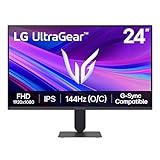
- Vivid Color, Fast Response, Total Control - The 24" UltraGear FHD gaming monitor delivers vivid HDR10 color, ultra-smooth 120Hz speed, and 1ms MBR clarity. G-SYNC compatibility & FreeSync keep gameplay tear-free. The sleek, slim design keep you focused and in control.
- Vivid Color That Puts You in the Action - Step onto the battlefield with HDR10 visuals and up to 99% sRGB color gamut coverage. The IPS display delivers rich, vivid tones, so every explosion, shadow, and landscape appears exactly as the developers intended.
- 120Hz Native Speed (144Hz Overclock) - Enjoy fluid, crystal-clear gameplay with a 120Hz native refresh rate, boosted to 144Hz when overclocked. Minimized motion blur keeps every frame sharp, so you can stay locked in on the action.
- 1ms MBR: Fast-Paced Speed to Victory - 1ms Motion Blur Reduction (MBR) keeps gameplay smooth and sharp, cutting blur and ghosting so fast-moving action stays clear—helping you stay competitive when every millisecond counts.
- NVIDIA G-SYNC Compatible & AMD FreeSync - NVIDIA G-SYNC Compatible and AMD FreeSync deliver smooth, tear-free, low-latency gaming with high refresh rates—so every frame stays sharp.
Affected FOV should be enabled. This ensures your FOV scales properly while ADS, maintaining visual consistency and reducing the “tunnel vision” effect during gunfights.
Resolution
Native resolution is ideal if your system can maintain stable FPS. 1080p remains the competitive standard because it’s easier to drive at high frame rates and keeps enemy silhouettes crisp.
On weaker GPUs, dropping to a slightly lower resolution can be worth it if it stabilizes performance. A stable 144 FPS at reduced resolution beats a stuttering 120 FPS at native every time.
Dynamic Resolution and Upscaling
Disable Dynamic Resolution. It introduces visual fluctuation mid-fight, which can throw off target tracking and recoil control. Competitive play demands a consistent image.
Recommended Free Tools
Upscaling technologies like DLSS or FSR can be useful on lower-end or mid-range GPUs, but only if set to Performance or Balanced modes. Avoid Ultra Performance, as it blurs fine details like head glitches and distant player outlines.
Render Resolution
Keep this at 100 percent for clarity. Dropping render resolution softens edges and makes enemies blend into the environment, especially in shadow-heavy maps.
If you absolutely need extra performance, lowering this slightly is better than enabling heavy post-processing effects. Just understand you’re trading visual precision for frames.
Texture Resolution
Set textures to Low or Normal for competitive play. Higher textures increase VRAM usage and can cause micro-stutters during rapid camera movement or killstreak chaos.
What’s actually slowing this PC down?
Pick the symptom - the matching free tool is one click away.
Textures do not affect hitboxes, damage, or visibility in a meaningful way. What they do affect is memory bandwidth, which directly impacts frame consistency.
Texture Filtering
Anisotropic filtering should be set to Low or Medium. Higher values improve surface clarity at extreme angles, but the competitive benefit is minimal compared to the performance cost.
Most gunfights happen at player height and direct angles. You’re not inspecting floors; you’re tracking movement.
Shadow Quality
Set all shadow options to Low or Off, especially shadow resolution and dynamic shadows. Shadows add visual noise and can obscure enemy movement in tight interiors.
While shadows can occasionally provide positional clues, they are unreliable and often more distracting than helpful. Raw visibility beats cinematic lighting in ranked play.
Screen Space Reflections and Lighting Effects
Disable screen space reflections, ambient occlusion, and any advanced lighting effects. These features tank performance and add glare or contrast that hides enemies against complex backgrounds.
Competitive clarity comes from flat, readable lighting. The less the engine is guessing how light should bounce, the easier it is for you to read motion.
Volumetric Effects and Weather
Set volumetric lighting, fog, smoke quality, and weather effects to Low or Off where possible. These effects are designed for immersion, not gunfights.
Recommended Free Tools
Dense particles can obscure sightlines and fluctuate in intensity, creating RNG visibility. Consistency wins matches, not atmosphere.
Motion Blur, Film Grain, and Depth of Field
Disable all of them. Motion blur reduces target clarity during flicks, film grain adds unnecessary noise, and depth of field literally blurs information you need to process.
There is zero competitive upside here. These settings exist to make trailers look good, not to help you win aim duels.
Anti-Aliasing
Use the lowest anti-aliasing option that keeps edges from shimmering excessively. Excessive AA softens player outlines and increases latency due to post-processing.
If you’re choosing between slightly jagged edges and delayed visual feedback, always choose the sharper, faster option.
NVIDIA Reflex / Low Latency Mode
Enable NVIDIA Reflex in-game and set it to On or On + Boost if your GPU usage frequently hits high percentages. Reflex dynamically reduces render queue latency and is one of the few settings that directly improves input response.
Do not combine Reflex with heavy driver-level low latency overrides unless you understand the interaction. One clean latency solution is better than stacked ones fighting for control.
Hardware Tier Adjustments
Lower-end systems should prioritize disabling every non-essential visual feature first. Shadows, volumetrics, and reflections are your biggest performance thieves. Aim for stable FPS before worrying about image quality.
Windows Errors? Fix Them Before They Spread
Repair common Windows errors and clear accumulated junk for a smoother, more stable PC - no reinstall needed.Free scan · no reinstallCrashes, No Sound, or Screen Glitches?
Random freezes, missing sound and display glitches usually trace back to one bad driver. Find and replace yours safely.Free scan · under a minuteMid-range PCs should focus on balance. Native resolution, low effects, and smart use of upscaling can deliver excellent clarity without frame drops. Stability is your win condition here.
High-end rigs can afford slightly higher texture quality or filtering, but only if frame times remain flat. If your FPS graph spikes during killstreaks or explosives, dial visuals back immediately. Competitive dominance comes from responsiveness, not bragging rights.
Advanced Performance Settings: Upscaling, VRAM Usage, and CPU/GPU Bottleneck Tuning
Once your core visuals are stripped down and latency tools are in place, this is where real optimization begins. These settings determine how efficiently your hardware is used frame-to-frame, not just how high your FPS counter looks. Poor tuning here creates microstutter, inconsistent aim feel, and delayed hit registration even when average FPS seems fine.
Upscaling (DLSS, FSR, XeSS): When to Use It and When to Avoid It
Upscaling is a tool, not a default win button. If you are GPU-bound and struggling to maintain your target refresh rate, DLSS or FSR can stabilize performance without gutting clarity. If you are already hitting stable FPS at native resolution, upscaling introduces unnecessary reconstruction and input delay.
For competitive play, use the Performance or Balanced preset only if needed. Quality modes often negate the FPS gain while still softening enemy silhouettes. DLSS generally offers the cleanest motion clarity, but FSR remains viable on non-NVIDIA cards if sharpening is kept modest.
Never stack aggressive sharpening on top of upscaling. Over-sharpening creates edge shimmer and visual noise, especially on distant targets head-glitching behind cover. Clean frames beat artificially sharp ones every time.
VRAM Usage and Texture Streaming Stability
VRAM saturation is one of the most overlooked causes of stutter in Call of Duty. When your GPU runs out of VRAM, the game starts streaming textures from system memory, which creates hitching during gunfights and killstreaks. This is lethal in ranked play where every frame matters.
Set texture quality based on your GPU’s VRAM capacity, not its raw power. Cards with 6–8GB should stick to low or medium textures, while 10–12GB can safely run higher settings if everything else is trimmed. If the game offers a VRAM usage meter, keep it below 85 percent at all times.
Quick wins for a faster PC:
Repair Windows errors before they cause bigger problemsFix Now →Scan for outdated or missing drivers - takes under a minuteDriver Scan →Rank #3
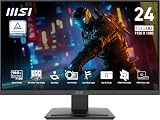
- MSI's 23.8-inch Full HD IPS gaming monitor (1920×1080) delivers a 1500:1 contrast ratio with wide 178°/178° viewing angles — producing deeper blacks, brighter highlights, and accurate colors from virtually any position for gaming and productivity.
- TÜV Rheinland certified Flicker Free and Low Blue Light — eliminating the ~200Hz screen flicker common on standard monitors and reducing harmful blue light exposure to minimize eye strain during extended gaming or work sessions.
- 144Hz high refresh rate delivers ultra-smooth motion and sharper tracking versus standard 60Hz or 75Hz monitors — keeping every frame fluid and responsive for fast-paced FPS, racing, and action games without screen tearing or stuttering.
- MSI's built-in Eye-Q Check provides a vision assessment tool to help optimize display settings for healthier long-term viewing — designed for professionals and students spending extended hours in front of a Full HD IPS screen.
- Tilt-adjustable stand (-5°~20°) for comfortable viewing at any desk setup, with VESA 100×100mm wall mount compatibility for monitor arms, brackets, and multi-monitor arrangements — reducing neck strain during long gaming or work sessions.
On-demand texture streaming should be disabled for competitive multiplayer. It adds background bandwidth usage and unpredictable asset loading mid-match. Consistency is more important than slightly sharper wall textures you won’t notice during a slide-cancel gunfight.
CPU vs GPU Bottlenecks: Identifying Your Real Limiter
Knowing whether you are CPU-bound or GPU-bound changes how you tune everything. High GPU usage with lower CPU usage means visuals and resolution are your problem. High CPU usage with underutilized GPU means background processes, physics, or draw calls are choking performance.
If you are CPU-bound, lowering resolution will not help. Instead, reduce settings tied to simulation and scene complexity like shadows, crowd density, and destruction effects. Closing background apps and ensuring the game runs in true fullscreen can also recover critical frame time.
If you are GPU-bound, resolution scaling and effects quality are your pressure valves. Lowering render resolution, enabling smart upscaling, or reducing volumetrics will immediately smooth frame pacing. Flat frame times are more important than peak FPS spikes.
Free tools Windows power users keep installed
One-click scans. No signup required.
Frame Time Consistency and Why It Beats Raw FPS
A stable 165 FPS with flat frame times will always feel better than 220 FPS that drops to 140 during fights. Frame time spikes disrupt aim tracking and make recoil control feel inconsistent. This is why some players swear a patch “broke aiming” when it actually broke performance consistency.
Use an in-game FPS graph or external monitoring tool to watch frame time variance, not just averages. If spikes appear during explosions, killstreaks, or multi-player engagements, your system is overloaded somewhere. Dial back settings until those spikes disappear.
Competitive Call of Duty is about predictability. When your frames arrive on time, your inputs land on time, and your gunfights stop feeling like coin flips. That is the real advantage these advanced settings provide.
Input, Mouse, and Controller Settings for Lowest Possible Latency
Once frame times are stable, input becomes the next bottleneck. You can be running 200+ FPS and still lose gunfights if your inputs are delayed, filtered, or fighting hidden acceleration. This section is about making your mouse clicks and stick movements register exactly when your brain expects them to.
What’s actually slowing this PC down?
Pick the symptom - the matching free tool is one click away.
Low-latency input is what makes aim feel “sticky” in a good way. When your crosshair responds instantly, recoil patterns become learnable and tracking stops feeling like RNG. That is where real consistency comes from.
Raw Input and In-Game Input Processing
Enable raw mouse input in Black Ops 6 and never look back. Raw input bypasses Windows pointer scaling and ensures the game reads your mouse data directly from the sensor. This eliminates hidden acceleration curves that destroy muscle memory over long sessions.
Disable any form of mouse smoothing, filtering, or interpolation. These settings are designed to make low-FPS gameplay feel smoother, but at high refresh rates they only add latency and blur micro-adjustments. Competitive aiming depends on one-to-one input response, not artificial smoothing.
For controller players, disable aim response curve modifiers unless you are intentionally tuning one. Dynamic or standard curves offer the most predictable stick response with minimal processing. Exotic curves can feel good in the firing range but introduce inconsistency under pressure.
The Tool Desk
Outbyte Driver Updater FREEScan for outdated or missing drivers - takes under a minuteDriver Scan →Outbyte PC Repair FREEClear out junk files and repair common Windows errorsFree Scan →Mouse DPI, Sensitivity, and Polling Rate
Set your mouse DPI between 800 and 1600 and adjust in-game sensitivity from there. Extremely high DPI values increase sensor noise and can destabilize fine tracking, while very low DPI forces higher in-game sensitivity that can feel floaty. This range gives the cleanest signal with modern sensors.
Use a polling rate of 1000Hz if your CPU can handle it without frame time spikes. Higher polling rates reduce input latency, but they do increase CPU interrupt load. If you notice micro-stutter during intense fights, dropping to 500Hz can sometimes restore stability with minimal latency tradeoff.
Consistency matters more than copying a pro’s sensitivity. Pick a sens that allows smooth target transitions without overcorrecting and lock it in. Muscle memory only forms when your settings stop changing.
Controller Deadzones and Stick Responsiveness
Lower your left and right stick deadzones as far as possible without introducing stick drift. Smaller deadzones mean faster initial movement, which directly affects camera snap and close-range tracking. Test this in a private match, not just the menu.
Do these 3 things before closing this tab:
1Scan for outdated or missing drivers - takes under a minute2Repair Windows errors before they cause bigger problems3Fix the driver behind crashes, sound loss and screen glitchesSet stick sensitivity high enough to track fast strafes but not so high that recoil control becomes erratic. Many competitive players run a higher horizontal sensitivity than vertical to stabilize recoil while keeping turn speed high. The goal is immediate response without losing precision.
Trigger deadzones should be minimized or set to instant if available. Faster trigger actuation reduces time-to-fire, which is critical in equal-TTK gunfights. Every millisecond counts when two players see each other at the same time.
V-Sync, Input Lag, and Why It Must Stay Off
Disable V-Sync in-game, always. V-Sync forces the GPU to wait for the display, which adds a full frame or more of input latency. Even with G-SYNC or FreeSync, V-Sync inside the game engine introduces unnecessary delay.
If you are using adaptive sync, enable it at the driver and monitor level, not in-game. Pair it with a frame cap just below your refresh rate to prevent tearing without sacrificing responsiveness. This keeps frame delivery smooth while preserving fast input response.
NVIDIA Reflex or equivalent low-latency modes should be enabled if available. These features reduce the render queue and ensure your inputs are processed closer to the frame being displayed. The difference is subtle on paper but very real in close-range fights.
Background Input Lag Killers Most Players Miss
Close background apps that hook into input or overlays, including browser windows and unnecessary launchers. These can introduce input delay spikes when they steal focus or CPU time mid-match. Competitive play demands a clean system state.
Run the game in exclusive fullscreen, not borderless. Exclusive mode gives the game priority over input and display timing, reducing latency and improving frame pacing. Borderless is convenient, but convenience costs milliseconds.
Disable Windows pointer precision globally if you play on mouse. Even with raw input enabled, this setting can affect desktop behavior and consistency outside the game. Competitive setups remove variables wherever possible.
When your inputs are clean, immediate, and predictable, aiming stops feeling like a fight against the engine. At that point, every missed shot is on you, and that is exactly where elite players want to be.
Audio & Visibility Tweaks That Give You an In-Game Edge
Once your input and latency are dialed in, the next skill gap comes down to information. In Black Ops 6, the players who hear first and see clearer win more gunfights before aim even enters the equation. Audio cues and visual clarity directly affect reaction time, positioning, and decision-making under pressure.
Audio Mix: Footsteps Over Everything
Set your audio mix to Headphones or a dedicated Footsteps-focused preset if Black Ops 6 includes one at launch. These profiles compress explosions and ambient noise while boosting mid-range frequencies where enemy movement lives. The goal is not realism, it is actionable information.
Master volume should stay high enough to avoid dynamic range loss, but effects volume should be tuned slightly above music and dialogue. Music volume should be set extremely low or fully disabled in multiplayer. Ranked play does not need cinematic tension, it needs clean audio lanes.
Windows Errors? Fix Them Before They Spread
Repair common Windows errors and clear accumulated junk for a smoother, more stable PC - no reinstall needed.Free scan · no reinstallCrashes, No Sound, or Screen Glitches?
Random freezes, missing sound and display glitches usually trace back to one bad driver. Find and replace yours safely.Free scan · under a minuteIf you are using a DAC or sound card, disable surround virtualization at the driver level. In-game spatial audio is already tuned for directional accuracy, and double-processing often muddies footstep direction. Stereo with clean imaging beats artificial surround every time in competitive FPS.
Audio Enhancements That Actually Help
Enable any in-game footstep clarity or enemy movement enhancement options, but avoid aggressive loudness equalization if available. Over-compression makes everything sound equally close, which kills depth perception. You want clear distance scaling, not maximum volume.
On Windows, disable audio enhancements like loudness equalization unless you know exactly how they affect your headset. These can help weaker headsets but often distort positional cues on higher-end gear. Consistency matters more than raw loudness.
Lower-end hardware users should prioritize clarity over fidelity. If CPU usage spikes during heavy audio scenes, reduce audio channels or quality slightly. Dropped frames during gunfights cost more than pristine sound.
Visibility Starts With Removing Visual Noise
Motion blur, weapon blur, film grain, and depth of field should all be disabled. These effects actively obscure enemy outlines during movement, recoil, and sprint-to-fire transitions. Competitive visibility demands a stable, sharp image at all times.
Rank #4

- up to 180Hz Refresh Rate: Pushing beyond the standard 144Hz, 165Hz gives gamers an edge in visibility as frames transition instantly, leaving behind no blurred images.
- IPS Panel: The IPS (In-Plane Switching) panel cannot be beat when it comes to consistently delivering top color performance and sharp visibility from multiple viewing angles.
- AMD FreeSync: With FreeSync, gamers now enjoy smooth video and seamless on the spot movement through their fast paced games. FreeSync is an AMD technology that nearly eliminates tearing and stuttering due to differences between a graphics card's frame rate and a monitor's refresh rate.
- Edgeless Design: Edgeless Design completely immerses you in all the captivating action and wondrous scenery that 1080P resolution and 165Hz refresh rate have to offer.
- Multiple Digital Ports: While three HDMI ports each deliver an impressive 144Hz refresh rate, one DisplayPort produces a stunning 165Hz refresh rate, all in FHD resolution.
World motion blur is especially damaging during fast strafes and slide cancels. Even minimal blur reduces hitbox clarity when tracking targets at close range. Turning it off immediately improves target acquisition.
Chromatic aberration and vignette should also be disabled. They add stylistic flair but reduce edge clarity and peripheral awareness. In ranked play, clean edges beat atmosphere.
Brightness, Contrast, and Gamma Tuning
Calibrate brightness so dark areas retain detail without washing out highlights. You should be able to clearly see enemies moving through shadows without turning the map into a gray haze. This is especially critical on indoor-heavy maps and night variants.
Recommended Free Tools
Gamma should be adjusted cautiously. Raising it too high flattens contrast and makes enemy models blend into backgrounds. A slight increase can help visibility, but if enemies stop popping from the environment, you have gone too far.
HDR should be disabled unless you are on a high-end HDR monitor and have tested it extensively. On most displays, HDR introduces input latency and inconsistent brightness shifts. SDR with tuned brightness is more predictable and competitive.
Color Settings and Enemy Identification
If Black Ops 6 offers enemy color outlines or team color customization, choose high-contrast options that stand out against common map textures. Bright reds or magentas typically outperform softer hues. The faster your brain recognizes a hostile silhouette, the faster you shoot.
Color filters or colorblind modes can help even non-colorblind players by increasing contrast between players and the environment. Test each mode in a private match and choose the one that makes enemy movement easiest to track at mid-range.
Lower-end GPUs should avoid post-processing color filters that add GPU load. Native in-game options are usually optimized better than driver-level filters. Preserve FPS first, then fine-tune color.
Hardware Tier Adjustments That Matter
High-end PC players can afford slightly higher texture resolution for better model definition, but shadows should remain on low or medium. Shadow quality impacts visibility more than it helps, and high shadows can obscure enemy feet and corners.
Mid-range systems should prioritize stable frame pacing over visual sharpness. Lower anti-aliasing if needed, as excessive AA can soften enemy outlines. Sharper edges often make targets easier to track, even if the image looks less smooth.
Low-end systems should aggressively strip visuals down to essentials. A clean, stable 120 FPS with clear silhouettes beats a prettier 80 FPS every time. Competitive clarity is about what you can process instantly, not what looks good in screenshots.
When audio is clean and visuals are stripped of noise, the game starts feeding you information instead of hiding it. At that point, every fight becomes about reads, positioning, and execution, exactly where skilled players separate themselves from the rest of the lobby.
Independent reader supportYour contribution helps us test, update, and keep practical guides available for everyone.Recommended Settings by Hardware Tier (Low-End, Mid-Range, High-End PCs)
With the fundamentals locked in, this is where everything comes together. Hardware tier doesn’t change what matters in a gunfight, but it absolutely changes how aggressively you can push visual clarity without tanking FPS or adding latency. The goal across all tiers is the same: stable frames, instant response, and enemies that pop the moment they enter your screen.
Low-End PCs (GTX 1060 / RX 580 and Below)
Low-end systems live and die by consistency. You want the GPU workload as light as possible so frame pacing stays flat during explosions, streaks, and multi-player fights. Set your resolution to 1080p or lower if needed, enable dynamic resolution only as a last resort, and lock your frame rate slightly below your average to prevent spikes.
Textures should stay on low, with texture streaming disabled to avoid sudden VRAM hits mid-match. Shadows, ambient occlusion, screen-space reflections, motion blur, film grain, depth of field, and volumetric lighting should all be off. These settings add visual noise while quietly stealing frames when you need them most.
Anti-aliasing should be disabled or set to the lightest option available. Softer edges might look cleaner, but sharp silhouettes make enemy movement easier to read at range. On low-end hardware, clarity comes from simplicity, not polish.
Mid-Range PCs (RTX 2060–3060 / RX 5600 XT–6700 XT)
Mid-range PCs sit in the sweet spot for competitive play. You can maintain high FPS while selectively improving visibility, as long as you respect frame pacing. Run native 1080p or 1440p if stable, disable upscalers unless absolutely necessary, and cap your FPS just under your monitor’s refresh rate for smooth delivery.
Textures can move up to medium, especially if you have enough VRAM, but shadows should stay low or medium at most. High-quality shadows tend to blur edges and clutter corners, which hurts close-quarters tracking. Keep ambient occlusion off, as it darkens interiors and makes enemy outlines harder to read.
Use a light form of anti-aliasing if shimmer becomes distracting, but avoid aggressive temporal solutions that soften the image. The ideal mid-range setup produces a slightly raw image with crisp edges, letting your eyes track strafes and jump shots without fighting post-processing.
Free tools Windows power users keep installed
One-click scans. No signup required.
High-End PCs (RTX 4070+ / RX 7800 XT and Above)
High-end rigs offer flexibility, not immunity. Even with massive GPU headroom, competitive logic still applies. Run native resolution, disable dynamic resolution, and aim for frame rates well above your monitor’s refresh to minimize input latency, even if you cap just below the ceiling.
Textures can safely sit on high for cleaner player models and weapon definition, but resist the urge to max everything else. Shadows should remain low or medium, and volumetric effects should stay off. These settings add cinematic flair without providing actionable information in a fight.
If available, a mild sharpening filter can help enemy outlines stand out without introducing blur. High-end systems should use their power to enhance readability, not spectacle. The best players don’t win because their game looks better, they win because the screen tells them exactly what’s happening, instantly.
NVIDIA & AMD Control Panel Settings Specifically Optimized for Black Ops 6
Once your in-game settings are dialed in, the GPU control panel becomes the final layer of optimization. This is where you shave off hidden latency, stabilize frame delivery, and clean up edge clarity without touching the engine itself. Think of these settings as enforcing competitive rules outside the game, ensuring Black Ops 6 behaves exactly how you want under pressure.
Do these 3 things before closing this tab:
1Repair Windows errors before they cause bigger problems2Fix the driver behind crashes, sound loss and screen glitches3Clear out junk files and repair common Windows errorsNVIDIA Control Panel Settings for Black Ops 6
Start by opening the NVIDIA Control Panel and creating a dedicated program profile for Black Ops 6 instead of using global settings. This ensures nothing else on your system interferes with how the game renders frames or handles latency. Competitive consistency comes from isolation.
Set Power Management Mode to Prefer Maximum Performance. This prevents downclocking during menus, respawns, or low-intensity moments that can cause micro-stutters when a gunfight suddenly breaks out. Stable clocks equal predictable aim.
Low Latency Mode should be set to On, not Ultra. Ultra can occasionally cause uneven frame pacing in Call of Duty titles, especially at very high FPS. On provides a tighter render queue without risking hitching during rapid camera movement.
Disable Vertical Sync in the control panel and manage V-Sync exclusively in-game if needed. For most competitive players, V-Sync should remain off entirely to avoid added input delay. Pair this with an in-game FPS cap just below your monitor’s refresh for the cleanest feel.
What’s actually slowing this PC down?
Pick the symptom - the matching free tool is one click away.
Texture Filtering Quality should be set to High Performance. This slightly reduces texture filtering precision but improves clarity during motion, which matters far more when tracking slide cancels or shoulder peeks. Anisotropic Sample Optimization can stay on without visual downsides in multiplayer.
Set Threaded Optimization to On, as Black Ops 6 benefits from multi-core CPU scheduling. This helps smooth frame delivery in chaotic objective modes where explosions, scorestreaks, and multiple players flood the screen at once.
If you use NVIDIA Reflex in-game, leave Low Latency Mode on rather than off. Reflex handles CPU-to-GPU timing dynamically, while the control panel ensures the driver doesn’t reintroduce unnecessary buffering behind the scenes.
NVIDIA Image Scaling and Sharpening Considerations
Avoid enabling NVIDIA Image Scaling for Black Ops 6 unless you are GPU-limited on older hardware. Upscaling introduces subtle artifacts that can distort thin player models at range. Native resolution with clean edges always wins in competitive play.
Quick wins for a faster PC:
Fix the driver behind crashes, sound loss and screen glitchesFind Drivers →Repair Windows errors before they cause bigger problemsFix Now →Scan for outdated or missing drivers - takes under a minuteDriver Scan →If you use NVIDIA Freestyle sharpening instead, keep it minimal. A low-strength sharpen can help enemy outlines pop against complex backgrounds, but aggressive sharpening adds noise and visual crawl during strafes. If the image starts shimmering, you’ve gone too far.
Best Value

- 27" 1500R Up to 160Hz Curved Gaming Monitor FHD 1920x1080P 1Ms (MPRT) for Gaming, Movie, Working,support with 144Hz, 120Hz(depend on signal source device's hardware).
- Gamer-Centric Features: Game Assistant (Black Level Adjustment(shadow booster), Crosshair, Timer, Counter) | Preset Modes (FPS/RTS/Racing/Office/Movie/SRGB).
- Immersive & Clear Viewing: 1500R curvature reduces image distortion and eyestrain. 160Hz refresh rate, 1ms (MPRT) response time, FreeSync
- Color Control: 4000:1 Contrast Ratio, 300 nits Brightness & 110% sRGB color coverage, Low Blue Light, Anti-Flicker/Anti-Glare, HDR Mode(can be enabled in the OSD menu only when connected via an HDMI port). If color not showing great on games, try to change color setting or just turn on the HDR mode.
- Jacks: HDMI 2.0(160Hz max), DP 1.4(160Hz max), Audio Jack(No Speakers) | VESA 100x100mm | Tilt (-5°~15°±2°).
AMD Adrenalin Settings for Black Ops 6
AMD users should also create a per-game profile inside Adrenalin. Global tuning often conflicts with how Call of Duty handles frame pacing, especially on RDNA-based cards. Precision matters more than convenience here.
Set Radeon Anti-Lag to On. This reduces input latency by tightening the CPU-GPU pipeline and works exceptionally well in fast TTK shooters like Black Ops 6. Unlike older implementations, it no longer destabilizes frame times on modern drivers.
Disable Radeon Chill entirely. Chill introduces dynamic frame limiting that can kick in during ADS holds or slower movement, exactly when you need instant response. Competitive play demands full control, not power saving.
Radeon Enhanced Sync should remain off for most players. While it can reduce tearing without full V-Sync, it often adds inconsistent frame pacing at high FPS. A clean cap just under refresh rate is more reliable.
Set Texture Filtering Quality to Performance. This mirrors the NVIDIA approach, prioritizing clarity during motion over marginal texture accuracy. In real matches, this helps track heads and shoulders through dust, smoke, and muzzle flash.
AMD Sharpening and Upscaling Guidance
Radeon Image Sharpening can be useful if Black Ops 6 looks slightly soft at native resolution, especially at 1440p. Keep the value low and disable any adaptive sharpening features that fluctuate based on movement. Consistency is more important than raw sharpness.
Avoid using FSR unless absolutely necessary on low-end GPUs. Upscaling introduces edge instability that can make enemies blend into backgrounds during fast strafes. If you must use it, choose the highest quality preset and compensate with mild sharpening.
The Tool Desk
Outbyte PC Repair FREERepair Windows errors before they cause bigger problemsFix Now →Outbyte Driver Updater FREEScan for outdated or missing drivers - takes under a minuteDriver Scan →Final Control Panel Philosophy for Competitive Play
Across both NVIDIA and AMD, the goal is the same: remove anything dynamic, cinematic, or power-saving. Black Ops 6 rewards players who see first, react first, and shoot without delay. Your control panel should behave like tournament hardware, boring, predictable, and ruthlessly fast.
When these driver-level settings align with your in-game configuration, the result is immediate. Cleaner motion, tighter hit registration feel, and fewer “I swear I shot first” moments. At high levels of play, that difference decides entire matches.
Final Competitive Preset + Common Mistakes That Hurt Performance
At this point, every layer is aligned: in-game options, driver behavior, and hardware intent. What follows is the distilled competitive preset used by high-level multiplayer grinders who value consistency over flash. This is the setup that minimizes latency, stabilizes frame pacing, and keeps enemy silhouettes readable in chaotic fights.
The Final Competitive PC Preset (Use This as Your Baseline)
Display Mode: Exclusive Fullscreen. Borderless still adds compositor latency on Windows, even on modern builds.
Free tools Windows power users keep installed
One-click scans. No signup required.
Resolution: Native. Drop resolution only if you cannot hold your target FPS. Clarity beats scale tricks in Black Ops 6 gunfights.
Refresh Rate: Max supported by your monitor. Confirm it in both Windows and the in-game menu.
V-Sync: Off. Always off. Latency cost is not worth it.
Frame Rate Limit: Cap 3–5 FPS below refresh rate if you experience spikes. Otherwise leave uncapped with stable hardware.
Render Resolution: 100%. Lowering this creates hitbox ambiguity at range.
Field of View: 100–110 for most players. Wider increases awareness but strains clarity. Tune based on monitor size.
Motion Blur (All Types): Off. Weapon blur, world blur, film grain, and depth of field all obscure tracking during ADS transitions.
Shadows: Low. High shadows look better but add GPU spikes during explosions and streaks.
Particle Quality: Low. This directly affects visibility during grenades and gunfights.
Texture Quality: Medium on 6–8GB GPUs, High only if VRAM allows without stutter.
Anisotropic Filtering: Low or Medium. High has diminishing returns in multiplayer maps.
Anti-Aliasing: Low or Filmic SMAA if shimmer is unbearable. Avoid TAA-style options that smear motion.
This preset is not about pretty screenshots. It is about reading shoulder peeks through smoke, reacting during slide cancels, and keeping frame time flat during mid-map brawls.
How to Adjust This Preset by Hardware Tier
Low-end GPUs should prioritize stability. Drop textures first, then shadows, and avoid any upscaling unless absolutely required. Consistent 120 FPS beats fluctuating 160 every time.
Mid-range systems can push textures to medium-high but should keep particles and post-processing low. This tier benefits the most from clean frame caps.
High-end rigs should resist the urge to max settings. Even with headroom, cinematic effects add visual noise without improving gameplay. Use your power to lock high FPS, not inflate visuals.
No matter the tier, consistency wins. Ranked play punishes instability harder than raw graphical fidelity.
Common Mistakes That Quietly Kill Performance
The biggest mistake is stacking latency reducers. Using in-game low latency, driver-level low latency, and external tools together often causes erratic frame pacing instead of faster response.
Another frequent error is chasing sharpness. Overusing sharpening filters creates haloing around models, making enemies harder to distinguish during strafes. Subtle is competitive. Aggressive is distracting.
Background software is the silent killer. Overlays, RGB controllers, browser tabs, and recording apps all steal CPU cycles during key moments. Competitive setups are lean for a reason.
Finally, many players tweak endlessly but never test. Change one setting at a time, load into a real match, and evaluate gunfights, not menus. If it feels worse, revert immediately.
Final Takeaway for Competitive Black Ops 6
Black Ops 6 rewards players who remove uncertainty from their setup. When your frames are stable, your inputs are instant, and your visuals are clean, every death feels earned and every win feels repeatable.
Lock in this preset, stop chasing placebo tweaks, and let your mechanics do the talking. In a game decided by milliseconds, boring settings are often the most lethal.
Quick Recap
Product prices and availability are accurate as of the date/time indicated and are subject to change. Any price and availability information displayed on Amazon at the time of purchase will apply.
Do these 3 things before closing this tab:
1Fix the driver behind crashes, sound loss and screen glitches2Repair Windows errors before they cause bigger problems3Scan for outdated or missing drivers - takes under a minute



