The Tool Desk
Outbyte Driver Updater FREEFix the driver behind crashes, sound loss and screen glitchesFind Drivers →Outbyte PC Repair FREERepair Windows errors before they cause bigger problemsFix Now →Some links on this page are affiliate links: if you buy through them we may earn a commission, at no extra cost to you.
A hot GPU is not automatically an overheating GPU. Modern graphics cards raise power and clock speeds under load, then adjust performance when they reach model-specific thermal, power, or acoustic limits. The safest way to lower gaming temperatures is to measure the right sensors, cut unnecessary GPU work, improve airflow, and only then try reversible tuning such as a fan curve or undervolt.
There is no universal “safe” temperature for every card. Check the specification for your exact GPU, and pay attention to sustained readings, throttling, crashes, or artifacts—not one brief peak.
First, find out whether your GPU is actually too hot
NVIDIA says gaming GPU temperatures can commonly fall in the approximate range of 40°C to 90°C, but the maximum operating temperature varies by model. If a card reaches its configured thermal limit, it may reduce performance; protective systems can also shut the system down. That behavior does not, by itself, mean the card is damaged. Check the manufacturer’s specification for your exact model and interpret the reading alongside clock speed, workload, and symptoms. NVIDIA: why a graphics card runs hot; NVIDIA: maximum operating temperature and overheating.
A core reading in the roughly 70–85°C range is a comfort target many desktop gamers may prefer where practical, not a universal safety rule. Investigate sustained temperatures near the card’s published maximum, especially if clocks fall, frame delivery becomes uneven, or the game crashes. Room temperature matters: a GPU drawing the same power will generally have less cooling headroom in a warmer room.
#1 Best Overall
- 【Ultra-Slim 80mm Case Fan】Our 80mm slim PC fan (12V DC) features a compact 0.59" profile, perfect for tight spaces in ITX cases, water-cooling radiators, or DIY projects. Enjoy efficient cooling without sacrificing space!
- 【High-Performance & Quiet PC Fan】This 80mm PWM fan delivers 22.8CFM airflow at 800-2200RPM with just 26.8dBA noise (max). It has a voltage of 12V DC, a current of 0.15A and a power rating of 1.8 watts. The fan comes with a 40 cm (15.75 inch) long cable.
- 【4-Pin PWM Smart Control】 Compatible with 4-pin CPU/radiator headers, this 80mm cooling fan auto-adjusts speed (800-2200RPM) based on system temperature, balancing performance and silence effortlessly.
- 【Wide Compatibility】Ideal for ITX/ATX cases, water-cooling radiators, GPU mining rigs, and electronics cooling. A versatile 80mm replacement fan for PCs, cabinets, and DIY projects.
- 【Hydraulic Bearing for Longevity】Engineered with a durable hydraulic bearing (40,000+ hours lifespan), this 80mm fan ensures smooth, vibration-free operation with minimal noise.
- GPU core: The familiar temperature reading reported by many monitoring tools.
- Hotspot or junction: The hottest measured location on the die. It can be substantially warmer than the core reading.
- Memory: A separate sensor on some cards, useful for diagnosing heat that core temperature does not show.
Sensor availability varies. AMD says its software can show hotspot temperature on Radeon VII and RX 5000-series and newer products, though readings depend on the GPU. AMD: monitor performance metrics.
Make a repeatable baseline
- Restart the PC, then leave it idle for about 10 minutes. Record the room temperature and idle readings.
- Choose one demanding game, built-in benchmark, or repeatable save point. Note the resolution, graphics preset, ray tracing, frame cap, and other relevant settings.
- Run the same scene for 15–20 minutes so the card reaches a steady state.
- Record core, hotspot and memory temperatures where available, GPU utilization, power, fan speed or RPM, clock, average FPS, and 1% lows.
- Repeat the same test after each change, altering one major variable at a time.
AMD Software: Adrenalin Edition can display GPU temperature, fan speed, usage, and other performance metrics. MSI Afterburner can show statistics in an in-game overlay; MSI advises downloading it only from MSI or Guru3D to avoid fraudulent copies. AMD metrics documentation; MSI Afterburner instructions.
Do not treat a synthetic stress test as a substitute for gaming. NVIDIA warns that FurMark can draw substantially more power than many real-world applications and can trigger over-temperature or over-current protection. Use the games you actually play to judge everyday results. NVIDIA: FurMark and other stress tests.
What’s actually slowing this PC down?
Pick the symptom - the matching free tool is one click away.
Cap your frame rate to stop rendering work you do not need
An uncapped GPU may render as many frames as it can, even when your monitor cannot display them or you do not need them. A frame-rate cap can lower GPU power demand, heat, and fan noise without changing hardware. Try the game’s own limiter first, or use a game profile in the graphics software, a trusted external limiter, or a V-Sync/variable-refresh configuration that suits your setup. AMD documents Frame Rate Target Control as a way to set a maximum frame rate and reduce GPU power consumption. AMD Software: Adrenalin Edition.
For a high-refresh display, test a cap slightly below its refresh rate; for menus and loading screens, a separate lower cap can prevent unnecessary full-speed rendering. A cap set too low can make motion feel less smooth or increase perceived input latency. V-Sync, variable refresh rate, and external limiters do not behave identically, so compare the actual setup you use.
Rank #2
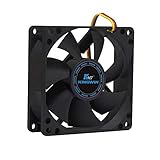
- ✅ Quiet 80mm PC Fan – Designed for silent operation with low noise levels, this 80mm computer case fan is perfect for quiet PC builds, office desktops, and home servers.
- ✅High Airflow Cooling Fan – Optimized blade design delivers excellent ventilation and airflow to reduce system heat buildup for better PC performance and longevity.
- ✅Universal Fit for Computer Cases & CPU Coolers – Compatible with standard 80mm mounts, ideal as a replacement fan for PC cases, CPU coolers, and custom water cooling radiators.
- ✅Ideal for Mining Rig Cooling – Built to handle high-performance environments such as crypto mining rigs and GPU farms, maintaining airflow and minimizing overheating risks.
- ✅Long Life Bearing & Durable Design – Features a reliable long life bearing for extended lifespan and consistent cooling, housed in a rugged black frame for lasting use.
Reduce the most demanding graphics settings
If you still want less heat after capping FPS, lower settings that make the GPU render more work. Test one at a time so you can judge the visual and performance trade-off:
- Reduce render resolution or resolution scale.
- Disable or lower ray tracing.
- Lower shadows, volumetric effects, reflections, or ambient occlusion.
- Reduce supersampling or excessive anti-aliasing.
- Cap menus, launchers, and benchmark screens that otherwise run uncapped.
Frame generation can change utilization and power behavior from game to game. Measure the result instead of assuming it will either raise or lower temperatures.
Quick wins for a faster PC:
Clear out junk files and repair common Windows errorsFree Scan →Scan for outdated or missing drivers - takes under a minuteDriver Scan →Repair Windows errors before they cause bigger problemsFix Now →Improve case airflow and remove dust
Dust can obstruct filters and heatsink fins, while restricted airflow can make the GPU draw warmer air back through its cooler. NVIDIA recommends bringing cool air in through the front and exhausting hot air through the rear; the right layout still depends on the case and fan positions. NVIDIA: airflow and dust guidance.
- Check that front, bottom, or side intake fans are unobstructed and rear or top exhaust fans spin under load.
- Remove obstructions in front of the GPU where practical, and route cables clear of its intake.
- Keep the PC clear of walls or cabinets that block its exhaust. Avoid thick carpet if it covers a bottom intake.
- Confirm fan direction. Airflow arrows on a fan frame can help; the frame struts are usually on the exhaust side.
- Check that the GPU is not pressed against another card or the side panel.
Slightly positive pressure may limit dust drawn through case gaps; negative pressure may help exhaust in some layouts but can also pull dust in through unfiltered openings. Fan count alone does not determine cooling. The goal is a supply of cool air to the GPU and a clear path for heated air to leave.
As a diagnostic, compare the same game test with the side panel temporarily removed. A substantial temperature drop suggests restricted intake or poor case airflow. It is evidence to investigate—not a reason to leave the case open permanently. Check filters, fan orientation, placement, and cable routing first. Add or replace case fans only if measurements point to missing, failing, obstructed, or inadequate airflow; no fixed temperature reduction can be promised across different cases and cards.
Rank #3

- 【Perfect Match】The PC fan can be used not only as a case fan, but is also suitable for use with a cpu cooler to create a cooling effect together, which can take away the dry heat from the case and the high temperature generated by the CPU in operation, allowing for maximum cooling; Ideal for cases, radiators and CPU coolers.
- [Excellent LED light] The high-brightness LED atomizing argb fan blade can effectively reflect the light, making the ARGB lighting effect softer, and it matches the cooler and case more perfectly. Up to 17 modes of light effects with ARGB support, color can be managed and synchronized through the port on motherboard.
- 【High Performance Cooling Fan】 Automatic speed control of the motherboard through the 4PIN PWM fan cable interface, which can determine the speed according to the temperature of the motherboard, with a maximum speed of 1550RPM. Configured with up to 55cm of cable for PWM series control of fans, ideal for cases and CPU coolers.
- 【Silent Fan Size】 Model: TL-C12C-S X3, Size: 120*120*25mm, Speed: 1550RPM±10%, Noise ≤ 25.6dBA Connector: 4pin pwm, Current: 0.20A, Air Pressure: 1.53mm H2O, Air Flow: 66.17CFM, Higher air flow for improved cooling performance.
- 【Quality Bearings】The carefully developed quality S-FDB bearings solve the problem of pc cooling fan blade shaking in lifting mode, keeping fan noise to a minimum while providing maximum cooling performance when needed and extending the life of the fan.
Clean carefully
- Shut down the PC, switch off the power supply, and unplug the power cable.
- Move the system to a ventilated area and follow the safety instructions for your cleaning products.
- Hold fan blades still while using short bursts of compressed air so they do not overspin.
- Clean dust filters and blow through GPU fan openings and heatsink fins, taking care not to push dust farther into the case.
- Reassemble, restart, and repeat your baseline test.
Do not open the GPU cooler for routine cleaning. Avoid using a household vacuum directly on exposed electronics unless the component manufacturer specifically permits it. Cleaning cannot fix a failed fan bearing, poor cooler contact, or displaced thermal interface material.
Free tools Windows power users keep installed
One-click scans. No signup required.
Set a fan curve that balances temperature and noise
A more aggressive GPU fan curve pushes more air through the heatsink. It may lower temperatures, but it also adds noise and can increase fan wear. Avoid a curve so steep that fan speed repeatedly surges up and down; test from your usual seat, not only beside an open case.
In MSI Afterburner, open Settings, select the Fan tab, enable user-defined software automatic fan control, adjust the temperature and fan-speed points, then click Apply. Keep zero-RPM behavior at idle if you prefer it and your card supports it. A fan curve that begins ramping before your preferred gaming temperature can be a reasonable starting point, but there is no one preset for every cooler. MSI: Afterburner fan control.
Radeon users can open AMD Software: Adrenalin Edition, search for Tuning, then go to Performance Tuning. Choose Custom and use Fan Tuning or its curve controls where available. AMD notes that options vary by GPU and software installation. AMD: customize GPU performance tuning.
NVIDIA App includes performance tuning and fan-speed targets on supported systems, but availability depends on GPU, driver, operating system, and application version. Its automatic tuning feature is distinct from a manually validated undervolt. NVIDIA App performance tuning.
Do these 3 things before closing this tab:
1Repair Windows errors before they cause bigger problems2Fix the driver behind crashes, sound loss and screen glitches3Clear out junk files and repair common Windows errorsRank #4

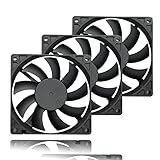
- 3 x 92mm fans combined into one interface, can be connected to the motherboard's 3-pin or 4-pin interface and you only need to access one interface to run all the fans
- This cooling fan's total size is 11in(L) x 4.72in(W) x 1.18in(H), designed for most universal graphic card video card VGA cooling,just please check the size to make sure your pc has enough space
- D-type interface cable included four interfaces, three voltages: 5V, 7V and 12V; different voltages with different airflow, speed and noise. You can select the appropriate voltage interface to start the fan
- The double ball bearing has a service life of 65,000 hours, and the 7 blades produce strong airflow to keep the computer case cool
- packing list: 3 x 92mm fans (PCI bracket screwed), 1 x multi-voltage cable ,1 x mini screwdriver,1 x fixing screw
Undervolt to reduce heat without simply sacrificing clock speed
Undervolting lowers the voltage used at a selected performance point. The aim is to retain useful clock speed while reducing power consumption and heat. Results depend on the individual GPU and workload: an unstable setting can cause crashes, artifacts, driver resets, or lower performance. MSI describes undervolting as a way to reduce power, heat, and fan noise, but no specific voltage and clock combination should be copied blindly between cards. MSI: Afterburner undervolting guide.
NVIDIA cards with MSI Afterburner
- Record stock temperatures, power, clocks, FPS, and 1% lows; restore Afterburner to default before starting.
- Open the voltage/frequency curve editor, commonly with Ctrl+F.
- Select a voltage point below the stock peak and set a realistic target clock for it.
- Apply the change and test the game that normally heats the card most.
- If stable, test several other games or workloads. If you see artifacts, a driver reset, a crash, or lower performance, raise voltage slightly or lower the target clock.
- Save a stable profile and keep a stock/default profile for recovery.
Disable automatic loading of the tuned profile at Windows startup until you have confirmed stability. A short benchmark is not proof that the setting works in every game.
On supported GeForce RTX desktop and laptop GPUs, NVIDIA App also offers one-click automatic tuning. NVIDIA says the scan can take about 10–20 minutes; advanced controls include voltage, power, temperature, and fan targets. Support and available controls vary. NVIDIA App release information.
AMD Radeon cards with Adrenalin
Open AMD Software: Adrenalin Edition, search for Tuning, and choose Performance Tuning. Select a preset or enable Custom. Start with Undervolt GPU; if needed, adjust Fan Tuning or reduce the Power Limit. Use Advanced Control for more granular options, then apply and test. Available controls vary by GPU and software installation. AMD says undervolting reduces voltage while maintaining clock speeds to improve performance per watt. AMD tuning guide.
Crashes, No Sound, or Screen Glitches?
Random freezes, missing sound and display glitches usually trace back to one bad driver. Find and replace yours safely.Free scan · under a minutePC Slower Than It Used to Be?
A free scan shows the junk files, broken settings and background clutter dragging Windows down - then fixes them in one click.Free scan · Windows 10 & 11AMD’s built-in stress test is a first-pass check, not a guarantee of stability in every game. Its documented workflow lets you choose a duration (the default is 60 seconds), start testing, and review results; if a stress test fails and causes a crash or reboot, AMD Software resets tuning to default. Follow with testing in the games you actually play. If an undervolt crashes a game, reset to defaults, then try a slightly higher voltage or lower clock. AMD: tuning and stress testing.
Best Value

- 【Universal Compatibility】This USB cooling fan works seamlessly with Mini PC, PS5, routers, Apple TV, modems, PlayStation, receivers, Rokus, T-Mobile 5G Home Internet, Xbox Series, and other audio-video electronics. Whether cooling a gaming console, router, or streaming device, it eliminates overheating worries across your digital ecosystem.
- 【Powerful Cooling Performance】Equipped with a 120mm fan boasting 55.8 CFM airflow and 850RPM±10% speed, this USB PC fan delivers rapid cooling—dropping device temperatures by 20% in seconds. The 9-blade design ensures powerful airflow to tackle heat buildup in routers, mini PCs, and gaming consoles, preventing lag and performance drops caused by overheating.
- 【Ultra-Quiet Operation & Scratch-Proof Protection】 Designed for ultra-quiet and scratch-resistant cooling needs, this USB computer fan comes with 4 shock-absorbing pads and operates at just 18dB(A)±10% noise—whisper-quiet, quieter than library silence (30dB) and close to the sound of rustling leaves (20dB). It enables efficient device cooling without noise interference or surface scratches, letting you fully immerse in video, audio, and gaming. It’s perfect for home offices, living rooms, and gaming setups.
- 【USB-Powered & Space-Saving Setup】This USB powered fan features an integrated 530mm (20.87-inch) USB cable, connecting easily to chargers, mobile power banks, or laptops—no extra wires needed. With dimensions of 130mm×130mm×48.6mm (5.12×5.12×1.91 inches), it can be placed flat or upright, making it perfect for narrow spaces while keeping your setup tidy.
- 【Sturdy & Long-Lasting Durability】Made from premium eco-friendly ABS material, this USB fan (with a box fan-like structure) supports heavy-duty use and can withstand weights up to 11LB. With a lifespan of 40000 hours, it offers long-term cooling for your devices, ensuring stable performance and protection against overheating for years to come.
Try a modest power-limit reduction
Reducing the power limit is simpler than tuning a voltage curve. It can reduce power draw, heat, and fan speed, but may also lower sustained clocks and performance in GPU-bound games. Sometimes the FPS cost is small; sometimes it is noticeable. Compare stock settings with a modest reduction and an undervolt using the same workload, and judge average FPS, 1% lows, power, core and hotspot temperatures, noise, and clock stability together. Do not confuse lowering the power limit with raising it: the latter provides more performance headroom and can increase heat. AMD: power-limit controls.
Investigate a large core-to-hotspot difference
A high hotspot reading is not interchangeable with a high core reading. Verify the sensor in a reputable monitoring tool and compare the gap with the card’s past behavior. Investigate if the hotspot rises unusually quickly, the gap changes markedly, fan changes have little effect, or there are crashes, clock drops, or artifacts.
Possible causes include restricted airflow, uneven cooler mounting pressure, displaced thermal interface material, or a cooler-contact problem. A new vertical mount, transport, cooler disassembly, or repaste can also change contact conditions. There is no universal core-to-hotspot difference that automatically means a card needs new paste. Check warranty and manufacturer service options before disassembling the GPU: incorrect work can damage the card, worsen contact, or affect warranty coverage.
Recommended Free Tools
Laptop GPU temperatures need a different approach
Laptops often share cooling hardware between CPU and GPU, and their fan and power behavior may be controlled by manufacturer firmware. Start by using the laptop on a hard, flat surface, keeping vents clear, and checking the manufacturer’s performance mode. Elevating the rear or using a rigid stand can help if the bottom intake is obstructed. A cooling pad is most relevant when its fans feed air into the laptop’s actual intake; moving air against a sealed panel may do little.
Clean accessible vents without opening the chassis, and check the manufacturer’s service guidance if dust is trapped inside. Desktop-style fan control may not be available: MSI notes that laptop GPU fan behavior is generally preset in the manufacturer BIOS and may not be adjustable in Afterburner. Do not assume desktop undervolting controls work the same way on a laptop GPU. MSI: Afterburner and laptop limitations.
When to stop tuning and request service
Check warranty or contact the card or laptop manufacturer if a fan fails, rattles, or does not spin under load; if temperatures remain near the model’s published maximum with sustained throttling after airflow and dust checks; or if an unusual hotspot pattern comes with instability. Check that GPU power connectors are fully seated and the card is not obstructed or mounted unusually. If the case itself is the airflow bottleneck, fans or a more suitable case may help; they will not repair a defective GPU cooler. Prefer warranty service or qualified repair over repasting or cooler disassembly when coverage may apply.
A repeatable optimization plan
- Measure: Record a 15–20-minute gaming baseline, including temperatures, power, fans, clocks, FPS, and 1% lows.
- Cap FPS: Prevent unnecessary rendering, especially in menus and games that exceed your display’s needs.
- Check airflow: Clean filters and heatsinks, clear intakes and exhausts, and use a side-panel test only to diagnose restriction.
- Adjust the fan curve: Increase cooling gradually while checking noise and fan behavior.
- Reduce power: Test a modest power-limit reduction if temperatures or noise remain a concern.
- Undervolt: Make conservative changes, keep a default profile, and test across real games.
- Compare: Use the same workload to compare temperature, power, average FPS, 1% lows, clock stability, and noise.
- Escalate: If throttling or abnormal sensor behavior persists, check warranty and pursue service before opening the card.
The best result is not necessarily the lowest temperature. It is stable gaming performance at an acceptable balance of temperature, power, noise, and FPS.
Quick Recap
Product prices and availability are accurate as of the date/time indicated and are subject to change. Any price and availability information displayed on Amazon at the time of purchase will apply.

