Windows Errors? Fix Them Before They Spread
Repair common Windows errors and clear accumulated junk for a smoother, more stable PC - no reinstall needed.Free scan · no reinstallCrashes, No Sound, or Screen Glitches?
Random freezes, missing sound and display glitches usually trace back to one bad driver. Find and replace yours safely.Free scan · under a minuteSome links on this page are affiliate links: if you buy through them we may earn a commission, at no extra cost to you.
Yes—Roblox officially works on 64-bit Windows 11. Roblox supports Windows 11 PCs that meet its graphics, memory, storage, processor, and internet requirements. However, Windows 11 support does not guarantee that Roblox will launch correctly on every computer. Hardware limitations, damaged installation files, drivers, antivirus software, firewall settings, network problems, Windows N/KN editions, and Windows-on-ARM compatibility issues can still cause trouble.
For the safest setup, install the current Roblox – Windows app from the Microsoft Store or use the installer from Roblox’s official website. If one version fails, try the other before moving on to more advanced fixes.
Roblox requirements for Windows 11
Roblox lists 64-bit Windows 10 and Windows 11 as supported operating systems. Its published hardware guidance is a baseline for installation and compatibility—not a promise of a particular frame rate or perfectly smooth play in every experience.
What’s actually slowing this PC down?
Pick the symptom - the matching free tool is one click away.
| Requirement | Roblox guidance |
|---|---|
| Operating system | 64-bit Windows 10 or Windows 11 |
| Graphics | DirectX 10 or higher feature-level support |
| Memory | At least 1 GB of RAM |
| Storage | Approximately 300 MB of free space |
| Processor | A recent processor, approximately 1.6 GHz or better; Roblox notes that some older AMD processors can cause issues |
| Internet | Approximately 4–8 Mbps for a single-use household; larger households may need more bandwidth |
| Browser | Chrome, Firefox, or Microsoft Edge |
Check the full figures in Roblox’s official computer hardware and operating-system requirements.
#1 Best Overall
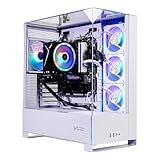
- Intel Core i5 14400F 2.5GHz (4.7GHz Turbo Boost) CPU Processor | 1TB NVMe M.2 SSD – Up to 30x Faster Than Traditional HDD | High-Performance Air Cooler
- NVIDIA GeForce RTX 5060 8GB GDDR7 Graphics Card (Brand may vary) | 16GB DDR5 RAM 6000 Gaming Memory with Heat Spreader | Windows 11 Home 64-bit
- 802.11 AC | No Bloatware | Graphic output options include 1 x HDMI, and 1 x Display Port Promised, Additional Ports may vary | USB Ports Including 2.0, 3.0, and 3.2 Gen1 Ports | HD Audio & Mic | Free Gaming Keyboard & Mouse
- High-Performance Air Cooler: Maximum Airflow & ARGB Fans | Skytech Archangel 5 Gaming Case with Tempered Glass, White | 1 Year Warranty on Parts and Labor | Free Technical Support | Assembled in the USA
- This powerful gaming PC is capable of running all your favorite games such as Call of Duty, Fortnite, Escape from Tarkov, Grand Theft Auto V, Valorant, World of Warcraft, League of Legends, Apex Legends, PLAYERUNKNOWN’s Battlegrounds, Overwatch 2, Counter-Strike 2, Battlefield V, Minecraft, ELDEN RING Shadow of the Erdtree, Rocket League, Baldur’s Gate 3, Dota 2, HELLDIVERS 2, Monster Hunter, Terraria, Rainbow Six Siege, Black Myth Wukong, Marvel Rivals, Stellar Blade, more at Ultra settings, detailed 1080p Full HD resolution, and smooth 60+ FPS gameplay.
Meeting the minimum does not mean that a demanding experience will run well. Roblox performance varies with the experience’s graphics, scripts, player count, and network activity. Integrated graphics, low memory, thermal throttling, older processors, and many background applications can cause stuttering or crashes even when Roblox installs successfully.
Does Roblox work on Windows 11 Home and Pro?
Yes. Windows 11 Home and Windows 11 Pro are normal supported desktop editions when installed as 64-bit Windows 11 and used on hardware that meets Roblox’s requirements.
The important distinction is between the Windows edition and the computer’s architecture. A 64-bit Windows 11 installation on a conventional x64 PC is the ordinary compatibility case. Windows-on-ARM devices need separate qualification, discussed below.
How to install Roblox on Windows 11
Option 1: Install Roblox – Windows from the Microsoft Store
- Open the Microsoft Store.
- Search for Roblox – Windows.
- Check that the listing and icon match Roblox’s current description. The newer app uses a blue icon; an older Store listing is named simply Roblox and uses a light-gray icon.
- Select Get or Install.
- Open the app and sign in with your normal Roblox account.
Roblox says the newer Store app is intended to replace the older Windows app and is designed to provide improved stability. You can use the official Microsoft Store listing.
Option 2: Install Roblox from Roblox.com
- Open Roblox.com in Chrome, Firefox, or Microsoft Edge.
- Sign in.
- Open an experience and select Play.
- When prompted, download and run the Roblox installer.
- Return to the experience and select Play again.
Use only Roblox’s official website or the Microsoft Store. Avoid unofficial launchers, modified clients, APKs, emulators, and “optimization” utilities. Modified or unofficial software can trigger Roblox integrity and anti-cheat warnings.
Roblox is installed but will not open
Follow these steps in order. Stop when the problem is resolved; the advanced repairs are not routine installation requirements.
Rank #2
- AMD Ryzen 7 7700 3.8GHz (5.3GHz Turbo Boost) CPU Processor | 1TB NVMe M.2 SSD – Up to 30x Faster Than Traditional HDD | High-Performance Air Cooler
- NVIDIA GeForce RTX 5060 8GB GDDR7 Graphics Card (Brand may vary) | 32GB DDR5 RAM 6000 RGB Gaming Memory with Heat Spreader | Windows 11 Home 64-bit
- 802.11 AC | No Bloatware | Graphic output options include 1 x HDMI, and 1 x Display Port Promised, Additional Ports may vary | USB Ports Including 2.0, 3.0, and 3.2 Gen1 Ports | HD Audio & Mic | Free Gaming Keyboard & Mouse
- High-Performance Air Cooler: Maximum Airflow & ARGB Fans | Skytech Archangel 5 Gaming Case with Tempered Glass, White | 1 Year Warranty on Parts and Labor | Free Technical Support | Assembled in the USA
- This powerful gaming PC is capable of running all your favorite games such as Call of Duty, Fortnite, Escape from Tarkov, Grand Theft Auto V, Valorant, World of Warcraft, League of Legends, Apex Legends, PLAYERUNKNOWN’s Battlegrounds, Overwatch 2, Counter-Strike 2, Battlefield V, Minecraft, ELDEN RING Shadow of the Erdtree, Rocket League, Baldur’s Gate 3, Dota 2, HELLDIVERS 2, Monster Hunter, Terraria, Rainbow Six Siege, Black Myth Wukong, Marvel Rivals, Stellar Blade, more at Ultra settings, detailed 1080p Full HD resolution, and smooth 60+ FPS gameplay.
1. Restart Windows 11
Restart the computer, then try Roblox again. Roblox lists rebooting as the first general desktop troubleshooting step.
Free tools Windows power users keep installed
One-click scans. No signup required.
2. Update Windows and the Microsoft Store
- Go to Start > Settings > Windows Update > Check for updates.
- Open the Microsoft Store.
- Select Library > Get updates.
Microsoft recommends these steps when a Store app is malfunctioning. Keep Roblox updated as well, but do not use Insider or preview Windows builds as a compatibility solution.
3. Try the other official Roblox version
If Roblox – Windows from the Store fails, install the desktop version from Roblox.com. If the website installer fails, try the Store version instead. Roblox specifically recommends switching between the official Store and desktop builds when installation files or required Windows files may be damaged.
4. Perform a clean reinstall
- Uninstall Roblox from Start > Settings > Apps > Installed apps.
- Restart the computer.
- Press Windows key + R.
- Enter
%localappdata%and press Enter. - Delete the Roblox folder if it remains.
- Clear your browser’s temporary internet files.
- Reinstall Roblox from the official website or Microsoft Store.
This can remove damaged cached files and incomplete installations. Roblox documents the procedure in its reinstallation guide.
5. Check antivirus and firewall restrictions
Antivirus software may quarantine Roblox files, while Windows Firewall or a third-party firewall may block its network access. Check the security product’s quarantine and permitted-app settings rather than disabling protection permanently.
Roblox’s usual local folder is:
C:Users<Your Windows Username>AppDataLocalRobloxUse the instructions for your own security software if an exclusion is necessary, and restore normal protection afterward. See Roblox’s guidance on third-party applications and antivirus restrictions.
Rank #3

- System: Intel Core i5-13400F 2.5GHz 10 Cores | Intel B760 Chipset | 16GB DDR5 | 1TB PCIe 4.0 NVMe SSD | Windows 11 Home
- Graphics: NVIDIA GeForce RTX 5060 8GB Graphics | 1x HDMI | 2x DisplayPort
- Connectivity: 1 x USB-C 3.2 | 2 x USB-A 3.2 | 6 x USB-A 2.0 | 1 x LAN | WiFi 6 | Bluetooth 5.3 | 7.1 Channel Audio
- Tempered Side Case Panel | Custom RGB Lighting | Keyboard and Mouse
- 1 Year Parts & Labor Warranty, Free Lifetime Tech Support
6. Update graphics drivers
Install the latest stable graphics driver supplied by your laptop or graphics-card manufacturer. A Windows 11 PC can satisfy the operating-system requirement while still having an outdated driver or graphics hardware that lacks the required DirectX feature level.
7. Repair Windows system files for library or DLL errors
If Roblox reports Failed to Load Library or another missing-library error, open Windows Terminal or Command Prompt as an administrator and run:
DISM /Online /Cleanup-Image /RestoreHealthAfter DISM finishes, run:
sfc /scannowRestart Windows when both scans are complete. Roblox recommends these commands when Windows system files may be missing or corrupted. The same error can also result from a damaged Roblox installation, security software, outdated Windows or graphics drivers, or a missing Media Feature Pack.
8. Test for software conflicts
Overlays, monitoring tools, recording software, emulators, modification tools, and other background applications can interfere with Roblox or its anti-cheat checks. Close unnecessary software and, if needed, use a clean-boot test to identify a conflict. Do not install a modified Roblox client to work around an anti-cheat message.
Fixes for common Roblox errors
Error 279 / ID 17: Failed to connect to the game
Error 279 usually means that the Roblox client could not establish a connection with Roblox’s servers. Check whether other online services work, restart your router if appropriate, verify firewall permissions, and test another internet connection. Reinstalling Roblox and clearing relevant local data can also help. Follow Roblox’s Error 279 guidance.
Error 403
Roblox describes Error 403 as a failure in which the client launched from the website does not initialize properly or access is denied. Uninstall Roblox, clear the local Roblox data, restart Windows, and reinstall the official client. The relevant Roblox Error 403 article provides the current steps.
Rank #4

- NVIDIA GEFORCE GTX 1050 Ti - This card gives gamers the freedom to transform their PC into a serious gaming rig and experience the latest titles in their full glory. The system has been tested to run games such as Call Of Duty, Fortnite, Diablo 4 & More
- HIGH SPEED PERFOMANCE - Unleash your wildest gaming adventures with Intel Core i7 6th Generation 3.40GHz Processor a true powerhouse that defies all limits, raising the standards for gamers and artists alike. Get ready to embrace a world of seamless performance and boundless creativity
- MEMORY & STORAGE - Unleash powerful multitasking with 16GB DDR3L RAM and fast data access via a spacious 512GB Solid State Drive
- YOUR ALL-IN-ONE COMPUTING SOLUTION: Experience the ultimate convenience and versatility with this Dell OptiPlex Desktop bundle that effortlessly handles office tasks, enhances home activities, and delivers unbeatable gaming experiences, streamlining every aspect of your digital life in one powerful device
- MESMERIZING RGB SETUP – Customize lighting effects on RGB gaming PC, Keyboard, Mouse, and Speakers to match your style and enhance the overall gaming experience
“Failed to Load Library”
This message can indicate missing or corrupted Windows DLL files, a damaged Roblox installation, antivirus or firewall interference, outdated Windows or graphics drivers, or a missing Media Feature Pack on Windows N or KN. Try the alternate official installation route, perform a clean reinstall, and then use DISM and SFC if the error persists.
Do these 3 things before closing this tab:
1Clear out junk files and repair common Windows errors2Fix the driver behind crashes, sound loss and screen glitches3Repair Windows errors before they cause bigger problemsRoblox keeps asking you to install it
This commonly points to a broken browser-to-client handoff, cached installation data, or an incomplete installation. Use the Microsoft Store app as an alternative, or remove the desktop version and its remaining local folder before reinstalling from Roblox.com.
Independent reader supportYour contribution helps us test, update, and keep practical guides available for everyone.Special Windows 11 compatibility cases
Windows-on-ARM PCs
Windows 11 ARM requires extra caution. Microsoft documented a 2025 issue in which players on Windows-on-ARM devices could not download or play Roblox through the Microsoft Store. Microsoft’s workaround was to download Roblox directly from Roblox.com while a resolution was being developed.
Roblox’s general requirements page says “64-bit versions of Windows 10 or Windows 11,” but it does not clearly promise identical behavior for every Windows-on-ARM configuration. If the Store version fails on a Snapdragon or other ARM-based PC, try the official Roblox website installer and check current Roblox or Microsoft support notices. Do not assume that every ARM device is either fully supported or categorically unsupported.
Windows 11 N or KN editions
Windows N and KN editions omit certain media components. If Roblox reports missing DLLs or a library-loading problem on one of these editions, install the appropriate Media Feature Pack through Windows’ optional features, then restart and try Roblox again. Use Microsoft’s current instructions for the exact Windows 11 build.
The Tool Desk
Outbyte PC Repair FREERepair Windows errors before they cause bigger problemsFix Now →Outbyte Driver Updater FREEFix the driver behind crashes, sound loss and screen glitchesFind Drivers →Windows 11 in S mode
S mode restricts app installation to Microsoft Store applications. The Store route is therefore the relevant option while S mode is enabled. Try the current Roblox – Windows app first.
Best Value
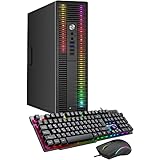
- This Product is professionally inspected and tested to look and work like new. The refurbishing process includes functionality testing, basic cleaning, inspection, and repackaging. The product ships with all relevant accessories, a minimum 90-day warranty, and may arrive in a generic box.
- PROCESSOR: Intel Core i5-6500 6th Gen Processor 6M Cache, 3.2 GHz so you can expect reliable and consistent performance.
- RGB LIGHTS: You can setup the RGB Lights of the Front Panel for your PC with Remote Controller in several modes according to your choice.
- STORAGE AND MEMORY: Professional Upgraded to 8GB DDR4 Memory. 256GB SSD - Boot up quickly with the high-performance.
- PACKAGE CONTENTS: Desktop Computer, New Gaming Keyboard & Mouse Combo, USB WiFi Adapter, Power Cord, Pre Installed Windows 10 Pro (64-bit) English/French/Spanish maximize the utility of the PC for years to come.
Leaving S mode is generally one-way, so do not switch out solely because of an unverified Roblox issue. If the Store app itself fails, troubleshoot the Store and Windows first, then consult current Microsoft guidance before changing modes.
Does Roblox Studio work on Windows 11?
Yes. Roblox Studio is a separate free application for creating and editing Roblox experiences. Its setup documentation lists Windows 10 as the minimum operating system and Windows 11 as the recommended operating system. Studio requires at least 3 GB of RAM, with 8 GB recommended.
Do not use Roblox Player’s requirements as Studio requirements. Editing projects, importing assets, and running development tools can require substantially more memory and graphics performance than simply playing an experience. See the Roblox Studio setup documentation.
Which Windows 11 release should you use?
Roblox’s published requirement is 64-bit Windows 11; it does not require readers to install one universally specified Windows 11 feature release. Keep your normal Windows installation current and install available Roblox and Microsoft Store updates.
Microsoft’s release-health documentation includes Windows 11 versions such as 24H2 and 25H2, while 26H1 is described as a hardware-specific release intended for select new devices rather than a general feature update for existing PCs. A particular post-update failure should not automatically be treated as proof that Windows 11 is unsupported.
When to contact Roblox Support
Contact Roblox Support after you have tried the relevant official installation routes and troubleshooting steps. Include the exact error message or code, your Windows 11 version, whether the PC is x64 or ARM, graphics hardware, Roblox installation route, and the steps you already attempted. This information helps distinguish a client, Windows, security, hardware, or network problem.
Quick Recap
Product prices and availability are accurate as of the date/time indicated and are subject to change. Any price and availability information displayed on Amazon at the time of purchase will apply.
Recommended Free Tools

