Quick wins for a faster PC:
Fix the driver behind crashes, sound loss and screen glitchesFind Drivers →Clear out junk files and repair common Windows errorsFree Scan →Some links on this page are affiliate links: if you buy through them we may earn a commission, at no extra cost to you.
The original Wii cannot natively render or output 1080p. Its highest official progressive output is 480p. However, you can send that 480p signal through an HDMI converter or external scaler and have your modern television receive a 1080p signal. That is upscaling—not native 1080p Wii graphics.
Can the Wii really output 1080p?
No. An unmodified original Wii does not support HDMI or native 1080p output. Nintendo officially supports standard-definition video, including 480p progressive scan through a Wii Component Video Cable. PAL systems commonly use 576i, while NTSC systems use 480i or 480p.
Nintendo’s documentation confirms that the Wii’s EDTV/HDTV setting is 480p and requires a component cable. See Nintendo’s resolution instructions and its HDMI compatibility guidance.
There are four different things that are often confused:
#1 Best Overall

- STABLE WII TO HDMI CONVERSION: Convert your Wii or Wii U audio and video signal to HDMI for modern HDTVs, monitors and projectors. Designed for stable signal transmission and synchronized sound and picture, it works with 720p and 1080p HDMI displays while preserving the console’s original image quality.
- SIMPLE PLUG-AND-PLAY SETUP: No drivers, software, settings or external power required. Connect the adapter to your console, attach an HDMI cable, select the correct HDMI input on your display and start playing. For the most reliable connection, plug the adapter directly into the TV, monitor or projector rather than an HDMI switch or splitter.
- HDMI AUDIO PLUS 3.5MM AUDIO JACK: Audio is transmitted through the HDMI connection, while the built-in 3.5mm audio output lets you connect headphones, a headset or external speakers. Enjoy private late-night gaming or send the sound directly to your preferred audio device.
- SUPPORTS STANDARD WII DISPLAY MODES: Compatible with NTSC 480i, 480p and PAL 576i display modes. Some newer TVs and monitors may not accept certain 240p or 480i game signals through HDMI; if no picture appears, set the Wii display resolution to 480p when the game and console support it.
- COMPACT DESIGN & CLEAR COMPATIBILITY: Measuring approximately 6 × 3 × 1.9 cm, the compact adapter connects neatly behind the console without taking up desk space or adding tangled cables. Compatible with Wii and Wii U consoles using the Wii AV output connection; not compatible with Wii Mini. If you experience no picture, no sound or abnormal display lines, contact customer support for troubleshooting or replacement assistance.
- Native rendering resolution: the resolution generated by the game.
- Console output resolution: the signal sent by the Wii, normally up to 480p.
- Scaler output resolution: a converted signal such as 720p or 1080p.
- Television panel resolution: the physical resolution of the TV, such as 1080p or 4K.
A scaler can enlarge the Wii’s image for a 1080p television, but it cannot add the detail of a game rendered natively at 1080p.
Set the Wii to its best official picture quality
For the cleanest unmodified Wii signal, use component video rather than the standard composite cable.
- Connect a Wii Component Video Cable to the console’s AV Multi Out port.
- Open the Wii Menu.
- Select the Wii button in the lower-left corner.
- Choose Wii Settings.
- Move to the second settings page and select Screen.
- Choose TV Resolution.
- Select EDTV or HDTV (480p), then choose Confirm.
You can also open Widescreen Settings and select Widescreen (16:9) when using a widescreen television. This changes the Wii’s display configuration; it does not increase the game’s resolution. Set the television or scaler to preserve the correct aspect ratio instead of using a forced stretch mode.
Enable the TV’s Game Mode if available. It usually reduces image-processing delay, which matters more for games than a higher output number alone.
480i, 480p and game compatibility
480i is interlaced standard definition. 480p is progressive standard definition and is the Wii’s highest official NTSC output mode. Progressive video generally produces a cleaner, steadier image on modern displays.
Not every Wii game supports progressive scan. Nintendo specifically warns about this. The Wii Menu may remain in 480p while an individual game switches to 480i, and some titles display a prompt asking you to enable progressive scan. GameCube software launched through a Wii can have its own progressive-scan behavior as well.
Rank #2

- 【NOTE】Please set your HDTV to the corresponding HDMI input to avoid a black screen or malfunction. It is NOT COMPATIBLE with the WII MINI because the device only has an AV interface, but it does not have a Wii interface. Some devices' auto-setting of screen resolution is 480i instead of 480p, which may not support games at 240p/480i over HDMI. If you switch to 480p mode they may work over HDMI. it can't be connected to the switch/splitter, only connect directly to the TV, monitor, projector
- 【Reinforced Cable Design】This wii hdmi cable adapter features reinforced cables that prevent breakage and sheath damage, ensuring longer durability. Multi-layer shielding enhances interference resistance for a more stable signal, reducing flickering, blackouts, and frame drops. It also has better heat resistance and is less prone to burnout
- 【HD Output Compatibility】This Wii to HDMI converter supports 1080P full HD output(CANNOT IMPROVE IMAGE QUALITY), allowing you to connect your Wii console to any HDMI-compatible device, such as HDTVs, monitors, and projectors, providing clear, lossless video and audio quality
- 【Full Support for All Wii Display Modes】The converter supports all Wii display modes, including NTSC 480i, 480p, and PAL 576i. Whether you're playing in standard resolution or high definition, it ensures the best gaming experience
- 【Plug and Play】The wii to hdmi cable is designed for simplicity, fully supporting plug-and-play functionality with no additional drivers or complex settings required. Simply connect your Wii console to your HDMI device and start gaming immediately
A good scaler can deinterlace 480i material more cleanly, but it cannot turn a 480i game into a genuine 480p or 1080p source.
The Tool Desk
Outbyte PC Repair FREERepair Windows errors before they cause bigger problemsFix Now →Outbyte Driver Updater FREEScan for outdated or missing drivers - takes under a minuteDriver Scan →Choose the right connection
Composite video
Setup: Wii composite cable → TV.
This is the cheapest option when a television still has the yellow video input. It is also the weakest: composite normally delivers 480i, with softer detail, color bleeding and visible interlacing. Modern TVs vary widely in how well they process it. Use it as a baseline or temporary solution, not as the Wii’s full potential.
Component video
Setup: Wii component cable → TV or scaler.
Component video uses red, green and blue video connectors plus red and white audio connectors. It enables the Wii’s official 480p mode when the display supports it. The cable does not create 1080p; it exposes the best signal the unmodified Wii can officially provide.
Wii2HDMI-style adapter
Setup: Wii AV Multi Out → Wii2HDMI adapter → HDMI TV.
These compact adapters convert the Wii’s analog signal to HDMI. Some advertise 720p or 1080p output. For example, the Monoprice Wii2HDMI manual lists Wii input modes including 480i, 480p and 576i, with HDMI output modes including 720p and 1080p.
Free tools Windows power users keep installed
One-click scans. No signup required.
This is an HDMI conversion purchase, not automatically a premium upscaler. Quality varies considerably among generic models. Problems can include softness, incorrect aspect ratio, image noise, audio dropouts and unstable sync. Some adapters handle 480p acceptably but perform poorly with 480i games.
Rank #3
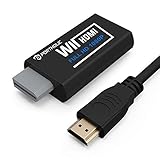
- Buy with Confidence: If you receive a defective one (like wavy lines, no sound/picture) or you have any problems with the adapter, please contact us in the first place to get efficient customer service for replacement or other assistance.
- NOTE: Some devices’ auto-setting of screen resolution is 480i instead of 480p, which may not support games at 240p/480i over HDMI. If you switch to 480p mode they may work over HDMI. it can't be connected to the switch/splitter, only connect directly to the TV, monitor, projector. This adapter not support for Wii Mini
- Extra Audio Jack: Although HDMI output provides audio output, an extra 3.5mm audio jack allows you to connect a speaker or headphone. Even the night owls can enjoy playing in the midnight and no need to worry about disturbing others.
- Plug and Play: Super easy to operate. No setting and no need to install the drivers. Just simply hook it up the Wii and plug the HDMI directly into the monitor and BOOM enjoying the games with optimal viewing.
- Small in Size: PORTHOLIC Wii to HDMI Adapter with size of 6 x 3 x 1.9cm, is smaller than a Zippo. Small but powerful. It does not occupy any space on your table by hooking up the back of Wii. No more tangling cords, just one cable.
Choose this route when you want a small, simple and relatively inexpensive HDMI connection. Do not assume that a “1080p” label means the Wii is producing native 1080p detail.
Three practical ways to get a 1080p HDMI signal
1. Use a Wii2HDMI adapter
This is the simplest route for an HDMI-only television. First set the Wii to 480p with a component-capable connection if possible, then connect the adapter and select its 720p or 1080p mode if available. The result may be perfectly adequate for casual play, but performance depends on the specific adapter.
2. Use component video with an external scaler
Setup: Wii Component Cable → scaler → HDMI TV.
This is generally the strongest non-invasive option. A quality scaler can handle 480p cleanly and deinterlace 480i games more effectively than many inexpensive adapters or televisions.
The RetroTINK-5X Pro accepts component input and offers 1080p output modes, along with composite, S-Video, RGB and SCART support. Its listed price was $325 when checked on August 18, 2026; price and availability can change.
Use the Wii’s 480p mode whenever the game supports it. Compare 720p and 1080p output because some televisions scale one mode better than the other. Evaluate deinterlacing, latency, aspect-ratio control and signal stability—not simply the resolution shown in the TV’s information panel.
3. Install an internal HDMI modification
An internal HDMI mod takes a digital signal from inside the Wii and adds an HDMI output. It requires opening the console and usually involves fine soldering, specialist installation and firmware or board-revision compatibility checks.
Rank #4

- Connect the WII console to any HDMI-compatible HD device, The single-cable design eliminates screen flickering caused by multiple connections and allows for plug-and-play operation
- A built-in converter chip provides synchronized audio and video output and supports all Wdisplay modes, including NTSC 480i, 480p, and PAL 576i. Not compatible with the WII Mini
- With a single-cable connection, plug and play, no setup required. Simply connect the dongle to the WII console, then plug the HDMI cable directly into your monitor or TV
- The 5ft/150cm cable length eliminates cable tangles and extends the distance between devices without taking up too much space
- Note: 1. This adapter only converts the signal, not improves the clarity. 2. It is not compatible with the Mini. 3. Some devices automatically set their resolution to 480i instead of 480p, so you may not be able to transmit 240p/480i signals via HDMI. You can try switching to 480p, which may solve the HDMI problem. 4. It cannot be connected to a switch or splitter, only to a TV/monitor/projector. 5. It does not have an external audio interface
This is an enthusiast or professional-installation solution, not a software setting. It can provide a clean integrated connection, but it costs more, carries a risk of damaging the console and still does not make the Wii’s games native 1080p. Verify compatibility with the exact Wii revision before buying any mod board or booking installation.
Recommended Free Tools
Which scaler is best?
| Option | Best for | Strengths | Trade-offs |
|---|---|---|---|
| RetroTINK-5X Pro | Best all-around processing | Strong 480i deinterlacing, component input, aspect-ratio controls, 1080p output and support for multiple retro systems | Expensive for a Wii-only setup; listed at $325 on August 18, 2026 |
| OSSC | Low-latency 480p | Very low latency and excellent handling of clean progressive sources | Classic models depend more on display compatibility and are less convenient for some 480i material |
| OSSC Pro | Enthusiasts with several consoles | More advanced processing and broad system support | More configuration and an approximately $350-plus-shipping U.S. reseller price signal that is time-sensitive |
| GBS-C Pro | Technically minded buyers | Component input, HDMI output up to 1080p and configurable community-based processing | Hardware, firmware, support and pricing vary by board and seller |
See the OSSC Pro setup guide, the official OSSC Pro product page, and the GBS-C Pro project page for model-specific information. A scaler is easiest to justify when you own several analog consoles. For one Wii, a good component cable or reputable HDMI adapter may be the more sensible purchase.
Recommended setup by situation
| Your situation | Recommended choice |
|---|---|
| Your TV has component input and cost matters | A good Wii component cable, configured for 480p |
| Your TV has HDMI only and you want simplicity | A reputable Wii2HDMI-style adapter |
| You want the best non-invasive image | Wii component cable plus a quality scaler |
| You own several retro consoles | RetroTINK-5X Pro, OSSC Pro or GBS-C hardware |
| You prioritize the lowest latency with clean 480p | An OSSC-family scaler |
| You play many 480i games | A scaler with strong deinterlacing, such as the RetroTINK-5X Pro |
| You are comfortable with electronics | An internal HDMI modification matched to your Wii revision |
| You also want Wii U games | A Wii U connected by HDMI, without expecting native 1080p Wii Mode |
Troubleshooting
No 480p option appears
- Confirm that you are using component, not the yellow composite cable.
- Reseat the cable at the Wii and television.
- Check whether the cable is defective or incorrectly wired.
- Remember that the Wii mini has cable limitations.
Return to Wii Settings → Screen → TV Resolution. Nintendo states that the 480p option appears only when a component cable is connected.
The screen goes black after selecting 480p
- Power off the Wii.
- Reconnect the original composite cable, if available.
- Select the correct TV input.
- Restore 480i.
- Test another display or scaler.
- Try 480p again only after confirming that the display accepts it.
Also verify that component plugs are connected to the correct color-coded inputs. Some TVs require a separate input assignment for the red and white audio connectors.
The image is stretched or has black bars
Check the Wii’s Widescreen Settings, the scaler’s aspect-ratio mode and the television’s aspect-ratio setting. A 4:3 game on a 16:9 TV may correctly display with side bars. Avoid stretch modes that distort circles, characters and level geometry simply to fill the screen.
The Wii2HDMI image looks worse
The adapter may be using a poor scaler, receiving 480i instead of 480p, forcing the wrong aspect ratio or adding excessive sharpening. If possible, compare composite directly to the TV, component at 480p, the Wii2HDMI adapter and component through a quality scaler. Judge clarity, motion artifacts, latency, color stability and audio—not just the TV’s reported input resolution.
Best Value

- Input: RCA, Output: HDMI; Converts Analog Composite Input to HDMI 1080p or 720p Output.
- RCA to HDMI Converter - Plug and Play, Easy to Install and Operate, Powered by External USB Cable.
- RCA to HDMI Converter supports connecting HDMI capture card (note that we do not include HDMI capture card).
- Composite to HDMI Converter Widely Applied to PS One, PS2, PS3, N64, WII, WII U, STB, VHS, VCR, Blue-Ray DVD Players Projector (Note: It can only be used when PS2 is set to RGB output).
- AV to HDMI Converter Support PAL, NTSC3.58, NTSC4.43, SECAM, PAL/M, PAL/N tv format.
Games flicker or revert to 480i
That is normal for titles that do not support progressive scan. A better scaler can make 480i more pleasant to view, but it cannot recreate detail that was not present in the source.
There is no audio
- Check the red and white audio plugs when using component.
- Confirm that the HDMI adapter supports audio embedding.
- Check whether the TV’s HDMI input is receiving audio from the adapter.
- If using a scaler, verify its analog-audio input and HDMI-audio output settings.
- Some inexpensive devices require USB power for reliable video and audio.
Is a Wii U a better HDMI solution?
A Wii U provides native HDMI and can output up to 1080p for Wii U content. It also plays compatible Wii software through Wii Mode. However, Nintendo states that Wii Mode remains standard definition at 480i or 480p, even when the Wii U’s overall display setting is higher. Read Nintendo’s Wii U image-quality guidance.
Buy a Wii U for its own games, native HDMI connection and backward compatibility—not as a way to make Wii games native 1080p.
Outdated Drivers Are Slowing You Down
One free scan finds every outdated or missing driver and matches the right update for your exact hardware.Free scan · exact hardware matchPC Slower Than It Used to Be?
A free scan shows the junk files, broken settings and background clutter dragging Windows down - then fixes them in one click.Free scan · Windows 10 & 11Important note for Wii mini owners
Nintendo’s support information says the Wii mini supports Wii AV Cables only. Before buying a component cable or HDMI adapter, confirm that your specific Wii mini model and accessory are compatible. Do not assume that accessories designed for the original Wii will work identically with the Wii mini. See Nintendo’s cable guidance.
Final recommendations
- Best budget choice: a reputable Wii2HDMI adapter, preferably after configuring the console for 480p.
- Best non-invasive image: a Wii component cable combined with a quality scaler such as the RetroTINK-5X Pro or an appropriate OSSC/GBS-C setup.
- Best enthusiast solution: an internal HDMI modification installed by someone familiar with the exact Wii revision.
- Best broader console purchase: a Wii U if you also want Wii U games and a native HDMI connection.
The practical goal is not to unlock a hidden 1080p mode. It is to preserve the Wii’s cleanest available 480p signal, handle 480i games well, and scale the result to 1080p without unnecessary lag or distortion.
Quick Recap
Product prices and availability are accurate as of the date/time indicated and are subject to change. Any price and availability information displayed on Amazon at the time of purchase will apply.

