Recommended Free Tools
Some links on this page are affiliate links: if you buy through them we may earn a commission, at no extra cost to you.
If Fall Guys stays on “Looking for Players,” the message does not prove that a playlist is empty or that your internet is too slow. Matchmaking can stall because of an Epic service incident, a stale login session, a network or NAT restriction, or a local game configuration issue. Check Epic’s live status first; if services are operational, restart the game and your network, then work through the checks for your platform.
1. Check whether Fall Guys matchmaking is down
Open the Epic Games Public Status page and look for Fall Guys, Login, Matchmaking, Game Services, and Epic Online Services. If a relevant service is degraded or has an active incident, wait for Epic to resolve it rather than changing DNS, reinstalling the game, or repeatedly restarting your router. Check the live page again later: status can change, and a past operational reading does not establish what is happening now.
Epic’s Fall Guys connection troubleshooting guide also puts service status at the start of its recommended checks. An operational status does not rule out a local account, network, or device problem; continue below if the queue still hangs.
2. Reset the game session before changing settings
- Cancel matchmaking and return to the lobby.
- Close Fall Guys completely. Do not just suspend it or leave it running in the background.
- On PC, close the Epic Games Launcher or Steam too, depending on where you installed the game.
- Reopen the launcher, sign in to the Epic account you intend to use, and launch the game again.
- If it still cannot matchmake, restart the PC or console.
A failed attempt can leave a stale game or account session in place. A clean restart is quick and low risk, but it is not a guaranteed fix. Make sure the game has finished any pending update before trying again.
#1 Best Overall

- MODERNIZED DESIGN — Experience the modernized design of the XBOX Wireless Controller with sculpted surfaces and updated geometry that enhances comfort and control during long gaming sessions.
- PRECISION PERFORMANCE — Stay on target with a hybrid D-pad and textured grips on triggers, bumpers, and back case for improved accuracy and handling.
- SHARE BUTTON: Seamlessly capture and share content such as screenshots, recordings, and more with the new Share button.
- VERSATILE CONNECTIVITY — Connect via USB-C for plug-and-play on console and PC, or quickly pair and switch between supported devices with XBOX Wireless and Bluetooth support.
- BUILT-IN AUDIO SUPPORT — Plug in compatible headsets using the 3.5mm audio jack for direct voice chat and immersive in-game sound.
3. Restart your modem and router
If Epic reports normal service and restarting the game did not help, refresh the home connection:
- Close Fall Guys.
- Unplug the modem and router from power for at least 30 seconds.
- Power the modem back on and wait for its connection to stabilize.
- Power the router back on, reconnect your PC or console, and try matchmaking again.
Nintendo likewise recommends power-cycling network equipment when troubleshooting matchmaking on Switch. Avoid repeated restarts if the network is stable and the status page shows an incident; local resets cannot resolve a service-side problem.
4. Test a more reliable network path
Epic recommends trying a wired connection when investigating Fall Guys connection problems. Connect the PC or console to the router with Ethernet if possible; for a docked Switch, use the dock’s wired connection or a compatible Ethernet adapter. If matchmaking works over Ethernet but not Wi-Fi, focus on wireless signal, interference, congestion, or router settings—not reinstalling the game.
Do these 3 things before closing this tab:
1Repair Windows errors before they cause bigger problems2Fix the driver behind crashes, sound loss and screen glitches3Clear out junk files and repair common Windows errorsAvoid diagnosing the game on a restrictive school, hotel, workplace, public guest, or mobile network if you can test on a trusted home connection. You can also briefly test a mobile hotspot or another trusted network. If the game works there but not at home, that points toward a difference in the home router, ISP route, DNS, firewall, or NAT environment; it does not prove your account or game installation is broken. A hotspot may have data limits, carrier NAT, latency, and congestion, so treat it as a diagnostic, not necessarily a lasting solution.
Rank #2

- With broad game support, the Logitech Gamepad F310 works with old standbys to today's biggest titles, so it's easy to set up and use with your favorite games.
- Profiler software allows the gamepad to be programmed to perform keyboard and mouse commands for games without gamepad support.* * Requires software installation.
- A familiar control layout that doesn't require a learning curve to be able to use, with all the same buttons as on an Xbox 360.
- The unique floating D-pad rests on four switches-instead of a single pivot point-making it responsive to quick changes in direction.
- The six-foot cord lets you lean back and play a comfortable distance from your PC monitor.
If a VPN seems to help, regard that as a clue that the route or DNS resolver changed, not as proof that a VPN is required. VPNs can add latency or packet loss, and endpoints can become congested. They are not the first fix to try.
5. Check your system clock
Epic specifically notes that an inaccurate PC or console clock can prevent connection to its servers. Enable automatic date and time, confirm the time zone, and synchronize the clock. Menu wording varies by system version, so use your platform’s current date-and-time settings rather than relying on an old screenshot:
- Windows: Turn on automatic time and, if available, automatic time-zone detection; synchronize the clock.
- PlayStation and Xbox: Use automatic date and time and check the time zone.
- Nintendo Switch: Check Date and Time settings and enable synchronization through the internet.
6. Windows PC: check firewall, security software, and game files
Allow the game through Windows Firewall
A firewall or antivirus network filter can block the connection. In Windows, open Windows Security > Firewall & network protection > Allow an app through firewall, then check that the legitimate game and launcher are allowed on the network type you use. For current Windows Security guidance, see Microsoft’s instructions for adding an exclusion.
Quick wins for a faster PC:
Clear out junk files and repair common Windows errorsFree Scan →Fix the driver behind crashes, sound loss and screen glitchesFind Drivers →Repair Windows errors before they cause bigger problemsFix Now →If you use third-party security software, you can briefly pause its network filtering for a controlled test, then turn it back on immediately. If that test changes the result, create a narrow exception for the legitimate game or launcher, or ask the security vendor for help. Do not leave your firewall or antivirus disabled.
Rank #3
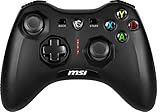
- Support PC and Android
- Support for Wireless
- Dual Vibration Motors Inside
- Durable Switches with Excellent Feel
Repair the PC installation if a local file problem is plausible
- Steam: Open Steam Library, right-click Fall Guys, select Properties > Installed Files > Verify integrity of game files. Restart Steam after it finishes.
- Epic Games Store: Update the Epic Games Launcher and Fall Guys, close and reopen the launcher, and use its game verification option if available in the current interface.
File verification can help if files are damaged or an update did not complete; it does not repair an Epic outage, a restrictive router, an ISP route, or an account problem. Reinstall only after the simpler service, session, and network checks.
7. Consider DNS only after the basic checks
DNS translates service names into server addresses. If your current resolver is unreliable, changing DNS may help reach services more consistently, but it will not fix an outage, an account restriction, a broken router, or an incompatible NAT. Change DNS on the device or router—not both at once unless you understand the effect—and write down the original settings so you can restore them.
Epic lists Google Public DNS and Cloudflare DNS as options. Follow the providers’ setup instructions for your device or router: Google Public DNS setup or Cloudflare 1.1.1.1 setup. If changing DNS makes no difference, restore the original setting and move on rather than cycling through resolvers.
PC Slower Than It Used to Be?
A free scan shows the junk files, broken settings and background clutter dragging Windows down - then fixes them in one click.Free scan · Windows 10 & 11Outdated Drivers Are Slowing You Down
One free scan finds every outdated or missing driver and matches the right update for your exact hardware.Free scan · exact hardware match8. Nintendo Switch and Switch 2: run the connection test
On the Switch, open System Settings from the HOME Menu, select Internet, then Test Connection. Record the NAT type and the displayed download and upload speeds. The test is a diagnostic, not a Fall Guys speed requirement.
Rank #4

- Platform Compatibility: This PC controller is designed for Windows PC, Steam, Switch, Android, and iOS. Xbox-style asymmetric stick layout for PC gamers. Three modes cover all your devices. Please check your device compatibility before purchase
- Three Connection Modes: 2.4G wireless, Bluetooth, wired USB-C. PC gets native XInput/DirectInput. Switch pairs via Bluetooth, no adapter. This gaming PC controller switches devices seamlessly. Stable wireless minimizes random disconnects during gaming
- Hall Effect Precision: Hall effect joysticks and triggers eliminate stick drift. This gaming controller for PC delivers smooth, responsive input with no dead zones. Built for FPS, racing, and action games. Long-term precision for competitive PC gaming
- Back Buttons & Battery: Two programmable back buttons map combos and shortcuts. Textured grips with dual vibration. 1000mAh battery delivers up to 20H playtime. RGB can be turned off. A solid PC controller for gaming with custom back buttons
- ABXY Layout Switch: Press B + Minus + Plus to swap between PC and Switch modes. Features: 1000Hz polling rate, RGB lighting, turbo. Note: designed without mic jack or gyro sensor
Nintendo’s NAT guidance describes Type A as preferred and Type B as compatible with most other NAT types. Type C may have difficulty connecting to more restrictive networks; Types D and F are substantially less suitable for peer-to-peer communication. A restrictive result is a reason to investigate the network, not proof by itself that NAT caused this particular matchmaking failure.
If the result is restrictive, first restart the router and check that the Switch is not behind two routers. Nintendo also suggests testing network equipment, including a direct modem connection where practical, trying another Ethernet cable if one is in use, and looking at router configuration. Its guidance includes testing with IPv6 disabled; change one setting at a time and restore it if there is no improvement. For Wi-Fi, move closer to the router and reduce interference from metal objects or nearby electronics. If the restriction persists across devices, ask your router manufacturer or ISP about the connection rather than guessing at port-forwarding values. Do not copy unverified port numbers from a generic guide.
Nintendo directs players with Fall Guys-specific questions to Epic Games support, since Epic publishes the game.
The Tool Desk
Outbyte Driver Updater FREEScan for outdated or missing drivers - takes under a minuteDriver Scan →Outbyte PC Repair FREERepair Windows errors before they cause bigger problemsFix Now →9. Find out whether it is a playlist or party problem
Try another available playlist and test a solo queue. If solo works, leave the party and invite friends one at a time. If a specific friend or cross-platform combination is the only one that fails, have that player check their session and connection too. Inspect the game’s current cross-platform or matchmaking settings: limiting eligible players can reduce the matchmaking pool and lengthen a queue, but the exact controls and behavior can vary by platform and game version.
Best Value

- Supported Multi-Platform:Switch/Switch 2 (NO support wake-up function)/iOS/Android/Windows PC (Notice:Not compatible with Xbox, PlayStation or GeForce Now, For game platforms not mentioned, please consult customer service before buying)
- Connection modes:Wired/Bluetooth/Wireless Dongle(Connect to PC via Bluetooth : Select iOS (phone) mode, but it's not recommended; Dongle is more stable)
- 【Innovative Intelligent Interactive Screen】Manba One V2 wireless game controllers create a new era of controller screens; Equipped with a 2-inch display, no App & software needed, you can set the pc controller directly through the screen visualization, More convenient operation
- 【Micro Switch Button】Manba One wireless controller has Micro Switch Button and ALPS Bumper; The 6-axis gyroscope function makes switch games more immersive
- 【Customize Your Own Controller】The intelligent interactive screen allows you to easily set vibrations, buttons, joysticks,lights, etc., without the need for complex key combinations; 4 configurations can be saved to unlock your own gameplay for different games; The 4 back keys support macro definition settings, and you can activate the set character's ultimate move with one click
If one playlist fails while another works, that suggests a mode-specific, rotation, regional, or temporary issue; it does not establish that the mode is broken or that the whole service is down. If every playlist and party configuration fails, look more closely at account, service, installation, or network-path causes.
10. Console checks and account cautions
On PlayStation or Xbox, fully close the game, restart the console, confirm the console is online, and install any pending game or system update. Use the console’s built-in network test to see whether it reports a connection or NAT issue. Avoid changing router ports unless current first-party guidance for your setup supports that change.
Across platforms, confirm you are signed into the intended Epic account and the correct console account. If the trouble began after switching platforms or accounts, do not unlink and relink accounts as a casual test: account-linking changes can create progression or cosmetic complications. Contact Epic if you suspect an account or entitlement issue.
Quick diagnosis by result
| What you observe | What it suggests | Next step |
|---|---|---|
| Epic status shows a relevant incident | Service-side problem is possible | Wait and monitor Epic’s status page; skip local network changes. |
| Every playlist fails, including solo | Session, account, installation, service, or network-path issue | Restart game/device/network, then test another trusted connection. |
| Solo works, but a party queue does not | Party member, NAT, account session, or party configuration | Test members one at a time and have the affected player check their connection. |
| Ethernet works but Wi-Fi does not | Wireless signal, interference, congestion, or router issue | Improve Wi-Fi conditions or troubleshoot the router; reinstalling is unlikely to help. |
| Switch reports NAT D or F | Peer-to-peer connectivity may be restricted | Restart and investigate router/ISP configuration with Nintendo’s guidance. |
| Game works on a hotspot but not at home | The home network or ISP route may differ in a relevant way | Check router, DNS, NAT, and ISP; remember hotspot performance may not suit regular play. |
| Only one playlist fails | Playlist, rotation, region, or temporary queue conditions may be involved | Try another playlist and check official status or announcements before concluding more. |
When to contact Epic Support
Contact Epic Player Support if the status page is operational, every playlist fails, basic restarts and network checks have not helped, the issue persists across sessions or another network, an error code appears, or you suspect an account or entitlement problem.
Include useful evidence in the ticket rather than only saying matchmaking is stuck:
- The exact steps you already tried and what happened.
- Your Game, Support, or Steam ID, country, device/platform, and launcher where relevant.
- The date and exact time of the failure, including your local time zone and UTC offset if possible.
- The exact error message or code, plus a screenshot or short video if useful.
- On PC, DxDiag, MSInfo, and game logs where relevant; Epic also requests ping-command results and a speed-test screenshot.
A precise timestamp helps support compare your report with incident records. Do not include passwords or other account secrets.
Quick Recap
Product prices and availability are accurate as of the date/time indicated and are subject to change. Any price and availability information displayed on Amazon at the time of purchase will apply.
Free tools Windows power users keep installed
One-click scans. No signup required.

