Some links on this page are affiliate links: if you buy through them we may earn a commission, at no extra cost to you.
The right fix depends on what the Switch is doing: a missing network points to signal or router compatibility; a grayed-out network usually indicates unsupported security; a rejected password may be incorrect credentials or a stale configuration; and a Wi‑Fi connection with no internet points to the router, DNS, ISP, NAT, or Nintendo services. Note any error code before changing settings.
Identify the failure first
| Symptom | Likely area |
|---|---|
| Wi‑Fi name is missing | Signal, SSID visibility, band, channel, or router compatibility |
| Wi‑Fi name is grayed out | Unsupported wireless-security configuration |
| Password is rejected | Incorrect or changed password, entry error, or saved-network problem |
| Connected to Wi‑Fi but no internet | Modem/router, DNS, proxy, ISP, captive portal, NAT, or Nintendo service |
| Connection drops repeatedly | Interference, congestion, band steering, firmware compatibility, or hardware |
| Only multiplayer or one game fails | NAT, game servers, account/software issues, or Nintendo maintenance |
Run the Switch connection test and record the complete error code. Nintendo’s official lookup is more useful than applying unrelated router changes.
1. Check another device and Nintendo’s service status
Connect a phone or computer to the same Wi‑Fi and open several websites. If those devices also fail, troubleshoot the modem, router, ISP, or an outage first. Check Nintendo’s current status page at nintendo.com/networkstatus; eShop and online services can be unavailable even when local Wi‑Fi is working.
Recommended Free Tools
2. Restart the Switch, modem, and router
Restart the console
- Hold POWER for at least three seconds.
- Select Power Options.
- Select Restart.
Closing a game or pressing HOME is not a restart. For the network, unplug or switch off the modem and router, wait about one minute, power the modem on and wait for ISP service to return, then power the router on. This is a power cycle, not a factory reset.
#1 Best Overall

- Officially Licensed by Nintendo
- LAN Adapter for Nintendo Switch
- Fast and stable wired internet connection
- Perfect for online multiplayer
- Plugs into Nintendo Switch Dock
3. Test beside the router
Remove the console from its dock and place it roughly 10 feet (3 meters) from the wireless router. Move metal objects, speakers, power equipment, cordless phones, and other electronics away during the test. Run the connection test again, then return the Switch to its normal location. If it only works beside the router, investigate coverage or interference rather than treating proximity as a permanent fix. Nintendo’s guidance is documented at Nintendo’s wireless-network troubleshooting page.
4. Reconnect to the correct network and re-enter the password
- Open System Settings from the HOME Menu.
- Select Internet.
- Select Internet Settings.
- Choose the intended SSID and enter its password.
- Let the connection test finish.
Check capitalization, numbers, and symbols, and confirm that the router password has not changed. Press Y in Internet Settings to search again. A hidden SSID may require the console’s manual/hidden-network option; it is not evidence by itself of failed Wi‑Fi hardware.
5. Try 2.4 GHz and 5 GHz separately
If your router lists separate network names, test both from System Settings > Internet > Internet Settings. 2.4 GHz generally travels farther and through walls better but is more congested. 5 GHz usually performs better at short range but has less reach. A router’s “Smart Connect” or band steering can move the Switch between them; temporarily separating the SSIDs, if the router supports it, can reveal which band is failing. Do not assume 5 GHz is always better.
Do these 3 things before closing this tab:
1Repair Windows errors before they cause bigger problems2Scan for outdated or missing drivers - takes under a minute3Clear out junk files and repair common Windows errors6. Verify router security compatibility
| Console | Supported wireless security listed by Nintendo | Wireless standards |
|---|---|---|
| Original Switch, Switch Lite, Switch OLED | WEP, WPA‑PSK(AES), WPA2‑PSK(AES) | 802.11b/g/n/ac on 2.4 GHz and 5 GHz |
| Nintendo Switch 2 | WPA‑PSK(AES), WPA2‑PSK(AES), WPA3‑SAE(AES); WEP is not supported | 802.11a/b/g/n/ac/ax on 2.4 GHz and 5 GHz |
For a broadly compatible test, use WPA2‑Personal/AES. Switch 2 can also use WPA3‑Personal/AES. Do not use WPA3-only mode when testing an original Switch, and do not treat WPA3 as universally unsupported. Router menu names vary, so consult that manufacturer’s instructions. A network shown in gray is more likely a security-compatibility issue than a password typo. Sources: Nintendo Switch Internet Connection FAQ and Nintendo Switch 2 Internet Connection FAQ.
Rank #2

- 𝐇𝐢𝐠𝐡-𝐒𝐩𝐞𝐞𝐝 𝐔𝐒𝐁 𝐄𝐭𝐡𝐞𝐫𝐧𝐞𝐭 𝐀𝐝𝐚𝐩𝐭𝐞𝐫 - UE306 is a USB 3.0 Type-A to RJ45 Ethernet adapter that adds a reliable wired network port to your laptop, tablet, or Ultrabook. It delivers fast and stable 10/100/1000 Mbps wired connections to your computer or tablet via a router or network switch, making it ideal for file transfers, HD video streaming, online gaming, and video conferencing.
- 𝐔𝐒𝐁 𝟑.𝟎 𝐟𝐨𝐫 𝐅𝐚𝐬𝐭𝐞𝐫, 𝐌𝐨𝐫𝐞 𝐒𝐭𝐚𝐛𝐥𝐞 𝐃𝐚𝐭𝐚 𝐓𝐫𝐚𝐧𝐬𝐟𝐞𝐫𝐬- Powered via USB 3.0, this adapter provides high-speed Gigabit Ethernet without the need for external power(10/100/1000Mbps). Backward compatible with USB 2.0/1.1, it ensures reliable performance across a wide range of devices.
- 𝐒𝐮𝐩𝐩𝐨𝐫𝐭𝐬 𝐍𝐢𝐧𝐭𝐞𝐧𝐝𝐨 𝐒𝐰𝐢𝐭𝐜𝐡- Easily connect your Nintendo Switch to a wired network for faster downloads and a more stable online gaming experience compared to Wi-Fi.
- 𝐏𝐥𝐮𝐠 𝐚𝐧𝐝 𝐏𝐥𝐚𝐲- No driver required for Nintendo Switch, Windows 11/10/8.1/8, and Linux. Simply connect and enjoy instant wired internet access without complicated setup.
- 𝐁𝐫𝐨𝐚𝐝 𝐃𝐞𝐯𝐢𝐜𝐞 𝐂𝐨𝐦𝐩𝐚𝐭𝐢𝐛𝐢𝐥𝐢𝐭𝐲- Supports Nintendo Switch, PCs, laptops, Ultrabooks, tablets, and other USB-powered web devices; works with network equipment including modems, routers, and switches.
7. Restore advanced settings to sensible defaults
For the saved connection, open System Settings > Internet > Internet Settings, select the network, then choose Change Settings. Unless your ISP or network administrator says otherwise, use:
- DNS: Automatic
- Proxy: Off
- MTU: 1400
Change one setting at a time and run a connection test after each change. Public DNS cannot repair weak signal, unsupported security, an ISP outage, or a Nintendo service outage; arbitrary MTU values are not a general fix. Nintendo documents these defaults at its wireless-network troubleshooting page.
8. Test another network or use Ethernet
Try a phone hotspot, a friend’s network, or another access point. If the Switch works elsewhere, focus on your home SSID, security, band, interference, router, or ISP. If it fails on every known-good network, suspect console software or wireless hardware. A hotspot is diagnostic rather than automatically suitable for multiplayer because carrier NAT, data limits, and unstable latency can remain.
Quick wins for a faster PC:
Fix the driver behind crashes, sound loss and screen glitchesFind Drivers →Repair Windows errors before they cause bigger problemsFix Now →Ethernet can isolate Wi‑Fi from the rest of the connection:
Rank #3

- Plug in the AC adapter and power your Nintendo Switch system from any 120-volt outlet. The AC adapter also allows you to recharge the battery, even while you play.
- Switch 2: docked console with the Switch 2 dock’s LAN port.
- Switch OLED: OLED dock’s built-in LAN port.
- Standard Switch: compatible licensed USB LAN adapter if the dock has no LAN port.
- Switch Lite: compatible licensed wired accessory plus a LAN adapter.
See Nintendo’s wired instructions at How to Connect a Nintendo Switch Console to the Internet Using a Wired Connection. Ethernet bypasses Wi‑Fi; it does not fix an ISP, Nintendo-service, account, NAT, or game-server problem.
Independent reader supportYour contribution helps us test, update, and keep practical guides available for everyone.Use the symptom to choose the next check
The network is missing
Move within 10 feet, remove the dock, search again with Y, confirm the SSID is broadcast, try the other band, and test a hotspot. If no access point appears in multiple locations, Nintendo advises escalation because the network environment or console may be involved.
The network is grayed out
Check the router’s security mode first. Apply the model-specific table above rather than repeatedly typing the password.
Wi‑Fi connects but internet does not
Check other devices and Nintendo status, power-cycle the modem and router, verify the SSID and band, then check Automatic DNS, Proxy Off, and MTU 1400. Compare with a hotspot or Ethernet and use the recorded error code.
Rank #4
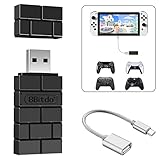
- Bluetooth Controller Adapter: Accessories for Switch 2, Switch/Switch OLED - Compatible with PS5 Controller, PS4 Controller, PS3 Controller, Xbox Series X/S, Xbox One, Wii Mote, Wii U Pro wirelessly on Switch / Switch OLED. Please upgrade the firmware to the latest version. Note: Supports Xbox One Controller / Xbox Elite Wireless Controller Series 2 with Bluetooth only.
- Wide System Support: Compatible with 8Bitdo Controllers, Switch Pro, Switch controller for Joycons, PS5, PS4, PS3, Wii Mote, Wii U Pro, Xbox Series X/S, Xbox One Bluetooth controller on Switch, Switch 2, Windows, Steam Deck, Raspberry Pi, Android TV Box and Retrofreak, for versatile gaming across multiple platforms.
- Less Lag Performance: Wireless Bluetooth connection provides reduced lag for responsive gameplay. It's one controller per 8Bitdo USB adapter. Vibration is supported on Switch and X-input mode. An OTG cable enables you to use the adapter to connect your Switch and enjoy the handheld mode directly.
- Plug and Play Functionality: Simply connect the controller adapter with your Wireless Controller to enable the same wireless experience you are used to on all the best platforms.
- Complete Package: Package includes an OTG cable, so you can use the converter to connect your Switch Console via an OTG cable and then enjoy the Undocked Mode directly.
Browsing works but multiplayer does not
General internet access is not the same as multiplayer reachability. Restrictive NAT, double NAT from a modem/router plus a second router, guest-network client isolation, carrier filtering, or a game-server issue may be responsible. DNS changes do not repair NAT.
Only the original Switch fails on a modern router
Check WPA3-only security, WPA2/WPA3 transition behavior, band steering, SSID visibility, and compatibility-mode settings. Switch 2’s WPA3 support does not apply retroactively to the original models.
Only Switch 2 fails
Compare WPA2 and WPA3, test both bands, check router firmware and 802.11ax compatibility settings, and avoid a 6 GHz-only SSID. Nintendo’s cited Switch 2 support specifies 2.4 GHz and 5 GHz, not 6 GHz.
Free tools Windows power users keep installed
One-click scans. No signup required.
When to stop changing settings
Do not factory-reset the console as an early Wi‑Fi fix; it erases setup and data without correcting router incompatibility. If the Switch fails on multiple known-good networks and appropriate wired testing, contact Nintendo. Persistent connection failures can indicate connection hardware trouble; Nintendo’s error-code 2110-1115 guidance describes that possibility. If only your home network fails, contact the ISP or router manufacturer instead.
Quick Recap
Error-code workflow
- Open System Settings > Internet > Test Connection, or run the test while joining the network.
- Record the complete code and displayed NAT, IP, download, and upload information.
- Use Nintendo’s official error-code lookup.
- Apply the code-specific remedy before making unrelated router changes.
Product prices and availability are accurate as of the date/time indicated and are subject to change. Any price and availability information displayed on Amazon at the time of purchase will apply.

