Quick wins for a faster PC:
Repair Windows errors before they cause bigger problemsFix Now →Fix the driver behind crashes, sound loss and screen glitchesFind Drivers →Clear out junk files and repair common Windows errorsFree Scan →A factory reset erases data stored on the Quest 2 and returns the headset to its initial setup state. It removes installed games and apps, local app data, settings, and account information stored on the device. It does not delete your Meta account or purchases tied to it, but unsynced saves and files stored only on the headset may be lost.
What a factory reset deletes—and what it leaves alone
A factory reset is a full local wipe, not a restart, logout, app reinstall, boundary reset, or phone-unpairing step. Meta describes it as removing account information, downloaded games, and content from the headset. Meta community support discussion
| On the Quest 2 | What happens |
|---|---|
| Account information stored on the headset | Removed from the device; this does not delete the Meta account itself. |
| Downloaded games and apps | Removed. Eligible purchases can generally be downloaded again after signing in to the purchasing account. |
| App data and saves stored only locally | Erased and potentially unrecoverable unless the app has another backup or account-based save system. |
| Settings, Wi-Fi credentials, guardian/boundary and room setup | Cleared; they must be configured again during setup. |
| Controller and accessory pairings | May need to be paired or configured again. |
| Sideloaded or developer-installed apps | Removed along with local device content. |
| Screenshots, videos, and other files stored on the headset | Local files are erased; copy anything important off the headset first. |
| Meta account, purchase history, and account-linked purchases | Not erased by the device reset. Access requires signing in to the correct account. |
| Files on a PC, including games installed through Steam or another PC platform | Not affected; they are stored outside the headset. |
Meta’s reset instructions describe a wipe of the headset, not deletion of all information associated with the user’s account. Meta Quest factory-reset overview A reset is described as irreversible, so treat confirmation as final for data that exists only on the device. Meta community support discussion
Will a factory reset delete game progress?
Possibly. Meta Quest Cloud Backup can preserve some app data, but support depends on the developer and the particular data the app backs up. A game might back up some progress but not every save, setting, or file. Do not assume that reinstalling an app will restore data that existed only locally.
Recommended Free Tools
#1 Best Overall

- Improved Comfort and Fit: The PU Leather Foam Replacements is designed to provide a more comfortable and immersive experience while wearing the Oculus Quest 2 headset.
- Premium Materials: The AMZDM Quest 2 Face Pad is made with high-quality PU leather for enhanced comfort and durability. It includes a PU Leather Foam Replacement that provides a soft and sweatproof experience.
- Enhanced Air Circulation: Unique L-Shaped vent design of ventilation and exhaust holes which exhausts the gas generated in the VR eye cover without light leakage, relieves temperature, provides a more comfortable experience.
- Go Deep into vR: The improved nosepieces to solve the light-leakage problem around the nose, enjoy immersive vr experiences by using this comfy face pad for meta quest 2 accessories.
- Easy to Use: Designed for easy installation and replacement. The included Velcro makes it simple to attach and secure the face pad to the headset. The face pad can be easily cleaned with microfiber cloth, ensuring an enjoyable VR experience.
Some games also use their own accounts or save systems, separate from Meta’s device backup. Check the game’s own instructions or account before resetting. Meta’s reset guidance and the Quest community discussion warn that cloud backup is not universal. Meta community support discussion
What to check before you reset
- Confirm you can access the right Meta account. Check the email and password, and make sure you can complete any required two-factor authentication. Purchases are associated with the account, not transferred by resetting the headset. Meta account and Quest device guidance
- Check Cloud Backup. In the Meta Quest mobile app, look in the headset’s settings for Cloud Backup and review the available status or backup details. Menu labels can change between app versions, so follow the labels shown in your current app.
- Give any available backups time to finish. Keep the headset powered on and connected to Wi-Fi if an app backup is pending.
- Copy important local media elsewhere. Save screenshots, videos, and other files you want to keep before wiping the device.
- Note app-specific sign-ins. You may need credentials for game accounts or services after reinstalling.
Quest 2 has no user-accessible microSD slot to remove before a reset.
Rank #2

- 【Reduce facial pressure】Adopt the gravity-balanced and distributed design,this elite strap replacement for oculus quest 2 makes its gravity evenly distributed in different positions of the head,further reducing facial pressure,the back wing-shaped wide bracket can offer larger head support than original while preventing slippage,it can be freely adjusted to the most comfortable state,making your device fit your head better,increasing your gaming immersion.
- 【Superior Side Straps】The Oculus/Meta head strap is made of upgraded polymer material,which is eco-friendly and has extreme toughness and stability,15,000+ Bending Test ensures durability and long lasting,never need to worry that the side strap will snap,enhance the wearing experience and thus make the VR process more enjoyable.
- 【Easy Size Adjustment】The size of the Oculus 2 elite strap can be adjusted with a round rotary knob and the fastening screw will stay locked automatically,easy to adjust to the best.This head strap has larger head support which fits head circumference 17.7-29.5inch,suitable for both adults and children,and children can easily use and adjust it by themselves.
- 【Premium PU Leather Cushions】Equipped with skin-friendly PU leather pads at each support point,the upgraded head pad with 80mm width 15mm thickness is more soft,breathable and absorbent,which can relieve the heat in the back of the head when playing games.The high-grade comfortable PU leather cushion with a smooth surface is very easy to clean,just wipe with a damp cloth,no any maintenance worries.
- 【Lightweight and Portable】 The whole head strap weighs only 226g,can fit in the official carrying case and most carrying cases on the market,very easy for storage and carry when traveling.
How to factory reset Quest 2 with its buttons
Use the headset-button method if you forgot the unlock pattern, cannot pair with the phone, or cannot open normal settings. The recovery-menu labels can vary slightly.
- Turn the headset completely off.
- Press and hold Power and Volume Down (-) together until the boot or USB Update Mode menu appears.
- Use the volume buttons to highlight Factory Reset, then press Power to select it.
- Highlight Yes or Yes, erase and factory reset, as displayed, and press Power to confirm.
The volume buttons move through the menu; Power selects the highlighted option. Do not choose unrelated boot-menu options. The headset should erase its local data and restart at initial setup. Meta community support discussion
Rank #3

- 【Original Replacement for 0culus quest 2 】Upgrade your quest 2 VR headset with our meticulously crafted replacement Headstrap. This headstrap designed for 0culus quest 2,Specifically, this Headstrap is not compatible with other VR headsets. It mirrors the exact functionality of the original headset Headstrap for met-a quest 2 VR while rejuvenating your headset's appearance by replacing your worn-out Headstrap.
- 【Follows the Original Design of Head Strap for 0culus Quest 2】 : This quest 2 Headstrap recreates the original weight distribution design for lightweight, lightweight, balance and comfort during gameplay. Following the original adjustable design, it is lighter than other Headstrap products to minimize the weight on your head (quest 2 Headstrap weight: 0.1LB/46g). Lightweight, sturdy, washable, and wearable for hours without neck pain.
- 【High Quality Material Headstrap for 0culus quest 2】Our VR Head strap for 0culus quest 2 is constructed from high-performance nylon and TPU materials, ensuring exceptional strength and durability. Combining comfort with longevity, the Headstrap portion is robust and resilient, while the connecting component is crafted from high-quality TPU material, known for its resistance to wear and dirt accumulation. Increase the usage time of the Headstrap and reduce your frequent replacement cost.
- 【 Head Strap for 0culus Quest 2 Product Sets Includes】Each Product Set includes 1 * Headstrap for 0culus quest 2, 2 *white Controller Joystick Thumb Grip Caps , and 2 *black Controller Thumbstick Caps. Easy-wear top compression rubber process+ high elastic breathable oxford cloth bandage, so you can use and storage more convenient, cloth material can be washed, breathable and soft. support quick set wear, the user in the virtual and reality between the natural switch.
- 【After-sale Guarantee】Rest assured, our headstrap for 0culus quest 2 undergo rigorous pre-shipment inspections to guarantee top-notch quality. We stand behind our products with a 60-day money-back guarantee and a 24-month warranty. If you have any questions or concerns, please don't hesitate to contact us via email. Your satisfaction is our priority.
Can you reset Quest 2 from the Meta Quest app?
If the headset is connected to the app, open the Meta Quest app, go to its headset or device section, select the Quest 2, and look in device settings for a factory-reset or erase-device option. Confirm the action if it is available. Names and locations can vary with app version, phone platform, region, and headset software; use the options displayed in your current app rather than relying on an older menu path. Meta account and Quest device guidance
The app route may be unavailable if the headset is offline, pairing is broken, Bluetooth or phone permissions are disabled, the device has been removed from the app, or you are signed into a different account. If it cannot reach the headset, use the button method instead.
Rank #4

- 【Weight Balance-Dual Adjustable Straps】Customize fit using by dual adjustment knobs (top/back), kawaye vr headset strap 4 points adjustable helps evenly distributes weight to eliminate facial pressure. Fits 22.1"-27.5" head sizes, suitable for both children and adults. 55° flip-up design for oculus head strap design enables glasses-friendly access.
- 【All-Day Comfort - Dual Cotton Pads】Maximum comfort and support with two thick and soft cotton pads. This VR head strap design for oculus/meta quest 3s/3/2 accessories to extend comfort, 35in² oversized cushion rear pad engineered for weight distribution to enhance stability & safety during intense VR workouts.
- 【Built-in Battery Slot】If you have additional power requirements, kawaye for oculus/meta quest 3/3s/2 headstrap features a dedicated compartment for hot-swappable battery packs (MQ001/MQ002, sold separately) - Hot swappable technology helps simplily add a battery in seconds without removing your headset or interrupting gameplay.
- 【90-Second Install & Build Quality】Kawaye design for meta quest 3/2 elite strap replacement includes two set connection fastener kits wthich can quick installs in 90 secs—no tools needed,pur plug-and-play. This kawaye headstrap accessories for meta /oculus Quest 2/Quest 3/33 after 10,000+ bend-tested won’t crack like cheap straps.
- 【Universal Fit for Meta Quest 3S/3/2 】Kawaye head strap compatible with Meta Quest 3/Quest 3S/Oculus Quest 2 vr headset, enjoy the same adjustable comfort across all. We Included:1× Comfort Head Strap | 1× for Quest 3S/3 Fasteners | 1× for Quest 2 Fasteners | 1× Cleaning Cloth | 24/7 Support.
What happens when the reset is complete?
The Quest 2 starts its first-use setup again. Expect to choose language and region, connect to Wi-Fi, sign in to the correct Meta account, pair with the phone, and follow any software setup or update prompts. You will also need to recreate the guardian/boundary, reinstall games and apps, and reconfigure preferences or accessories. Eligible backed-up app data may return when you reinstall an app, but restoration depends on that app’s support.
Independent reader supportYour contribution helps us test, update, and keep practical guides available for everyone.Should you reset, or try a less-destructive fix?
| Problem | Try first | Why |
|---|---|---|
| Headset is temporarily frozen | Restart or force-reboot it. | Less destructive than erasing local data. |
| One app is malfunctioning | Update or reinstall that app. | A whole-device wipe may be unnecessary. |
| Wi-Fi trouble | Check the network, restart the router, and reconnect Wi-Fi. | A reset may be excessive for a connection issue. |
| Guardian or room setup is wrong | Redraw or clear the boundary. | This targets the configuration without wiping the headset. |
| Forgotten unlock pattern | Use the recovery-menu factory reset. | The button method does not require access to the normal interface. |
| Pairing fails | Restart the phone and headset, check Bluetooth and app permissions, and update the app. | Reset is a later step if pairing remains stuck. |
| Selling or giving away the headset | Factory reset it. | Removes the previous owner’s local account information and data. |
| Suspected battery, display, controller, camera, or charging-port fault | Contact Meta support. | A software reset cannot repair physical damage. |
For ordinary software trouble, a reset is best treated as a later remedy after less destructive steps. It can clear persistent software or configuration problems, but it is not a hardware repair. Meta community support discussion
Crashes, No Sound, or Screen Glitches?
Random freezes, missing sound and display glitches usually trace back to one bad driver. Find and replace yours safely.Free scan · under a minutePC Slower Than It Used to Be?
A free scan shows the junk files, broken settings and background clutter dragging Windows down - then fixes them in one click.Free scan · Windows 10 & 11Best Value
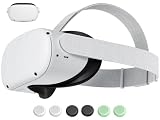
- 【 Replacement head strap for quest 2 】 Elite strap replacement, from the same manufacturer, identical. replace damaged or old vr 2 head straps, no need to readjust to other styles of head straps.
- 【 Compatible Device 】 This head strap is only suitable for Oculus 2, not compatible with Quest 3Quest 3S or other VR headset.
- 【High quality material】Soft but not afraid of pulling, comfortable and not tight or loose, elastic and not easily deformed, more resistant to dirt, and durable.
- 【 Lightweight and Portable 】 Legerity and portable, weighing only 53g, the material allows it to be folded into a very small shape, occupying no space, and easy to carry.
- 【What you get】You will receive an replacement head strap for Oculus Quest 2, the strap have a 1-year warranty. Free replacement during the warranty period for non human damage. If you have any questions during use, please ask us.
Before selling, gifting, or returning a Quest 2
Factory reset the headset rather than merely logging out or unpairing it. That clears the previous owner’s local account information; it does not erase the seller’s Meta account, purchase history, or purchases associated with that account. The next owner must complete setup using their own Meta account, and the reset does not transfer the seller’s games. Meta Quest 2 factory-reset discussion
If the current Meta Quest app offers a device-removal option, you can remove the headset from your device list as part of the handoff, but do not treat unpairing or removal as a substitute for erasing the headset. After resetting, verify that it displays the first-use setup screen before handing it over.
If the reset process gets stuck
Recovery menu does not appear
- Make sure the headset is fully powered off, not sleeping, then hold Power and Volume Down together until the menu appears.
- If it starts normally, power it off and try the button combination again; charge the headset sufficiently before retrying.
- Remove unnecessary USB accessories. If the menu still will not open, contact Meta support rather than selecting random boot options.
An Android robot or “No command” screen appears
Do not press random buttons. This is a recovery-state screen, and the correct next step may depend on the supported recovery process for the headset. If you cannot return to the boot menu and complete the reset sequence, ask Meta support for guidance.
Pairing fails after the reset
Restart both the phone and headset, update the Meta Quest app, check Bluetooth and nearby-device permissions, and confirm you are signed into the intended Meta account. Also check that the Wi-Fi connection is stable and that any setup or system update has finished. A reset does not guarantee a pairing fix; use Meta’s setup or support flow if these checks do not resolve it.
The Tool Desk
Outbyte Driver Updater FREEFix the driver behind crashes, sound loss and screen glitchesFind Drivers →Outbyte PC Repair FREERepair Windows errors before they cause bigger problemsFix Now →Quick Recap
Product prices and availability are accurate as of the date/time indicated and are subject to change. Any price and availability information displayed on Amazon at the time of purchase will apply.



