Free tools Windows power users keep installed
One-click scans. No signup required.
To download a Minecraft server, first choose the edition your players use. Download the official Java Edition server JAR for Java players, or the official Bedrock Dedicated Server ZIP for Bedrock players. The download is only the beginning: you must launch the server, accept the EULA, test a local connection, and configure networking if friends will connect over the internet.
What you are downloading
A server download is software that runs a multiplayer world. It is not the Minecraft game client, a game license, or a list of public servers.


- Server software: Runs the world and accepts player connections.
- Minecraft client: The game application each player uses to join.
- Public server: Someone else’s server that you join rather than operate.
- Realms: Mojang/Microsoft’s managed private-server subscription.
- Third-party hosting: A company runs the server for you.
If you only want to find a server to join, use the official Minecraft server listing and account resources instead of downloading dedicated-server software.
Choose Java or Bedrock before downloading
| Edition | Official download | Supported server host systems | Usually best for |
|---|---|---|---|
| Java Edition | Minecraft Java server JAR | Windows, macOS and Linux | Desktop Java players, mods, plugins and datapacks |
| Bedrock Edition | Bedrock Dedicated Server ZIP | Windows and Ubuntu Linux | Bedrock players on supported computers, phones and consoles |
Java server software accepts Java Edition clients. Bedrock Dedicated Server accepts Bedrock Edition clients. Java and Bedrock do not natively share one server; cross-play generally needs separately maintained third-party bridging software, so do not assume that downloading either package enables cross-edition play. Realms is also separated by edition.
Windows Errors? Fix Them Before They Spread
Repair common Windows errors and clear accumulated junk for a smoother, more stable PC - no reinstall needed.Free scan · no reinstallOutdated Drivers Are Slowing You Down
One free scan finds every outdated or missing driver and matches the right update for your exact hardware.Free scan · exact hardware match#1 Best Overall
Set up a Java Edition server
Check Java and create a server folder
Create a dedicated folder, for example C:MinecraftServer on Windows or ~/MinecraftServer on macOS/Linux. Open a terminal in that folder and check Java:
java -versionJava must match the Minecraft version. Modern Java Edition releases beginning with 1.20.5 require Java 21; older Minecraft versions can require older runtimes. See the version-specific Java guidance rather than installing a runtime blindly. Mojang notes that Java may already be available from the command line on macOS and Linux; Windows users may need to install it or add it to PATH.
Download and launch the JAR
- Download the JAR from Mojang’s Java server page.
- Put it in the server folder. Rename it to
minecraft_server.jar, or use its exact filename in the command. - Run the example command:
java -Xmx4G -Xms4G -jar minecraft_server.jar noguiThe 4G values are Mojang’s example, not a universal requirement. Leave memory for the operating system and other applications; actual needs vary with players, simulation distance, world activity and mods. Removing nogui starts the graphical interface instead.
Accept the EULA and start again
The first launch generates files, including eula.txt, and normally stops. Read the Minecraft EULA. If you agree, change:
What’s actually slowing this PC down?
Pick the symptom - the matching free tool is one click away.
eula=falseto:
eula=trueRun the same startup command again and wait until the console indicates that startup has completed. The exact log wording changes by version; a useful test is whether the console accepts commands and a compatible client can connect.
Rank #2
Optional startup scripts
On Windows, save this as start.bat:
@echo off
java -Xms4G -Xmx4G -jar minecraft_server.jar nogui
pause
On macOS or Linux, save this as start.sh, then run chmod +x start.sh:
#!/bin/sh
java -Xms4G -Xmx4G -jar minecraft_server.jar nogui
Stop it safely
Type stop in the server console. A clean stop saves world data; closing the terminal or killing the process can lose recent changes.
Set up a Bedrock Dedicated Server
Current requirements
The current official download page lists Windows 10 version 10.0.15063 or later (or Windows Server 2016 or later), Ubuntu 22.04 LTS or later for Linux, broadband internet, 4 GB RAM, and roughly 180 MB to 1 GB of available storage. It also lists processor requirements comparable to an Intel Core i3-3210 or AMD A8-7600 APU. Requirements can change, so use the download page as the authority; Microsoft’s documentation may describe older revisions.
Windows
- Download the ZIP from the official Bedrock page.
- Extract it into an empty folder such as
C:MinecraftServer. Microsoft specifically recommends an empty folder. - Open PowerShell or Command Prompt in that folder.
- Run:
bedrock_serverAllow the program through Windows Defender Firewall when prompted. Use a private-network rule for home/LAN play; enable public-network access only when you understand the exposure and intend to accept internet connections.
Ubuntu Linux
- Create and enter a directory:
mkdir -p ~/MinecraftServer
cd ~/MinecraftServer- Extract the downloaded package:
unzip bedrock-server-*.zip- Start the server:
LD_LIBRARY_PATH=. ./bedrock_serverIf UFW is enabled, permit the ports shown in your own server.properties. Microsoft’s current guide identifies default IPv4 and IPv6 ports as 19132 and 19133 and gives:
sudo ufw allow 19132
sudo ufw allow 19133
sudo ufw reload
Those are defaults, not permanent constants. If you change the ports, change the firewall and router rules to match. See Microsoft’s Bedrock setup guide.
Test the server before inviting anyone
Same computer
For Java, connect to localhost using the configured server port. On Windows Bedrock, the client and dedicated server can have a loopback restriction; follow Microsoft’s current CheckNetIsolation exemption procedure rather than copying an outdated command.
Do these 3 things before closing this tab:
1Clear out junk files and repair common Windows errors2Fix the driver behind crashes, sound loss and screen glitches3Repair Windows errors before they cause bigger problemsSame home network
Find the host computer’s private address, often like 192.168.1.25, and connect from another device on that LAN. Do not use the public internet address for a local test. Reserve the host’s address in the router’s DHCP settings so it does not change before you configure forwarding.
Let friends connect over the internet
- Allow the server program and its configured port through the host firewall.
- Give the host a stable private LAN address.
- Forward that port in the router to the host computer.
- Give friends your public IP address or a DNS hostname, plus the port if it is non-default.
- Confirm that every player uses a compatible edition and server version.
Java commonly uses default port 25565. Bedrock’s current Microsoft guide identifies 19132 for IPv4 and 19133 for IPv6. Verify the generated server.properties before opening ports. Port forwarding may fail under carrier-grade NAT, apartment or community networks, and some ISP plans. You may then need an ISP-provided public address, IPv6 configuration, a suitable tunnel or VPN, or hosted service. Never expose administrative tools such as RCON or remote desktop directly to the public internet.
Configure and secure the server
Java properties
The first run creates server.properties. Common settings include:
Rank #4
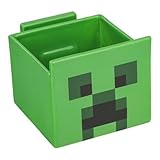
- 2-in-1: Enjoy your favourite snacks while watching videos or shows with this awesome Minecraft Creeper snack bowl featuring a built-in phone holder.
- Hands-Free Snacking: Keep your hands free for snacking while your stream on your phone. The integrated phone stand holds your device, making it perfect for binge-watching or video calls.
- For Everyday Use: Made from durable ceramic, this multi-functional snack bowl is ideal for popcorn, candy or cereal. It's the perfect companion for any snacking occasion.
- Officially Licensed: Upgrade your home with innovative licensed Minecraft merchandise, home décor, lighting and tech accessories.
- Made by Paladone: Our officially licensed merchandise includes top-selling toys, decor, and unique items that bring joy to all nostalgic pop culture enthusiasts. Discover awesome gifts that make every fan's collection.
motd=My Minecraft Server
max-players=10
difficulty=easy
gamemode=survival
white-list=true
server-port=25565
online-mode=true
Available keys and defaults vary by version. Leave server-ip blank unless you have a specific reason to bind to one address. Most property changes require a restart. The Java setup reference explains version-dependent options.
Bedrock properties
Bedrock also stores its main settings in server.properties. Change ports and gameplay options there, then make firewall and router rules agree with those values. Microsoft’s Bedrock documentation provides the configuration context.
Access control and backups
- Enable a whitelist for a private server and add only trusted players.
- Use
op PlayerNameonly for accounts that need administrative power. - Keep authentication enabled unless you understand the consequences of changing it.
- Update the server and any mods or plugins from trusted sources.
- For a backup, run
save-all, thenstop, and copy the complete server directory to separate storage. Keeping the entire directory preserves configuration, permissions and bans as well as the world; see the server-maintenance guidance.
Self-hosting, Realms or a hosting company?
| Option | Best fit | Main trade-offs |
|---|---|---|
| Self-hosting | Small groups, full control and modded Java servers | Your computer, power, upload bandwidth, backups, updates, moderation and network security are your responsibility. |
| Realms | Families and small private groups wanting an always-online server without router or Java administration | Recurring cost, edition-specific play and less control over server software. |
| Third-party hosting | People who want 24/7 availability, a control panel or easier scaling | Monthly cost, provider resource limits and varying mod, backup, file-access and migration policies. |
Mojang’s Realms page listed these U.S. prices in August 2026: Bedrock Realms at $3.99/month for the owner plus two simultaneous players, Bedrock Realms Plus at $7.99/month for the owner plus ten, and Java Realms at $7.99/month for the owner plus ten. Prices and plan details can change. Third-party providers require a separate current comparison of region, hardware, backups, mod support and cancellation terms.
Troubleshooting by symptom
“Java is not recognized”
Run java -version. Install the runtime required by the server version, reopen the terminal after installation, and check PATH on Windows. Do not assume Java 8 works for a modern release.
The server closes immediately
- Check the exact JAR filename and current directory.
- Read the console error and verify the Java version.
- Confirm that
eula=truewas set only after accepting the EULA. - Check that the process has enough available memory.
“Failed to bind to port”
Another process may already use the port, an old server may still be running, or server-ip may point to the wrong address. Leave server-ip blank, choose a free port if necessary, and update every firewall and forwarding rule consistently.
Friends cannot connect
- Test from the host itself.
- Test from another device on the same LAN.
- Check the host firewall.
- Check forwarding and the host’s current private address.
- Ask the ISP whether carrier-grade NAT is blocking inbound connections.
- Verify edition and version compatibility.
- Make sure the friend uses the public address, not the private LAN address.
Version mismatch, crashes or data loss
Stop the server, back up the complete directory, download the matching server package, and test the update on a copy before replacing the live server. Mod and plugin compatibility must also be checked. Keep several dated backups and periodically test restoring one.
Quick Recap
Final setup checklist
- Correct Java or Bedrock edition selected.
- Official download used.
- Required Java version or supported operating system installed.
- Server launched once to generate files.
- EULA reviewed and accepted where applicable.
- Server restarted successfully.
- Local connection tested.
- Firewall configured narrowly.
- Port forwarding added only when remote play requires it.
- Whitelist, permissions and backups configured.
- Players given the correct address, edition and version.
Product prices and availability are accurate as of the date/time indicated and are subject to change. Any price and availability information displayed on Amazon at the time of purchase will apply.




