To clean a gaming mouse, unplug it or switch it off, remove any replaceable battery, blow loose debris out of gaps, then wipe the shell with a lightly damp microfiber cloth. Keep liquid away from the sensor and openings, and let the mouse dry fully before reconnecting it. Because finishes and cleaning advice vary by model, check the manufacturer’s instructions before using any cleaner—especially alcohol.
What makes a gaming mouse dirty?
Skin oil and sweat collect on the palm rest, grips, buttons and scroll wheel. Dust, lint, hair and food crumbs can gather around button seams, side buttons, honeycomb holes and the sensor opening. A dirty mousepad can transfer grime back to a freshly cleaned mouse; lotion or spilled drinks can leave residue as well.
Not every mark is removable dirt. A rubberized or soft-touch coating can discolor, turn tacky or wear down with age and chemical exposure. Cleaning may not restore a degraded finish.
What you need
- A soft, lint-free microfiber cloth.
- Dry cotton swabs and, optionally, a small soft brush for exterior crevices.
- A handheld air blower or electronics-safe compressed air.
- Plain water or a cleaner approved for your mouse, if needed.
Gloves are optional if the mouse is heavily soiled or you want to avoid transferring more skin oil. A household vacuum is not a good default: suction can be difficult to control, and the nozzle may contact small parts.
The Tool Desk
Outbyte PC Repair FREEClear out junk files and repair common Windows errorsFree Scan →Outbyte Driver Updater FREEScan for outdated or missing drivers - takes under a minuteDriver Scan →#1 Best Overall

- 【UPGRADED LAPTOP CLEANING KIT 】 The macbook cleaning kit computer screen cleaner comes with a number of accessories including a retractable large brush, polishing cleaning cloth X 2, keycap puller, metal pen tip, flocking sponge, thin soft brush, soft plastic lens cleaning pen, 5 replacing cloth, large cleaning microfiber cloth. You deserve the comprehensive computer cleaning kit keyboard vacuum at a low cost
- 【PROFESSIONAL KEYBOARD CLEANING KIT】 The laptop screen cleaner keyboard cleaner can pull out the keycaps of gaming keyboards and mechanical keyboards. A retractable keyboard brush works on laptops and keyboards, while the mini high-density brush is great for deep cleaning between keys for cleaning between flatter keys on a laptop, the metal pin tip gently removes any stains. This electronic cleaning kit macbook cleaner totally meets professional cleaning needs
- 【OFFICE DESK ACCESSORIES】This keyboard cleaner kit is easy to use and can clean your keyboard and electronic screen with just one swipe. Wiping with the 2mm thicken widen polishing cleaning cloth designed at a right angle for better fitting screen corners of computers with our recyclable cleaning spray, The laptop cleaner kit for macbook effectively absorbs stubborn stains, leaves no discoloration, no streaks, and no fiber shedding on the screens
- 【MULTIFUNCTIONAL TOOLS 】Mini soft brush and soft plastic lens cleaning pen are specially designed for DSLR camera screen, lens, and other delicate surfaces. 5 more cleaning cloths of it supplied for replacement. The flocking sponge is an excellent tool for cleaning earbuds charging cases, And the earbud cleaning kit is ideal. This electronics for college students is equivalent to 10 other electronic cleaning kit
- 【PORTABLE DESIGN & CLEANER TOOL】 The office supplies is compact in design, easy to carry, and you can easily take it anywhere. It's convenient to keep one in a drawer, one in your car, or in your bag and dorm. It is easy to use and can clean your keyboard and electronic screen with just one swipe. Is the college essentials cleaning tool for your friends, family, colleagues and students
Clean the mouse step by step
- Disconnect power. Unplug a wired mouse. Switch off a wireless mouse, disconnect its receiver where practical, and remove user-replaceable batteries. Logitech also advises waiting several seconds before cleaning a disconnected device; see its cleaning instructions. Check your model’s manual for any additional precautions.
- Remove loose dust. Hold the mouse so debris falls away from its openings. Use a handheld blower or short, controlled bursts of compressed air across the button seams, wheel gap, underside and sensor opening. Avoid forcing debris inward. Keep an air can upright and follow its instructions so liquid propellant does not reach the mouse.
- Wipe the shell and controls. Lightly dampen the microfiber cloth with water or a model-approved cleaner; it must not drip. Wipe the palm rest, grips, main and side buttons, and exposed cable. Use a cloth corner or dry swab at seams. Never spray the mouse directly or submerge a non-waterproof model. Logitech’s guidance likewise calls for minimal moisture, spraying the cloth rather than the device, and avoiding immersion.
- Clean the wheel and gaps. Rotate the scroll wheel slowly while wiping its exposed surface. Use a dry cotton swab around the wheel opening, then blow away loosened debris. Do not push a toothpick, needle, knife or other sharp tool into the wheel, sensor opening or mouse. SteelSeries warns against using a toothpick on the sensor lens or inside the mouse in its mouse-cleaning guide.
- Clean the sensor carefully. Start with air. Do not drip, pour or spray cleaner into the sensor aperture, and do not scrub the lens with an abrasive material. Razer and SteelSeries both recommend air and warn against liquid at the sensor (Razer; SteelSeries). If residue remains, consult instructions for the exact model rather than improvising with liquid.
- Wipe the underside, feet and cable. Use a nearly dry cloth on the underside and clear dust around the mouse feet with air or a dry swab. Do not soak, peel or routinely wet the feet. If a skate is lifting, warped or badly worn, replace it with one made for the exact model instead of trying to glue it during routine cleaning. Clean the cable with a lightly damp cloth and dry it without sharply bending it while wet.
- Let it dry before reconnecting. Leave the mouse disconnected until visible moisture has evaporated. Check the button gaps, wheel, cable strain relief and sensor opening; reconnect only when dry. If liquid may have entered an opening, allow more time and seek model-specific advice rather than relying on a fixed drying-time estimate.
- Test its functions. Check clicks, the scroll wheel, side buttons, wireless connection and tracking. If tracking is still erratic, use the troubleshooting steps below before considering disassembly.
Is isopropyl alcohol safe for a gaming mouse?
There is no universal answer: manufacturer guidance conflicts. Logitech’s cleaning guidance permits certain low-concentration alcohol wipes for mice, and its cleaning-solutions page describes testing with a 70% isopropyl-alcohol and 30% water mixture. Razer’s current mouse-cleaning guidance says to avoid isopropyl alcohol and alcohol-based cleaning solutions. Follow the instructions for your exact model; a model-specific manual takes precedence over general advice.
Alcohol may affect printed markings, paint, adhesive, rubberized coatings or the appearance of some plastics. If your model’s instructions explicitly allow it, put a small amount on a cloth or swab, never directly on the mouse, and test an inconspicuous area first. For ordinary exterior grime, a lightly damp cloth is the safer starting point.
Rank #2
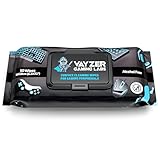
- Keep your gaming setup clean and fresh with wipes specially formulated for gaming gear, including keyboards, mice, controllers, mics, chairs and desks. Use as your go to pc cleaner.
- Alcohol-Free & Gentle Formula: Safe for regular use, these wipes are free from alcohol and parabens, ensuring your gear stays protected from damage and buildup.
- Unscented for Comfort: Enjoy a clean gaming environment without any overpowering or lingering scents that might distract you from your play.
- Convenient & Effective: Perfect for quick cleanups and deep maintenance, these wipes tackle dirt, smudges, and grime effortlessly.
- Compact & Travel-Friendly Pack: With 50 wipes per pack, the resealable design keeps your wipes fresh and ready to use, whether at home or on the go.
What to avoid
- Bleach, acetone or nail-polish remover, paint thinner, benzene and other strong solvents.
- Abrasive cleaners, rough scouring pads and any tool that can scratch the shell or sensor lens.
- Direct sprays, running water or immersion unless the manufacturer explicitly rates that exact model for it.
- Excessive heat from a hair dryer, especially near plastic or openings.
- Sharp objects inserted into gaps, and opening the shell just to remove ordinary surface dirt.
Logitech warns against bleach, acetone, strong solvents and abrasives; Razer also cautions against solvents such as thinner and benzene (Logitech; Razer).
Adjust the method for your mouse
Wireless models
Switch the mouse off and remove a user-replaceable battery before cleaning. Keep moisture out of the battery compartment and away from its contacts. Do not open a sealed battery compartment or device unless the manufacturer’s service instructions call for it.
Rank #3

- Complete All-in-1 Professional Computer Cleaning Kit: This all-in-one electronic cleaning kit replaces 10 separate tools with precision-engineered accessories including retractable nylon-bristle brush, 2mm thickened polishing cloths, keycap puller for mechanical keyboards, metal pen tip for ports, EVA flocking sponge for earbuds, and soft-plastic lens pen—eliminating workspace clutter while solving the frustration of hunting for the right keyboard cleaner kit for each device type
- Screen-Safe Protection for Delicate Electronics: This macbook cleaning kit features non-corrosive, alcohol-free, ammonia-free formula safe for all screen types including anti-glare, glossy, oleophobic, and Retina displays; the 2mm thickened right-angle polishing cloth fits screen corners to absorb stubborn stains without leaving streaks, discoloration, or fiber shedding, while the soft-plastic lens pen delivers scratch-free computer screen cleaner performance for DSLR lenses and smartphones
- Precision Keyboard Cleaning for Gamers and Professionals: Designed for esports competitors, remote workers, and content creators, this gaming keyboard cleaning kit features a keycap puller that safely removes Cherry MX-style keycaps for deep cleaning; retractable brush eliminates dust causing sticky keys while metal pen tip dissolves adhesive residue from controllers—note that laptop membrane keyboards should use the included crevice brush instead of keycap puller
- Ultra-Portable Design for Home, Office, and Travel: This flat-profile laptop cleaner kit measures approximately 3cm thick for pocket-friendly storage in laptop bags, car consoles, desk drawers, and photography studios; perfect for weekly desk maintenance, pre-video call touch-ups, monthly deep-clean routines, and post-travel device refresh; pairs with keyboard wrist rests, monitor stands, and screen protectors—TSA carry-on friendly with no liquids over 3.4oz
- Patented Flat-Form Design Trusted by One Million Plus Users: Unlike bulky cylindrical cleaning tools that clash with MacBook aesthetics, our patented laptop cleaning kit features sleek flat-profile geometry; 33% thicker polishing cloths provide 200+ cleanings before replacement with 5 replacement cloths included and 2oz spray bottles available separately—transform routine maintenance into a satisfying ritual that builds confidence for client presentations
Honeycomb shells
Use air to loosen dust from the holes, directing debris outward. Wipe the outer surfaces with a lightly damp cloth, then use a dry swab on accessible exterior edges. Do not push a swab or tool through a hole into the electronics, and keep liquid away from the interior.
Rubberized grips, light-colored shells and RGB lighting
Use minimal moisture and avoid unapproved chemicals on rubberized or soft-touch areas; tackiness or discoloration can be coating damage, not grime. Light-colored shells may show buildup sooner, but do not scrub harder to remove marks that may be permanent. Keep moisture away from lighting apertures, seams and electronics.
Rank #4

- PATENTED PRECISION CLEANING – Our advanced, form-fitting brush effortlessly removes dirt, dust, fingerprints & grime from keyboard crevices. Deep clean your mechanical or laptop keyboard in just minutes for a like-new feel.
- UNIVERSAL ELECTRONICS CLEANER – Designed for mechanical and standard keyboards, laptops, gaming controllers, computer mice, smartphones, cameras, and DJ equipment. One tool for all your delicate tech cleaning needs.
- BETTER THAN COMPRESSED AIR – Unlike air dusters that scatter debris into the air, our anti-static brush traps and removes particles, protecting your health while ensuring a spotless, dust-free workspace.
- 100+ USES & BUILT TO REUSE – Each cleaning solution dispenser provides 100+ uses, while the patented brush can be used again and again with replacement dispensers. This reusable design helps reduce waste compared with disposable cleaning options.
- SAFE FOR YOUR FAMILY & DEVICES – Free from harmful chemicals and designed for safe use around kids, pets, and sensitive electronics. Gentle yet effective cleaning without risk of damage.
What if liquid spills into the mouse?
A spill is different from routine exterior cleaning. If liquid entered the shell, stop using the mouse immediately: continuing to power it can worsen damage. Disconnect it, switch it off and remove a user-replaceable battery if you can do so safely. Do not repeatedly reconnect it to test whether it works. Leave it unpowered and seek repair or model-specific manufacturer guidance; opening the mouse or cleaning its interior is a repair task, not a routine cleaning step.
Independent reader supportYour contribution helps us test, update, and keep practical guides available for everyone.Should you open the mouse?
Ordinary dust and surface grime do not justify disassembly. Opening may make sense when a spill or trapped debris cannot be addressed from outside, and only if a manufacturer’s model-specific procedure is available or you accept the repair risks. Clips and screws can be damaged, static can harm electronics, and removing mouse feet may mean replacing them. Check warranty terms first; coverage depends on the manufacturer and circumstances, and should not be assumed after liquid damage or tampering. SteelSeries, for example, lists water damage, improper use and tampering among exclusions in its warranty policy.
Do these 3 things before closing this tab:
1Scan for outdated or missing drivers - takes under a minute2Repair Windows errors before they cause bigger problems3Fix the driver behind crashes, sound loss and screen glitchesBest Value

- 【Deep Clean Your Device】 The laptop cleaning kit can effectively deep clean all your electronic devices such as computer, macbook, keyboard, mobile phones, tablets, earbuds etc. It comes with retractable large brush, polishing cleaning cloth X 2, keycap puller, metal pen tip, flocking sponge,thin soft brush, soft plastic lens cleaning pen, 5 replacing cloth , large cleaning microfiber cloth, recyclable spray 2ml. It's so compact that you can keep one in a drawer, one in the car or in your bag
- 【Keyboard Cleaning&Screen Cleaning Kit】 A retractable moderate soft and hard brush works on laptops and keyboards, while the mini high-density brush is designed for deep cleaning crevices between mechanical keyboards and between flatter keyboards on a laptop. The metal pin tip to gently remove any stubborn stains between keys and the hinge of your laptop. The cleaning spray and a microfiber cloth effectively clean fingerprints and other embedded dirt from keyboard and screen surface
- 【Updated Ergonomic&Safe Design】 Wipe with the 2mm thicken and widened polishing cloth designed at a right angle for better fitting the four screen corners of computers, leaves zero streaks, zero discoloration and no fiber shedding on the screens. High-quality microfiber cloths are extremely soft as well as durable. Stop risk scratching your expensive new phone or laptop screen with a cheap screen cleaner set
- 【Effectively Cleaning All Your Devices】 Soft brush and soft plastic lens cleaning pen of the keyboard cleaner is especially designed for camera screen, lens and other delicate surfaces. 5 more cleaning cloth of it supplied for replacing. The flocking sponge is an excellent tool for cleaning headphones charging cases, while the metal pin tip and high-density brush are ideal for cleaning the sound outlet holes on earbuds. Keep your smartphone, camera lens, laptop, headphones and other electronic accessories clean and new
- 【Easy to Use and Carry】Turn off and unplug your computer before cleaning. Tip the laptop over to remove larger debris from the keyboard, follow the cleaning kit’s manual. Wipe the screen gently in one direction, avoiding circles and excessive pressure. Use our dry microfiber cloth to polish the surface. The laptop cleaner kit for macbook will be your new favorite tool when it comes to taking care of the things you love most because it’s super easy to use and carry
Fix tracking or control problems after cleaning
Tracking is still erratic
- Check that the sensor opening is clear and dry.
- Test the mouse on a clean, matte surface or another mousepad. SteelSeries recommends trying a different surface when troubleshooting its sensor.
- Clean the mousepad if it is visibly dirty, glossy or damaged; a surface can be the source of tracking trouble or transferred grime.
- For a wireless mouse, check battery charge and receiver placement.
- Check the mouse’s software or firmware, then test it on another computer if available. If the problem persists, hardware failure is possible.
Buttons feel sticky
Wipe the outer button edges and use a dry swab around the seam without flooding the switch. If a sugary drink entered the mouse, exterior cleaning may not be enough; seek repair or model-specific disassembly guidance.
The mouse still feels greasy or smells
Use a fresh microfiber cloth rather than redistributing oil with a dirty one. Clean the mousepad and hand-rest area too. If the surface remains tacky or discolored, the coating may have degraded.
The mouse stopped working after cleaning
Disconnect it immediately and remove its battery if possible. Do not keep powering it to test it. Let it dry fully, inspect for signs of liquid entry, and contact the manufacturer if it remains faulty. Warranty coverage is not guaranteed: terms vary, and water damage, improper use or tampering may be excluded.
How often should you clean it?
Use the mouse’s condition and your usage rather than a rigid calendar. A quick wipe after a long or sweaty session is useful, especially on a shared mouse. A routine wipe may be needed weekly or every few weeks; clean more thoroughly when it becomes slippery, sticky or visibly dirty. Logitech describes frequency as varying from daily to weekly or monthly depending on the device and use, especially for light-colored devices (Logitech guidance).
Recommended Free Tools
Clean your hands and mousepad as well. Otherwise, grime from fingers or the pad can quickly transfer back to the mouse.
Quick Recap
Product prices and availability are accurate as of the date/time indicated and are subject to change. Any price and availability information displayed on Amazon at the time of purchase will apply.




