If NINJA GAIDEN: Ragebound closes to the desktop, freezes during loading, or becomes unresponsive on Windows, start with the game-specific fixes: force it onto the dedicated GPU and test a 60 FPS cap with one monitor. Then update, verify the installation, isolate overlays, and protect your saves before deeper resets. There is no confirmed universal crash cause, so the symptom and the point at which it occurs matter.
These steps apply primarily to the Steam PC release and can be adapted to GOG. They distinguish a real crash from stutter, an input failure, or a progression bug that needs a report rather than another reinstall.
Identify what is actually failing
| Symptom | First checks |
|---|---|
| Desktop immediately after clicking Play | Updates, game files, GPU selection, overlays, antivirus |
| Black screen followed by the desktop | Display mode, dedicated GPU, drivers, overlays |
| Crash while loading a level | File verification, shader cache, save or checkpoint issue |
| Crash at the same boss, cutscene, or transition | Possible game bug; test an earlier checkpoint or another save |
| Severe stutter before the apparent crash | 60 FPS cap, refresh-rate matching, GPU selection, power or thermal limits |
| Game freezes while audio continues | Controller, overlay, display-mode, or background-software conflict |
| Only fails with a controller connected | Steam Input, controller software, USB/Bluetooth connection |
| Only fails after changing graphics options | Reset configuration and relaunch with conservative display settings |
A crash to desktop means the process terminates. A freeze, infinite loading screen, controller disconnect, or frame-rate collapse can require a different remedy.
Check your PC against the official requirements
Steam lists a July 31, 2025 release, Windows 10 as the minimum operating system, and Windows 11 as recommended. Both tiers list 6 GB of RAM. The minimum target is 720p at 30 FPS; the recommended target is 1080p at 60 FPS.
#1 Best Overall
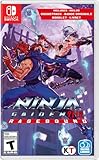
- Includes soundtrack and booklet!
- A new twist to the side-scrolling NINJA GAIDEN series experience
- Dive into an untold chapter of the NINJA GAIDEN saga
- Old school gameplay with a brand-new polish
- A spectacular pixel art showdown
| Minimum | Recommended | |
|---|---|---|
| CPU | Intel Core Duo E8300 or AMD Phenom II X2 550 | Intel Core Quad Q8300 or AMD Phenom II X3 710 |
| GPU | NVIDIA GeForce GT 220 1 GB or AMD Radeon HD 4550 1 GB | NVIDIA GeForce GT 640 4 GB or AMD Radeon R7 250 2 GB |
| Memory | 6 GB RAM | 6 GB RAM |
| Operating system | 64-bit Windows 10 | 64-bit Windows 11 |
Compare the actual GPU model and VRAM, particularly on a laptop. Meeting the minimum does not guarantee trouble-free operation with a hybrid-GPU driver, unusual monitor setup, or background utility. See the official Steam listing.
1. Update Ragebound, Windows, and your graphics driver
Exit the game and restart Windows. Let Steam or GOG finish any pending game update, install the current stable driver for the GPU actually being used, install pending Windows updates, then restart once more. Check the title screen or settings for the installed game version; available update history does not establish a universally current PC build.
Use the manufacturer’s official sources: NVIDIA, AMD, or Intel. If crashes began immediately after a driver update, testing the previous stable driver can be reasonable—create a restore point and use the manufacturer’s installer. Updating is a first-line test, not a promise that the newest driver fixes every crash.
2. Force Ragebound to use the dedicated GPU
The developer’s known-issues discussion specifically identifies laptops and other systems with two graphics adapters that select the wrong GPU. Integrated Intel graphics may be chosen instead of the NVIDIA or AMD adapter.
Recommended Free Tools
NVIDIA Control Panel
- Open NVIDIA Control Panel.
- Choose Manage 3D settings, then Program Settings.
- Add the Ragebound executable if it is not listed.
- Select the High-performance NVIDIA processor (wording can vary by driver).
- Apply the setting and relaunch the game.
Windows 11 graphics settings
- Open Settings > System > Display > Graphics.
- Add the game executable.
- Select it, choose Options, select High performance, and save.
- Relaunch while the laptop is connected to AC power.
If the game still crashes, the driver, cooling, or another configuration may be at fault; selecting the correct adapter cannot repair damaged hardware or code.
3. Cap the frame rate at 60 FPS
The pinned known-issues post recommends a 60 FPS lock for certain stuttering and high-refresh configurations. Set the in-game limit to 60 FPS. Enable V-Sync if frame pacing or tearing continues. This is a targeted workaround, not a guaranteed cure for every crash.
4. Match monitor refresh rates and try a different display mode
Mixed refresh rates—such as a 60 Hz laptop panel beside a 144 Hz external monitor—are specifically called out in the developer’s report. For a clean test, disconnect the second monitor and run one display at a matching refresh rate.
- Try borderless windowed mode if exclusive fullscreen crashes.
- If borderless is unstable, test fullscreen instead.
- Temporarily disable HDR and unusual scaling combinations.
- Reconnect additional monitors only after the single-monitor test is stable.
Lowering resolution is not a universal crash fix. It can help an overloaded or thermally constrained system, but a repeatable crash at one event points more strongly to files, configuration, or a game-side defect.
Windows Errors? Fix Them Before They Spread
Repair common Windows errors and clear accumulated junk for a smoother, more stable PC - no reinstall needed.Free scan · no reinstallOutdated Drivers Are Slowing You Down
One free scan finds every outdated or missing driver and matches the right update for your exact hardware.Free scan · exact hardware matchRank #2

- Includes soundtrack and booklet!
- A new twist to the side-scrolling NINJA GAIDEN series experience
- Dive into an untold chapter of the NINJA GAIDEN saga
- Old school gameplay with a brand-new polish
- A spectacular pixel art showdown
5. Verify the game files
Steam
- Open Steam > Library.
- Right-click NINJA GAIDEN: Ragebound and choose Properties.
- Open Installed Files (previously labelled Local Files).
- Select Verify integrity of game files and wait for completion.
- Restart Steam and launch the game.
Verification can replace missing or damaged installation files. It does not repair a defective driver, broken save, permission problem, overlay conflict, or reproducible game bug.
GOG
In GOG GALAXY, open the game’s menu and use Manage installation > Verify / Repair where available. GOG’s support page also explains its system-report process: NINJA GAIDEN: Ragebound support.
6. Disable overlays and conflicting background utilities
Disable one item at a time, reproduce the same crash, and then re-enable anything unrelated. Test the Steam Overlay, Discord Overlay, NVIDIA App or GeForce overlay, AMD Adrenalin overlay, Xbox Game Bar, MSI Afterburner, RivaTuner Statistics Server, OBS game capture, RGB or motherboard monitors, and third-party controller remappers.
If one overlay is responsible, keep the useful services enabled and remove only the conflicting feature. This is an isolation test, not a recommendation to run permanently without security or accessibility software.
Do these 3 things before closing this tab:
1Clear out junk files and repair common Windows errors2Scan for outdated or missing drivers - takes under a minute3Repair Windows errors before they cause bigger problemsAdvanced: clear regenerated shader caches
After a driver update or game patch, a damaged shader cache can cause stutter or crashes. Close the game first. Prefer the driver’s cache-management option or Windows Disk Cleanup, and avoid publishing an unverified Ragebound-specific folder path. The first launch afterward may stutter while shaders rebuild.
7. Check antivirus, permissions, and Compatibility Mode
- Check Windows Security or your antivirus quarantine for a game file.
- If you trust the installation, add the game folder as an exclusion while understanding the security trade-off.
- Launch Steam normally first. Only as a temporary diagnostic, test Steam with administrator privileges.
- Remove Compatibility Mode from the game executable unless support specifically instructs you to use it.
Do not download replacement DLLs from random websites. Administrator mode is not a permanent fix and will not correct a code-level bug. Microsoft’s DirectX End-User Runtime is the legitimate source if support identifies a missing legacy component; reinstalling DirectX blindly is unlikely to solve a graphics-selection or stage-specific problem.
8. Reset configuration safely and report repeatable game bugs
Protect saves first
- Confirm Steam Cloud is synchronized.
- Back up verified save and configuration folders.
- Rename a suspected settings folder instead of deleting it.
- Launch the game and test.
- Restore the old folder if nothing changes.
Do not delete the entire game directory or save data as a first step, and do not assume an unverified AppData path. A configuration reset should never sacrifice the only save.
Recognize a possible game-side bug
Record the chapter and stage, difficulty, checkpoint, cutscene or boss transition, whether a new save reaches the same point, the display and FPS settings, and the version shown in the title screen or settings. Reports include stage-specific progression failures, including a reported post-3-5 issue; that evidence supports investigating a game bug, not blaming every crash on hardware.
Rank #3

- INTENSIVE 2D ACTION: Engage in fast melee and acrobatic movements that require precision and concentration to master every challenge your way through the game.
- CONFIDENCY VISUAL STYLE: Explore hand-drawn environments with dark and atmospheric tones that deliver a unique visual identity and enhance the epic feel throughout the game.
- NEW HERO AND STORY: Take the role of Kenji Mozu, disciple of Ryu Hayabusa, and unexpectedly work with enemies to fight the demons invasion and restore balance between the worlds.
- INNOVATIVE GAMING SYSTEMS: Discover new abilities and battle techniques through the band between Kenji and the mysterious Kumori, which opens up to variety and strategy in the gaming experience.
- CHOOSING FIENDS AND BOODS : Every enemy and boss requires carefully timing and strategy, where slightest mistakes can become decisive, keeping the adrenaline at peak in any confrontation.
- Load an earlier checkpoint.
- Use another save slot if available.
- Start a fresh game long enough to see whether the failure is global.
- Back up the original save before testing.
Reinstalling after every repeatable failure can simply reproduce the same driver, refresh-rate, overlay, or save condition.
Symptom-specific checks
Startup crash
Complete the update, dedicated-GPU, overlay, antivirus, and file-verification checks first. If graphics settings were changed immediately before the failure, use the safe configuration reset above.
Black screen
Test borderless windowed mode, one monitor, a matching refresh rate, 60 FPS, and a current driver. A black screen followed by desktop is different from an audio-backed freeze.
Loading crash
Verify files, test shader-cache regeneration, and try an earlier checkpoint without overwriting the original save.
What’s actually slowing this PC down?
Pick the symptom - the matching free tool is one click away.
Stutter mistaken for a crash
Use a 60 FPS cap, match refresh rates, disconnect the second display, and check which GPU is active. Severe frame drops may look like a hang without terminating the process.
Controller-only freeze
Test keyboard controls, another controller, and a different USB or Bluetooth connection. Steam Input, controller utilities, and reported 8BitDo or Xbox disconnects can create an input lockup that is not a graphics crash. See the community reports at Steam.
Independent reader supportYour contribution helps us test, update, and keep practical guides available for everyone.What to send support
Create a DxDiag report
- Press Windows key + R.
- Type
dxdiagand press Enter. - Wait for the tool to finish collecting information.
- Select Save All Information… and save the text file.
- Review it for personal information before uploading it.
Copy the KSIVA line
Launch the game, press Esc for the pause menu, find the KSIVA line at the bottom, press Ctrl + C, and paste it into the report.
Include reproducible evidence
- Steam or GOG, Windows version, GPU model, laptop or desktop, and monitor refresh rate
- Game version from the title screen or settings
- Exact reproduction steps, stage, checkpoint, and difficulty
- Screenshots or video when useful
- Any crash report supplied by the game
A crash-report folder may appear under the installation directory, commonly C:Program Files (x86)Steamsteamappscommon<GAME_TITLE>, but the actual Steam library drive and folder can differ. Do not assume that path. Use the Steam technical-support page; Steam lists Dotemu at [email protected].
The Tool Desk
Outbyte PC Repair FREEClear out junk files and repair common Windows errorsFree Scan →Outbyte Driver Updater FREEScan for outdated or missing drivers - takes under a minuteDriver Scan →Rank #4
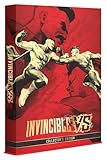
- Premium, Amazon-exclusive, limited-run Collector’s Edition designed for fans of Invincible and the fighting game community. Includes an EXTRA: an exclusive Amazon pack of four Keepsake trading cards featuring selected playable characters from the game.
- Includes a Steelbook case with the full base game, all housed inside a premium collector’s box built for display and long-term collection value.
- This edition also includes a mini reprint of Invincible #1 comic and four high-quality character art cards.
- To keep you geared up for what’s coming next, the edition also includes a Year 1 Character Pass and Deluxe cosmetics.
- A printed controller layout card lets you dive straight into the game’s fast, combo-heavy combat, while a developer letter – signed by the entire team – delivers a direct message of appreciation to the community.
When reinstalling is worth trying
Reinstall only after restarting, updating, selecting the correct GPU, testing 60 FPS and one monitor, verifying files, isolating overlays, and backing up saves and configuration. Reinstallation replaces game files; it does not automatically fix a driver, refresh-rate mismatch, security rule, overlay, or game-side progression defect.
Frequently asked questions
Why does Ragebound crash on a laptop with two GPUs?
The developer has documented cases where systems with two adapters fail to use the dedicated GPU. Set the game to High performance in NVIDIA Control Panel or Windows Graphics settings, then test at 60 FPS.
Can locking the game to 60 FPS stop crashes?
It can resolve certain high-refresh stutter and frame-pacing problems identified by the developer, but it is not a guaranteed fix for every crash.
Should I delete my save?
No. Synchronize cloud storage and make a backup first. A repeatable stage failure should be tested with an earlier checkpoint or another slot and reported.
Does verifying Steam files delete progress?
Verification repairs installation files, not save data. Back up saves anyway before any configuration or storage change.
Is Windows 10 supported?
Yes. Steam lists 64-bit Windows 10 as the minimum and Windows 11 as recommended.
Should I use a DLL download or mod?
No. Use official GPU, Windows, DirectX, Steam, GOG, and Dotemu support channels rather than downloading untrusted replacement DLLs or “optimizer” tools.
Frequently Asked Questions
What if Ragebound still crashes after all eight fixes?
Stop repeating low-value reinstalls. Capture the game version, KSIVA line, DxDiag report, crash files, and exact reproduction steps, then send them through Steam’s technical-support route or to Dotemu.
Free tools Windows power users keep installed
One-click scans. No signup required.
Quick Recap
Product prices and availability are accurate as of the date/time indicated and are subject to change. Any price and availability information displayed on Amazon at the time of purchase will apply.




