Quick wins for a faster PC:
Repair Windows errors before they cause bigger problemsFix Now →Scan for outdated or missing drivers - takes under a minuteDriver Scan →Short answer: Switch 2 overheating complaints are genuine, but the available evidence does not establish a console-wide defect, a faulty production batch, or a recall. Nintendo says a warm console or dock can be normal, especially during docked play. A thermal warning, automatic sleep or shutdown, repeated freezing, a dock fan that does not run, or loss of TV output and USB charging is different: stop using the system normally, let it cool, check airflow, and contact Nintendo if the problem returns.
What Nintendo officially acknowledges
Nintendo’s support guidance says the console and dock may become warm during use and that docked operation can feel hotter. Warmth by itself is not proof of failure. The company also says to keep the console and dock vents clear and to check whether the dock fan runs when the dock becomes hot in TV mode. A fan that does not operate may require service. Nintendo’s support guidance also directs owners toward service when the system freezes or shuts down.
Nintendo documents more serious conditions as well. Its Japanese support page describes a warning that the console became too hot and will enter sleep mode: Nintendo Japan support.
Nintendo Australia separately explains that an overheated dock can interrupt TV output and USB charging, and tells owners to let it cool before reconnecting power: Nintendo Australia support. The UK publishes equivalent guidance at Nintendo UK support.
The Tool Desk
Outbyte PC Repair FREERepair Windows errors before they cause bigger problemsFix Now →Outbyte Driver Updater FREEScan for outdated or missing drivers - takes under a minuteDriver Scan →#1 Best Overall

- 【PREVENT SWITCH FROM OVERHEATING】 The cooling fan keeps your Nintendo Switch 1/2 stay cool in the original dock station, it is good enough to lower the temperature and protect the Switch from overheating, now you don't have to worry about having to pause due to overheating during the game, you can play for multiple hours as much as you want.
- 【LED DISPLAY WITH FAN SPEED & TEMPERATURE】The digital LED display shows both the current rpm of the fan and the temperature of the air exiting the console in degrees celsius. There are three buttons for easy control: Increase the fan speed, power on/off the fan, decrease the fan speed.
- 【ADJUSTABLE FAN SPEED】The adjustable fan speed from min 510rpm up to max 6000rpm of the radiator for Nintendo Switch is perfect for heat-exhaust and ventilation. When the fan speed is under 2400rpm, it is nearly no noisy, unless the fan speed is above 2400rpm, it will produce some fan spinning sound.
- 【MICRO USB CABLE & FIXED PAD & JOYSTICK CAPS】The package contains a Micro USB cable, a fixed Pad and 2 pieces joystick caps, just plug the USB cable into the back of the console stand in-between the HDMI and power cord to get power, insert the fixed Pad between the Switch and the docking console base to stable the cooling fan, the sponges on both sides of the pad are not only for anti-slip effect but also prevent your Switch from being scratched.
- 【LIFETIME WARRANTY】We strive for excellence with our products and our customer service. If there is any quality problem with our cooling fan for Nintendo Switch or you are not happy with your purchase in our store, please feel free to contact us and we will solve it for you in 24 hours.
Warm hardware is not the same as overheating
| What you observe | More likely interpretation | What to do |
|---|---|---|
| Warm chassis or dock, with no warning or malfunction | Normal operating heat is possible | Improve ventilation and monitor it |
| Fan noise during or after docked play | The cooling system may be responding normally | Check vents and placement |
| On-screen temperature warning followed by sleep mode | Genuine thermal-protection event | Stop, cool the hardware, inspect airflow, and seek service if repeated |
| Dock fan never runs when the dock is hot | Possible dock-fan fault | Contact Nintendo service |
| TV output and USB charging stop after the dock heats up | Dock thermal protection or a dock fault | Unplug after cooling and contact Nintendo |
| Black screen without a heat warning | Could be HDMI, HDR, cable, television, dock, or software related | Troubleshoot the display chain before calling it overheating |
| Overheating while sleeping | Network activity, downloads, updates, ventilation, or dock behavior may be involved | Reduce unnecessary activity and investigate persistent heat |
Touch is a poor temperature instrument. A warm exterior and a loud fan do not, by themselves, show that the console is being damaged. The stronger evidence is a warning, automatic sleep or shutdown, repeated freezing, loss of dock functions, or a fan that fails to run when Nintendo says it should.
Why docked mode attracts most complaints
Docked play is a higher-load use case than handheld play because the system is operating in TV mode and may be charging at the same time. The console is also seated in a dock whose own airflow matters. The dock has a fan, so a dock that becomes hot but never spins its fan deserves attention.
This does not prove that docked mode is defective. It means that a docked-only failure points first toward the dock, its ventilation, TV-mode load, power delivery, or the interaction between dock and console. An enclosed TV cabinet, heat from nearby AV equipment, direct sunlight, or a hot room can all make the same hardware run hotter.
Rank #2

- 【Dedicated Cooling Fan for Switch 2】When connected to the Switch 2 charging dock, the cooling fan automatically operates at full speed. Press the button to switch between three cooling levels, allowing cooling to start simultaneously as the game begins.
- 【Powerful Cooling with Dual Fans】The Switch 2 cooling dock features a 3-stage cooling level adjustment function and 2 cooling coolers to promote heat dissipation and extend the lifespan of your Switch 2 .Enjoy longer gaming without lag or crashes Designed for stable performance and body protection.
- 【6-Card Game Slot】The Switch 2 cooling stand is equipped with 6 game card slots, allowing you to insert game cards into the slots Aim for the game card at a glance, and you can play different games immediately.
- 【3 USB Expansion Ports】This Switch 2 cooling station is equipped with 2 USB-A output ports and 1 USB-C output port, allowing you to easily connect and charge controllers, smartphones, headsets, and other accessories. Unleash the power of the switch 2 dock with no extra space.
- 【Equipped with 9 RGB Light Modes】 With 9 vibrant RGB light modes, you can customize it to match the scenes of the game and improve your gaming experience with cool effects. Press and hold to turn off the light, perfect for Nintendo Switch 2 accessory lineup.
What owners are reporting
Forum and social-media posts describe warnings after roughly 15–30 minutes in some docked games, very hot consoles or docks after longer sessions, loud fans after undocking, temporary TV blackouts, USB ports that stop charging accessories, and repeated shutdowns. Some owners say their systems work normally in handheld mode but fail in the dock; others report long sessions without trouble. Reports also include apparent heat while the console is sleeping, potentially during downloads, updates, or wired-network activity.
Outdated Drivers Are Slowing You Down
One free scan finds every outdated or missing driver and matches the right update for your exact hardware.Free scan · exact hardware matchWindows Errors? Fix Them Before They Spread
Repair common Windows errors and clear accumulated junk for a smoother, more stable PC - no reinstall needed.Free scan · no reinstallThese are incident reports, not a representative survey. The posts are self-selected, generally lack controlled temperature measurements, and cannot establish a failure rate or prove that a particular game caused a hardware defect. HotHardware’s coverage summarizes early complaints while noting that they are not evidence of a universal failure. Individual examples include a docked-overheating and blackout report and a discussion contrasting overheating warnings with unaffected systems.
Safe troubleshooting checklist
- Stop playing after a warning, shutdown, freeze, or dock failure. Do not keep restarting the system for repeated long sessions.
- Let the console and dock cool naturally. Do not put ice packs or other cold objects against them; condensation creates a separate risk.
- Open up the air path. Do not cover the console’s top vents or the dock’s rear vent. Move the dock out of a sealed cabinet and away from radiators, sunlight, and hot AV equipment.
- Remove airflow obstructions. Check stickers, shells, dust, fabric, and accessories that may block vents.
- Check the dock fan. During TV-mode use, allow the dock to become warm and listen or look for the fan. If it never operates when the dock is hot, treat that as a service issue rather than normal warmth.
- Use Nintendo-approved power and display connections where possible. A random third-party adapter is not a useful diagnostic shortcut.
- Record the pattern. Note the game, docked or handheld mode, elapsed time, room conditions, warning text, TV behavior, and whether the problem occurs while sleeping.
- Contact Nintendo when symptoms repeat. Do not open the console or dock, particularly while it is under warranty.
How to isolate the dock from the console
These are practical isolation steps, not a replacement for Nintendo’s official diagnosis.
Rank #3
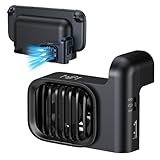
- Efficient Cooling for Switch 2 Dock: Keep your Switch 2 Dock running at optimal temperatures during intense gaming sessions. This dedicated fan features powerful airflow technology that effectively dissipates heat, preventing overheating and ensuring smooth performance for your console, so you can enjoy extended gameplay without interruptions
- Easy Installation & Space - Saving Design: Designed specifically for Nintendo Switch 2 Dock, the fan easily attaches to your dock without any complicated setup. Its compact and sleek form - factor seamlessly integrates with the dock’s aesthetics, taking up minimal space while providing maximum cooling efficiency. You can set up your gaming station neatly and keep it looking clean
- Two-speed adjustable fan mode: Customise cooling performance to suit your needs with adjustable fan modes. Whether demanding robust cooling during operation or requiring only a gentle airflow, you may freely switch between different speed settings. This flexible design allows you to adjust settings at any time according to actual requirements
- Quiet Operation: Don't let a noisy fan disrupt your gaming immersion. Our Switch 2 Dock fan is engineered for quiet operation. Even at higher speed settings, the advanced motor and blade design ensure that the fan runs silently, so you can focus on the game audio and your gameplay experience without any distracting whirring sounds
- Durable Build & Extra USB - Powered Convenience: Constructed with high - quality materials, this fan is built to last through countless gaming marathons. It’s powered via USB, which means you can easily connect it to your Switch 2 Dock or any other USB - enabled power source. The USB power delivery ensures a stable and reliable power supply, so you never have to worry about battery replacement or running out of power for your cooling solution.
- If the console is stable in handheld mode but repeatedly overheats or loses TV output in one dock, prioritize dock airflow, the dock fan, power delivery, and the TV-mode setup.
- If the same behavior occurs with another known-good dock, a console-side cooling or power fault becomes more plausible.
- If a different console works normally in the original dock, the dock becomes the stronger suspect.
- If the console overheats in both handheld and docked modes, do not assume replacing the dock will solve it.
A replacement dock may be reasonable only after ventilation checks and isolation. Nintendo’s regional accessory availability and warranty process vary, so use the official support or parts store for your country rather than relying on an unverified listing.
Independent reader supportYour contribution helps us test, update, and keep practical guides available for everyone.Symptoms that can be mistaken for heat failure
A black screen can come from HDMI, HDR, cable, television, dock, firmware, or game problems without a thermal event. A demanding game may expose a marginal cooling or dock issue, but a crash alone does not prove overheating. Likewise, a loud fan can mean the cooling system is working hard; the stronger fault indicator is a fan that does not run when the dock is hot, especially alongside shutdowns or lost TV output.
Sleep-mode heat also needs context. Nintendo’s support information notes that a wired LAN connection can leave the console using some power in sleep mode. Downloads, updates, and network activity can therefore explain some warmth without proving a thermal defect. Persistent heat, warnings, or shutdowns still warrant service.
Rank #4

- Custom Fan for Switch 2: Precisely engineered for a perfect fit, it clips securely onto the vents of devices for Switch 2 to channel cool air in and push heat out — eliminating thermal lag, maintaining peak performance, and protecting your device from heat-related damage
- High-Efficiency Cooling: This fan drops the temperature of devices for Switch 2 by 36 - 45 °F in just 4–8 minutes, delivering exceptional cooling performance and stepless speed control (so you can fine tune the fan speed exactly how you like it)
- Stay Cool, Game On: Whether you’re gaming outdoors or in a hot room, it keeps your device for Switch 2 icy cool during intense battles, preventing overheating that causes frame drops and ensuring stable peak performance
- Perfect Duration of 3–5 Hours: Provides over 3 hours of cooling at full speed and up to 5 hours on low. Supports charging while playing. Note: Higher fan speeds may generate more noise, which is completely normal
- What you get: JSAUX Cooling Compatible with Switch 2 (2025)*1, JSAUX 90° USB C to USB C Adapter*1, 18 Month worry free period and 24/7 customer service, if you have any questions, we will resolve your issue within 24 hours
What not to do
- Do not diagnose a dangerous temperature by touch alone.
- Do not place the dock in a sealed cabinet and then draw conclusions about the hardware without correcting airflow.
- Do not use an external fan as a repair. It may improve room airflow, but it can also mask a failed dock fan and delay warranty service.
- Do not dismantle the console or dock unless Nintendo or an authorized repair provider instructs you.
- Do not assume every game crash or blackout is thermal.
Is it safe to keep playing?
If the system is merely warm, has no warning, and has no performance or connection failure, improve ventilation and monitor it. If it displays a temperature warning, automatically sleeps or shuts down, repeatedly freezes, loses TV output or USB charging when the dock is hot, or has a non-working dock fan, stop normal use and seek Nintendo support. If the symptoms return after moving the dock into open air, treat the problem as a potential hardware fault.
What is—and is not—established
There is no verified percentage of affected consoles, identified defective production batch, confirmed game-specific hardware cause, published universal temperature threshold, or evidence here of a recall or broad replacement program. Nintendo has documented normal warmth and specific service-worthy symptoms, but that is not an admission of a systemic defect. The current record supports a careful conclusion: complaints are persistent and credible enough to investigate, especially around dock cooling, but they do not prove that every Switch 2 is overheating or that the platform has a mass hardware failure.
Quick Recap
Product prices and availability are accurate as of the date/time indicated and are subject to change. Any price and availability information displayed on Amazon at the time of purchase will apply.




