Quick wins for a faster PC:
Repair Windows errors before they cause bigger problemsFix Now →Scan for outdated or missing drivers - takes under a minuteDriver Scan →Measure live-stream quality across three separate dimensions: visual fidelity, playback behavior, and live delivery latency. A sharp-looking video can still start slowly or stall, and a smooth stream can still look poor. Track the dimensions separately before combining them into a view of the viewer’s experience.
Which metrics should you track?
| Dimension | What to measure | What it tells you |
|---|---|---|
| Visual fidelity | An objective video-quality estimate, such as a model-based score | How closely the received video resembles a reference, or how the video is estimated to look from available stream data |
| Playback behavior | Initial loading delay and stalling or rebuffering | Whether viewers can start watching promptly and continue without interruptions |
| Live delivery | Latency from the live event to the viewer’s playback | How far behind the viewer is, which matters for interaction and time-sensitive viewing |
| Integrated session | Video and audio quality together with startup and stalling events | A broader estimate of the session, rather than picture fidelity alone |
These measures answer different questions, so do not treat one score as a complete description of the viewing experience. ITU-T’s P.1204 recommendation describes objective streaming-video estimates and explains that they can be combined with audio quality and session events such as initial loading delay and stalling.
How to measure visual fidelity
Choose a method that matches your available inputs
Objective video-quality models use different evidence. Some analyze encoded-stream or bitstream information; others compare pixels with a reference video; hybrid approaches use both. Your choice depends on whether you can access the original source, what data your monitoring setup receives, and whether you need a rapid operational estimate or a reference-based comparison.
| Approach | Typical input | Best suited to | Important limitation |
|---|---|---|---|
| Bitstream-based | Encoded stream information | Estimating video quality where decoded pixels or the original reference are not available | It estimates visual quality from stream information; it is not a direct measure of the viewer’s whole session |
| Pixel-based or full-reference | Received video pixels and a matching source reference | Comparing the received picture with the source picture | Requires a suitable reference and correct alignment between source and received video |
| Reduced-reference or hybrid | Selected reference information, stream information, or both, depending on the model | Situations where some reference data is available but a full pixel-by-pixel comparison is not practical | What it can assess depends on the model’s specific inputs and design |
ITU-T P.1204 includes bitstream-based, pixel-based, and hybrid variants, with estimates reported at sequence-related or per-second intervals. Its P.1204.4 summary describes full-reference and reduced-reference estimation for reliable-transport streaming and reports validation for H.264, H.265, VP9, and AV1 up to 4K for PC/TV use and up to 2560×1440 for smartphone/tablet displays. Those are the stated scope and validation limits of that model, not universal limits for video-quality measurement. See the ITU-T P.1204.4 summary.
The Tool Desk
Outbyte Driver Updater FREEScan for outdated or missing drivers - takes under a minuteDriver Scan →Outbyte PC Repair FREERepair Windows errors before they cause bigger problemsFix Now →#1 Best Overall
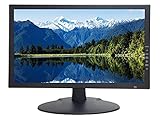
- 18.5 Inch LED CCTV HD Security Monitor: Features 3D comb filter with de-interlace and noise reduction, HDMI accepts downscaled 4K/8MP Ultra HD image, ultra fine pixel pitch for close viewing in surveillance applications, keeps video looking its best by preventing blurry or pixelated images, 178 viewing angle for fewer restrictions on your range of vision
- Multi-Format Compatibility: Compatible with new HD and existing Standard Definition composite CVBS BNC surveillance systems with multiple video formats including Downscaled Ultra HD 4K/8MP, 5MP 2560x1920, 4MP 2560x1440, 2MP 1920x1080 TVI/CVI/AHD (Through a TVI/AHD to HDMI Converter/AHTTVI-MI102), and traditional standard definition 960H/composite video cameras for crisp and lifelike images
- Ultra HD Security Monitor Inputs: HDMI (V1.4) port accepts downscaled Ultra HD 4K/8MP 3840x2160@30Hz, 5MP/Super HD 2560x1920@30Hz, 2K/4MP 2560x1440@30Hz, Full HD 2MP 1920x1080@30Hz Resolution, BNC port supports up to 700 TV lines, VGA port supports up to 1366 x 768 Resolution, multiple inputs allow multi-device setups without the need to juggle cords
- Direct Camera Connection: HDMI, VGA and 1 looping BNC video-in connector allows video camera to hookup to monitor directly without going through a DVR first, auto display recovery after power interruptions, HD/TVI/CVI and AHD cameras will look crisp and lifelike
- 24/7 Professional Operation: Professional security monitor is designed specifically for the requirement of 24/7 operation for surveillance application, providing a much longer life time comparing to consumer grade PC and TV monitors
Understand what a score such as VMAF means
VMAF is an objective video-quality metric, not a universal viewer-experience score. Netflix Engineering describes VMAF as combining spatial and temporal metrics using machine-learning models; its discussion of VMAF percentiles concerns that company’s measurement practice. A score can help compare visual fidelity under a consistent setup, but it does not by itself report startup delay, stalls, audio quality, or live latency. Read Netflix Engineering’s explanation of VMAF percentiles for that metric-specific context.
Measure startup delay and stalling
Initial loading delay
Record the time between a viewer’s request to play and the first video playback. Keep the event definition consistent across tests: player behavior and instrumentation can affect which moment is logged as the start. Report the distribution across viewing sessions, not only an average, so slow-starting sessions are not hidden by faster ones.
Rank #2

- CRISP CLARITY: This 27″ Philips V line monitor delivers crisp Full HD 1920x1080 visuals. Enjoy movies, shows and videos with remarkable detail
- INCREDIBLE CONTRAST: The VA panel produces brighter whites and deeper blacks. You get true-to-life images and more gradients with 16.7 million colors
- THE PERFECT VIEW: The 178/178 degree extra wide viewing angle prevents the shifting of colors when viewed from an offset angle, so you always get consistent colors
- WORK SEAMLESSLY: This sleek monitor is virtually bezel-free on three sides, so the screen looks even bigger for the viewer. This minimalistic design also allows for seamless multi-monitor setups that enhance your workflow and boost productivity
- A BETTER READING EXPERIENCE: For busy office workers, EasyRead mode provides a more paper-like experience for when viewing lengthy documents
Stalling or rebuffering
Count how often playback pauses because it is waiting for media and how long those interruptions last. A useful report can include stall events per session, total stalled time, and the share of observed playback time spent stalled. State the time window and event definition you used; otherwise, figures from different players or monitoring systems may not be comparable.
Do not label a startup time, stall rate, or VMAF score “good” based on a universal cutoff. The appropriate interpretation depends on the service, content, audience, device, and measurement method; no single threshold applies to every live stream.
What’s actually slowing this PC down?
Pick the symptom - the matching free tool is one click away.
Rank #3

- 24/7 Surveillance: Engineered for round-the-clock surveillance, the CCTV monitor features enhanced W-LED technology for improved visibility. With a 3000:1 contrast ratio and 16.7M display colors, it ensures exceptional image quality. Its Full HD 1920x1080 resolution guarantees sharp clarity.
- 75Hz Refresh Rate: The security monitor boasts a 75Hz refresh rate, ensuring a seamlessly smooth picture with a response time of 4ms. Its wide viewing angle of 178°/178° guarantees ultra-clear details from any perspective, providing an unimpeded viewing experience. Designed for CCTV monitoring support most DVR/NVR brands.
- Sleek and Compact Design: Real HD 22-inch computer monitor features an ultra-slim, edgeless design that enhances the overall picture continuity when multiple monitors are connected. It serves as an excellent business display for desktops or home laptops.
- Easy to use: Come with 1 x HDMI, 1 x VGA and 1 x headphone jack (audio in)
- Notice: This is a professional security monitoring monitor. It does not have Bluetooth functionality and does not support WiFi, so it cannot work with WiFi security cameras or other wifi devices.
Include latency for live streams
Latency is the delay between the live event and what a viewer sees. It matters when viewers are reacting to gameplay, participating in chat, or following an event where being behind changes the experience. Measure it separately from picture fidelity and playback continuity, and record where the timing starts and ends—for example, event capture to viewer playback—because changing the endpoints changes the reported value.
ITU-T H.705.2 sets requirements and a framework for live-streaming systems based on QUIC and describes lower connection-establishment and delivery delay as intended benefits. That transport-level aim is not a guaranteed end-to-end latency for every stream or viewer, and it is not a viewer-experience score.
Rank #4

- TOTAL COVERAGE & 5” HD DISPLAY – Monitor your nursery with a large 5-inch LCD screen providing a crystal-clear view. This video baby monitor features a remote 355° pan, 120° tilt, and 2x zoom with a 1,000ft range, ensuring you never miss a corner of the room.
- 30HR BATTERY & SMART VOX MODE – Equipped with a 3500mAh rechargeable battery, get up to 30 hours of audio/video in VOX mode or 10 hours with the screen on. The auto-wake VOX function triggers the screen instantly when it detects crying, saving power while keeping you alert.
- 2-WAY TALK & LULLABIES – Soothe your little one from any room using the two-way audio talk-back system. This smart baby camera also features 8 built-in lullabies to help your infant drift back to sleep, making it an essential nursery security camera.
- NIGHT VISION & TEMPERATURE SENSOR – Rest easy with automatic infrared night vision that captures clear video in total darkness without disturbing baby’s sleep. The integrated room temperature monitor sends instant alerts if the nursery gets too hot or cold.
- HACK-PROOF PRIVACY & FEEDING ALARMS – Protect your family with 100% secure FHSS technology; this no-WiFi baby monitor requires no apps or internet, making it unhackable. Includes a convenient feeding timer alarm to help parents stay on schedule.
Choose a measurement cadence that can reveal changes
Models may provide estimates per second or for a sequence of video. Per-second estimates can make short-lived quality changes easier to spot; sequence-level estimates summarize a longer portion and can obscure brief degradations. Select a cadence that suits the question you are asking, and keep it consistent when comparing streams or sessions.
- Use the same content segment, device category, and network conditions when comparing alternative encodes or delivery paths, where you can control them.
- Keep visual estimates, startup events, stalls, and latency in separate fields so a change in one measure is not mistaken for a change in another.
- For audience-facing reporting, segment results by relevant viewing context, such as device type or region, rather than assuming a single test represents every viewer.
- Note which measures are unavailable. A bitstream-only estimate, for example, should not be presented as a pixel-reference comparison.
Build a practical monitoring view
- Define the question. Decide whether you are checking visual fidelity, uninterrupted playback, live delay, or a combination. Select measures for those outcomes.
- Identify available data. Establish whether you have encoded-stream information, received pixels, an aligned source reference, player events, audio estimates, and timestamps at the live event and viewer end.
- Choose the method and cadence. Match the model’s inputs and per-second or sequence-related output to the data you can collect and the changes you need to detect.
- Record session events alongside quality estimates. Capture initial loading delay and stall events with the video estimate; include audio quality when available for an integrated session assessment.
- Compare like with like. Use consistent event definitions, time windows, content, and viewing contexts. Report distributions or segments as well as summary values where possible.
- Investigate a symptom using its relevant measure. A poor visual estimate points to picture fidelity; delayed starts or stalls point to playback behavior; excessive event-to-viewer delay points to live delivery. These signals can coexist, so check them together rather than assuming one explains all the others.
As one example of operational observability, ThousandEyes documents HLS/DASH generic streaming tests that can report startup delay and VMAF. These are possible monitoring capabilities, not a complete measurement of every dimension described here and not an endorsement. See its HLS/DASH test documentation.
Best Value

- 【Latest Version USB C 3.2 Gen 2 Cable】ZeroneTeck latest USB C for Thunderbolt cable: ①This 20Gbps USB C to USB C data cable is capable of meeting your ultra-fast data transfer needs. ②USB C to USB C monitor cable support 4K@60Hz Ultra HD video output ③In addition, this Type c to Type c cable also has a faster than normal 60W data cable with 100W ultra fast charging. Makes it easy for you to solve all your problems with just one cable.
- 【20Gbps USB C Data Cable】USBC to USBC data transfer cable provides explosive transfer speed up to 20Gbps, connect hard drives and SSDs, Also suitable for phone to laptop data transfer, transfer large files in seconds and save you more work time. Meanwhile, USBC to USBC 3.2 gen 2 20gbps data transfer cable backward compatible with USB 3.1, USB 3.0 and USB 2.0.(*Note: Maximum speeds are achieved when both upstream and downstream devices are Thunderbolt 3/4 interfaces.)
- 【4K@60Hz USB C Cable for Monitor & Plug and Play】Plug and play, no drivers or applications required to use this cable! USB C monitor cord to stream 4K@60Hz (3840*2160) content directly from your phones, tablets, laptops and desktop computers to large screens such as monitors, HDTVs and projectors. You will enjoy stunning Ultra HD video and colorful image quality. (Note: Please make sure your device has a USB-C port and supports DP Alt mode).
- 【5A/100W Fast Charging Cable】USB Type C fast charging cable with E-Marker IC chip, safely charges your devices with up to 100W power. It can fully charge a MacBook Pro 60%, an iPad Pro 75%, a iPhone 15 85%, and a Switch 95% in 35 minutes. Fully satisfies the charging power needs of professionals for MacBooks Pro, Android devices, Samsung and iPad Pro. Charge any USB-C device at maximum speed for timely use and no more waiting. *Note: Requires a C-port adapter of appropriate power.
- 【Dual Vehicle System】 Flawlessly supports CarPlay & Android Auto for seamless navigation/music streaming. 20Gbps ultra-speed — 40× faster than USB 2.0 CarPlay cables with enhanced signal stability.
Keep measurement separate from stream uptime
Quality measurement tells you how a stream looks and behaves for viewers; it is distinct from keeping a prerecorded stream online. If your separate goal is to keep uploaded videos looping on a YouTube channel, StreamNeo runs that stream from the cloud: upload a recording or build a playlist, add your YouTube stream key, and go live. Your computer and home connection do not have to stay on. It streams the uploaded video as made, up to 4K 60fps, at one flat price per slot, and can automatically recover if YouTube drops the stream. The first day is free with no card. Monthly pricing is $9.99 per month. Start a free day with StreamNeo.
Quick Recap
Product prices and availability are accurate as of the date/time indicated and are subject to change. Any price and availability information displayed on Amazon at the time of purchase will apply.



