On PS5, the key PS VR2 controls are under Settings > Accessories > PlayStation VR2. Adjust headset fit and eye tracking first, then set a play area that suits your room and game. Brightness and vibration are personal comfort choices, not universal performance fixes. Several of these PS5 controls are unavailable or behave differently when using the headset on PC.
For faster access while wearing the headset, press the PS button and select PlayStation VR2 Quick Settings. The settings below apply primarily to PS5; PC differences are explained at the end.
Start with fit and calibration
1. Position the lenses and headset for a clear view
Adjust the lens distance and headset position until the display looks clear and your eyes sit in the middle of the lenses. This is a fit adjustment, not an image-quality slider. You can find the guided option at Settings > Accessories > PlayStation VR2 > Adjust Lens Distance and VR Headset Position. See PlayStation Support’s PS VR2 setup guide.
2. Enable and calibrate eye tracking
Open Settings > Accessories > PlayStation VR2 > Eye Tracking, enable the feature, and follow the on-screen calibration dot while keeping your head still. If tracking seems inaccurate, select Adjust Eye Tracking and repeat the calibration. Games may use eye tracking in different ways; enabling it does not guarantee that every game uses it.
What’s actually slowing this PC down?
Pick the symptom - the matching free tool is one click away.
#1 Best Overall

- 【Compatibility for PSVR2】The VR protector cover set is specially designed for PlayStation VR2, perfectly fit the VR2 headset, bringing you a comfortable gaming experience. The VR2 silicone cover sets include PSVR2 headset protector cover, Face Cushion Cover Pad, Lens Dust Cover and 2 Pack Controller Thumb Grips, The complete PS5 VR2 headset protector kit can perfectly protect the VR2, which is an ideal choice for PS VR gamers.
- 【Exclusive Design- Full Protection】The VR shell protective cover can be tightly adapted to VR headset , thereby effectively preventing your PSVR2 accidentally damaged; The PSVR2 silicone face cover adopts a completely closed design to effectively prevent light leakage and worked well for keeping sweat off of the stock pad, allowing you to enjoy a wider field of vision and bring your better immersive VR gaming experience. The thickness of the premium lens cover is 0.6 inches, which is thicker than the classic lens protector cover to absorb the shock effectively.
- 【Premium Silicone Material】The PlayStation VR2 Headset cover ,fitness facial pad ,lens dust protector and controller thumb grips are made of high-grade environmentally friendly silicone, It has the advantages of durable, pull-resistant, sweat-proof, washable, and reusable.The safe and hygienic silicone cover is very friendly for long-term use, whether it is for adults or children, long or short term wearing it will not cause any damage to your skin. This is also a great gift for your family and friends to play PS5 VR for playStation vita accessory kits.
- 【Easy to Install and Clean】The PSVR2 cover accessories is very convenient to install and remove, light weight, easy to carry and easy to store. Just put VR headset cover and VR face cushion on the PSVR2 headset, and the VR2 thumb grips cover can protect the sticks from scratches and dirt, and it is very comfortable to touch. When not used, just install the lens dust cover on the lens according to the R and L, and then apply pressure to put it on the VR lens to protect the lens. You can easy to clean them after use, so you can have fun with your friends and families with no worries.
- 【What You Get & Service】Our aim is to provide you with high-quality PlayStation VR2 accessories, which can perfectly protect your PSVR2 machine. You can get 1* PSVR shell cover, 1 * VR face cover, 1* lens dust cover and 2 * controller thumb grips, the PS5 VR cover set is also a gift choice for your friend and family at the festival. If you have any questions, We offer friendly customer service.
Set up the play area around the game and room
3. Choose a play area that matches the supported play style
Check the game’s digital details page or disc packaging for its supported play styles, then make sure the space is clear enough for both your body and controller movement. Sony’s stated minimums are:
| Play style | Minimum play area |
|---|---|
| Roomscale | 2 m by 2 m (6 ft 7 in. by 6 ft 7 in.) or larger |
| Sitting | 1 m by 1 m (3 ft 4 in. by 3 ft 4 in.) or larger |
| Standing | 1 m by 1 m (3 ft 4 in. by 3 ft 4 in.) or larger |
These are PlayStation Support’s minimum dimensions, not a guarantee that any particular room is safe for every game. Follow the on-screen setup and use a space appropriate to the movements the game requires. Details are in PlayStation Support’s play-area guide.
Rank #2

- ✅PSVR2 head strap and head strap covers - Designed specifically for PlayStation VR2, our head strap kit improves how the headset fits and feels on you.
- ✅Weight distribution with comfort head strap - The head strap supports some of the weight of the PSVR 2, making it more comfortable in extended sessions.
- ✅Fully adjustable strap for a perfect fit - Our adjustable head strap can be customized on the halo headband for a snug or looser fit, depending on your preference.
- ✅Sweat management during VR workouts - The double-layered cotton covers are effective at absorbing sweat during intense gaming.
- ✅Washable covers with easy fasteners - Featuring hook-and-loop fasteners, the covers are simple to install and can be conveniently removed for a wash when needed.
4. Re-set the play area when the room or setup changes
If furniture moves, you change play location, or the current boundary no longer describes the clear space, open Settings > Accessories > PlayStation VR2 > Play Area and choose Set Play Area to edit or set a temporary area. On PS5, boundaries appear as you approach them; when you leave the area, the game pauses and the view switches to the surroundings view.
5. Set the floor height to the actual floor
From the Play Area settings, select Set Floor Height and follow the on-screen calibration for the floor beneath you. Use the real floor as the reference rather than applying an assumed offset.
Rank #3

- Exclusive Fit: Compatible with PlayStation VR2 only, not fit for other versions
- Stereo Headsets: Quality build delivers a high-fidelity audio crystal clear sound experience for the most discerning players,doesn't pick up the background noise ,Just Enjoy your playstation VR Stream gaming.
- Comfortable Wearing: Light weight, don't add the extra weight compared to the attach headphone, Noise Cancellation eartip with soft memory form, decrease the distortion .not affect the voice quality and increase the bass sound ,securely hold your ear and not easy to slip.
- Decent Quality:Upgraded flexible gooseneck plug with gold shelding 3.5mm jack well protect the frequency plugging end and extend the life of headsets
- Easy Installation: Follow the same procedure of installation with OEM and enjoy the fun of PSVR2,Package inlcude 1 pcs eardbus only, not including others,please note that it is not an OEM product.
6. Choose how early the boundary appears
Under Settings > Accessories > PlayStation VR2 > Play Area, adjust Boundary Display Sensitivity. High shows the boundary earlier; Low waits until you are closer to the edge. Choose based on the space available and how early you want a warning, while keeping the play area itself safe and clear.
Adjust comfort and quick access
7. Set screen brightness for your room and comfort
Screen Brightness is available in the PS VR2 headset settings and Quick Settings. Adjust it to a level that is comfortable and easy to see in your environment. PlayStation’s setup guidance does not specify a universal best level, so there is no single recommended percentage.
Rank #4

- PSVR 2 Controller Charger Dock Station - The PS5 VR 2 charging dock is specifically designed with PSVR2 controller, which can charge for dual controllers at the same time and is powered by multiple supply devices (5V 2A), such as PS5 console (Type-C cable included) or 5V/2A wall adapter. Noted that Tokluck PS VR2 stand only charges for controllers, not VR headset.
- Detachable VR2 Headset Display Stand - It is not only PS VR2 controller charging station, but it also can be used as VR2 headset holder. Our PSVR2 controller charging station keeps your all PS VR2 accessories in one place and can say goodbye to your cluttered desk. Detachable design can meet with the need of customers to carry out easily or store various place. If you would like to move PS VR2 dock to another place, we recommend to hold the PSVR2 base rather than grabbing the middle rod.
- Magnetic Charging - Built in strong magnet automatic alignment, PS VR2 charging base dock is convenient to charge with magnetic contector, making plugging in a breeze. Before charging, you need to insert type-c magnetic dongles into PS VR 2 sense controller firstly, and then place PS VR2 controllers to the charging slot gently.
- Fast Charging & LED Indicators - This charging dock for PSVR 2 need 1.5-2 hours to fully charge dual controllers. PS5 VR2 controller charging stand with clear LED indicator will let you know the charging status easily. Steady blue light indicates controllers are fully charged or standby. Breathing orange light indicates charging.
- Easy Installation & Space Saving - Simple installation without other tools needed. This charging station for PSVR2 is essencial accessory for PS VR2, charging 2 controllers and storing VR headset in one PS VR2 dock which only takes up little space and keep your gaming accessories organized. When moving PSVR2 charging station, please hold up the base rather than holding the middle rod to move due to no latch between base and rod.
8. Set headset vibration to your preference
VR Headset Vibration is also available in headset settings and Quick Settings. Choose a level that feels comfortable to you; the control is a preference adjustment, not a required setup value.
9. Assign the headset function button
In the headset settings, assign the function button to either View Surroundings or Mute Microphone. Its default behavior opens the see-through surroundings view. You can also open that view from Quick Settings if you do not want to assign the button to it.
Best Value
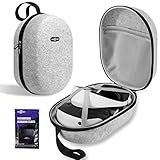
- Large Capacity and Lightweight: The SARLAR designed portable carrying case makes traveling and storage easy for your PSVR2 headset and accessories such as USB cables, stereo headphones, controller charging station, etc.
- Custom-Designed for PSVR2: Precisely designed 1:1 slots for the headset and controllers and built-in X-shaped straps to securely store and keep the headset and controllers from shifting.
- Safe Storage for Your PSVR2: The super-durable felt fabric hard shell and soft velvet inner lining. Protect your PS VR2 headset and accessories from external compression, collisions, and scratches. Use with peace of mind.
- No Unpleasant Odors: The felt fabric material is environmentally friendly and recyclable and doesn't produce any harmful odors as there is no adhesive layer during production.
- Easy to Carry: The lightweight design of the travel case and nylon handle make it convenient for carrying by hand or hanging in any location, whether at home or on the go, for comfortable portability.
Set a sensible auto-shutoff for breaks
10. Choose when the headset turns off while idle
Go to Settings > System > Power Saving > Set Time Until Your PlayStation VR2 Turns Off. This option appears only while the headset is connected and on, and auto-shutoff is disabled while you are playing a VR game. Set it to suit your breaks and idle periods.
What changes when you use PS VR2 on PC?
Sony documents several differences between PS5 and PC. On PC, PS VR2 does not support HDR output, Sense controller haptic feedback or adaptive triggers, headset feedback, or headset eye tracking. The headset also does not automatically switch to see-through mode when you leave the play area, and PS5’s play-style options are not available. Follow each PC game’s own play-area requirements rather than searching for the PS5 play-style controls. See PlayStation Support’s comparison of PS VR2 on PC and PS5.
Check the room before you play
- Clear objects that could cause a bump or trip, and secure the Sense controller straps.
- Turn on room lights so the headset can track its surroundings; close curtains to avoid direct sunlight.
- Follow the on-screen play-area instructions and take regular breaks. PlayStation’s PS VR2 safety guidance recommends managing comfort to help avoid strain and reduce injury risk.
The headset’s specifications—such as its 2000 x 2040-pixel OLED display per eye, 90 Hz and 120 Hz refresh rates, and approximately 110-degree field of view—describe hardware capabilities, not settings you can freely change in this menu. See PlayStation’s PS VR2 specifications.
Quick Recap
Product prices and availability are accurate as of the date/time indicated and are subject to change. Any price and availability information displayed on Amazon at the time of purchase will apply.
Do these 3 things before closing this tab:
1Repair Windows errors before they cause bigger problems2Fix the driver behind crashes, sound loss and screen glitches3Clear out junk files and repair common Windows errors



