Some links on this page are affiliate links: if you buy through them we may earn a commission, at no extra cost to you.
The best PC game booster is usually the official software for your graphics hardware—not a one-click “FPS optimizer.” GeForce owners should start with NVIDIA App, Radeon owners with AMD Software: Adrenalin Edition, and everyone else can test Windows Game Mode before installing anything. These tools can update drivers, enable upscaling, change power modes, monitor frame times, or reduce background contention. None can add VRAM, repair failing cooling, or turn weak hardware into a high-end gaming PC.
This guide separates rendering and hardware-control software from process managers, OEM utilities, and paid security products. Choose one primary optimizer, measure the result, and avoid overlapping tools that fight over clocks, fans, services, or overlays.
Quick comparison
| Tool | Best for | Compatibility | Main function | Cost | Main drawback |
|---|---|---|---|---|---|
| NVIDIA App | GeForce owners | Supported NVIDIA GPUs | Drivers, game settings, DLSS, tuning, metrics | Free | Features vary by GPU, game, driver, and region |
| AMD Software: Adrenalin Edition | Radeon owners | Supported AMD GPUs | Drivers, HYPR-RX, FSR, Radeon Boost, tuning | Free | Game and generation support varies |
| MSI Afterburner | Monitoring and GPU tuning | Graphics cards from all brands | Telemetry, fan curves, undervolting, overclocking | Free | Advanced changes can destabilize a system |
| Razer Cortex | Automatic process management | Windows 10 64-bit and Windows 11 | Temporarily suspends selected background processes | Free | Little benefit on already-clean PCs |
| Windows Game Mode | No-download baseline | Windows 10/11 editions that support it | Operating-system scheduling and resource management | Built in | Does not fix hardware or driver bottlenecks |
| Wise Game Booster | Older, resource-constrained PCs | Windows PCs | Process, startup, service, and memory management | Free | Stopping the wrong service can cause problems |
| ASUS Armoury Crate | ASUS gaming laptops and desktops | Compatible ASUS hardware | Power, fan, GPU, and device modes | Usually bundled/free | Little reason to install it on non-ASUS hardware |
| Norton Game Optimizer | Users already wanting Norton security | Windows PCs with Norton 360 for Gamers | Game prioritization and process isolation | Paid subscription; trial offered | Poor value if FPS is the only goal |
The ranking is by use case, not a promise that every tool produces the same measurable FPS increase.
Recommended Free Tools
1. NVIDIA App — best for GeForce PCs
NVIDIA App combines GeForce Game Ready and Studio driver updates, game and GPU settings, supported DLSS updates and overrides, recording, one-click tuning, and an overlay showing FPS, 1% lows, utilization, and latency. Its optimizer recommends settings using your GPU, CPU, and display; treat that recommendation as a starting point rather than proof of the best configuration.
#1 Best Overall

- 9 Super Cooling Fans: The 9-core laptop cooling pad can efficiently cool your laptop down, this laptop cooler has the air vent in the top and bottom of the case, you can set different modes for the cooling fans.
- Ergonomic comfort: The gaming laptop cooling pad provides 8 heights adjustment to choose.You can adjust the suitable angle by your needs to relieve the fatigue of the back and neck effectively.
- LCD Display: The LCD of cooler pad readout shows your current fan speed.simple and intuitive.you can easily control the RGB lights and fan speed by touching the buttons.
- 10 RGB Light Modes: The RGB lights of the cooling laptop pad are pretty and it has many lighting options which can get you cool game atmosphere.you can press the botton 2-3 seconds to turn on/off the light.
- Whisper Quiet: The 9 fans of the laptop cooling stand are all added with capacitor components to reduce working noise. the gaming laptop cooler is almost quiet enough not to notice even on max setting.
Supported GeForce RTX 40- and RTX 50-series GPUs can also use Smooth Motion. DLSS, frame generation, and other features depend on the GPU generation, driver, game, and region. Frame generation can raise displayed FPS without reducing the underlying rendered workload by the same amount.
Verdict: the best all-round first install for NVIDIA hardware because it can change the rendering pipeline, not merely close background programs.
2. AMD Software: Adrenalin Edition — best for Radeon PCs
AMD Software: Adrenalin Edition provides Radeon drivers, game profiles, performance statistics, recording, FSR, Anti-Lag, tuning, and HYPR-RX profiles. Radeon Boost can dynamically adjust resolution during fast motion in supported DirectX 11 games and use variable-rate shading in supported DirectX 12 titles.
Do these 3 things before closing this tab:
1Fix the driver behind crashes, sound loss and screen glitches2Repair Windows errors before they cause bigger problems3Scan for outdated or missing drivers - takes under a minuteResolution changes may be visible, particularly at lower resolutions, and every feature requires compatible hardware and game support. AMD’s “up to” performance figures are vendor results from specified test systems, not universal guarantees.
Verdict: the default choice for Radeon owners before trying a generic booster.
Rank #2

- Whisper-Quiet Operation: Enjoy a noise-free and interference-free environment with super quiet fans, allowing you to focus on your work or entertainment without distractions.
- Enhanced Cooling Performance: The laptop cooling pad features 5 built-in fans (big fan: 4.72-inch, small fans: 2.76-inch), all with blue LEDs. 2 On/Off switches enable simultaneous control of all 5 fans and LEDs. Simply press the switch to select 1 fan working, 4 fans working, or all 5 working together.
- Dual USB Hub: With a built-in dual USB hub, the laptop fan enables you to connect additional USB devices to your laptop, providing extra connectivity options for your peripherals. Warm tips: The packaged cable is a USB-to-USB connection. Type C connection devices require a Type C to USB adapter.
- Ergonomic Design: The laptop cooling stand also serves as an ergonomic stand, offering 6 adjustable height settings that enable you to customize the angle for optimal comfort during gaming, movie watching, or working for extended periods. Ideal gift for both the back-to-school season and Father's Day.
- Secure and Universal Compatibility: Designed with 2 stoppers on the front surface, this laptop cooler prevents laptops from slipping and keeps 12-17 inch laptops—including Apple Macbook Pro Air, HP, Alienware, Dell, ASUS, and more—cool and secure during use.
3. MSI Afterburner — best for monitoring and tuning
MSI Afterburner works with graphics cards from all brands and provides real-time telemetry, on-screen display metrics, custom fan curves, OC Scanner on supported hardware, undervolting, and overclocking. The MSI page lists final version 4.6.6 (October 2025) and beta 4.6.7 (February 2026) as checked August 18, 2026.
It is most valuable for finding a bottleneck and proving whether another change worked. Overclocking can increase performance, but results depend on the individual GPU, cooling, silicon quality, and power limit. Instability can appear as crashes, artifacts, driver resets, excess heat, or data loss.
Safer workflow
- Download only from MSI or Guru3D-listed official channels; MSI warns that fake Afterburner sites have been used for phishing.
- Record baseline temperatures, clocks, utilization, average FPS, and 1% lows.
- Change one setting at a time and test a repeatable game scene.
- Restore defaults if crashes, artifacts, or abnormal temperatures appear.
- Do not enable “Apply overclocking at system startup” until the profile has proved stable.
Verdict: the most capable monitoring and tuning utility, but not a beginner one-click booster.
4. Razer Cortex — best automatic background-process booster
Razer Cortex can detect games, temporarily stop selected non-essential applications and background processes, restore the previous state afterward, and show an in-game FPS counter. Razer says it supports Windows 10 64-bit and Windows 11 and does not overclock hardware.
Its effect depends on what was running before launch. A system overloaded by browsers, launchers, or helpers may gain smoother frame times; a clean system may gain almost nothing. Process suspension can also affect launchers, anti-cheat, cloud sync, audio, RGB, or overlay software. If its CPU-core feature causes trouble, Razer’s documented fallback is GAME BOOSTER → BOOST → Specials → Enable CPU Core, then disable it; see Razer’s support instructions.
Rank #3

- 【Universal Compatibility】This USB cooling fan works seamlessly with Mini PC, PS5, routers, Apple TV, modems, PlayStation, receivers, Rokus, T-Mobile 5G Home Internet, Xbox Series, and other audio-video electronics. Whether cooling a gaming console, router, or streaming device, it eliminates overheating worries across your digital ecosystem.
- 【Powerful Cooling Performance】Equipped with a 120mm fan boasting 55.8 CFM airflow and 850RPM±10% speed, this USB PC fan delivers rapid cooling—dropping device temperatures by 20% in seconds. The 9-blade design ensures powerful airflow to tackle heat buildup in routers, mini PCs, and gaming consoles, preventing lag and performance drops caused by overheating.
- 【Ultra-Quiet Operation & Scratch-Proof Protection】 Designed for ultra-quiet and scratch-resistant cooling needs, this USB computer fan comes with 4 shock-absorbing pads and operates at just 18dB(A)±10% noise—whisper-quiet, quieter than library silence (30dB) and close to the sound of rustling leaves (20dB). It enables efficient device cooling without noise interference or surface scratches, letting you fully immerse in video, audio, and gaming. It’s perfect for home offices, living rooms, and gaming setups.
- 【USB-Powered & Space-Saving Setup】This USB powered fan features an integrated 530mm (20.87-inch) USB cable, connecting easily to chargers, mobile power banks, or laptops—no extra wires needed. With dimensions of 130mm×130mm×48.6mm (5.12×5.12×1.91 inches), it can be placed flat or upright, making it perfect for narrow spaces while keeping your setup tidy.
- 【Sturdy & Long-Lasting Durability】Made from premium eco-friendly ABS material, this USB fan (with a box fan-like structure) supports heavy-duty use and can withstand weights up to 11LB. With a lifespan of 40000 hours, it offers long-term cooling for your devices, ensuring stable performance and protection against overheating for years to come.
Verdict: a convenient free experiment when background activity is demonstrably the problem.
5. Windows Game Mode — best built-in starting point
Windows Game Mode is an operating-system scheduling and resource-management feature, not an overclock. On supported Windows 10 and 11 builds, its Settings location has historically been Settings → Gaming → Game Mode; Microsoft can change labels and availability between builds, so confirm the current menu on your edition.
Game Mode may reduce competition from updates or maintenance, but it will not solve a saturated GPU, thermal throttling, bad drivers, insufficient memory, or a game bug. Test it before downloading a third-party optimizer.
Verdict: the safest no-download baseline.
6. Wise Game Booster — best lightweight option
Wise Game Booster can close startup programs, stop selected services, manage games, free memory, and resume services through reversible controls. The official page listed version 1.5.7 and a 3.64 MB download on August 18, 2026, and explicitly says it does not perform miracles.
Its benefit comes mainly from reducing background contention, not changing graphics rendering. “Free memory” is not automatically higher FPS, and stopping an essential service can affect Windows or another application. Consider its active-development and current-Windows support status before relying on it for a long-term setup.
Rank #4

- 【Perfect Match】The PC fan can be used not only as a case fan, but is also suitable for use with a cpu cooler to create a cooling effect together, which can take away the dry heat from the case and the high temperature generated by the CPU in operation, allowing for maximum cooling; Ideal for cases, radiators and CPU coolers.
- [Excellent LED light] The high-brightness LED atomizing argb fan blade can effectively reflect the light, making the ARGB lighting effect softer, and it matches the cooler and case more perfectly. Up to 17 modes of light effects with ARGB support, color can be managed and synchronized through the port on motherboard.
- 【High Performance Cooling Fan】 Automatic speed control of the motherboard through the 4PIN PWM fan cable interface, which can determine the speed according to the temperature of the motherboard, with a maximum speed of 1550RPM. Configured with up to 55cm of cable for PWM series control of fans, ideal for cases and CPU coolers.
- 【Silent Fan Size】 Model: TL-C12C-S X3, Size: 120*120*25mm, Speed: 1550RPM±10%, Noise ≤ 25.6dBA Connector: 4pin pwm, Current: 0.20A, Air Pressure: 1.53mm H2O, Air Flow: 66.17CFM, Higher air flow for improved cooling performance.
- 【Quality Bearings】The carefully developed quality S-FDB bearings solve the problem of pc cooling fan blade shaking in lifting mode, keeping fan noise to a minimum while providing maximum cooling performance when needed and extending the life of the fan.
Verdict: a simple alternative to Cortex for older PCs, but not a replacement for GPU software.
7. ASUS Armoury Crate — best for ASUS gaming systems
On compatible ROG, TUF, and ASUS desktops, Armoury Crate can expose manufacturer-specific performance modes, fan profiles, GPU modes, power limits, and device controls. These settings often matter more on a laptop than a generic booster because they govern power and cooling behavior.
Controls vary by model, BIOS, firmware, and Armoury Crate version. Turbo or manual modes can increase heat, noise, and power use, and some systems do not offer them. Non-ASUS users generally have no reason to install Armoury Crate, and it should not be mixed casually with another OEM control utility.
Verdict: potentially essential on supported ASUS hardware, irrelevant elsewhere.
8. Norton Game Optimizer — best only as part of a security purchase
Norton promotes Game Optimizer through its Norton 360 for Gamers offering. Its stated functions include detecting full-screen games, giving the game maximum CPU power, isolating non-essential applications to one CPU core, and offering a 30-day trial signal.
Best Value
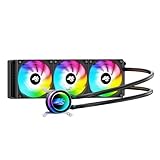
- High-Speed Ceramic Bearing Pump: Our 360mm AIO is equipped with a premium ceramic bearing water pump running at 3000 RPM, ensuring ultra-long lifespan and stable operation, offering higher lift and faster flow for maximum cooling efficiency. Our CPU cooler delivers reliable performance even under heavy workloads, keeping your system cool and stable.
- Industrial-Grade Motor for Elite Cooling: Our AIO cooler 360mm is powered by an advanced 3-phase, 4-pole motor that minimizes vibration and noise for ultra-smooth, silent operation. Our cpu water cooler accelerates heat transfer and boosts coolant flow to maximize thermal performance, ensuring greater efficiency and long-term reliability.
- Smart PWM Fan Control for Quiet Efficiency: Our water cooler CPU is equipped with PWM-controlled fans that automatically adjust their speed based on your system’s temperature, delivering optimal airflow only when needed. Running at up to 1600 RPM, these fans offer a perfect balance of high airflow and low noise, making our cpu liquid cooler ideal for gamers, creators, and power users alike.
- Exclusive 12-Channel Radiator for Superior Heat Dissipation: Our CPU liquid cooler features a 12-path water-cooled radiator with a low-resistance hydraulic design and optimized fin density, maximizing surface contact for faster heat transfer and enhanced cooling performance.
- Daisy-Chained Fans for Cleaner, Simpler Cable Management: Our 360mm aio cooler comes with pre-installed 120mm fans featuring a daisy-chain design, allowing all fans to connect through a single 4-pin PWM and 5V ARGB header—dramatically reducing cable clutter and simplifying installation.
Those are vendor claims, not independent FPS guarantees. A paid security suite can make sense if you also want its malware and privacy features; buying it solely for FPS is usually poor value, especially when Windows Security already meets your needs.
Verdict: a niche security-plus-gaming bundle, not a leading performance tool.
How to choose one
- NVIDIA GPU: start with NVIDIA App.
- AMD GPU: start with Adrenalin.
- ASUS laptop or desktop: use Armoury Crate for model-specific power and cooling modes.
- Monitoring, fan control, undervolting, or overclocking: add MSI Afterburner.
- Many unnecessary background processes: try Razer Cortex or Wise Game Booster.
- No additional download: test Windows Game Mode.
- Considering a paid subscription only for FPS: generally avoid it.
Find the bottleneck before changing settings
- GPU near 98–100%: lower resolution, enable supported upscaling, or reduce ray tracing, shadows, volumetrics, and effects.
- CPU limit or one core saturated: lower CPU-heavy settings, close background apps, cap FPS, or consider a CPU upgrade.
- Low GPU use with low FPS: check CPU limits, power mode, temperatures, drivers, frame caps, VSync, launcher issues, and GPU selection.
- Both CPU and GPU underused: check frame caps, refresh rate, power-saving modes, overlays, and game bugs.
- Drops after several minutes: investigate temperatures and thermal throttling.
- Stutter despite high average FPS: inspect 1% lows, shader compilation, asset streaming, storage, overlays, and driver conflicts.
How to prove a booster helped
- Use the same game, patch, scene or benchmark route, resolution, preset, API, and display settings.
- Record average FPS and 1% lows, plus GPU and CPU utilization, temperatures, clocks, and power behavior.
- Run the test at least two or three times; restart between tests when evaluating startup or process changes.
- Change one variable, then compare frame-time consistency—not only the peak or average FPS.
- Do not compare different patches, drivers, maps, weather, or background workloads.
A higher average with worse 1% lows can feel less smooth. A process manager may improve consistency without materially raising the average.
Windows Errors? Fix Them Before They Spread
Repair common Windows errors and clear accumulated junk for a smoother, more stable PC - no reinstall needed.Free scan · no reinstallCrashes, No Sound, or Screen Glitches?
Random freezes, missing sound and display glitches usually trace back to one bad driver. Find and replace yours safely.Free scan · under a minuteSafety, failure modes, and recovery
- Use official download pages. MSI specifically warns about fake Afterburner installers.
- Do not disable antivirus, anti-cheat, random Windows services, page-file settings, or security features for FPS.
- Avoid registry cleaners and generic “RAM cleaners” as performance solutions.
- Do not run multiple tools that control GPU clocks, voltage, fan curves, CPU priority, or overlays.
- If a change causes trouble, use the tool’s restore function, reboot after disabling startup optimization, return GPU tuning to defaults, and disable the tool for that game.
- Re-enable services individually, remove duplicate overlays, and reinstall the official GPU driver if driver-level changes remain unstable.
Can you install more than one?
Use one primary optimizer and, at most, one monitoring tool. NVIDIA App plus MSI Afterburner, Adrenalin plus Afterburner for users who understand which setting each controls, or Windows Game Mode plus a vendor suite are sensible combinations. Cortex can coexist with a vendor suite if overlapping overlays and tuning features are disabled.
Do not stack Cortex, Wise Game Booster, a RAM cleaner, multiple overlays, and competing fan or clock controllers. The extra background services can cancel the intended benefit and make troubleshooting harder.
The Bottom Line
For GeForce, choose NVIDIA App; for Radeon, choose AMD Adrenalin. Use MSI Afterburner when you need measurements or careful tuning, Windows Game Mode as the safest no-download test, and Cortex or Wise only when background activity is a measured problem. Any claimed improvement should survive a repeatable benchmark and show up in frame times, temperatures, and utilization—not just a booster dashboard.
Quick Recap
Product prices and availability are accurate as of the date/time indicated and are subject to change. Any price and availability information displayed on Amazon at the time of purchase will apply.
Free tools Windows power users keep installed
One-click scans. No signup required.

