If your Quest 3S won’t connect to Wi-Fi, keeps disconnecting, loses headset tracking, or has a controller that will not pair or respond, treat each as a separate problem. Start with the matching checks below; avoid changing router settings or resetting the headset unless the symptom and evidence point there.
First, identify what is failing
- Wi-Fi: The headset cannot join a network or drops its connection.
- Controller: A controller will not pair, appear, or respond.
- Headset tracking: The headset’s view or position tracking is lost or unstable. This is different from a controller that will not pair.
Quest 3S will not connect to Wi-Fi or keeps disconnecting
- Restart the headset. For frequent disconnections, Meta community support recommends a hard reboot: hold the headset’s power button for at least 30 seconds. Then try connecting again. Meta Community Forums support reply.
- Test another Wi-Fi network, if available. If the Quest 3S connects reliably there, that points toward the original network as the next place to investigate; it does not, by itself, identify the cause. Meta support also recommends this comparison in its Wi-Fi troubleshooting reply.
- Only if the trouble began after a Wi-Fi outage, consider router settings. In response to that specific kind of case, a Meta community support reply suggested disabling IPv6 and the router’s dual-band feature. These are not universal fixes, and router controls differ. Change one setting at a time, test the connection, and restore it if it does not help. The suggestion appears in the support thread about a Quest 3S Wi-Fi problem after an outage.
- Remove unsupported third-party accessories and reboot. The same outage-related reply also suggested removing unsupported accessories. Avoid changing several things at once, so you can tell whether a change made a difference.
If the headset still fails on multiple networks after restarting, contact Meta Quest Support rather than jumping to a factory reset.
Quest 3S controller will not pair, appear, or respond
- Remove unsupported covers and attachments. Meta community support cautions that unsupported accessories can affect controller power, battery fit, or detection.
- Check and clean the controller. Look for debris on the exterior. The support reply recommends a non-abrasive antibacterial wipe without alcohol; compressed air can be used to dislodge debris.
- Reseat the battery and try a fresh one. Remove the battery for 30 seconds, then test with a fresh battery. The support material does not specify battery size or chemistry, so check the controller markings or current product instructions before buying one.
- Test pairing and response again. If the controller remains unresponsive, contact Meta Quest Support; the checks above do not establish that a failed controller can be repaired at home.
Meta identifies the Quest 3S controllers as Meta Quest Touch Plus. That confirms the controller family, but its developer documentation is not a consumer pairing guide: Controller Input and Tracking (updated April 14, 2026).
Headset tracking is lost or unstable
Do not treat headset tracking loss as a controller-pairing fault. The available Meta developer documentation notes that tracking signals can be imperfect or inaccurate in some scenarios, but it does not provide a consumer procedure for fixing Quest 3S headset tracking. It also does not establish that a particular room condition or headset adjustment is the cause in your case.
#1 Best Overall

- This is the same left and right controllers included in-box with every Quest 3/3S purchase.
- Compatible with Quest 3S & Quest 3
- What’s included: Touch Plus controllers (Left & Right Pair), Wrist strap / lanyard, Safety and warranty guide
- Each controller is designed with an ergonomic button layout and advanced haptics for more realistic feedback — transporting you right into mixed reality worlds.
- Input Features: A/B/X/Y, Thumbstick, Thumbrest (all with capacitive touch), Two Stage Trigger, Precision Pinch
If headset tracking remains lost or unstable, contact Meta Quest Support for current, symptom-specific guidance rather than guessing at a cause or attempting an unverified reset.
Independent reader supportYour contribution helps us test, update, and keep practical guides available for everyone.Should you factory-reset a Quest 3S?
A factory reset is a consequential step, and the troubleshooting advice cited here does not establish when it is appropriate, provide a current reset sequence, or explain its effects. Before considering one, consult Meta’s current Quest Help Center instructions and verify the reset’s consequences. Do not use a button sequence from an unverified source.
Quick Recap
Best Value

- Replacement right-hand controller for Quest 3 and Quest 3S headsets
- Compatible with Quest 3S & Quest 3
- What’s included: Replacement Touch Plus controller, Wrist strap / lanyard, Safety and warranty guide
- Each controller is designed with an ergonomic button layout and advanced haptics for more realistic feedback — transporting you right into mixed reality worlds.
- Input Features: A/B, Thumbstick, Thumbrest (all with capacitive touch), Two Stage Trigger, Precision Pinch
Rank #4

- ✅Right hand
Rank #3

- This is the same left and right controllers included in-box with every Quest 3/3S purchase.
- Compatible with Quest 3S & Quest 3
- What’s included: Touch Plus controllers (Left & Right Pair), Wrist strap / lanyard, Safety and warranty guide
- Each controller is designed with an ergonomic button layout and advanced haptics for more realistic feedback — transporting you right into mixed reality worlds.
- Input Features: A/B/X/Y, Thumbstick, Thumbrest (all with capacitive touch), Two Stage Trigger, Precision Pinch
Rank #2
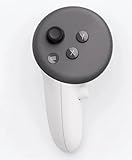
- This is the same left controller included in-box with every Quest 3/3S purchase.
- Compatible with Quest 3S & Quest 3
- What’s included: Touch Plus controller, Wrist strap / lanyard, Safety and warranty guide
- Input Features: A/B/X/Y, Thumbstick, Thumbrest (all with capacitive touch), Two Stage Trigger, Precision Pinch
- Innovative design: Each controller is designed with an ergonomic button layout and advanced haptics for more realistic feedback — transporting you right into mixed reality worlds.




