Do these 3 things before closing this tab:
1Clear out junk files and repair common Windows errors2Scan for outdated or missing drivers - takes under a minute3Repair Windows errors before they cause bigger problemsAn internal M.2 SSD and a microSD card solve different storage problems on a handheld gaming PC: the SSD is internal storage, while a microSD card is removable expansion for devices with a reader. Choose based on your exact handheld model, the storage you need, and whether you want to open the device for an internal upgrade or add a removable card.
What’s the difference between an M.2 SSD and a microSD card?
An M.2 SSD sits inside the handheld and provides internal storage. Replacing or expanding it requires a compatible drive and an upgrade process suited to that device. A microSD card fits into a built-in reader, adding removable storage without replacing the internal drive.
These are different roles, not two interchangeable versions of the same upgrade. A card can be a convenient way to add space, but only if the handheld has a reader and supports the card type. An SSD upgrade depends on the handheld’s slot, drive dimensions, interface, and physical constraints.
Which option should you choose?
| Decision point | Internal M.2 SSD | microSD card |
|---|---|---|
| Best suited to | Adding or replacing internal storage when the handheld allows it | Removable expansion through a built-in card reader |
| Compatibility to check | Exact model, M.2 length, interface, physical clearance, and upgrade process | Reader presence, supported card type and interface, and device capacity limit |
| Installation | Requires access to the inside of the device; difficulty and procedure vary by model | Insert the card and complete any device-specific formatting or setup |
| Performance evidence | No controlled side-by-side benchmark established by the cited specifications | No controlled side-by-side benchmark established by the cited specifications |
For a larger internal drive, investigate an M.2 upgrade only after confirming the precise drive dimensions and interface your handheld accepts. For convenient removable space, check the card reader’s specifications and capacity limit before buying. Manufacturer interface labels alone do not establish a real-world loading-time advantage; the official specifications cited here do not provide a controlled speed comparison.
#1 Best Overall

- PCIe 4.0 Performance: Delivers up to 7,100 MB/s read and 6,000 MB/s write speeds for quicker game load times, bootups, and smooth multitasking
- Spacious 2TB SSD: Provides space for AAA games, apps, and media with standard Gen4 NVMe performance for casual gamers and home users
- Broad Compatibility: Works seamlessly with laptops, desktops, and select gaming consoles including ROG Ally X, Lenovo Legion Go, and AYANEO Kun. Also backward compatible with PCIe Gen3 systems for flexible upgrades
- Better Productivity: Up to 2x faster than previous Gen3 generation. Improve performance for real world tasks like booting Windows, starting applications like Adobe Photoshop and Illustrator, and working in applications like Microsoft Excel and PowerPoint
- Trusted Micron Quality: Built with advanced G8 NAND and thermal control for reliable Gen4 performance trusted by gamers and home users
Check your handheld’s exact specifications
Do not assume that a specification for one handheld applies to another model—or even to another edition of the same product line. The official examples below show why checking the exact model matters.
Steam Deck OLED
Valve lists 512GB and 1TB NVMe SSD configurations for Steam Deck OLED. Its microSD slot supports UHS-I and SD, SDXC, and SDHC cards. These are the listed specifications for the OLED model, not a universal limit for handheld PCs. Valve’s Steam Deck OLED specifications also note, “Product specifications are subject to change.”
Rank #2
- PCIe 4.0 Performance: Delivers up to 7,100 MB/s read and 6,000 MB/s write speeds for quicker game load times, bootups, and smooth multitasking
- Spacious 1TB SSD: Provides space for AAA games, apps, and media with standard Gen4 NVMe performance for casual gamers and home users
- Broad Compatibility: Works seamlessly with laptops, desktops, and select gaming consoles including ROG Ally X, Lenovo Legion Go, and AYANEO Kun. Also backward compatible with PCIe Gen3 systems for flexible upgrades
- Better Productivity: Up to 2x faster than previous Gen3 generation. Improve performance for real world tasks like booting Windows, starting applications like Adobe Photoshop and Illustrator, and working in applications like Microsoft Excel and PowerPoint
- Trusted Micron Quality: Built with advanced G8 NAND and thermal control for reliable Gen4 performance trusted by gamers and home users
Steam Deck LCD
Valve’s LCD specification page lists 64GB, 256GB, and 512GB models, all with a microSD slot. The slot supports UHS-I and SD, SDXC, and SDHC cards. Valve notes that some models are available while supplies last; do not treat the LCD and OLED storage configurations as one combined specification. See Valve’s Steam Deck LCD specifications.
Lenovo Legion Go 2
Lenovo’s user guide lists one M.2 SSD slot that accepts 2242 or 2280 drives over PCIe Gen4, plus a UHS-II microSD slot. This is a model-specific example of how both drive size and card interface can vary. Check Lenovo’s Legion Go 2 user guide for the device details.
Rank #3

- Ideal for high speed, low power storage
- Gen 4x4 NVMe PCle performance
- Up to 6,000MB/s read, 4,000MB/s write
- Includes Acronis cloning software
- 5-year limited warranty
Legion Go, Powered by SteamOS (8.8-inch, Gen 2)
In its announcement, Lenovo lists up to 2TB of M.2 2242 PCIe Gen4 internal SSD storage and up to 2TB of additional microSD capacity for this named configuration. Those figures apply to the announced 8.8-inch Gen 2 SteamOS edition; they do not establish capacities for every Legion Go. Check the Lenovo announcement and current local specifications before choosing storage.
Independent reader supportYour contribution helps us test, update, and keep practical guides available for everyone.How to format a microSD card on Steam Deck
Steam Support’s instructions are specific to Steam Deck:
Rank #4
- PCIe 4.0 Performance: Delivers up to 6,600 MB/s read and 5,000 MB/s write speeds for quicker game load times, bootups, and smooth multitasking
- Spacious 500GB SSD: Provides space for AAA games, apps, and media with standard Gen4 NVMe performance for casual gamers and home users
- Broad Compatibility: Works seamlessly with laptops, desktops, and select gaming consoles including ROG Ally X, Lenovo Legion Go, and AYANEO Kun. Also backward compatible with PCIe Gen3 systems for flexible upgrades
- Better Productivity: Up to 2x faster than previous Gen3 generation. Improve performance for real world tasks like booting Windows, starting applications like Adobe Photoshop and Illustrator, and working in applications like Microsoft Excel and PowerPoint
- Trusted Micron Quality: Built with advanced G8 NAND and thermal control for reliable Gen4 performance trusted by gamers and home users
- Insert the microSD card into the Steam Deck.
- Open Steam > Settings > System.
- Select Format SD card and follow the on-screen instructions.
For another handheld, follow that manufacturer’s setup instructions rather than assuming the Steam Deck menu path applies. See Steam Support’s format SD card guide.
Quick Recap
Best Value
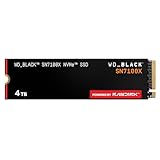
- This product has been replaced by our latest generation. Please search for the SANDISK Optimus GX 7100X SSD for ROG XBOX Ally (X) and PC.
- OFFICIALLY XBOX LICENSED. Your drive is officially licensed for Xbox gaming, so you can upgrade your internal storage to store and play more on your ROG Xbox Ally, ROG Xbox Ally X and PC.
- HIGH-OCTANE GAMING. Experience speeds up to 7,250MB/s(2) read and 6,900MB/s(2) write (2TB(1) model), with up to 35% faster performance than previous generation.(4)
- ADD FAVORITES AND NEW TITLES. Available in multiple capacities up to 4TB,(1) so you have tons of storage for your favorite games and the ones you’re looking forward to. CLEAR THAT CHECKPOINT. Built with laptops and handheld gaming devices in mind, with up to 90% more power efficiency over the previous generation.(4)
- 1 MONTH XBOX GAME PASS ULTIMATE. Play new games on day one. Enjoy hundreds of high-quality games on console, PC, and cloud. Get EA Play. Dive into legendary franchises. Play together with friends.(3)
What to verify before buying storage
- Identify the exact handheld and edition. Model names can cover different configurations or revisions.
- For an SSD, confirm the slot and fit. Check the supported M.2 lengths, interface, clearance, and the device’s upgrade procedure.
- For a microSD card, confirm the reader specs. Check whether the device supports the card’s format and interface, and look for its capacity limit.
- Decide whether you want removable or internal storage. A microSD card is removable; an internal SSD upgrade involves accessing the device.
- Don’t buy based on an assumed speed ratio. The cited manufacturer specifications describe interfaces and configurations, not controlled SSD-versus-card benchmarks or guaranteed game-loading times.




