Do these 3 things before closing this tab:
1Repair Windows errors before they cause bigger problems2Scan for outdated or missing drivers - takes under a minute3Clear out junk files and repair common Windows errorsTo change Minecraft’s overall interface size, use Options > Video Settings > GUI Scale in Java Edition. In Bedrock Edition, open Settings > Video and look for the GUI scale control; if it is not there, check Accessibility. Bedrock touchscreen button resizing is a separate setting from scaling the whole interface.
Change GUI scale in Java Edition
- From the title screen, select Options. If you are in a world, press Esc and select Options.
- Select Video Settings.
- Find GUI Scale and choose a size. The effective choices can depend on your window or display resolution, so the available values may differ between setups.
Changing this setting resizes the regular interface, including menus and the HUD. Choose a larger value if these elements are difficult to read, or a smaller one if you want more room on screen.
Change GUI scale in Bedrock Edition
- Open Settings from the title screen or pause menu.
- Open Video and look for the GUI scale control.
- If you cannot find it in Video, check Accessibility. Minecraft lists GUI scaling among Bedrock’s accessibility features.
Bedrock’s exact labels and menu placement can differ by device and version. Minecraft’s official accessibility overview describes accessibility features across Minecraft games, and its Accessibility help index links to separate Java and Bedrock guidance; neither establishes one identical menu path for every platform.
Resize only the Java debug overlay
If the regular menus and HUD are already the right size but the F3 debug display is not, Java Edition 26.3 has a separate scale for that overlay. Press F3 + F6 to open Debug Options, then adjust its GUI scale. The default is Auto; Unchanged makes the overlay match the regular GUI scale, while the other choices control the debug scale directly. These settings are documented in the Java Edition 26.3 release notes. This debug setting does not replace the ordinary GUI Scale option.
#1 Best Overall
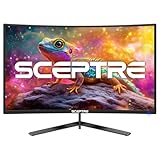
- 【SEAMLESS CONNECTIVITY & PERFORMANCE】 Seamlessly link your devices to our two HDMI ports and two DisplayPort providing up to 180Hz refresh rate, ensuring not only versatile connectivity but also a buttery-smooth visual experience for both work and play. Built-in Speakers and Audio Out Jack also provides diverse audio options.
- 【EASY ON THE EYES】 Protect your eyes and enhance your comfort with Blue-Light Shift technology. This feature reduces harmful blue light emissions from your screen, helping to alleviate eye strain during long hours of use and promoting healthier viewing habits.
- 【INTEGRATED SPEAKERS】Whether you're at work or in the midst of an intense gaming session, our built-in speakers provide rich and seamless audio, all while keeping your desk clutter-free.
- 【EXPAND YOUR VIEW】With a VESA wall mount pattern, you have the flexibility to choose the perfect viewing angle for your monitor, tidy up cable clutter, and reclaim precious desk space in both your gaming and work setups.
- 【CUSTOM GAMING MODES】Experience enriched gaming with Sceptre's custom display settings tailored for gamers. Dive into the heart-pounding action of First Person Shooters (FPS) or master the strategic gameplay of Real-Time Strategy (RTS) titles, all optimized for peak performance on our monitor.
Resize Bedrock touchscreen buttons
To change touch buttons rather than the whole Bedrock interface, open Touch > Customize Controls. Select a button, adjust its size, position, or opacity, then select Done to save. These controls customize individual touchscreen buttons; they are not a substitute for the GUI scale setting.
Quick Recap
Best Value

- 200Hz PC Monitor - LXZ 24.5-inch gaming monitor combines high resolution with an impressive 200Hz refresh rate. Enhanced by freesync technology, it effectively eliminates tearing and freezing, ensuring crystal-clear video playback for an exceptional gaming experience
- Exceptional Gaming Experience - LXZ PC monitors utilize Adaptive-Sync technology for smooth, tear-free gaming experiences, eliminating lag and input delays. Enjoy immersive gameplay with added eye protection through flicker-free
- Vivid Color - The gaming monitor offers a vibrant visual experience with 8-bit color depth, an extensive 16.7 million color gamut, a dynamic 100000:1 contrast ratio, and full coverage of the 99% sRGB spectrum. Immerse yourself in rich, detailed colors that bring your gaming and visuals to life
- Flexible Connectivity - Experience high-quality image transmission, allowing you to seamlessly transition between work and entertainment.Support USB/HDMI/ DP (up to 200Hz), Exact refresh rate performance depends on your CPU, consoles and Apps
- Tilt -5 to 15 degree angle adjustment and 75*75mm wall mountable design make it convenient to relax or work at an optimum position. Bring you a enjoyable office and gaming experience
Rank #4

- Quality Visuals: The KG251Q 24.5" monitor with 1920 x 1080 Full HD resolution in a 16:9 aspect ratio presents stunning, high-quality images with excellent detail. The zero-frame design does away with the thick frames found on conventional monitors freeing up precious screen space.
- AMD FreeSync Premium Technology: Say “goodbye” to stuttering and tearing. With AMD FreeSync Premium, the monitor’s frames are synced with the graphics card’s frames, which eliminates screen tearing and provides the smoothest gaming experience.
- 200Hz Refresh Rate: The 200Hz refresh rate speeds up the frames per second to deliver an ultra-smooth 2D motion scene. With a rapid refresh rate of 200Hz, Acer Monitors shorten the time it takes for frame rendering, lower input lag and provide gamers an excellent in-game experience.
- Responsive!!: Up to 0.5ms GTG (Gray to Gray) response time enhanced gamers’ in-game experience. No matter if the fast-moving action or any dramatic transitions will be rendered smoothly without the annoying effects of smearing or ghosting with KG251Q Gaming Monitor
- ZeroFrame Design: With a Nitro KG251Q monitor, you’ll want to see as much of the display as possible. Get more real estate with the near bezel-less design, allowing you to see more and do more. The ZeroFrame design lets you place multiple monitors next to each other for a seamless, almost uninterrupted view.
Rank #3

- 1800R curve monitor the curved display delivers a revolutionary visual experience with a leading 1800R screen curvature as the images appear to wrap around you for an in depth, immersive experience
- Hdmi, VGA & PC audio in ports
- High refresh rate 75Hz.Brightness (cd/m²):250 cd/m2
- Vesa wall mount ready; Lamp Life: 30,000+ Hours
- Windows 10 Sceptre Monitors are fully compatible with Windows 10, the most recent operating System available on PCs.Brightness: 220 cd/M2
Rank #2

- 【ENHANCED GAMING EXPERIENCE】 Elevate your gaming prowess with a lightning-fast 1ms BR (Blur Reduction) and a silky-smooth 100Hz refresh rate. Enjoy unparalleled responsiveness and immersive visuals on a 1500R curved VA panel that will take your gaming experience to the next level.
- 【EASY ON THE EYES】 Protect your eyes and enhance your comfort with Blue-Light Shift technology. This feature reduces harmful blue light emissions from your screen, helping to alleviate eye strain during long hours of use and promoting healthier viewing habits.
- 【TRUE TO LIFE COLORS】Experience vibrant and true-to-life colors with a 100% sRGB color gamut performance, ensuring accurate and stunning visuals for all your creative and multimedia tasks.
- 【SEAMLESS CONNECTIVITY & PERFORMANCE】 Seamlessly link your devices to our two HDMI ports and one DisplayPort providing up to 100Hz refresh rate, ensuring not only versatile connectivity but also a buttery-smooth visual experience for both work and play. Built-in Speakers and Audio Out Jack also provides diverse audio options.
- 【INTEGRATED SPEAKERS】Whether you're at work or in the midst of an intense gaming session, our built-in speakers provide rich and seamless audio, all while keeping your desk clutter-free.
If the setting is missing
- Confirm whether you are playing Java or Bedrock; their settings menus differ.
- Check both Video and Accessibility in Bedrock, since placement can vary by platform and version.
- Make sure you are looking for the regular interface setting, not Java’s separate debug-overlay scale or Bedrock’s touch-button customization.
Product prices and availability are accurate as of the date/time indicated and are subject to change. Any price and availability information displayed on Amazon at the time of purchase will apply.



