Quick wins for a faster PC:
Repair Windows errors before they cause bigger problemsFix Now →Fix the driver behind crashes, sound loss and screen glitchesFind Drivers →To run Fallout 4 fullscreen on a 4:3 display, set the aspect ratio and a supported resolution in the Fallout 4 Launcher, then start the game with both Windowed Mode and Borderless unchecked. Bethesda says fullscreen cannot be toggled after the game has launched.
Set Fallout 4 to fullscreen at a 4:3 resolution
- Open the Fallout 4 Launcher before starting the game.
- Select Options.
- Set the aspect ratio to 4:3, then choose a resolution supported by your display. The launcher’s auto-detect option recommends settings based on your system configuration, but Bethesda does not specify one universal 4:3 resolution. Bethesda Support: How can I get Fallout 4 to display correctly?
- Make sure Windowed Mode and Borderless are both unchecked. Bethesda’s instructions specify these settings for fullscreen. Bethesda Support: What do I do if Fallout 4 won’t launch in full screen?
- Save the options and launch the game.
Change display settings after launch
Fallout 4’s display options must be changed outside the game, before launching. If you need to adjust the aspect ratio or resolution, save your progress, exit the game completely, reopen the launcher, change the options, and launch again. Bethesda states that fullscreen cannot be toggled from within Fallout 4: Bethesda Support: How do I toggle full screen mode in game for Fallout 4?
If fullscreen settings do not apply
- Check for a graphics-card override. Bethesda notes that graphics-card settings can override the launcher’s display options. Check the GPU settings for Fallout 4 and remove any override that conflicts with fullscreen.
- Test without mods that change display behavior. If checking GPU settings does not resolve the issue, Bethesda recommends testing without a mod that may be overriding the launcher options. Bethesda Support: What do I do if Fallout 4 won’t launch in full screen?
- Update graphics drivers if the display output is incorrect. Bethesda recommends updating drivers when Fallout 4 does not display properly.
- Recheck the selected mode. Confirm the launcher is set to 4:3 and that the chosen resolution is supported by the display. The official guidance does not establish a universal pixel resolution or guarantee a particular scaling result.
What the 2024 ultrawide update means for 4:3
Bethesda’s free update released April 25, 2024 added support for 21:9 and 32:9 resolutions, with resolution selected in Launcher Options before choosing Play. That update is specific to ultrawide support; it does not document a separate 4:3 workaround or change the launcher steps above. Bethesda Support: Does Fallout 4 support 21:9 and 32:9 ultrawide monitor resolutions?
Quick Recap
Rank #4

- HIGH RESOLUTION DISPLAY: 9.7-inch IPS small monitor with 2048x1536 resolution, 440 cd/m² brightness, 600:1 contrast ratio and 4:3 aspect ratio delivers crystal clear visuals. Perfect for cafe work or travel
- ACCURATE COLOR REPRODUCTION: 2048x1536 resolution (3.1M pixels) display with 98% sRGB and 71% NTSC color gamut coverage ensures vibrant and true-to-life colors for professional work - ideal for photo editing and design work
- VERSATILE CONNECTIVITY: Dual USB-C ports and HDMI input computer monitor with plug-and-play support compatible with most laptop, PC, PS4, XBOX, or Gaming Console, and more. Use it as a second screen for enhanced productivity or as an external monitor for entertainment purposes
- INTEGRATED AUDIO: Built-in stereo speakers eliminate the need for external audio devices, saving desk space and reducing cable clutter
- FLEXIBLE MOUNTING: VESA 75x75mm mount compatibility with 160-degree tilt adjustment stand provides optimal viewing positions and ergonomic comfort
Rank #3

- Wide Application - Thinlerain 17 Inch monitor for PS3/PS4/Xbox 360/Switch, PC monitors, Laptop extend monitors. (Note: This is a low-resolution monitor)
- LED Monitor - 1280*1024 native resolution screen. LED Screen 250 nits brightness. 1000:1 Contrast Ratio, Aspect Ratio Standard (4:3)
- Multi-interface: HDMI VGA Monitor have one HDMI input ,Connect any device with HDMI interface as portable hdmi monitor. One Input audio: audio signal input, transmission of audio signals to the speakers.One VGA interface: for analog signals, pictures and sound. also Built-in two 1.5w speaker.
- Dual Installation PC Monitor - It can be put on the desk with the include stand, and also can be hang on the wall via the 100mmx 100mm VESA mount on the back.
- Thinlerain Customer service: We have provided one year warranty and lifelong customer service. If you have any problem when use the monitor please contact us.
Rank #2

- Small Computer Monitor: Thinlerain 9.7 inch PC monitor 1024x768 resolution, 300cd/㎡ brightness, 600:1 contrast ratio and 178° wide viewing angles ensure you enjoy clear, sharp, and delicate images. Blue light reduction and flicker-free technology provide a comfortable viewing experience for you
- Multi Ports and Wide Compatibility: This HDMI monitor has HDMI, VGA, BNC, USB, AV video inputs, built-in speakers and comes with remote control. You can connect PC, laptops, security CCTV, Raspi, car, and TV box. It also can read pictures and videos of the U disk, meets your variety of different needs
- Two Ways of Installation: The small display equipped an adjustable angle desktop stand and 75x75mm VESA mount holes. It can mount on the wall or fixed by computer stand
- Mini Travel Monitor: This compact extend monitor only 9.7 inch mini size, portable and lightweight, take it wherever you need a second screen or a video monitor
- Package Include: 9.7 inch Small Monitor x1, HDMI Cable(HDMI to HDMI) x1, Power Cable x1, User Manual x1
#1 Best Overall
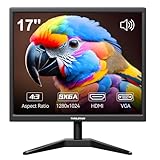
- Crystal Clear Security Display — 17-inch square monitor with native 1280x1024 SXGA resolution delivers sharp, detailed images. 250 nits brightness and 1000:1 contrast ratio ensure vivid colors and clear visibility even in shadowed areas. The classic 4:3 aspect ratio matches CCTV cameras perfectly—no stretched images or black bars.
- Dual Input & Built-in Speakers — Equipped with HDMI and VGA inputs, this 17 inch cctv monitor connects to a wide range of devices—from modern laptops, gaming consoles (PS3/PS4/Xbox360/Switch), and Raspberry Pi to older PCs. Built-in dual 1.5W speakers deliver clear audio for security feeds, system alerts, or multimedia playback. An additional audio output is also included for flexible sound setup.
- Flexible Installation — Set vga monitor up on your desk using the included stand, or mount it on the wall with the standard 100x100mm VESA pattern (wall mount bracket and screws sold separately). Perfect for security rooms, compact workstations, industrial control panels, or any space where saving desk space matters.
- Easy on the Eyes — With 1000:1 contrast ratio and 95° viewing angle, this hdmi monitor delivers clear images even in shadowed areas. The 17-inch screen size offers comfortable text readability without scaling issues—ideal for long hours of monitoring, spreadsheet work, or coding sessions.
- Versatile Applications — More than just a security monitor—use it as a customer-facing POS display, a secondary monitor for office work, a coding screen for Raspberry Pi projects, or a compact gaming display for consoles. Reliable performance for home, business, and professional environments.




