The Tool Desk
Outbyte PC Repair FREERepair Windows errors before they cause bigger problemsFix Now →Outbyte Driver Updater FREEFix the driver behind crashes, sound loss and screen glitchesFind Drivers →On PC, open Settings > Keyboard > Combat and switch Mouse Acceleration off. You can apply the setting to All Heroes or change it for an individual hero. If it is already off, no change is needed.
Turn off mouse acceleration in the settings menu
- Launch Marvel Rivals on PC and open Settings.
- Select Keyboard, then open the Combat category.
- Choose All Heroes to change the setting globally, or select a hero to adjust that hero only. This scope option is shown in a secondary tutorial; the official notes confirm the Keyboard – Combat category.
- Set Mouse Acceleration to off.
The January 2025 official patch notes introduced mouse acceleration and mouse smoothing controls in Keyboard – Combat. Marvel Rivals Version 20250110 patch notes.
Acceleration, smoothing, and Raw Input are separate settings
Mouse smoothing is a separate control. Change it only if you also want to adjust smoothing; switching off acceleration does not require changing it. GamesRadar reports that acceleration and smoothing are off by default, while the official patch notes do not publish default values. GamesRadar’s Marvel Rivals mouse acceleration guide.
Raw Input is another distinct mouse option, located under Settings > Keyboard. The official March 2025 notes say it was added there, but do not say it must be enabled to turn off acceleration or recommend a universal setting. Marvel Rivals Version 20250314 patch notes.
Recommended Free Tools
#1 Best Overall

- ⌨️🖱️【ENHANCE THE GAMING EXPERIENCE】arVin switch keyboard and mouse adapter can help you play games with wired or 2.4G wireless keyboard and mouse, replacing your original wireless controller, provide you with precise control without delay and enhancing game fun! This switch converter perfect for FPS, TPS, RPG and RTS games. for Call of duty (COD), PUBG, Fortnte and most shooting games.
- ⌨️🖱️【MULTI-PLATFORM COMPATIBLE】This arVin wired keyboard and mouse adapter for nintendo switch consoles and Switch Oled; for PS4/PS4 Slim/PS4 Pro/PS3; for Xbox 360/Xbox One/Xbox One S/Xbox One X; supports wired & 2.4G wireless keyboard & mouse. 【❌ NOT for PS5/Xbox Series/Switch Lite/PC/Bluetooth wireless keyboard & mouse, No support for third-party controllers】
- ⌨️🖱️【SUPPORT CUSTOMIZED MAPPING】This keyboard and mouse adapter for PS4/PS3 supports key mapping and can store up to 8 different sets of mouse and keyboard key settings so you can switch between them when playing different games. 【Press F12 & F1-F8 keys on keyboard simultaneously to switch】
- ⌨️🖱️【SUPPORTS MOUSE SENSITIVITY SETTING】This keyboard and mouse adapter for xbox one/xbox 360 supports adjusting the mouse sensitivity according to your habit, press F12 and keys 1-9 (Numbers above keyboard letters) on keyboard simultaneously to switch.
- ⌨️🖱️【EASY TO USE】This ps4 keyboard and mouse adapter is plug and play, no need to download app and install drivers, guided by the original game controller, you can set the keyboard and mouse buttons to any function of the controller buttons. No delay. (Please read the user manual or video carefully before use.)
Do you need to edit GameUserSettings.ini?
No. A Steam Community post from December 2024 described editing GameUserSettings.ini as a workaround before the in-game controls existed. Since the January 2025 update added acceleration and smoothing settings, use the menu toggle rather than treating the old file edit as required. Steam Community discussion.
Does this settings change risk an account penalty?
The ordinary in-game acceleration toggle is not the controller-emulation adapter described in Marvel Rivals’ official statement. That statement defines adapters as software or hardware that makes a keyboard and mouse imitate controller input, and says penalties may include temporary or permanent suspensions and leaderboard removal. It does not classify the in-game mouse setting as an adapter. Marvel Rivals’ January 13, 2025 statement on adapter use.
Quick Recap
Best Value

- It supports the Switch platform and is compatible with PS4, Xbox One, PS3, Xbox360 and other platforms.
- Using the original gamepad as a guide, you can set any button on the keyboard and mouse to any key function on the controller for game operation.
- The product is highly functional compatible and supports most keyboards, mice, and third-party wired games. The appearance of the product is novel and beautiful, and the size is small and easy to place.
- Support keyboard, mouse, no lag or blocking, no input lag, no recognition problem. With this converter, you can enjoy FPS games on different devices with USB keyboard and mouse (the keyboard with USB HUB interface is not supported).
- The device uses the original game controller as a "guide" and can designate any key on the keyboard and mouse as a button from the controller. to configure the buttons as you wish on the console of your choice. Plug and play without the need for driver installation. Future firmware updates are possible.
Rank #4
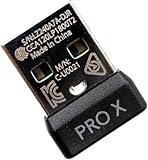
- Compatible Model: For G Pro X Superlight Wireless Gaming Mouse.(Note: Does Not fit G Pro wireless mouse.)
- Receiver Pairing Method:1.Download G HUB software. 2.Insert the mouse receiver. 3. View the third pairing demonstration image or scan the video tutorial QR code inside the product packaging to complete the next steps.
- Quick link:Pairing the receiver and mouse can be completed in about a minute, making it convenient and quick.
- Type: Wireless Mouse Receiver.
Rank #3

- Compatible Model: For G502 Lightspeed Mouse.(Note: Does Not fit G502 X Lightspeed mouse.)
- Receiver pairing method: 1. Download G HUB software, Insert the mouse receiver, find the settings in the top left corner options to open it, Click the Device Pairing Tool, Open it and follow the steps to pair. For detailed steps, please refer to the Second product image.
- Type: Wireless Mouse Receiver
- Interface: USB
- Warranty: 3 months
Rank #2

- Multi-platform compatibility: The AIMZENIX BLADER keyboard and mouse adapter is compatible with Switch 2, NS, Xbox One, Xbox Series X/S, PS 4. The BLADER simulate keyboard and mouse inputs as controller signals, providing you with more flexible control on gaming consoles
- Shortcut key mapping and sensitivity: With shortcut key customization and sensitivity adjustment, this keyboard and mouse adapter allows you to personalize your gaming experience and improve game accuracy. Enjoy improved precision, speed, and control for FPS, TPS, and RTS games. Please refer to the manual or video tutorial for details on the mapping editing function
- Plug and Play: The BLADER keyboard mouse adapter offers a plug-and-play setup, making it easy to connect your keyboard and mouse to your Xbox, Switch, or PlayStation console. No complicated installation or additional software required(Connecting to the game console requires the corresponding original controller)
- Additional Requirements: 1. The mouse switching technology of BLADER will assume that the "view sensitivity" and other related options are maximized in your gameplay settings. In any case, it must be turned up to maximize your aiming performance. 2. Connecting to the game console requires the corresponding original controller, and the authorized controller is not supported
- Read before Use: 1. BLADER does not support mice that require driver installation. 2. Please note that after the controller is connected to the console through the blader, the 3.5mm headphone jack on the controller will become invalid
Product prices and availability are accurate as of the date/time indicated and are subject to change. Any price and availability information displayed on Amazon at the time of purchase will apply.



