Do these 3 things before closing this tab:
1Clear out junk files and repair common Windows errors2Scan for outdated or missing drivers - takes under a minute3Repair Windows errors before they cause bigger problemsIt depends on how you saved the image. A picture saved from Disney Dreamlight Valley’s Photo Mode is stored in the game’s online Photo Gallery. A camera photo downloaded to a Windows PC or a screenshot captured with a console or PC tool goes to a separate location.
Photo Mode saves are in the in-game Photo Gallery
Open Disney Dreamlight Valley’s Photo Gallery while signed in to view pictures saved from Photo Mode. The Gallery is linked to your online profile; it is not a universal folder on your device. Gameloft’s current update information says it holds up to 12 pictures. Eligible images can be submitted to DreamSnaps, shared with a QR code, or posted to the DreamTeams feed.
Gallery pictures and DreamSnaps Archive entries are automatically deleted after 180 days of inactivity. Treat the Gallery as an online in-game feature, not as a guaranteed local backup.
Downloaded camera photos on Windows
If you explicitly saved or downloaded a camera photo on Windows, player reports place it in your Pictures library inside a Disney Dreamlight Valley folder. This is community-reported rather than official platform documentation, so the folder may differ by storefront or installation. If you do not see it, search File Explorer for “Disney Dreamlight Valley.”
Quick wins for a faster PC:
Scan for outdated or missing drivers - takes under a minuteDriver Scan →Clear out junk files and repair common Windows errorsFree Scan →#1 Best Overall

- Discover the Secrets of Dreamlight Valley - Free the Dream Castle from the insidious grip of the Forgetting, and unlock the unique Realms of well-loved Disney and Pixar characters. Each Realm has its own challenges, with puzzles to solve and friends to bring back to Dreamlight Valley.
- You'll start your adventure in the Valley and discover inspiring locations - Explore what lurks in the darkest corners of the Valley and brave the deepest caverns as you take on challenges from iconic Disney and Pixar heroes and villains. Who knows what—or who—you might discover.
- Forge Friendships with Disney and Pixar Characters - Garden with WALLE, cook with Remy or kick back and fish with Goofy. What better way to collect, craft, and rebuild the Valley than with a friend! From kind princesses to nefarious villains, every Dreamlight Valley resident brings their own story arc, quests, and rewards. Meet up for daily hangouts and make friends with some of your favorite Disney and Pixar characters.
- Restore the Valley to Its Former Glory - Free the Valley from the grip of the Forgetting and return Dreamlight Valley to its former greatness by making it your own. In Dreamlight Valley, you can build the perfect neighborhood that is just for you with a fully customizable layout, creative landscaping, and thousands of decorative items. Will you settle on the Beach next to Moana, or call Buzz Lightyear your next-door neighbor in the Plaza?
- Express Your Disney Style - Bring out your inner princess, villain, or anything in between! Assemble unique outfits and decorate your home with thousands of fantastic items. Using the Touch of Magic tool, you can even create your own designs using Disney and Pixar motifs! With the in-game Camera, get ready to snap a sunset selfie with Mirabel, a culinary creation with Remy or simply cherish a moment.
One Steam player reports a game-specific folder ending in GameloftDisney Dreamlight Valleysteam_YOURID#_rNGallery. This reported path is not the same as Steam’s screenshot folder, and the account-specific portion varies.
Find screenshots captured by your platform
Nintendo Switch
For a Switch screenshot, open Album from the HOME Menu. Nintendo documents that screenshots can be stored in system memory or on a microSD card; choose the location under System Settings → Data Management → Manage Screenshots and Videos. See Nintendo’s capture and viewing instructions and screenshot storage settings.
Rank #2
![Disney Dreamlight Valley Standard - Nintendo Switch [Digital Code]](https://m.media-amazon.com/images/I/41SW7GPHmGL._SL160_.jpg)
- A Nintendo Switch Online membership may be required for online play. Please check the game detail page on Nintendo.com for membership requirements.
- 2023 Disney. 2023 Disney/Pixar. 2023 Gameloft. All Rights Reserved.
To copy screenshots to a computer, use System Settings → Data Management → Manage Screenshots and Videos → Copy to a Computer via USB Connection. The cable must support data transfer. Nintendo also supports transferring through a microSD card. Its USB-copy instructions describe Windows support and note that other operating systems may require MTP-compatible software, which Nintendo does not guarantee. Details: Nintendo’s transfer instructions.
Steam screenshots
Steam captures are separate from camera photos downloaded from the game. A community-reported location is Steamuserdata(your Steam user ID)760remote1401590screenshots. You can also check Steam’s screenshot manager.
What’s actually slowing this PC down?
Pick the symptom - the matching free tool is one click away.
Rank #3

- Disney Dreamlight Valley - Nintendo Switch 2 Edition
PlayStation, Xbox, Apple Arcade, and other PC storefronts
A current authoritative path or menu sequence is not established here for these platforms. Check the platform’s own capture library rather than assuming the Windows or Steam locations apply.
Quick Recap
Best Value
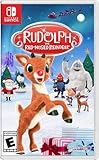
- PLAY AS ICONIC CHARACTERS: Step into the hooves of Rudolph and Clarice and the boots of Hermey and Yukon Cornelius – each with their own unique charm and abilities, making every moment of the adventure a holly jolly delight!
- JOYFUL CO-OP FUN: Grab a friend, play in local co-op as you shout out with glee as you experience this cheerful holiday adventure together.
- FAMILY-FRIENDLY & FULL OF HOLIDAY SPIRIT: With fun challenges, interactive storytelling, and a soundtrack with iconic Christmas favorites, this game is perfect for festive players of all ages.
- Get ready for the ultimate Christmas quest—guide Rudolph, spread holiday cheer, and light up the season with festive fun for the whole family!
Rank #4

- 5056635604927
- DDV3812BC
Quick way to identify the right location
- Saved in Photo Mode: check the game’s Photo Gallery while signed in.
- Camera photo saved or downloaded on Windows: check Pictures →
Disney Dreamlight Valley, then search your computer if it is missing. - Captured with Switch: open Album from the HOME Menu.
- Captured with Steam: check Steam’s screenshot manager or the reported Steam userdata screenshot location.
Product prices and availability are accurate as of the date/time indicated and are subject to change. Any price and availability information displayed on Amazon at the time of purchase will apply.




