Do these 3 things before closing this tab:
1Repair Windows errors before they cause bigger problems2Scan for outdated or missing drivers - takes under a minute3Clear out junk files and repair common Windows errorsFor high FPS in Marvel Rivals, start with native resolution, V-Sync off, frame generation off for competitive play, and low or medium graphics settings; then use the built-in performance test to tune the result. If FPS is poor while GPU usage is low, the limit may be CPU performance, shader preload, or frame pacing rather than graphics quality, so lowering resolution may not help.
These recommendations reflect the PC options documented through Version 20260723, following Season 9’s July 10, 2026 release. Check the official Season 9 announcement and current in-game menu for changes.
Recommended high-FPS settings
Use this as a starting point, not a universal preset. Make one change at a time and test during representative gameplay.
| Setting | Starting recommendation |
|---|---|
| Display Mode | Fullscreen |
| Resolution | Monitor’s native resolution |
| Graphics Quality | Custom |
| V-Sync | Off |
| Frame Generation Mode | Off for ranked or latency-sensitive play |
| Global Illumination | Off or SSGI – Low Quality |
| Reflection Quality | Off |
| Model Detail | Performance or Low |
| Post-Processing | Low |
| Shadow Detail | Low or Medium |
| Texture Detail | Low or Medium |
| Effects Detail | Low |
| Foliage Quality | Low |
| Show FPS | On |
| Network Stats | On while troubleshooting |
The game added Off options for Anti-Aliasing, Global Illumination, and Reflection Quality, as well as Performance for Model Detail, in its January 2025 PC graphics update. Menu labels and available options can change, so verify them in-game.
#1 Best Overall

- BLUE LIGHT BLOCKING GLASSES: Our blue light glasses for women boast UV400 protection, blocking harmful blue rays from computer screens. With these bluelight glasses women, you can enjoy gaming, reading, or watching TV with no worries of eye strain.
- EYE RELIEF: Our blue light glasses are engineered to reduce blurry vision or strain caused by prolonged screen time. These womens blue light glasses aid in better sleep by preventing blue light from disrupting your natural sleep cycle, helping you fall asleep faster and enjoy a more restful night's sleep, making them the perfect christmas present.
- COMFORTABLE: Crafted from durable material, our trendy blue light glasses for woman or blue light glasses men ensure long-lasting comfort. The high-transmittance lenses accessories, gamer gifts for men, help keep your eyes relaxed. Perfect stocking stuffers, gifts for gamers men, christmas gifts for men, halloween costumes.
- LIGHTWEIGHT: These clear blue light glasses feature a lightweight frame, meaning they’ll stay comfy for long-term wear. Perfect as blue blockers glasses for women or mens blue light glasses, these non-prescription fake glasses for men can be worn throughout the day. The blue light blocking glasses women feature polycarbonate HD lenses, which are anti-reflective and restore true color.
- WORRY-FREE PURCHASE: If you experience any issues, our support team is ready to assist you quickly. These are the perfect costume glasses for cosplay dressing up.
How to open settings and run a performance test
- From the main menu, open Settings.
- Use Display for resolution, frame rate, upscaling, V-Sync, and frame-generation options.
- Use Graphics for quality settings such as Model Detail, Shadow Detail, Texture Detail, Effects Detail, Global Illumination, Reflection Quality, Post-Processing, and Foliage Quality.
- Run the built-in performance test, apply its recommendations, and check FPS and system utilization in a match.
- After changing resolution, an upscaler, or a graphics option, test again and keep the settings that give stable results in team fights.
The performance test has received updates to its recommendations and CPU testing. Lower Model Detail, Shadow Detail, Texture Detail, and Effects Detail first if performance is poor, but use the test and utilization data to identify the actual limit. A low GPU-utilization reading alongside poor FPS can indicate a CPU, shader, or frame-pacing bottleneck.
Upscaling, anti-aliasing, and frame generation
Choose an upscaler supported by your GPU. Quality or Balanced is a sensible first test at native output resolution; use Performance when the GPU is the limiting component and you need more headroom. Upscaling is not a guaranteed fix for CPU-limited performance.
| GPU/platform | Available option in the research | Practical starting point |
|---|---|---|
| GeForce RTX | NVIDIA DLSS, including DLSS 4.5 Super Resolution | Test Quality first; try Performance when GPU-limited |
| Radeon | AMD FSR 3; FSR 4 on Radeon RX 9000-series GPUs | Test Quality or Balanced, then compare stability |
| Intel Arc | Intel XeSS; XeSS Frame Generation support is also documented for compatible non-Intel GPUs | Use a supported upscaling option and test in-game |
The game supports AMD FSR 3 Frame Generation, NVIDIA DLSS Multi Frame Generation, and Intel XeSS Frame Generation. For ranked or latency-sensitive play, begin with Frame Generation Mode off: generated frames can raise displayed FPS without making the underlying simulation render at the same rate. DLSS Multi Frame Generation is available on GeForce RTX 50-series cards; see the official DLSS 4.5 announcement and frame-generation update for documented support details.
Rank #2
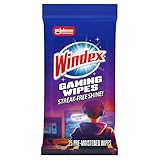
- WINDEX GAMING WIPES: effortlessly clean all your gaming gear and gaming electronics in one easy step with our new Windex Gaming Wipes
- AMMONIA FREE: our ammonia-free formula is safe to use on all of your favorite gaming equipment like consoles, headsets, controllers, screens, keyboards, and more
- PRE-MOISTENED WIPES: each wipe instantly removes dust, dirt, and stubborn smudges and fingerprints leaving a streak-free shine
- ANTI-STATIC: great for cleaning and wiping down your gaming gear and electronics leaving behind no visible residue
- COMPACT RESEALABLE PACKAGE: store your pack of Windex Gaming Wipes anywhere in your home for whenever a quick and easy wipedown is needed
If you have six or fewer CPU threads, do not automatically combine Switch Shader Compilation Mode with AMD FSR3 Frame Generation: developers warn that the combination can cause additional stuttering. The option names and compatibility guidance are covered in the official developer notice.
Find and fix the performance bottleneck
Do not assume every drop is caused by the GPU. If lowering resolution does not improve FPS and GPU utilization remains low, investigate CPU limits, shader preload, and frame pacing. The game’s performance test can help identify CPU limits, including RHI-thread usage.
CPU Rendering Optimization (Beta)
On PC, find this experimental option under Settings > Other > Performance Optimization (Beta). It is intended primarily for mid-to-high-end CPUs and may improve performance or smoothness, but it is not guaranteed to help. Test it with the performance test and disable it if you see crashes, visual problems, or worse frame pacing. See the official feature update.
Rank #3

- Ergonomic & Adjustable Design: Fight "text neck" and improve your posture. Designed for comfort, it offers an adjustable height (7.1in-8.5in) (1.4in adjustable range) and angle (5°-85°) Please note: cell phone stand is only 9 inches tall—the length of a standard pencil
- Without blocking subtitles Perfect for office desk Tiktok Face Time Zoom video—this is the ultimate kitchen desk essential for phones! Perfect viewing experience while reducing neck back strain, A must-have for gamers streamers desk, and anyone who values both style and support!
- Sleek & Stable Design fits Otterbox Case: Say goodbye to bent cables, tangles, and tip-overs! LISEN’s stylish adjustable desk phone holder features a built-in charging hole and smart cable management, keeping your phone secure and your workspace clutter-free cool gadgets for men
- ANTI-SLIP DESIGN free hands: The under 10.00 items easy gadgets back and the bottom of this kitchen essentials for women are fully covered by anti-skid silicone, which LISEN stand up desk decor can provide maximum protection device from any scratches and slides
- Your Perfect Viewing Companion:If your product arrives damaged or breaks within 365 days, reach out to LISEN for a quick and hassle-free solution. Struggling with assembly, like tightening the screw? We’ve got your back! Your experience matters to us. (Product including: phone Holder stand*1, screw*1, hexagon screwdriver*1, specification*1)
Shader preload and stutter
The old mandatory first-launch shader-compilation wait is no longer the current process. Essential global shaders preload in the background after installation or an update. Wait for that preload to finish before entering a match or judging performance after a major patch or graphics-driver update; entering early can cause stutter, network lag, rendering errors, or crashes. On systems with 16 GB of RAM or less, or with memory-related FPS drops, frozen visuals, or crashes, the experimental Switch Shader Compilation Mode may be relevant, but it can briefly stutter when a material is first encountered. See the shader and performance-test update and developer guidance.
Frame caps and display sync
Marvel Rivals supports custom FPS caps. Choose a cap the system can sustain during team fights instead of chasing an unstable peak; for example, cap at 120 FPS if performance fluctuates between 100 and 160 FPS. There is no single ideal cap for every PC. Start near your display’s refresh rate, then lower the cap if it improves consistency. V-Sync off is the recommended competitive baseline. Custom caps were added in the August 2025 update.
Outdated Drivers Are Slowing You Down
One free scan finds every outdated or missing driver and matches the right update for your exact hardware.Free scan · exact hardware matchPC Slower Than It Used to Be?
A free scan shows the junk files, broken settings and background clutter dragging Windows down - then fixes them in one click.Free scan · Windows 10 & 11Windows, drivers, and resource packs
If stuttering or poor performance persists, follow the game’s official troubleshooting advice before relying on generic control-panel tweaks:
Rank #4

- Easy Installation: Our gaming lights have been designed to enhance your entertainment experience. Simply position the led light bar next to your TV or game console to create a game room environment with ease. They come with USB power and a 60 inch cord for direct mounting and mobility
- Audio Syncing & Extensive Mode: The built-in high-sensitivity music sensor allows you to sync the TV led lights to your favorite music. Lights react and move to the beat of music, film and game audio, creating an incredible immersive sound and light experience – and all without the need for an additional hub. You can choose from 64+ patterns, including strobe, illusion, jump, energy, gradient, running, chasing, fluttering mode etc. Each mode can be applied to different scenes
- 64+ Chasing IC+RGB & W Effect: The independent control design of IC+RGB and white all-in-one multifunctional rgbw led bar lights monitor backlight allows you to easily switch the led lights for desk between IC+RGB and white to enjoy a variety of lighting effects, you can choose white lighting mode with high brightness for better illumination when working, etc. Choose IC+RGB lighting mode when you need to create an entertaining atmosphere for the light show, 16 million colours of Color changing rgb light bar let you dance to the beat and create a dynamic party atmosphere
- Dynamic and Dimmable Lights: 1%-full brightness free brightness adjustment gives you the flexibility to adjust dimmable led light bar for room decorations or a variety of occasions
- USB Powered: USB light bars for room can be powered by powernank, usb charger, TV, Monitor, laptop PC mainframe, making behind TV led lighting bar easy to install in any location.TV led lights are powered by the TV usb interface / PC mainframe, can be turned on/off synchronously with TV / PC
- Install the current graphics driver using its clean-install option.
- In Windows, open Settings > System > Display > Graphics, add the game executable, and select High performance. The FAQ names the executable as ~\Marvel\Binaries\Marvel-Win64-Shipping.exe.
- Install the game on an SSD if possible. The official Steam requirements list 70 GB of available space and recommend an SSD.
- On Steam, open Library, right-click Marvel Rivals, select Properties, then DLC. Check or uncheck Marvel Rivals High-Resolution Resource Pack to switch between the high- and low-resolution packs.
The low-resolution resource pack can reduce installation size and may help systems constrained by storage, memory, or texture streaming, at the cost of visual fidelity. It is not a replacement for adjusting graphics settings. For the official troubleshooting details, see the NetEase performance FAQ and resource-pack announcement. NetEase previously recommended driver 576.80 or later for specific NVIDIA issues; that number is historical, so use a current driver rather than installing an old one specifically.
Independent reader supportYour contribution helps us test, update, and keep practical guides available for everyone.FAQ
Should I use frame generation in ranked matches?
Start with Frame Generation Mode off when input response and consistency matter most. Frame generation can increase displayed FPS, but it does not replace the latency characteristics of traditionally rendered frames.
Why is lowering resolution not increasing my FPS?
Your GPU may not be the bottleneck. Check GPU utilization and the built-in performance test; CPU limits, shader preload, or frame pacing can hold FPS down even at a lower resolution.
Best Value

- Compatible with Wide Screens - To ensure compatibility with the dual monitor mount, your each monitor must meet three conditions at the same time: First, computer screens size range: 13 to 32 inches. Second, screen weight range: 4.4 to 19.8 lbs. Third, the back of the monitor screen must have VESA mounting holes with a pitch of 75x75mm or 100x100mm.
- Regarding the compatibility with desks - Your desk must meet three conditions at the same time: First, desk material: Only wooden desks are recommended, plastic or glass desks cannot be used. Second, desk thickness range: 0.59" - 3.54". Third, the bottom of the desk should not have any cross beams or panels, as this will interfere with installation. We recommend carefully checking that your desk and monitors meets all above conditions before purchasing.
- Dual C-Clamp Hold - Worried your dual monitors might wobble or slip? Our upgraded base uses a larger platform plus a dual C-clamp structure to lock the dual monitor arm firmly to your desk. Each arm safely keeps your screens steady while you type, click and game—no shaking, no sliding, just a clean and secure setup you can trust every day. It also provides Grommet Mounting installation choice, both options ensure stable and secure fixation for your 0.59" - 3.54" desk.
- Full-Motion Adjustment For Comfortable View - Pull the screen closer when you’re deep in a spreadsheet, push it back to watch videos, or rotate to portrait for coding — moving everything smoothly with just one hand. The monitor stand offers +85°/-50° tilt, ±90° swivel and 360° rotation. Raise your monitor up to 15.75″ to support a healthy sitting posture. Whether you’re working from home, gaming through the night, or switching between video calls and documents, getting the screens to your natural line of sight helps relieve neck, shoulder and back strain so you can stay focused longer with less fatigue.
- Keep Your Desk Organized: By lifting both screens off the desktop, this dual monitor stand opens up valuable space for your keyboard, notebook, docking station or a simple, clutter-free work area. Built-in cable management guides wires along the arms, keeping cords out of sight and out of the way. Enjoy a tidy, modern workstation that looks as good as it feels to use.
Should I turn every graphics setting to Low?
No. Low settings are a useful performance baseline, but the best result depends on your system. Use the performance test, lower major performance controls first, and compare stability in real matches.
Do I need to wait for shader compilation before every test?
The old mandatory first-launch wait is outdated. Essential shaders preload in the background after an installation or update; let that preload finish before testing after a major patch or driver update.
Does Performance Optimization (Beta) always improve FPS?
No. It is experimental and may help some systems, but it is not guaranteed. Compare results with it on and off, and disable it if it worsens performance or causes problems.
Quick Recap
Product prices and availability are accurate as of the date/time indicated and are subject to change. Any price and availability information displayed on Amazon at the time of purchase will apply.