Free tools Windows power users keep installed
One-click scans. No signup required.
There is no single best BlueStacks alternative. Choose LDPlayer or MuMu Player for general Windows gaming, MuMu Player for Apple-silicon Mac gaming, Google Play Games on PC for supported games with minimal emulator setup, and Android Studio Emulator or Genymotion Desktop for development and QA.
This is a 2025 comparison. Emulator support, game compatibility, licensing, system requirements, and installer contents can change, so check the official page before downloading. Also verify that your exact game permits emulators and automation before moving your main account.
Quick comparison
| Alternative | Best for | Platforms | Key strengths | Main limitation |
|---|---|---|---|---|
| LDPlayer | General Android gaming | Windows | Keymapping, high-FPS settings, multi-instance tools | Windows-focused; review privacy and installer options |
| MuMu Player | High-frame-rate gaming and Mac gaming | Windows, macOS | Keyboard mapping, gamepad support, multi-instance features | Game compatibility varies |
| Google Play Games on PC | Supported mobile games | Windows | First-party Google distribution and simple setup | Not a universal Android app launcher |
| Android Studio Emulator | Development and testing | Windows, macOS, Linux, ChromeOS | AVDs, API levels, sensors, Play Store images, ADB | Heavy and unnecessarily complex for casual gaming |
| GameLoop | Selected competitive games | Windows-focused | Game-oriented controls and supported-title integration | Narrower coverage than a general emulator |
| Genymotion Desktop | QA and professional virtual devices | Windows, macOS, Linux | Device profiles, ADB, IDE integration, ARM64 images | Professional use may require a paid license |
| NoxPlayer | Casual gaming and multiple instances | Windows-focused | Keymapping, gamepad support, multi-instance features | Check current compatibility, advertising, and privacy posture |
| MEmu Play | Configurable Windows gaming | Windows | Keymapping and multi-instance support | Less compelling for Mac, Linux, or development users |
The ranking is an editorial fit ranking, not a controlled speed benchmark. FPS and startup performance depend on the CPU, GPU, renderer, Android image, game version, resolution, virtualization setup, and number of running instances.
Short verdicts
- Best overall gaming alternative: LDPlayer.
- Best for Mac gaming: MuMu Player, especially where its Apple-silicon support matches your game.
- Best first-party option: Google Play Games on PC.
- Best for developers: Android Studio Emulator.
- Best for QA workflows: Genymotion Desktop.
- Best for selected competitive games: GameLoop.
- Best configurable secondary choices: NoxPlayer and MEmu Play.
1. LDPlayer
Best for: Windows users who want gaming controls, high-FPS configuration, and multiple Android instances.
Outdated Drivers Are Slowing You Down
One free scan finds every outdated or missing driver and matches the right update for your exact hardware.Free scan · exact hardware matchPC Slower Than It Used to Be?
A free scan shows the junk files, broken settings and background clutter dragging Windows down - then fixes them in one click.Free scan · Windows 10 & 11#1 Best Overall

- 【System Configuration】Important Note: The Anbernic RG Rotate Package does not come with any game cards or pre-installed games. Users will need to download their preferred games separately.The 2026 Anbernic latest model, RG Rotate, features a fully upgraded Unisoc Tiger T618 64-bit processor with an octa-core configuration of 2x [email protected] + 6x [email protected] and Mali-G52 GPU running at 850MHz. It comes with 3GB RAM and 32GB eMMC storage, runs on Android 12, and delivers excellent performance for smooth gameplay.
- 【Display】The device features a 3.5-inch IPS OCA full-rotation touchscreen with a resolution of 720×720P. The square-shaped screen offers a new twisted design, high-resolution viewing angles, sharp detail rendering, and enhanced immersive gaming and audiovisual experiences. Unlike standard Anbernic gaming console screens, this rotating display allows for free, unrestricted rotation. It uses a uniquely developed ultra-thin alloy hinge for durability and ease of use.
- 【Multi-Emulator Support】Supports Android games and over 30 other game platforms; users can download compatible games directly from the app store. Equipped with a built-in 6-axis gyroscope and interchangeable high/low L2R2 buttons, the keyboard is ergonomically designed with cross keys mapped to vibration motors on the joystick. Supports Moonlight Streaming, enabling seamless playback of PC games and delivering a superior user experience.
- 【Battery & Wi-Fi/Bluetooth Features】Built-in 2000mAh high-density lithium-ion battery with up to 5 hours of battery life. Supports 5V/2A charging, taking approximately 3.5 hours to fully charge. The device includes WiFi 5+ and Bluetooth 5.0 connectivity, ensuring smoother online multiplayer gameplay and a more comfortable wireless experience.
- 【Additional Features & Storage】Supports multiple languages and external expansion via TF card, with maximum capacity of 2TB. Features vibration motor support, 3.5mm stereo headphones, energy-saving settings, low-light control, and adjustable screen brightness.
LDPlayer is the strongest general-purpose gaming recommendation in this list. Its official materials emphasize keymapping presets, high-FPS gaming, resource controls, and multi-instance functionality. You can clone instances, adjust resolution and frame-rate settings, and map keyboard or mouse inputs for supported games.
It is primarily a Windows product, so it is not the right default for Mac or Linux users. Game compatibility is also title-specific: a game may detect the emulator, require a particular Android image, or break after an update. Users concerned about advertising, telemetry, bundled offers, or vendor trust should inspect the installer and current policies rather than assuming that a free download has no trade-offs.
Setup: Download from the official LDPlayer site, choose the 32-bit or 64-bit build appropriate for the target game, enable VT-x or AMD-V if required, install the game through Google Play or a legitimate APK, then configure keymapping and multi-instance settings. Test the title before transferring a primary account.
2. MuMu Player
Best for: Windows gaming, high-frame-rate titles, and Apple-silicon Mac users.
Do these 3 things before closing this tab:
1Scan for outdated or missing drivers - takes under a minute2Clear out junk files and repair common Windows errors3Fix the driver behind crashes, sound loss and screen glitchesMuMu Player is the most useful choice here for readers who want a gaming-focused emulator but use a Mac. Its official download page lists Windows and macOS versions, including Apple-silicon support, and highlights keyboard mapping, gamepad controls, high-frame-rate settings, and multi-instance tools.
MuMu is not a substitute for a full development environment. It may also fail with games that block emulators, depend on unsupported ARM libraries, or require certified-device features. Compatibility can vary between Windows and macOS releases and between individual games.
Setup: Use the official MuMu download page, select the installer for your operating system and Mac architecture, enable hardware virtualization if startup requires it, sign in to Google Play where available, and configure FPS, resolution, input mapping, gamepad controls, and instances.
3. Google Play Games on PC
Best for: Windows users who only want games in Google’s supported PC catalog.
What’s actually slowing this PC down?
Pick the symptom - the matching free tool is one click away.
Google Play Games on PC is an alternative to BlueStacks, but it belongs in a separate category. It is a first-party Google distribution and gaming application—not a universal Android desktop environment. It is ideal when your desired game appears in the supported catalog and you prefer a simpler, officially supported route.
It is a poor fit for arbitrary APKs, productivity apps, social apps, multiple Android instances, or development testing. A game can be available on Android yet absent from the PC catalog.
Google lists these minimum requirements: Windows 10 version 2004 or newer, an SSD with 10 GB available space, Intel UHD Graphics 630 or comparable graphics, four physical CPU cores, 8 GB RAM, hardware virtualization, and a Windows administrator account. Check regional availability and current requirements on the official Google Play Games page.
Setup: Check eligibility, download Google Play Games on PC, sign in with a Google Account, search the catalog, and select Install for a compatible game.
Rank #2

- 【Supported Operating System】The Game Controller is specifically designed for playing classic old school retro snes games on computer or laptop. Compatible with Windows 98 / ME / Vista / 2000/2003 / XP / 7 / 8 / 8.1 / 10/11, Mac OS X/ OS X 10.0 and beyond, Raspberry Pi, Raspberry PI 2 model B,Model A, Raspberry Pi 1 Model B+, Raspberry Pi 2,Raspberry Pi OS, Raspberry Pi 3 Model B+, Raspberry Pi 3, Raspberry Pi Zero.
- 【Simple USB Plug and Play】If your program or application accepts USB controller input, this classic game controller do not need install drivers or patches. 1.5 meter external cable(approx. 5 ft. Long). Notice: Please download the game emulator first before start the games, and then you must manually set the buttons and directionals within the emulator you're using, and the controller not automatically assigns buttons/directional axes. If on the Steam platform, you need to first enable Steam's "Universal Controller Configuration Support" and then restart Steam. After entering the game, you also need to manually bind key positions in the game
- 【High Sensitivity without Delay】Super sensitive buttons for precision control: 6 fire buttons, a 'Start' button and a 'Select' button, motion control cross. Play your favorite old school games with classic retro feel. Fits perfectly in the hand and also perfect for two player action.Note: Not applicable to Switch/PS games. Not Compatible with TV/ TV Box, third Mini Games Box and Tesla Model 3
- 【Supported Game Emulators】The game controller works with most emulators. Download any emulator you wish to download and use from Google and do the same with ROMS. Notice:Third party controller, not original controller. But it works phenomenal with the Raspberry Pi game emulation and so on
- 【Product Service】If you have any problem during use, send message to us and we will help you to solve the problem soon
4. Android Studio Emulator
Best for: Developers, testers, and anyone who needs accurate Android virtual-device testing.
Android Studio’s Emulator is the correct BlueStacks alternative for app development—not because it is the most convenient gaming tool, but because it supports configurable Android Virtual Devices. You can test different API levels, phones, tablets, Wear OS, Android TV, automotive profiles, screen sizes, rotation, GPS, sensors, and network conditions. It also integrates with Android Studio, Gradle, and ADB.
Google’s documented requirements include 16 GB RAM and 16 GB disk space as a baseline for a comfortable emulator setup; larger or more demanding virtual devices may need more. SSD storage, hardware virtualization, and current graphics drivers make a substantial difference.
Basic setup:
- Install Android Studio.
- Confirm the host meets the Emulator requirements.
- Open Device Manager in Android Studio.
- Create a virtual device and select a hardware profile.
- Download or select an Android system image.
- Start the AVD and install your APK.
emulator -avd <avd_name>
adb install <path-to-apk>
To reset an uncooperative virtual device, use:
emulator -avd <avd_name> -wipe-dataWarning: -wipe-data deletes the virtual device’s app state and user data. Google documents additional launch options in its Emulator command-line guide.
The Tool Desk
Outbyte PC Repair FREERepair Windows errors before they cause bigger problemsFix Now →Outbyte Driver Updater FREEFix the driver behind crashes, sound loss and screen glitchesFind Drivers →5. GameLoop
Best for: Games specifically supported or optimized by GameLoop, particularly selected competitive titles.
GameLoop is a gaming-focused Windows option rather than a universal Android app solution. Its value depends heavily on whether your exact game is supported and whether the integration remains current. It can be worth trying first for a title promoted on the official GameLoop catalog, especially when game-specific controls matter.
Do not choose it expecting broad APK compatibility, arbitrary productivity apps, or the device profiles and API-level controls found in Android Studio. Verify the current supported-game list and operating-system details on the official GameLoop site before installing.
6. Genymotion Desktop
Best for: Developers and QA teams that need preconfigured virtual devices, ADB workflows, and IDE integration.
Genymotion Desktop supports Windows, macOS, and Linux, making it one of the more flexible local testing choices. It provides virtual-device profiles, ADB connectivity, automation potential, and native ARM64 images where supported. It can integrate with Android Studio and other ADB-based IDE workflows.
Genymotion is not primarily a casual gaming product. Google Play and other Google apps may require separate setup depending on the selected image and configuration. Genymotion also offers personal-use and paid professional categories; do not assume that a free personal-use edition permits company-wide QA or commercial deployment. Review the current product and licensing information.
Setup: Download the correct package from the official download page, install the required hypervisor configuration, create a virtual device, connect it to your IDE through ADB, and install Google apps only when technically and legally appropriate. The installation documentation explains platform-specific requirements.
7. NoxPlayer
Best for: Casual gaming when its current input, compatibility, or multi-instance features match your needs.
Quick wins for a faster PC:
Repair Windows errors before they cause bigger problemsFix Now →Scan for outdated or missing drivers - takes under a minuteDriver Scan →Clear out junk files and repair common Windows errorsFree Scan →Rank #3

- [Powerful Compatibility] - Designed specifically for retro game emulators(Emuelec, Batocera, Lakka, RetroArch, Steam, RetroPie), supports only games within the emulator. Support hardware devices: not only for Laptop/Desktop PC(Windows 11/10/8/7/XP, Require: Button Mapping Program), Raspberry Pi(4/3/2/1/Zero), Game Stick(M8/10/15/16), Retro Game Console(Pandora Box Arcade), TV/Game Box, Smart TV, Projector, but also for Android devices(Support OTG Function, Work with OTG Adapter, Not Included), such as Phone, Tablet, Pad. doesn't support for Amazon Firestick/Xbox 360/Xbox One/iOS/Mac OS/PS3/PS4. Please read the product precautions in product description before using them.
- [Rechargeable Multiuse Wireless Gamepad] - High-performance lithium battery, safe and environmentally friendly, saving your money to buy batteries. intelligent sleep and wake-up functions eff ectively extend the battery life. it's charged quickly through the USB Type-C cable(included). charging time: 2 hours, gaming time: 4+ hours. effortless storage, ready to play anytime.
- [Gaming Joystick without Delay] - The USB twin wireless emulator controllers adopt 2.4G wireless transmission technology, enjoy seamless 2 player gameplay with a single USB receiver(Included), stable, no delay, perfect for competitive or cooperative gaming sessions. a range of 10 meters(33 feet) covers your living room and bedroom. the controller realizes a wireless connection to your devices, giving you free space to play games. No wires, no mess, no hassle, get rid of wiring and playing games without fear.
- [Ultimate Game Experience] - Reliable 3D ergonomic design, the design of the left and right shoulder buttons is easier to use and control. compact, lightweight build ideal for kids and adults, reduce hand fatigue during long sessions. the buttons are sensitive and rebound rapidly, leading to your quick moves and high performance in games, bring you a more realistic gaming experience.
- [Worry-free purchase] - Not only you get a set of USB twin wireless emulator controllers that connect to your devices, but also you will get an unconditional satisfaction guarantee and lifetime warranty. don't hesitate to contact us whenever you need assistance.
NoxPlayer offers the familiar gaming-emulator feature set: keyboard and mouse mapping, gamepad support, instance management, resolution controls, and automation-oriented tools. Those features can be useful, but they are not a guarantee of compatibility or performance.
Because installer contents, advertising, Android support, and security posture can change, avoid strong claims that NoxPlayer is the fastest, safest, or universally compatible option. Download only from the official NoxPlayer site, inspect optional installer choices, and review current policies before use. Treat Mac support as unconfirmed unless the current download page explicitly supports your exact Mac architecture.
8. MEmu Play
Best for: Windows users who want configurable Android gaming and multiple instances.
MEmu Play provides keymapping, instance management, and other gaming-oriented controls. It can be a practical secondary option when a particular game works better there than in another emulator, but generic rankings cannot predict that result.
MEmu is best treated as a Windows gaming product unless its current vendor documentation says otherwise. It is not a replacement for Android Studio or Genymotion when you need standardized API-level testing, sensors, ADB automation, or professional device coverage. Use the official MEmu Play site rather than a download mirror.
Which alternative should you choose?
- Only want supported mobile games on Windows? Start with Google Play Games on PC.
- Want general Android gaming on Windows? Try LDPlayer or MuMu Player.
- Use an Apple-silicon Mac? Try MuMu Player for gaming, or Android Studio and Genymotion for development and QA.
- Need app testing? Use Android Studio Emulator.
- Need device profiles, ADB, and QA workflows? Use Genymotion Desktop.
- Need one Tencent-supported competitive title? Check GameLoop first.
- Need multiple accounts or instances? Compare LDPlayer, MuMu Player, NoxPlayer, and MEmu for the exact game.
- Need arbitrary Android apps? Choose a full emulator; Google Play Games on PC is too limited.
Platform support at a glance
Windows: LDPlayer, MuMu Player, Google Play Games on PC, Android Studio Emulator, GameLoop, Genymotion, NoxPlayer, and MEmu Play have Windows-oriented options, subject to current release requirements.
macOS: MuMu Player explicitly lists macOS and Apple-silicon support. Android Studio Emulator and Genymotion Desktop also support macOS. Do not assume current native Mac support for LDPlayer, GameLoop, NoxPlayer, or MEmu Play.
Linux: Android Studio Emulator and Genymotion Desktop are the clearly documented choices in this comparison. Reserve Linux claims for products whose current vendor documentation confirms support.
Recommended Free Tools
Are these alternatives free?
LDPlayer, MuMu Player, GameLoop, NoxPlayer, and MEmu Play are generally distributed as free-to-download consumer software. “Free” does not necessarily mean ad-free or free of promoted content, optional services, or bundled offers.
Google Play Games on PC is free to install, although games and in-game items may cost money. Android Studio and its Emulator are available through Google’s development tools; hardware, storage, and setup time are usually the bigger costs. Genymotion offers personal-use and paid categories, so professional users should check the current license before deployment.
Hardware and virtualization prerequisites
Most local emulators rely on hardware virtualization. Enable Intel VT-x or AMD-V in UEFI/BIOS when required. Hyper-V, VirtualBox, antivirus monitoring, and other hypervisors can conflict or reduce performance. SSD storage improves boot and loading behavior, while additional instances require more CPU cores, RAM, and GPU capacity.
Integrated graphics may run lighter workloads, but demanding games and high-FPS modes need more capable graphics hardware. Do not assign nearly all system RAM to an emulator; the host operating system and other applications still need memory.
Rank #4
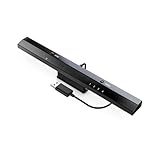
- Wireless sensor dolphin bar can connect your Wii remote plus controller to your PC by Bluetooth.
- Supports cursor anti-shake function, works as a normal keyboard and mouse.
- Allows you to play more quickly and precisely with your GC controllers, Light guns or Racing wheels.
- You can return or skip to the beginning of the current, previous or next chapter and supports Fast reverse, Fast forward, Pause playing, etc.
- Supports the G-sensor function that is the best choice for the Racing Games. Supports the Vibration Feedback.
Controls, macros, and multi-instance features
Gaming emulators commonly provide custom keymapping, gamepad support, resolution and FPS controls, cloning, and multiple simultaneous instances. LDPlayer and MuMu Player document these capabilities particularly clearly. NoxPlayer and MEmu Play also target configurable gaming workflows.
Game-specific presets may work immediately, while other titles require manual mapping. Macro or script functions can violate a game’s terms of service, and emulator input or automation may trigger anti-cheat systems. No emulator can guarantee that an account will not be restricted.
Why a game may fail on every emulator
Changing emulators is not always the solution. A game may block virtualized environments or require a certified physical device.
- Emulator or root detection.
- Unsupported Android API level.
- ARM-only native libraries.
- Missing Google Mobile Services.
- Play Protect or device-certification problems.
- Anti-cheat restrictions.
- Incorrect OpenGL, Vulkan, or DirectX renderer.
- Disabled VT or hypervisor conflicts.
- Insufficient RAM or VRAM.
- Outdated graphics drivers.
- A game update that breaks compatibility or keymapping.
- Regional availability restrictions.
If the title requires Play Integrity, a certified physical device, or special anti-cheat support, test on a real Android phone. For supported games, Google Play Games on PC may be a better route; for development, use Android Studio, Genymotion, cloud testing, or physical test devices.
Troubleshooting checklist
Emulator hangs at startup
- Confirm VT-x or AMD-V is enabled.
- Reboot after changing firmware settings.
- Update graphics drivers.
- Check Hyper-V and other hypervisor conflicts.
- Reduce assigned CPU cores and RAM.
- Change the graphics renderer.
- Create a fresh instance.
- Reinstall from the official installer.
Google Play says “device not compatible”
Check the Android version, ARM compatibility, Google services, device profile, Play Protect certification, and whether the developer blocks emulators. Do not make a random modified APK the default fix.
An app crashes after an update
Test another Android image or clean instance, clear the app cache, check for an emulator compatibility update, and test on a physical device. This distinguishes an emulator problem from an application-side change.
Performance is poor
Use an SSD, close other virtualization-heavy software, reduce resolution, cap FPS to a stable value, update graphics drivers, test both available renderers, and reduce simultaneous instances. Google also notes that antivirus software monitoring emulator file reads and writes can reduce performance; see the official troubleshooting guidance.
Safety, privacy, and account precautions
- Download installers only from official vendor domains.
- Review installation screens and decline unnecessary bundled software.
- Use a separate Google account if you do not want to expose your primary account.
- Avoid APKs from unknown sites.
- Keep both the emulator and host operating system updated.
- Check the game or app’s rules on emulators, automation, and modified clients.
- Avoid entering sensitive banking or work credentials unless you understand the emulator’s security model.
Separate four risks: malware from an untrusted download, privacy exposure from telemetry or advertising, account action from a game’s anti-cheat policy, and compatibility failure from missing ARM libraries or device certification. No product name alone proves that an emulator is safe.
The Tool Desk
Outbyte Driver Updater FREEScan for outdated or missing drivers - takes under a minuteDriver Scan →Outbyte PC Repair FREEClear out junk files and repair common Windows errorsFree Scan →How to compare them fairly
Gamers should prioritize target-game compatibility, keyboard and mouse mapping, gamepad support, multi-instance capability, performance, Google Play integration, privacy, and update cadence. Developers should prioritize API coverage, device profiles, sensors, ADB, automation, licensing, CI integration, and real-device validation. Hardware upgrades—especially more RAM and a faster SSD—may improve multi-instance gaming more than changing emulators.
Frequently Asked Questions
Which BlueStacks alternative is best overall?
For general Windows gaming, LDPlayer is the strongest editorial fit. MuMu Player is the better starting point for Apple-silicon Mac gaming, while Google Play Games on PC is preferable when it supports the exact game.
Is Google Play Games on PC a full Android emulator?
No. It is a first-party Windows gaming product with a defined catalog. It does not provide a universal way to run arbitrary Android apps or APKs.
What is the best BlueStacks alternative for developers?
Use Android Studio Emulator for API-level, device-profile, sensor, and ADB testing. Genymotion Desktop is another strong option for virtual-device and QA workflows.
Quick wins for a faster PC:
Fix the driver behind crashes, sound loss and screen glitchesFind Drivers →Clear out junk files and repair common Windows errorsFree Scan →Can an emulator get a game account banned?
Possibly. The game developer controls detection and enforcement. Check the game’s terms, avoid prohibited automation, and never assume that any emulator guarantees account safety.
The Bottom Line
Choose by workload, not by a universal speed claim: LDPlayer for general Windows gaming, MuMu Player for Mac gaming, Google Play Games on PC for supported titles, Android Studio Emulator for development, Genymotion for QA, and GameLoop for selected supported competitive games. Test your exact game or app in a clean instance before committing an account or production workflow.
Quick Recap
Product prices and availability are accurate as of the date/time indicated and are subject to change. Any price and availability information displayed on Amazon at the time of purchase will apply.




