The ikeycplx.dll file belongs to A4Tech iKeyWorks Software, an old utility for keyboard hotkeys, multimedia controls, and programmable keys. The ikeycplx.dll error usually means that the A4Tech utility is incomplete, damaged, incompatible, or still configured to start after its files were removed.
It is not a standard Windows DLL, Microsoft runtime, or file that should normally be copied into C:WindowsSystem32 or C:WindowsSysWOW64. The safest solution is to reinstall the complete A4Tech package for the exact keyboard or wireless receiver, or remove the obsolete iKeyWorks utility if you no longer use that hardware.
Before you repair anything
Read the error carefully and identify which situation applies:
- The error appears when launching an A4Tech control panel or
IKEYMAIN.EXE. - The error appears at every Windows startup, but the keyboard still works.
- The error began after uninstalling keyboard software.
- The file was quarantined by antivirus software.
- Several unrelated programs also report missing or corrupted files.
Do not download a single copy of ikeycplx.dll from a random DLL website. A standalone file may be the wrong historical build, the wrong architecture, or modified with malware. It also does not restore the registry entries, supporting DLLs, executable files, or shortcuts that the A4Tech utility needs.
#1 Best Overall

- Natural A Shape Rounded Edge Ergonomic Design: Comfortable for long periods of usage in the office with Patented A-Shape ergonomic design that helps prevent repetitive strain injury (RSI)
- Patented A Shape Keys for Natural Typing Position: Promotes natural typing position preventing repetitive strain injury (RSI), a common cause of pain in wrist, neck and shoulders during long period of computer usage
- Laser Engraved Keys for Durability: Keys will never be rubbed off or wear out over time, eliminating the need to memorize key positions when the keyboard is used for extended periods
- Ergonomic Keyboard Model: A4tech KRS-85 Natural A features rounded edges designed to reduce strain and enhance typing comfort during extended work sessions
- Anti-RSI Technology: Specifically designed to prevent repetitive strain injuries commonly associated with prolonged keyboard use in office and home environments
Fix 1: Reinstall the complete A4Tech package
Time needed: 10 to 20 minutes
This is the best fix if you still use the old A4Tech keyboard or wireless receiver and the error appears when opening its utility.
1. Identify the exact hardware model
Look for the model number:
- Turn the keyboard over and inspect its label.
- If it is wireless, inspect the receiver and its packaging.
- Check the original manual or product box if available.
- Open Settings → Bluetooth & devices → Devices and look for the connected keyboard name.
- Write down the exact model, including letters and numbers.
The filename alone cannot identify which A4Tech product installed it. Historical packages used ikeycplx.dll with different A4Tech keyboard and wireless-keyboard utilities, and matching filenames do not guarantee matching files.
2. Find the matching official package
Open A4Tech’s official support or download page and search by the exact model number. Choose the keyboard or receiver package that matches the hardware rather than downloading a DLL by filename.
A current A4Tech download page is model-based, and a currently verified iKeyWorks package may not be available for every old device. If the model has no compatible package, use the keyboard as a standard Windows Human Interface Device and skip the optional hotkey utility.
3. Remove the damaged installation
Before installing the package, remove the existing A4Tech utility:
- Press
Win+I. - Select Apps → Installed apps.
- Search for iKeyWorks, A4Tech, or a keyboard utility.
- Select the three-dot menu beside the entry.
- Choose Uninstall.
- Follow the uninstall wizard.
- Restart Windows.
On older Windows installations, use Control Panel → Programs → Programs and Features, select the A4Tech utility, and choose Uninstall.
If the uninstaller reports that a file is missing, allow it to remove the remaining program entries if possible. Do not replace the missing DLL just to make an obsolete uninstaller run.
4. Install the matching package
After restarting:
- Extract the downloaded A4Tech package if it is compressed.
- Right-click its setup file.
- Select Run as administrator.
- Follow the installation prompts.
- Restart Windows again.
- Test the A4Tech control panel and a few special keyboard keys.
A successful repair means the utility opens without the ikeycplx.dll message and the programmable or multimedia keys work normally. If the installer refuses to run on Windows 10 or Windows 11, do not disable security protections globally. Try the device without the utility, or uninstall the old software cleanly.
PC Slower Than It Used to Be?
A free scan shows the junk files, broken settings and background clutter dragging Windows down - then fixes them in one click.Free scan · Windows 10 & 11Outdated Drivers Are Slowing You Down
One free scan finds every outdated or missing driver and matches the right update for your exact hardware.Free scan · exact hardware matchFix 2: Remove an orphaned startup entry
Time needed: 5 to 10 minutes
If the keyboard works and the error appears during every boot, Windows may be trying to launch an old A4Tech program whose DLL was removed.
Remove the program normally first
- Open Settings → Apps → Installed apps.
- Search for iKeyWorks or A4Tech.
- Uninstall the related utility.
- Restart Windows.
If the program is not listed, check whether its startup entry remains:
Rank #2
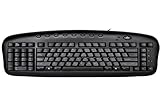
- Exclusive left-handed numeric keypad, patented natural_A shape key structure, laser inscribed keys.
- Compatible with Windows XP, 7, 8, 10 & Mac OS X. Available in ps/2+ USB
- Software that was innovatively designed to optimize all its keyboard's performances including multi-functional hot-keys managing tool
- Keyboard: 18.72L x 8.1W x 0.98H in.
- Press
Ctrl+Shift+Escto open Task Manager. - Select Startup apps.
- Look for
IKEYMAIN.EXE, iKeyWorks, A4Tech, or an obviously related keyboard utility. - Right-click the entry.
- Select Disable.
- Restart Windows.
Disabling the startup entry stops the error from appearing, but it does not remove the old program. If the application is already absent, that may be all that is needed.
Do not delete random registry entries. If you need to investigate a leftover startup command, first record its name and file path. Remove it only through a clearly identified uninstaller or a startup-management location that plainly identifies the A4Tech program.
The Tool Desk
Outbyte Driver Updater FREEScan for outdated or missing drivers - takes under a minuteDriver Scan →Outbyte PC Repair FREEClear out junk files and repair common Windows errorsFree Scan →Fix 3: Check Windows Security quarantine
Time needed: 5 to 15 minutes
An old or unsigned A4Tech DLL may have been removed by antivirus software. Do not immediately restore it. First confirm where it came from and why it was detected.
- Open Start and search for Windows Security.
- Select Virus & threat protection.
- Choose Protection history.
- Open the detection related to
ikeycplx.dll. - Inspect the original file path, detection name, and action taken.
- Check whether the file was inside the expected A4Tech program directory.
Restore the file only if all of the following are true:
- It came from a complete installer obtained from A4Tech.
- The original path was the expected A4Tech program folder.
- You still need the old utility.
- You have checked that the detection is not reporting a broader problem.
Microsoft warns that restoring a quarantined file places it back on the device and may cause Defender to detect it again. If the file came from a third-party DLL download site, leave it quarantined and remove the downloaded package.
After restoring a trusted file, reinstall the complete A4Tech package instead of relying on the restored DLL alone. If Windows Security continues to detect it, do not create an exclusion merely to keep obsolete keyboard software running.
Quick wins for a faster PC:
Scan for outdated or missing drivers - takes under a minuteDriver Scan →Repair Windows errors before they cause bigger problemsFix Now →Fix 4: Repair Windows components only when other files are affected
Time needed: 15 to 30 minutes
ikeycplx.dll is an A4Tech application file, so SFC normally will not recreate it. Use Windows repair commands when several unrelated Windows programs are failing, Windows features are damaged, or system corruption began around the same time.
First install pending Windows updates and restart:
- Press
Win+I. - Select Windows Update.
- Choose Check for updates.
- Install available updates.
- Restart if requested.
Then run DISM followed by SFC:
- Open Start.
- Type
Command Prompt. - Right-click Command Prompt.
- Select Run as administrator.
- Approve the User Account Control prompt.
- Run this command:
DISM.exe /Online /Cleanup-image /Restorehealth
- Wait for it to finish.
- Run:
sfc /scannow
- Wait until the scan reaches 100 percent.
- Restart Windows.
DISM repairs the Windows component store. SFC checks protected Windows system files. If SFC reports no integrity violations, that is not evidence that the A4Tech installation is healthy. It may simply mean Windows found no damaged Microsoft system files.
If the manual DISM and SFC process leaves you unsure which component changed, Outbyte PC Repair can scan for system issues and identify repair targets; its full-version repair is optional, and reinstalling the A4Tech utility remains the definitive fix for this application DLL.
Do not repeatedly run SFC expecting it to download ikeycplx.dll. Windows does not normally store this third-party file in its protected system-file catalog.
Fix 5: Update or reinstall the related device driver
Time needed: 10 to 20 minutes
A missing ikeycplx.dll is usually an application problem, not a keyboard-driver problem. Still, reinstalling the device entry can help if the keyboard or wireless receiver is also malfunctioning.
Rank #3

- New
- ERGOGUYS KBS-29BLK
- ERGOGUYS KBS-29BLK LEFT HANDED KEYBOARD WIRED USB BLACK VIA ERGOGUYS
Reinstall the keyboard device
- Press
Win+X. - Select Device Manager.
- Expand Keyboards.
- Right-click the A4Tech keyboard, HID Keyboard Device, or related entry.
- Select Uninstall device.
- If Windows offers a box to remove driver software, select it only when you are certain the package is the old A4Tech driver you intend to replace.
- Choose Uninstall.
- Restart Windows.
Windows should detect the keyboard again. For a wireless model, unplug and reconnect the receiver after Windows starts. If the device does not reappear, select Action → Scan for hardware changes in Device Manager.
For a model-specific driver, use A4Tech’s official support page and search for the exact hardware model. Do not substitute a driver because it has a similar product name.
Outbyte Driver Updater can scan for outdated device drivers when identifying the correct package manually is difficult; its full-version driver installation is optional, and it does not replace reinstalling the complete A4Tech application that owns ikeycplx.dll.
Free tools Windows power users keep installed
One-click scans. No signup required.
Understand 32-bit and 64-bit Windows
Available file records identify ikeycplx.dll as a 32-bit Win32 DLL. That means it is intended for the old 32-bit A4Tech application, even when that application runs on 64-bit Windows through Windows-on-Windows compatibility.
Do not place a 32-bit application DLL in C:WindowsSystem32 or C:WindowsSysWOW64 to make an error disappear. Those folders are for Windows-managed components, and copying the file there can create conflicts without repairing the A4Tech program.
The correct location is normally the A4Tech program directory that contains the executable loading it. The exact folder varies by package and model.
Fix 6: Use System Restore after a recent change
Time needed: 20 to 40 minutes
System Restore is appropriate when the error began immediately after installing or removing software, updating a driver, or changing Windows configuration.
What’s actually slowing this PC down?
Pick the symptom - the matching free tool is one click away.
- Press
Win+R. - Type:
rstrui.exe
- Press Enter.
- Select Next.
- Choose a restore point from before the error began.
- Select Scan for affected programs.
- Review the programs and drivers that may be changed.
- Select Close, then Next.
- Confirm the restore.
- Let Windows restart and complete the process.
System Restore rolls back system files, settings, and installed programs. It does not normally remove personal documents or photographs.
If the restore does not help, reinstall or uninstall the A4Tech utility rather than repeatedly restoring the same point.
Independent reader supportYour contribution helps us test, update, and keep practical guides available for everyone.Why regsvr32 is not the fix
Do not run this as a general repair:
regsvr32 ikeycplx.dll
regsvr32 is for DLLs that provide registration entry points such as DllRegisterServer, commonly ActiveX controls and certain COM components. There is no reliable evidence that ikeycplx.dll is a self-registering COM DLL.
Running the command may produce an error such as a missing entry point, or it may complete without solving the application problem. A4Tech’s parent program must load the correct DLL from its own installation directory. Reinstalling that parent program is the appropriate repair.
Do these 3 things before closing this tab:
1Clear out junk files and repair common Windows errors2Fix the driver behind crashes, sound loss and screen glitches3Repair Windows errors before they cause bigger problemsRank #4

- Ergonomic Comfort: Designed with an ergonomic layout to minimize strain and enhance comfort during long typing sessions.
Why Visual C++ Redistributable is usually unrelated
There is no verified evidence that ikeycplx.dll specifically requires Visual C++ Redistributable, DirectX, or .NET. Do not install a runtime merely because the missing file ends in .dll.
If the A4Tech installer itself reports a missing Microsoft runtime, use Microsoft’s official Visual C++ Redistributable page and install the architecture requested by the installer. Otherwise, installing runtimes is unlikely to restore this file.
How to tell whether the file is incorrect or suspicious
A filename alone does not prove that a DLL is safe. Check the surrounding details:
- Path: a file inside the expected A4Tech program folder is more plausible than one in a temporary download folder or Windows system directory.
- Parent program: identify which executable loads it, such as an A4Tech keyboard utility.
- Source: prefer a complete installer from A4Tech over a standalone DLL.
- Architecture: the historical file is documented as 32-bit and must match the application.
- Version: historical packages contain different builds and sizes, so one reported version is not universal.
- Security result: review Windows Security’s detection and original path.
- Digital signature: an absent or invalid signature does not automatically prove malware, especially for very old software, but it should increase caution.
If the file is in an unexpected location, is repeatedly detected, or arrived through a standalone DLL download, delete the download and run a Windows Security scan. Do not add an antivirus exclusion simply to suppress the warning.
Common causes of the error
| Cause | What usually fixes it |
|---|---|
| Incomplete A4Tech installation | Reinstall the complete package for the exact model |
| iKeyWorks was removed but startup remains | Uninstall the remaining utility or disable its startup entry |
| Antivirus quarantine | Verify the original path and restore only a trusted vendor-installed file |
| Wrong historical build | Replace the complete package, not just the DLL |
| 32-bit and 64-bit mismatch | Install the package intended for the A4Tech application |
| Windows corruption | Run DISM, then SFC, when broader Windows symptoms exist |
| Recent driver or software change | Use System Restore or reinstall the correct package |
FAQ
Is ikeycplx.dll a Windows file?
No. It is associated with A4Tech iKeyWorks Software and is not a standard Windows component.
Is ikeycplx.dll malware?
The filename alone cannot answer that. A file installed by a trusted A4Tech package in the expected program directory is different from a file downloaded from an unknown source or found in an unusual folder.
Can I download ikeycplx.dll separately?
That is not recommended. Historical A4Tech packages used different builds, and a matching filename may still be the wrong version or architecture. Use the complete package for the exact keyboard or remove the obsolete utility.
Why does the keyboard work even though the error appears?
Windows can operate many A4Tech keyboards as standard HID devices without the optional iKeyWorks utility. The missing DLL may affect only hotkeys, multimedia controls, macros, or the startup utility.
Recommended Free Tools
Can I uninstall A4Tech iKeyWorks?
Yes, if you do not need its custom keys or macros. The keyboard may continue working as a standard keyboard after the utility is removed.
Will SFC restore the file?
Usually not. SFC repairs protected Windows system files, while ikeycplx.dll belongs to third-party A4Tech software.
Should I install Visual C++ Redistributable?
Not for this DLL by default. Install it only if the official A4Tech installer separately reports that a Microsoft runtime is missing.
What if no A4Tech package works on Windows 10 or Windows 11?
Uninstall the old utility and use the keyboard as a standard HID device. Do not force an unknown DLL into a Windows folder or disable security protections globally to keep obsolete software running.
Quick Recap
Product prices and availability are accurate as of the date/time indicated and are subject to change. Any price and availability information displayed on Amazon at the time of purchase will apply.




