“s7otbxdx.dll Not Found” and “s7otbxdx.dll was not found”
What’s actually slowing this PC down?
Pick the symptom - the matching free tool is one click away.
You may see: “This application failed to start because s7otbxdx.dll was not found. Re-installing the application may fix this problem.”
s7otbxdx.dll is not a normal Windows component. It is a dangerous filename associated with older Siemens S7 communication software and with the Stuxnet malware, so do not download or restore the file before checking the computer.
The 60-second answer
- Do not download
s7otbxdx.dllfrom a DLL website. - If the file exists, or Microsoft Defender quarantined it, do not whitelist or restore it.
- Disconnect the computer from sensitive PLC or industrial networks if malware is plausible.
- Run a Windows Security full scan, followed by Microsoft Defender Offline if the detection returns.
- Identify the Siemens program that is failing, such as STEP 7, SIMATIC Manager, WinCC, PCS 7, or STEP 7-MicroWIN SMART.
- Repair or reinstall that complete Siemens package from licensed Siemens installation media or SiePortal.
- Run Windows repair commands only for broader Windows corruption. They will not reliably recreate a third-party Siemens file.
Microsoft identifies s7otbxdx.dll as a Stuxnet component that wraps and intercepts a legitimate Siemens S7 communication DLL identified as s7otbxsx.dll. Historical documentation is inconsistent about the original Siemens filename, so not every historical reference to this name describes the same file. Microsoft’s Stuxnet description
What causes this error
Malware or a suspicious file using the name
This is the first possibility to rule out. A historical Stuxnet indicator listed WINDOWSsystem32s7otbxdx.dll as the malicious file. A file with this name in System32, especially when detected by Defender, should not be treated as a missing runtime that needs replacing.
The Tool Desk
Outbyte Driver Updater FREEFix the driver behind crashes, sound loss and screen glitchesFind Drivers →Outbyte PC Repair FREERepair Windows errors before they cause bigger problemsFix Now →#1 Best Overall

- PC adapter USB is the optoelectronic isolated adapter for industrial design. There is anti-surging& anti-lightning protection for the USB and RS485 interface. It support hot plug. Its suitable for S7-300/400/200 series PLC. In particular, it applies to the strong interfere industrial scene and the safeguard in the circuit guarantees the safely running of the system.
- 7972-0CB20-OXAO is optical isolation for industrial design in USB port and RS485 ports are equipped with surge protection and lightning protection circuitry for Siemens S7-300 / 400 and S7-200 series PLC full range PLC. Particularly suitable for interferences fragile industrial field communication port, the circuit in a variety of protective measures to ensure the safe operation of the system.
- Photoelectric isolator: The device is also called a photocoupler, or optocoupler for short. Optical couplers use light as a medium to transmit electrical signals. It has a good isolation effect on input and output electrical signals.The main advantages of optocouplers are: signal transmission in one direction, electrical isolation at the input end and output end, the output signal has no effect on the input end, strong anti-interference ability, and stable operation.
- Features and technical indicators: software version STEP7 V5.2 and above, STEP7 Micro /Win 4.0 and above. MPI baud rate 19.2Kbps, 187.5 Kbps. PPI baud rate 9.6Kbps, 19.2Kbps, 187.5Kbps. The MPI port automatically adapts to the communication rate of 19.2Kbps and 187.5Kbps, 500Kbps, 1.5M Kbps DP master communication.
- Working temperature: -20-+75°C, long-distance communication, communication distance 1000m (RS485 end, when the baud rate is 187.5Kbps)
A displayed company name, version, file size, or location does not prove that a copy is genuine. Treat the file as suspicious until its digital signature, path, hash, and installation source have been verified by your security or Siemens support team.
In an industrial environment, isolate the PC from sensitive PLC and OT networks without deleting evidence. Also inspect relevant STEP 7 or WinCC project files. Historical Stuxnet indicators included malicious .sav files in project directories.
Antivirus removed a legitimate old Siemens component
A documented SIMATIC Manager incident reported that an antivirus update was followed by an s7otbxdx.dll missing error. Antivirus action may have removed an old Siemens component, or the Siemens installation may already have been incomplete.
That does not mean the quarantined file should be restored. Microsoft explains that restoring a quarantined item puts it back on the device and causes Defender to detect it again. Repair the application from its original installer instead.
Conflicting or incomplete Siemens installations
Siemens automation products can install shared communication components. An incomplete uninstall, an older STEP 7 installation, or conflicting STEP 7-MicroWIN SMART versions can leave an application pointing to files from another release.
The correct repair depends on the executable that reports the error. Do not copy a file from another Siemens computer merely because both machines appear to run STEP 7.
Architecture or dependency mismatch
Historical copies associated with this filename are generally linked to older 32-bit Siemens software. Current Siemens documentation uses S7otbxsx.exe for S7DOS block administration and separately lists S7otbxsx64.exe for 64-bit environments.
Rank #2
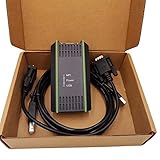
- Model: 0CB20 compatible (6ES7 972-0CB20-0XA0)
- Interface: USB-9 pin male
- System: Perfect support for XP WIN7 VISTA
- Complete set: packing box + adapter + standard wiring
- Purpose: Support PPI/MP and DP multi-master communication, used for Siemens S7200/300/400 and Siemens department touch (TP170/177/270, OP25/35/77, MP177/270/277B, etc.)
The supplied historical version and size records are not independently verified Siemens release information. Do not use them to select a replacement.
Free tools Windows power users keep installed
One-click scans. No signup required.
Fix 1: Scan before repairing anything
Check Windows Security Protection History
- Select Start, type Windows Security, and open it.
- Select Virus & threat protection.
- Select Protection history.
- Look for a detection involving
s7otbxdx.dll, Stuxnet, or another Siemens-related file. - Record the detection name, file path, action taken, and time.
- Do not select Allow on device or restore the file merely because Siemens software stopped launching.
If the detection is active, contact the person responsible for Siemens or industrial security before making changes. Preserve the detection details for investigation.
Run a Full scan
- Open Windows Security.
- Select Virus & threat protection.
- Select Scan options.
- Choose Full scan.
- Select Scan now.
- Let the scan finish, then restart Windows if prompted.
A successful scan means Defender found no current threat in that scan. It does not prove that a historical infection never occurred.
Run Microsoft Defender Offline if necessary
Use Defender Offline if the detection returns, cannot be removed, or the computer behaves as though malware is active.
- Save open work and close applications.
- Open Windows Security.
- Select Virus & threat protection, then Scan options.
- Select Microsoft Defender Offline scan.
- Select Scan now.
- Allow Windows to restart and complete the scan.
- Review Protection history after Windows starts again.
Microsoft’s malware-removal guidance covers these scan choices. Microsoft also provides the Safety Scanner, which must be freshly downloaded before each use.
If the computer is used to program or monitor PLCs, do not reconnect it to a sensitive network until the security review is complete.
Fix 2: Repair the Siemens program that owns the file
This is the safest likely fix when malware scans are clean and the file was removed or the installation became incomplete.
Rank #3

- Application Scenes. USB programming cable Compatible for Siemens LOGO! Series, for Simatic S7-Logo! PLC, and Logo 230, 230rc, 230rcl, to transfer program/data between computer and LOGO PLC. For 6ED1057-1AA01-0BA0 Replacement.
- Driver and OS Supported. Cable driver installation could be required. Support Windows XP/2000/7/ 8 and Win10/11.
- Safety and Protection. 1. Built inside self-recovery fuses, well protect equipment in the event of overvoltage, overcurrent and short circuit. 2. Quality isolated power supply, no heat, stable, durable and long service life.
- Quality Cable. USB and serial connectors adopt gold-plated process, which enhances the communication ability and stability, and reduces the wear caused by plugging and unplugging. Supports USB 2.0 and USB 3.0.
- Technical Support. Scan the QR code printed on the label on the box, you can find, download and install the cable driver. Also, User Manual and Cable Driver will be sent to you by Email via Amazon platform, if you didn’t receive it, please contact our engineers by Email for technical support. Made by Washinglee, 1 year warranty.
First identify the failing program. Note the window title, shortcut target, executable name, Siemens product, product version, Windows version, and whether another Siemens release is installed. Common candidates include:
- SIMATIC Manager or STEP 7
- WinCC
- PCS 7
- STEP 7-MicroWIN SMART
Use Windows installed-app repair when available
- Select Start, open Settings, and select Apps.
- Select Installed apps on Windows 11, or Apps & features on Windows 10.
- Search for the Siemens product named in the error.
- Select the product’s menu button.
- Choose Modify, Change, or Repair if available.
- Follow the Siemens installer prompts.
- Restart Windows.
- Launch the same Siemens application and repeat the operation that produced the error.
If there is no repair option, or the repair cannot find its source files, use the original licensed Siemens installation media or the matching package obtained through SiePortal. Rerun the installer for the exact product and release rather than installing an isolated DLL.
Crashes, No Sound, or Screen Glitches?
Random freezes, missing sound and display glitches usually trace back to one bad driver. Find and replace yours safely.Free scan · under a minuteWindows Errors? Fix Them Before They Spread
Repair common Windows errors and clear accumulated junk for a smoother, more stable PC - no reinstall needed.Free scan · no reinstallReinstall after an unsuccessful repair
- Back up Siemens projects using your organization’s normal controlled process.
- Close all Siemens applications.
- Open Settings → Apps → Installed apps.
- Remove only the Siemens product you have identified, following the vendor’s uninstall process.
- Restart Windows.
- Remove conflicting Siemens versions only when you know which project and hardware compatibility requirements apply.
- Run the matching Siemens installer as an administrator.
- Restart again.
- Test the application before reconnecting it to production equipment.
If the installer reports that another Siemens component is already installed, stop rather than deleting folders manually. Record the message and obtain the compatible installation sequence from Siemens support or your system administrator.
Fix 3: Check the file path and architecture
If a file named s7otbxdx.dll remains on disk, do not replace it automatically.
- Right-click the shortcut for the failing Siemens application.
- Select Properties.
- On the Shortcut tab, note the Target executable.
- Open Task Manager while the program is running, right-click its process, and select Open file location if available.
- Compare the application’s installation path with the location reported in Protection History.
- Right-click the DLL, select Properties, and inspect Digital Signatures if present.
- Record the signer and signature status without assuming that a displayed name proves authenticity.
Do not confuse System32 and SysWOW64. On 64-bit Windows, a 32-bit Siemens application may use the 32-bit subsystem, but manually choosing a folder is not a safe repair. Let the correct Siemens installer place its files.
A clean signature check is not enough if Defender identifies the file as malware. Keep the file quarantined and have it assessed through the proper Siemens or security process.
Quick wins for a faster PC:
Clear out junk files and repair common Windows errorsFree Scan →Scan for outdated or missing drivers - takes under a minuteDriver Scan →Fix 4: Repair Windows components when other programs are also failing
Windows repair commands are appropriate when several unrelated Windows programs report missing or corrupted system files. They are not a dependable way to restore s7otbxdx.dll.
Rank #4

- Application Scenes. Compatible for Siemens PLC S7 200 and 200CN. For CPU221, CPU222, CPU224, CPU224XP, CPU226, and etc. To transfer the program / data between computer and PLC. But Not support S7-200 SMART.
- Converter Cable. 10 FT, USB to RS485 / PPI programming cable, USB male to DB9 male adapter. With LED communication indicators. Compatible with USB V1.1 and USB V2.0.
- Supported OS. Support Windows 98/XP/Vista/2000/7/8/10/11.
- Driver and APP Supported. Driver installation is required. Compatible for Programming software STEP7 Micro/WIN V3.2 and above.
- Technical Support. Scan the QR code printed on the label on the box, you can find, download and install the cable driver. Also, User Manual and Cable Driver will be sent to you by Email via Amazon platform, if you didn’t receive it, please contact our engineers by Email for technical support. Made by Washinglee, 1 year warranty.
- Select Start.
- Type Command Prompt.
- Right-click Command Prompt.
- Select Run as administrator.
- Select Yes at the User Account Control prompt.
- Run this command first:
DISM.exe /Online /Cleanup-image /Restorehealth
- Wait for DISM to finish.
- Then run:
sfc /scannow
- Restart Windows.
- Test the affected application.
Microsoft states that DISM repairs the Windows image and should precede SFC. If SFC reports that it repaired files, test Windows and the Siemens application again. If it reports that it could not repair some files, save the result and continue with Siemens application repair rather than copying a DLL into a Windows folder.
Repeating SFC and DISM without knowing what changed can make troubleshooting difficult. Outbyte PC Repair can provide a scan that shows what it identifies, while repair actions are completed by the full version; it is optional, and repairing or reinstalling the owning Siemens program remains the definitive fix for this file.
Fix 5: Update or reinstall Siemens communication components
Use this step when the error occurs during PLC communication rather than when the program simply opens.
- Record the Siemens application and version.
- Record the PLC connection method and the exact communication error.
- Close the Siemens software.
- Use the matching Siemens installer to modify, repair, or reinstall its communication package.
- Restart Windows.
- Test communication with a non-production project or approved test station.
- Confirm that the correct adapter and interface are selected inside the Siemens application.
Do not begin with a display-driver reinstall or a generic Windows driver update. Those are not logical first fixes for a Siemens S7 communication DLL.
If Device Manager shows a related adapter problem:
- Right-click Start and select Device Manager.
- Expand Network adapters or the category containing the affected device.
- Right-click the device and select Properties.
- Read the Device status message under General.
- Use Update driver only with a verified vendor package.
- If the device remains faulty, use the Siemens installation media for the communication component rather than searching for the DLL separately.
Outbyte Driver Updater can scan for outdated drivers and show what it finds, while driver installation is completed by the full version; it is optional and does not replace the correct Siemens communication-package repair.
Independent reader supportYour contribution helps us test, update, and keep practical guides available for everyone.Fix 6: Check Microsoft runtimes only when the error names one
There is no reliable evidence connecting s7otbxdx.dll specifically to Visual C++ 2015, DirectX, or .NET. Installing random runtimes is unlikely to replace this file.
Install a Microsoft Visual C++ package only if the complete error identifies a missing runtime dependency, such as a specific Microsoft Visual C++ component. Use Microsoft’s latest supported Visual C++ Redistributable downloads, choosing the architecture named by the dependency error.
Recommended Free Tools
Do not install a runtime simply because a DLL index lists it as a possible fix.
Why regsvr32 is not the answer
Do not run:
regsvr32 s7otbxdx.dll
regsvr32 is intended for DLLs that expose registration entry points such as DllRegisterServer, commonly used by COM, OLE, or ActiveX components. There is no verified evidence that s7otbxdx.dll is a self-registering COM control.
Best Value

- Application Scenes. USB programming cable Compatible for Siemens PLC S7 200, for Siemens touch panel KTP600DP KTP1000DP TP177Micro TP177A TP177B and TP178. Compatible for Siemens CPU222 CPU224 CPU224XP CPU226 and etc. To transfer program / data between computer and PLC. For 6ES7901-3DB30-0XA0 replacement. NOT support S7 200 SMART.
- Converter Cable. 16 FT. USB to RS485/PPI/PPI+ programming cable, USB male to DB9 male adapter. With LED communication indicators. Up to 187.5kbps. Compatible with USB V1.1 and USB V2.0
- Supported OS. Support Windows 98/XP/Vista/2000/7/8/10/11.
- Driver and APP Supported. No driver installation is required. Compatible for STEP 7 MicroWin V4.0 SP9 and above.
- Technical Support. User Manual will be sent to you by Email via Amazon platform, if you didn’t receive it, please contact our engineers by Email for technical support. Made by Washinglee, 1 year warranty.
If Siemens support gives you a regsvr32 command for a specific, verified release, use the exact path and architecture they provide. Otherwise, repair the complete Siemens installation. Microsoft documents regsvr32 usage and its common troubleshooting errors.
Avoid these unsafe fixes
- Do not download the DLL from a random DLL download site.
- Do not copy it into
System32orSysWOW64. - Do not restore it from Defender quarantine without a documented security decision.
- Do not disable antivirus or create an exclusion to make Siemens software start.
- Do not copy the file from another computer.
- Do not rely on a filename, version number, size, or company field as proof of authenticity.
- Do not use System Restore as the first malware remedy. It can roll back applications and settings and may reintroduce compromised files. Microsoft explains System Restore separately from malware cleanup.
What to collect if repair fails
Give Siemens support or your security team:
- The exact error text and error code
- The executable that was being launched
- Siemens product and version
- Windows version and system architecture
- The file path shown in the error or Protection History
- Defender’s detection name and action
- Whether the file still exists or was quarantined
- The installation media or portal source used
- Other Siemens versions installed on the computer
- Whether the failure occurs at startup or during PLC communication
- Relevant project-file findings in an industrial environment
FAQ
Is s7otbxdx.dll part of Windows?
No verified evidence supports that. The filename is associated with Siemens S7 communication software and Stuxnet, not with a normal Windows installation.
Is every copy malware?
No. Historical sources disagree about the original Siemens filename, and an old legitimate Siemens installation may have used related components. However, a copy detected by Defender or found in a suspicious location must be treated as potentially malicious.
Is the file 32-bit or 64-bit?
Historical copies are generally associated with older 32-bit Siemens software. Current Siemens documentation separately identifies a 64-bit S7DOS executable. Let the matching Siemens installer resolve the architecture.
Can Visual C++, DirectX, or .NET fix it?
Not normally. Install those components only when the complete error identifies a missing Microsoft dependency.
Should I restore the quarantined file?
Normally no. Scan first and repair the Siemens application from licensed media. Restoring a malicious detection can put it back on the computer.
Do these 3 things before closing this tab:
1Clear out junk files and repair common Windows errors2Scan for outdated or missing drivers - takes under a minute3Repair Windows errors before they cause bigger problemsWhat is the correct fix?
Do not download or register a random DLL. Scan the machine first, then repair or reinstall the matching Siemens software from licensed Siemens media.
Quick Recap
Product prices and availability are accurate as of the date/time indicated and are subject to change. Any price and availability information displayed on Amazon at the time of purchase will apply.




