zkemsdk.dll is a ZKEMSDK communication library used by some ZKTeco and ZKSoftware biometric-device applications. If Windows says zkemsdk.dll is missing or cannot be loaded, repair the ZKTeco-based attendance, fingerprint, access-control, or device-management program that installed it rather than downloading a replacement DLL.
The safest first fix is to use that program’s original installer, repair option, or official SDK package. The public ZKTeco standalone SDK package is explicitly 32-bit and includes zkemsdk.dll with related libraries such as zkemkeeper.dll, commpro.dll, and usbcomm.dll. The files should be restored as one matching SDK set.
Fix 1: Repair or reinstall the parent ZKTeco application
Time needed: 10–30 minutes
The filename alone does not identify the exact product. Several attendance and access-control programs can be built from ZKTeco components, and the affected application may have a different product name.
First identify which program displays the error.
- Read the title bar of the error window.
- Press Ctrl + Shift + Esc to open Task Manager.
- Select Processes and look for the attendance, time-clock, fingerprint, access-control, or device-management program.
- Right-click the suspected program and choose Open file location.
- Note the application folder and executable name.
- In the same folder, look for an uninstaller, repair launcher, setup program, or file-verification option.
If the application has a repair function:
- Close the ZKTeco application.
- Right-click its shortcut and select Run as administrator.
- Open its Settings, Maintenance, Tools, or Help menu.
- Choose Repair, Verify files, or a similarly named option.
- Restart Windows and launch the application again.
If Windows provides the repair option:
- Press Windows + I.
- Select Apps, then Installed apps.
- Find the affected ZKTeco-based program.
- Select the three-dot menu beside it.
- Choose Advanced options, if available.
- Select Repair.
- If Repair does not help, return to the same screen and choose Reset only if the program’s data and device settings are backed up.
For older desktop programs, use the original installer instead:
What’s actually slowing this PC down?
Pick the symptom - the matching free tool is one click away.
#1 Best Overall
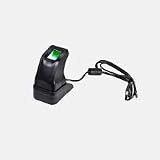
- STORAGE CAPACITY: Accommodates up to 3,000 fingerprint templates and 30,000 card credentials for comprehensive access control management
- CONNECTIVITY OPTIONS: Features Power over Ethernet (PoE) and WiFi capabilities for flexible installation scenarios
- COMPLETE PACKAGE: Includes control panel, power supply, metal cabinet, mounting hardware, and detailed installation guide for professional setup
- COMPACT DESIGN: Space-efficient unit measuring 8.5 x 6.0 x 2.5 inches and weighing only 2.5 pounds, perfect for wall mounting
- DURABLE CONSTRUCTION: Metal housing with LED display interface ensures reliable performance in temperatures down to 32°F
- Download or locate the installer supplied by the application developer, device vendor, or your organization’s software administrator.
- Run the installer as administrator.
- Choose Repair if offered.
- Otherwise uninstall the application from Settings > Apps > Installed apps, restart Windows, and install the same supported release again.
- Reboot once more before testing the program.
Do not remove the application folder manually before uninstalling it. That can leave mixed SDK files behind and make the next installation harder to diagnose.
A successful repair normally restores zkemsdk.dll and the other communication libraries to the application’s own directory. It should not require placing the file in C:WindowsSystem32 or C:WindowsSysWOW64.
Fix 2: Check antivirus quarantine and security history
Time needed: 5–15 minutes
Security software may have removed or quarantined one SDK file while leaving the application installed.
Windows Security
- Open the Start menu.
- Type Windows Security and open it.
- Select Virus & threat protection.
- Choose Protection history.
- Look for an event involving the ZKTeco application folder or
zkemsdk.dll. - Open the event and review its path and detection details.
Restore the file only when you can verify that it came from the legitimate application installer or a known-good official SDK package. If several SDK files are missing, repair or reinstall the complete application instead of restoring individual files.
Do not disable antivirus protection to use a random DLL website. A same-named file can have the wrong architecture, belong to a different SDK release, or contain unwanted code.
After a confirmed quarantine event:
- Record the application path.
- Restore the item only if its source is trusted.
- Add an exception only according to your organization’s security policy.
- Run the application’s repair or reinstall process.
- Restart Windows and test the application.
If the security product continues to remove the file, contact the application vendor or your administrator. Do not repeatedly restore an unverified copy.
Rank #2

- FR1200 is a fingerprint reader with communication interface works with biometric access controllers and fingerprint standalone access control, including series controllers, F8 and so on.
- It offers the function of capturing and transferring fingerprint samples to access control panel inside to match.
- With its IP65 rated rugged structure, FR1200 offers extra durability in all weather conditions including outdoor environments.
Fix 3: Restore one complete, matching SDK
Time needed: 10–30 minutes
zkemsdk.dll should match the application’s other ZK communication files. Mixing a file from one SDK release with zkemkeeper.dll or communication libraries from another can produce entry-point and load errors.
The official ZKTeco standalone SDK package identifies a Communication Protocol SDK (32Bit Ver6.2.4.11). Its contents include zkemsdk.dll, zkemkeeper.dll, commpro.dll, usbcomm.dll, and other related files. This does not prove that every ZKTeco-derived application uses that exact release, so use the version required by your parent program.
The Tool Desk
Outbyte Driver Updater FREEFix the driver behind crashes, sound loss and screen glitchesFind Drivers →Outbyte PC Repair FREERepair Windows errors before they cause bigger problemsFix Now →Use this order:
- Close all ZKTeco-related programs.
- Back up the application’s configuration and database if the product documentation requires it.
- Use Settings > Apps > Installed apps to uninstall the affected application or SDK.
- Restart Windows.
- Install the complete SDK or application package supplied by the product vendor.
- If the installer asks for an installation directory, use the product’s documented directory.
- Restart again and launch the application as administrator for the first test.
Manual copying can be appropriate when restoring a verified file from the exact official installer or a known-good backup. Copy it to the application directory documented by that product, not to a Windows system directory. Restore the complete matching library set whenever possible.
Fix 4: Check 32-bit and 64-bit compatibility
Time needed: 5–20 minutes
The publicly identified ZKTeco SDK package is 32-bit. A 32-bit attendance or access-control application needs the x86 SDK and compatible dependencies, even when Windows itself is 64-bit.
To check the application architecture:
- Open Task Manager with Ctrl + Shift + Esc.
- Select Details.
- Right-click a column heading and choose Select columns.
- Enable Platform, if your Windows version provides it.
- Check whether the executable is listed as 32-bit or 64-bit.
On some Windows versions, a 32-bit process is marked with (32 bit) after its name. You can also check the application documentation or ask the software vendor.
If the application is 32-bit:
- Install the vendor’s x86 application and SDK components.
- Install the x86 Microsoft runtime if the application specifically reports a missing Microsoft runtime.
- Do not replace an x86 SDK DLL with a 64-bit copy.
- Keep
zkemsdk.dll,zkemkeeper.dll, and the communication libraries from the same package.
If the error says that the file is “not designed to run on Windows” or shows 0xc000007b, suspect an architecture mismatch or a damaged dependency. Reinstall the complete application or SDK before attempting individual runtime repairs.
Rank #3
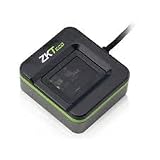
- FINGERPRINT ENROLLMENT: Advanced biometric reader designed for secure fingerprint enrollment and identity verification in professional access control systems
- CONNECTIVITY OPTIONS: Features TCP/IP protocol support enabling seamless integration with existing security networks and infrastructure
- COMPACT DIMENSIONS: Space-efficient design measuring 12.0 x 8.0 x 4.0 inches for flexible installation in various locations
- COMPLETE SYSTEM: Includes replacement battery module and essential components for professional setup and operation
- RELIABLE SECURITY: Built for demanding applications with comprehensive access control capabilities and multiple authentication methods
Fix 5: Install the Microsoft Visual C++ runtime only for runtime errors
Time needed: 5–15 minutes
Visual C++ Redistributable packages do not provide zkemsdk.dll. They can help only when the actual missing file is a Microsoft runtime dependency, such as MSVCP*.dll or VCRUNTIME*.dll.
Use Microsoft’s current Visual C++ Redistributable download page, not a third-party DLL site. Install the architecture required by the application. An x86 application needs the x86 package on 64-bit Windows, and x86 and x64 packages can coexist.
After installation:
- Restart Windows.
- Launch the ZKTeco application.
- If the message still names
zkemsdk.dll, return to the application repair or SDK reinstall steps. - If a new
MSVCPorVCRUNTIMEerror appears, install the matching Microsoft runtime identified by that message.
Do not expect reinstalling Visual C++ to recreate a missing third-party ZKTeco library.
Fix 6: Repair Windows components with DISM and SFC
Time needed: 15–45 minutes
Windows component repair is a secondary step because zkemsdk.dll is not a Microsoft system component. DISM and SFC normally repair protected Windows files, not third-party application SDK files.
Run DISM before SFC:
- Open Start.
- Type Command Prompt.
- Right-click Command Prompt and select Run as administrator.
- Run:
DISM.exe /Online /Cleanup-Image /RestoreHealth
- Wait for it to finish.
- Run:
sfc /scannow
- Wait until verification reaches 100 percent.
- Restart Windows.
If SFC reports that it repaired files, test the application again. If the error still names zkemsdk.dll, repair or reinstall the parent application.
Repeatedly hunting through Windows components and rerunning SFC can be slow when the real problem is an incomplete application installation. Outbyte PC Repair can show what its free scan finds, while repair is performed by the full version; reinstalling the ZKTeco application remains the definitive fix when its SDK files are missing.
Fix 7: Update or reinstall the related device driver
Time needed: 10–25 minutes
A device driver is separate from zkemsdk.dll, but an outdated or damaged ZKTeco device installation can prevent the application from communicating correctly. This step will not normally recreate the missing DLL.
Rank #4

- Certified to Microsoft’s highest fingerprint security standards (ESS & SDCP) for robust, hardware-isolated authentication. Supports next-gen Windows features, including Copilot Recall and Windows Hello with ESS support.
- Windows Hello ready for fast, password free fingerprint login to Windows and Microsoft 365 accounts
- On device fingerprint storage keeps biometric data securely within the key. Supports privacy regulations (GDPR, BIPA, CCPA) through on device biometric processing; TAA compliant.
- Reliable wired USB fingerprint authentication with USB C and USB A compatibility for desktop PCs.
- Consistent, all condition 360° fingerprint recognition.
- Disconnect the fingerprint reader, attendance terminal, or access-control device if the vendor instructs you to do so.
- Press Windows + X.
- Select Device Manager.
- Expand Biometric devices, Universal Serial Bus controllers, Ports (COM & LPT), and Other devices.
- Locate the ZKTeco device or an entry with a warning icon.
- Right-click it and choose Update driver.
- Select Search automatically for drivers.
- Restart Windows and reconnect the device.
If the vendor supplies a driver package:
- In Device Manager, right-click the device.
- Choose Uninstall device.
- Select Attempt to remove the driver for this device only when the vendor’s instructions require a clean removal.
- Restart Windows.
- Install the driver package from the device or application vendor.
- Reconnect the device and test the application.
Outbyte Driver Updater can show which drivers its free scan identifies, while driver installation is handled by the full version; check the ZKTeco application and device compatibility first because a driver update does not replace its SDK.
Recommended Free Tools
Fix 8: Check optional Windows features only when the application requires them
Time needed: 5–15 minutes
Some older device-management programs require a particular Windows component, but enabling features at random will not restore zkemsdk.dll.
- Press Windows + R.
- Type:
optionalfeatures
- Press Enter.
- Review the features requested by the application documentation or installer.
- Select only the required feature.
- Choose OK and restart Windows if prompted.
- Test the application again.
If the installer specifically requests a legacy component or .NET feature, enable that named feature and then rerun the application installer. If no feature is identified, return to repairing the parent application instead.
Independent reader supportYour contribution helps us test, update, and keep practical guides available for everyone.Why regsvr32 zkemsdk.dll usually fails
regsvr32 is not a universal DLL installation command. It works with DLLs that expose the registration entry points required by the command.
ZKTeco SDK installation behavior distinguishes zkemkeeper.dll from zkemsdk.dll. If the vendor’s installer or documentation explicitly requires registration, register the documented file from an elevated Command Prompt, for example:
Do these 3 things before closing this tab:
1Clear out junk files and repair common Windows errors2Scan for outdated or missing drivers - takes under a minute3Repair Windows errors before they cause bigger problemsregsvr32 "C:PathTozkemkeeper.dll"
Use the actual path supplied by the application. Do not run this command against zkemsdk.dll merely because its name ends in .dll. It may produce an error stating that DllRegisterServer was not found, and registration will not repair a missing dependency or an incompatible SDK.
Common causes, in practical order
| Likely cause | Correct response |
|---|---|
| Application was deleted, damaged, or incompletely upgraded | Repair or reinstall the original application |
| Antivirus quarantined the library | Verify the event, then restore or reinstall from a trusted package |
| Mixed ZK SDK files | Remove stale copies through the product’s installer and install one complete SDK |
| 32-bit and 64-bit mismatch | Install the architecture required by the application |
| A dependency is missing | Reinstall the SDK first, then address any specifically named runtime |
| Windows component corruption | Run DISM, then SFC |
| Cleanup, disk failure, or profile migration removed the file | Restore from the official installer, backup, or System Restore |
“The specified module could not be found” can mean that a dependency of zkemsdk.dll is missing, not necessarily that the named file alone is absent. If reinstalling does not help, identify the executable showing the message and have the vendor inspect its dependencies.
Best Value

- BIOMETRIC SECURITY: Advanced fingerprint reader with integrated HID iClass card reading capabilities for multi-factor authentication
- NETWORK FEATURES: Reliable 10/100Mbps Ethernet connectivity with Power over Ethernet (PoE) support for seamless integration
- COMPACT DESIGN: Space-efficient form factor measuring 6.0 x 4.0 x 3.0 inches, weighing only 8 ounces for easy installation
- PROFESSIONAL BUILD: Commercial-grade construction engineered for continuous operation with backup power functionality
- WARRANTY & SUPPORT: Assembled in USA with included replacement battery module and one-year manufacturer warranty
Do not download a random zkemsdk.dll
Random DLL download sites cannot establish that a file belongs to your installed ZKTeco application. Public copies can differ in version, size, architecture, and build, and a same-named file may not fix the missing dependency or SDK mismatch.
Use, in this order:
- The affected application’s original installer.
- The application developer or device vendor’s support package.
- The official ZKTeco SDK package required by that application.
- A verified backup from the same installation and SDK release.
Never copy an unverified replacement into System32 or SysWOW64.
When to contact support
Give the vendor or administrator:
- The complete error text.
- The executable that displays it.
- The application installation path.
- Your Windows 10 or Windows 11 edition.
- Whether the application is 32-bit.
- The application and SDK version.
- Recent antivirus quarantine events.
- The device model and connection method.
- The result of repairing or reinstalling the application.
This information lets support identify the correct SDK generation instead of sending an unrelated DLL.
FAQ
Is zkemsdk.dll a Windows system file?
No. It is a third-party ZKEMSDK communication library and is not verified as a Windows component stored in System32 or SysWOW64.
Which programs use zkemsdk.dll?
ZKTeco-derived attendance, fingerprint, time-clock, access-control, and device-management programs may use it. The exact parent application varies.
Will Visual C++ Redistributable install it?
No. Visual C++ supplies Microsoft runtime libraries, not zkemsdk.dll.
Outdated Drivers Are Slowing You Down
One free scan finds every outdated or missing driver and matches the right update for your exact hardware.Free scan · exact hardware matchWindows Errors? Fix Them Before They Spread
Repair common Windows errors and clear accumulated junk for a smoother, more stable PC - no reinstall needed.Free scan · no reinstallShould I register zkemsdk.dll?
Usually no. Register only the file and path explicitly named by the ZKTeco application’s installer or documentation. In the documented SDK installation process, registration concerns zkemkeeper.dll.
Can I copy the file from another computer?
Only if it comes from the same application and matching SDK release, and only into the application’s documented directory. Reinstalling the complete package is safer than copying one DLL.
What if the error returns after reinstalling?
Check antivirus history, confirm the application is using its own installation directory, verify the x86 or x64 architecture, and ask the vendor to inspect dependencies for the specific executable that fails.
Quick Recap
Product prices and availability are accurate as of the date/time indicated and are subject to change. Any price and availability information displayed on Amazon at the time of purchase will apply.
Quick wins for a faster PC:
Repair Windows errors before they cause bigger problemsFix Now →Scan for outdated or missing drivers - takes under a minuteDriver Scan →



