Recommended Free Tools
Steam Deck TV performance is usually best at 1080p. Docking does not add CPU or GPU power, so modern demanding games generally should not be expected to run at native 4K. Start with 1080p at 60 Hz, use a 30-, 40-, or 60-fps target, and add 120 Hz, VRR, HDR, or higher resolutions one at a time.
A 4K television can still be an excellent Steam Deck display: the TV can receive a 4K signal while the game renders internally at 720p or 1080p. Those are different settings and different workloads.
Quick verdict
- Best general setting: 1920×1080 at 60 Hz.
- Best balanced setting on a 120-Hz TV: 1080p at 120 Hz with a 40-fps cap, where supported.
- Best use for 1440p: older, lightweight, well-optimized, strategy, indie, and emulated games.
- Best use for 4K: desktop mode, video, streaming, lightweight games, or a game rendered internally below 4K.
- What the dock changes: ports, charging, Ethernet, controllers, and display options—not game-rendering power.
Valve’s official Docking Station specifications list HDMI 2.0, DisplayPort 1.4, support up to 4K/60 or 1440p/120, and FreeSync support. These are display-output capabilities, not promises that Steam Deck games will render at those settings.
Does docking make the Steam Deck faster?
No. The dock is not an external GPU. The Deck uses the same APU and memory system whether it is handheld or connected to a television.
What’s actually slowing this PC down?
Pick the symptom - the matching free tool is one click away.
#1 Best Overall

- Upgraded 5-in-1 Docking Station: Features HDMI 2.1 4K@120Hz output for ultra-smooth, crystal-clear visuals, plus 100W PD charging, dual USB A 2.0 ports, and a reliable Ethernet connection. Now supports ROG Ally X and Legion Go S, giving you more ways to enjoy a seamless big-screen gaming experience. NOTE: Not for ROG XBOX Ally / XBOX Ally X.
- 4K@120Hz HDMI Output (Upgraded): Experience double the refresh rate compared to the previous 4K@60Hz version. Whether you’re battling online or watching cinematic cut-scenes, enjoy buttery-smooth gameplay and reduced screen tearing on external monitors.
- Full-Speed 100W Charging: Supports up to 100W PD charging, easily powering your handheld in Turbo Mode. Keeps your gaming sessions uninterrupted — no need to worry about battery drain even during marathon play. Note: The ROG Ally's 30W Turbo Mode is fully supported, but a 100W charger is recommended.
- Reliable Wired Ethernet: Enjoy a stable and consistent network connection with the built-in RJ45 port, ensuring low-latency performance for smooth online gaming and streaming.
- Expanded Device Compatibility: Now works with Steam Deck LCD/OLED, ROG Ally / Ally X, Legion Go / Go S, and MSI Claw — making it your all-in-one solution across multiple handhelds. NOTE: Not for ROG XBOX Ally / XBOX Ally X.
Docked play can nevertheless feel better because you can use a larger display, a full-size controller, Ethernet, external storage, a keyboard and mouse, and continuous power. Changing the output resolution, frame-rate cap, power state, or frame pacing can also change the result, but those improvements come from configuration—not from extra processing hardware.
Best resolution and refresh rate by TV
| TV mode | Best use | Recommendation |
|---|---|---|
| 1080p/60 | Most games and TVs | Use as the default baseline. It offers the best balance of compatibility, clarity, and GPU workload. |
| 1080p/120 | 120-Hz TVs, lighter games, VRR | Useful for 40–60 fps games, indies, emulation, and titles capable of exceeding 60 fps. |
| 1440p/120 | Older or optimized games | Viable when the game has substantial performance headroom; not a universal AAA setting. |
| 4K/60 | Desktop, video, streaming, lightweight games | Usually avoid for native rendering in demanding games. |
| 4K/120 | Compatible high-end displays and streaming | A dock may advertise this mode, but the Deck generally cannot render modern games at native 4K/120. |
A 4K frame contains four times as many pixels as a 1080p frame. If a game is GPU-limited at 1080p, native 4K will normally reduce its frame rate substantially. Older games and lightweight titles are exceptions.
Output resolution is not game-rendering resolution
There are two separate layers:
- Game resolution: the resolution rendered by the game, including its internal render scale or upscaler.
- External output resolution: the signal sent by SteamOS and the dock to the television.
For example, a game can render at 720p, be upscaled to 1080p, and then be sent to a 4K TV. Alternatively, the game can render at 1080p while the system sends a 4K signal. Neither is equivalent to native 4K rendering.
Setting the entire output to 4K may be visually acceptable, but it can add scaling or compositor work on some configurations. Community reports describe performance changes when the system output is much higher than the game resolution, but these are user reports rather than controlled universal benchmarks. Compare these modes in the same game:
- 1080p output with 1080p game rendering.
- 4K output with 1080p game rendering.
- 4K output with a lower internal resolution and an upscaler.
The best-looking and smoothest option varies by game, TV scaler, SteamOS version, and dock.
Rank #2

- Upgraded 6-in-1 Docking Station: Features HDMI 2.1 4K@120Hz output for ultra-smooth, crystal-clear visuals, plus 100W PD charging, 3 fast USB A 3.0 ports, and a ultra-fast Gigabit Ethernet connection. Now supports ROG Ally X and Legion Go S, giving you more ways to enjoy a seamless big-screen gaming experience. NOTE: Not for ROG XBOX Ally / XBOX Ally X.
- 4K@120Hz HDMI Output (Upgraded): Experience double the refresh rate compared to the previous 4K@60Hz version. Whether you’re battling online or watching cinematic cut-scenes, enjoy buttery-smooth gameplay and reduced screen tearing on external monitors.
- Full-Speed 100W Charging: Supports up to 100W PD charging, easily powering your handheld in Turbo Mode. Keeps your gaming sessions uninterrupted — no need to worry about battery drain even during marathon play. Note: The ROG Ally's 30W Turbo Mode is fully supported, but a 100W charger is recommended.
- Gigabit Ethernet: Enhance your gaming with gigabit Ethernet for seamless online play, rapid updates, and quick file transfers. Enjoy lightning-fast downloads and uploads, eliminating lag and latency for uninterrupted sessions.
- Expanded Device Compatibility: Now works with Steam Deck LCD/OLED, ROG Ally / Ally X, Legion Go / Go S, and MSI Claw — making it your all-in-one solution across multiple handhelds. NOTE: Not for ROG XBOX Ally / XBOX Ally X.
Practical frame-rate targets
| Target | Best use |
|---|---|
| 30 fps | Modern demanding games with quality-focused settings. |
| 40 fps | Balanced play on a 120-Hz TV; each frame can be displayed evenly three times. |
| 45 fps | VRR displays with a suitable operating range. |
| 60 fps | Older, optimized, competitive, and many indie games. |
| 90–120 fps | Lightweight games, emulation, and streamed games. |
A 120-Hz television does not turn a 30-fps game into a 120-fps game. It does provide a clean basis for 40-fps presentation and can make VRR behavior more flexible. Valve’s Steam Deck documentation recommends using an in-game or global FPS limit where appropriate.
Recommended settings for demanding games
Begin with this configuration:
- External output: 1920×1080
- Refresh rate: 60 Hz, or 120 Hz if the TV supports it
- Frame cap: 30, 40, or 60 fps
- Ray tracing: Off
- Upscaling: FSR or the game’s performance-oriented scaler
- Preset: Medium, then adjust individual settings
- TV picture mode: Game Mode
When performance is poor, adjust settings in roughly this order: internal resolution or render scale, ray tracing, shadows, volumetric effects, reflections, ambient occlusion, crowd density and view distance, then anti-aliasing. Texture quality often has less impact on frame rate than those settings, provided the game is not running into memory pressure.
Some games run well at 720p internally with a 1080p output. That can look better and perform better than forcing native 1080p.
Free tools Windows power users keep installed
One-click scans. No signup required.
120 Hz, VRR, and HDR
120 Hz
Choose 120 Hz when the TV and connection support it, particularly for 40–60 fps games or lighter titles. Use 60 Hz when compatibility is more important or the game is locked to 30 or 60 fps.
VRR
Variable refresh rate can reduce tearing and make fluctuating frame rates feel smoother, especially around 40–60 fps. It is configuration-dependent: compatibility can vary with the TV model and firmware, dock chipset and firmware, HDMI cable, HDR state, TV Game Mode, SteamOS channel, and any AV receiver or HDMI switch in the signal path.
Rank #3

- 6-in-1 USB-C Hub: Connect, charge, and play without limits thanks to a 100W PD-IN port for fast charging, a 4K HDMI output, a 1Gbps Ethernet port, two USB-A ports at 5Gbps each, and one USB-C port at 5Gbps.
- See Every Detail: The 4K@60Hz HDMI port brings your games to life with stunning resolution and crystal-clear imagery.(Note: The USB-C data port does not support screen mirroring.)
- Ultra-Speed Ethernet: Dominate online play with lightning-fast 1,000 Mbps Ethernet, where every millisecond counts.
- Unlimited Connections: Maximize your gameplay with versatile USB ports, offering 5Gbps speed for mice, keyboards, game controllers, and more.
- What You Get: Anker USB-C Hub (6-in-1, For Handheld Game Console), 8.66-inch (220 mm) built-in USB C cable, welcome guide, 18-month warranty, and our friendly customer service.
Valve’s SteamOS update notes have described preliminary HDMI VRR support and fixes for particular external-display problems. Treat beta or preliminary features as configuration-specific rather than guaranteed across every Steam Deck setup. Start with VRR disabled, confirm a stable picture, then test it.
HDR
HDR does not automatically make every game slower, but it can expose compatibility and bandwidth problems. Some games have poor HDR implementations, and certain HDR/VRR/resolution combinations may produce flicker, a black screen, or no signal.
A documented SteamOS issue describes failures above 1080p/120 on a particular LG TV and third-party dock combination, with HDR making the problem more likely. It is evidence of a real failure mode, not proof that all LG TVs, docks, or Decks behave this way. Test HDR and VRR separately before combining them.
How to set up Steam Deck docked mode
- Update the Deck through Settings → System → Check for Updates.
- Install any dock firmware update offered by SteamOS.
- Connect the dock to power, then connect it directly to the TV.
- Set the television to Game Mode.
- Connect the Deck to the dock.
- Open Settings → Display and select the external display.
- Start at 1920×1080, 60 Hz.
- Confirm that the image is stable before testing 120 Hz.
- Enable VRR only after the non-VRR signal works reliably.
- For an individual game, open its Properties, check General for resolution controls, and set an appropriate maximum resolution if necessary.
- Set the in-game frame cap and graphics settings after the display signal is stable.
SteamOS labels and display behavior can change between stable, beta, and preview releases, so treat the exact menu wording as version-dependent.
Fixing “No Signal,” flicker, or the wrong refresh rate
Use the simplest stable configuration first:
- Wait several seconds after changing resolution or refresh rate.
- Return the TV to the correct HDMI input.
- Reconnect the HDMI cable.
- Reboot the TV.
- Disconnect the Deck, reboot it, and reconnect it to the dock.
- Try another HDMI port and a different cable.
- Disable HDR and VRR.
- Return to 1080p/60 Hz.
- Bypass an AV receiver, HDMI switch, soundbar, or capture device.
- Test the dock with a simpler 1080p display if possible.
If the TV has options such as LG’s “HDMI Ultra HD Deep Colour” or “Instant Game Response,” test them both enabled and disabled. In the documented issue above, disabling those options restored the picture for one high-resolution HDR/VRR setup; it is not a universal fix.
Rank #4

- 6-in-1 Docking Station for Steam Deck - There are many steam deck docks on the market, but this is the only one that comes with 4K@144Hz HDMI 2.1, 100W charging input, 2x 10G USB-A 3.2, 1x 10G USB-C 3.2, and Gigabit RJ45! Fast charging, high-speed data transfer, HD gaming, and a great experience are waiting for you.
- 4K@144hz HDMI 2.1 Output - If you are a deep gamer, you must know what 144HZ means. Your gaming journey will be like watching a movie, 4K@144hz HDMI 2.1 Output(under DP1.4 & DSC ).
- 10Gbps Fast Transmission - This steam deck dock has 3 USB 3.2 Gen 2 ports (2*USB-A + 1*USB-C), with a transfer rate of up to 10Gbps, facilitating flexible connectivity for external mobile hard drives or USB flash drives, ensuring swift game file transfers.
- More Design Details - This steam deck dock supports charging, 100W input, 85W output, continuous power supply to enjoy the game without interruption. It supports Gigabit network port. The size is only 13.0x7.5x3.5cm/5.11x2.95x1.38 inches, and the weight is only 145g/5.1 ounces, which is easy to carry.
- Pls Note - The charger and charging cable are not included, please use your own qualified charger to charge the dock. The USB-C charging port is charging only, the USB-C data port is for data transfer only. Please note that the dock does not compatible with NS(SWITCH). It compatible with Steam Deck, Legion Go, ROG Ally and Claw, USB-C phones, tablets, and more, HDCP2.3 also.
Once 1080p/60 works, re-enable 120 Hz, VRR, HDR, and higher resolutions one at a time. This identifies which part of the chain causes the failure.
Do these 3 things before closing this tab:
1Scan for outdated or missing drivers - takes under a minute2Repair Windows errors before they cause bigger problems3Fix the driver behind crashes, sound loss and screen glitchesFixing unexpected frame-rate drops
- Check that the game did not switch to 1440p or 4K.
- Check both the game’s internal resolution and the system output resolution.
- Disable ray tracing.
- Lower shadows and volumetric effects.
- Enable FSR or another upscaler.
- Use a firm 30-, 40-, or 60-fps cap.
- Compare HDR on and off.
- Compare VRR on and off.
- Try HDMI and DisplayPort where both are available.
- Compare Gaming Mode and Desktop Mode.
An older SteamOS report documented external-display V-sync behavior that could reduce effective frame pacing on a 60-Hz display. It was reported against SteamOS 3.5.7 and should not be treated as a current universal bug. The broader lesson remains useful: judge smoothness by frame pacing, not only by the FPS counter.
Independent reader supportYour contribution helps us test, update, and keep practical guides available for everyone.Which dock should you buy?
Valve official Docking Station
The official dock is a sensible choice for a permanent setup when you value first-party integration, DisplayPort, Gigabit Ethernet, three USB-A ports, and a bundled power supply. It does not improve game performance, and its HDMI 2.0 specification does not make it a native 4K/120 gaming solution. Check the official Steam Store page for current price and availability.
Third-party HDMI 2.0 dock
This is usually enough for 1080p/60 or 4K/60 output, charging, Ethernet, and basic USB expansion. Verify the exact model, included charger, return policy, firmware support, and claimed HDR/VRR behavior.
Third-party HDMI 2.1 dock
An HDMI 2.1-class dock may be useful with a 4K/120 television or multiple handheld PCs. Its advertised 4K/120 bandwidth does not mean the Steam Deck can render modern games at 4K/120. Verify real VRR and HDR compatibility rather than buying on the headline number alone.
Quick wins for a faster PC:
Fix the driver behind crashes, sound loss and screen glitchesFind Drivers →Repair Windows errors before they cause bigger problemsFix Now →Scan for outdated or missing drivers - takes under a minuteDriver Scan →Best Value
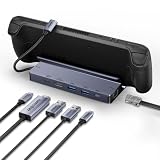
- ✅【8K HDMI Output & 5Gbps USB Expansion】Output stunning 8K@30Hz, 4K@144Hz, 2K@240Hz, or 1080P@480Hz to your display. Expand with 2× USB 3.0 and 1× USB-C data port (5Gbps each) for peripherals, external storage, and more.
- ✅【Lag-Free Gaming with Gigabit Ethernet & 100W PD Charging】Stay competitive with stable wired Gigabit Ethernet. The 100W PD 3.0 port keeps your Steam Deck fully charged even during marathon gaming sessions—no more battery anxiety.
- ✅【All-Aluminum Stand with Secure Docking】The sturdy all-in-one stand holds your Steam Deck at the optimal viewing angle. Silicone pads prevent slipping and scratching while keeping air vents fully unobstructed for maximum cooling.
- ✅【Plug and Play—Instant Desktop Setup】Designed exclusively for Steam Deck. No drivers, no setup hassle. Just plug in and transform your handheld into a full desktop gaming station with expanded display, network, peripherals, and charging.
- ✅【18-Month Warranty & Dedicated Support】Your purchase is backed by 18-month warranty. Our BENFEI customer service team is ready to assist you with prompt, friendly support.
USB-C hub and stand
A hub is sufficient if you only need HDMI, charging, and one or two USB devices. Choose a full dock when you need a stable cradle, Ethernet, several USB ports, DisplayPort, or a bundled charger.
When streaming is better than local rendering
If your priority is modern games at 4K, streaming is often more realistic than asking the Deck’s integrated graphics to render them locally.
- Steam Link: streams from your own gaming PC. Image quality and latency depend on the host PC and network.
- GeForce NOW: renders in the cloud. NVIDIA lists docked Steam Deck streaming up to 3840×2160 at 60 fps, with some higher-resolution or high-frame-rate modes requiring the appropriate membership. See NVIDIA’s SteamOS streaming guidance.
Local rendering has fewer network dependencies and can offer lower latency, but it is limited by Deck hardware. Cloud and PC streaming can deliver higher settings and resolutions, but require suitable internet, supported games, and acceptable latency.
Best expectations by game type
- Modern AAA games: 1080p output, 30 or 40 fps, upscaling, and reduced shadows or volumetrics.
- Indie and older games: 1080p/60 or 120 Hz; 1440p may be practical.
- Emulation: often excellent on a TV, with 1080p or higher output depending on the system being emulated.
- Strategy and mouse-heavy games: performance may be good, but small text, launchers, and cursor-heavy interfaces can be uncomfortable from a sofa.
- Competitive games: prioritize stable frame pacing, Game Mode, a sensible frame cap, and low input latency over 4K output.
- Streamed games: use 4K output when the streaming service or host PC supplies the high-resolution image.
Final docked-mode checklist
- Turn on the TV’s Game Mode.
- Start at 1080p/60 Hz.
- Set a realistic 30-, 40-, or 60-fps cap.
- Lower internal resolution before chasing higher output resolution.
- Use FSR or another upscaler where appropriate.
- Add 120 Hz, VRR, and HDR one at a time.
- Update SteamOS, dock firmware, TV firmware, and cables or connection components as needed.
- For native 4K modern gaming, consider Steam Link or GeForce NOW instead of buying a more expensive dock.
For most owners, the winning setup is simple: 1080p output, Game Mode, a stable frame cap, and carefully chosen in-game settings.



