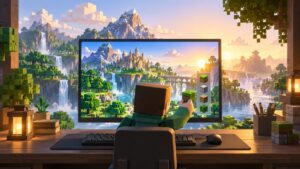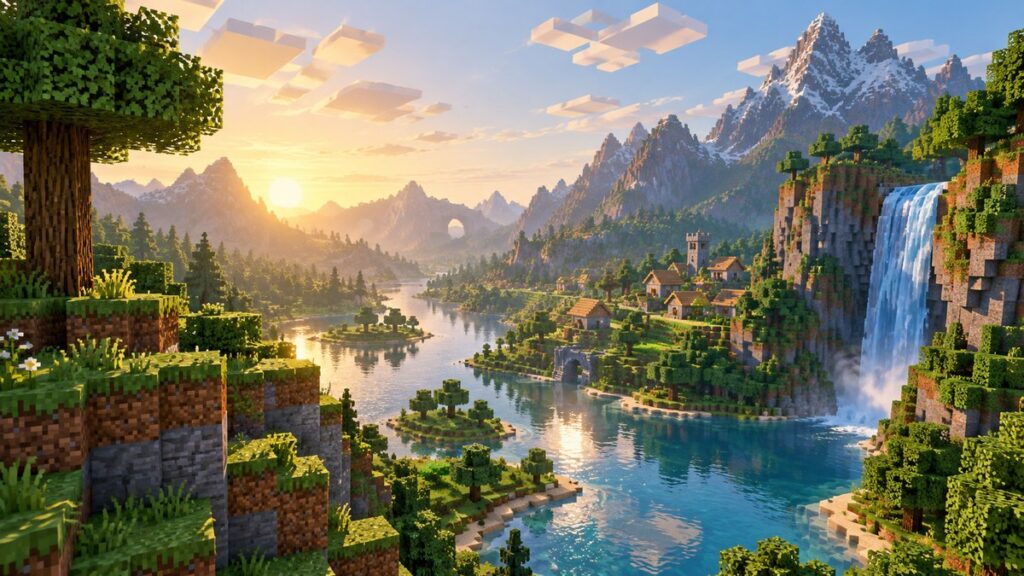
Minecraft has always been about imagination, but for years the visuals lagged behind what modern hardware could actually push. Vibrant Visuals is Mojang’s answer to that gap. It’s an official graphical upgrade for Bedrock Edition that dramatically enhances lighting, color depth, and atmosphere without forcing players into third‑party shaders or risky downloads.
If you’ve ever looked at a sunset and thought it felt flat, or noticed how caves blur into a gray mess once the torches go down, Vibrant Visuals is designed to fix exactly that. It upgrades the game’s rendering pipeline while keeping core gameplay, redstone timing, mob behavior, and hitboxes completely unchanged.
What Vibrant Visuals Actually Do
At its core, Vibrant Visuals is a built-in visual enhancement system developed by Mojang for Bedrock Edition. It adds advanced lighting, richer color grading, smoother shadows, and more natural environmental contrast across the entire world.
You’ll notice sunlight behaving more realistically, with softer transitions between day and night. Water reflects light more convincingly, lava glows with real intensity, and underground areas finally feel dangerous instead of just dim.
Visual Changes You’ll Notice Immediately
The most obvious upgrade is lighting. Light sources cast more dynamic illumination, making torches, lanterns, and glow blocks feel impactful instead of cosmetic. Shadows become smoother and more grounded, especially around terrain edges and builds with depth.
Colors are also more saturated without becoming cartoony. Grass biomes pop, deserts feel harsh and bright, and the Nether leans harder into its hostile atmosphere. Even basic materials like stone and wood gain more texture definition thanks to improved shading.
How It Differs From Shaders
Vibrant Visuals is not a shader pack, and that distinction matters. Shaders often rely on heavy post-processing, custom lighting models, and GPU-intensive effects that can tank FPS or break compatibility in multiplayer.
Vibrant Visuals runs natively inside Bedrock’s engine. That means better performance stability, no risk of shader conflicts, and full compatibility with Realms, achievements, and cross-play. You’re getting a visual upgrade that’s officially supported and optimized, not a workaround.
Supported Editions and Platforms
Vibrant Visuals is exclusive to Minecraft Bedrock Edition. That includes Xbox Series X|S, PlayStation 5, modern Windows PCs running Bedrock, and select high-end mobile devices. Older consoles and low-spec phones may not support it due to hardware limitations.
Java Edition does not support Vibrant Visuals at all. Java players still rely on shaders and mods for enhanced graphics, which makes this feature a major win for Bedrock users who want better visuals with zero setup friction.
Performance Expectations and Tradeoffs
While Vibrant Visuals is far more efficient than traditional shaders, it still increases GPU load. On stronger systems, the FPS hit is minimal. On weaker hardware, you may notice reduced frame rates, especially in dense builds or heavily lit areas.
The upside is control. Players can toggle the feature on or off in settings, letting you prioritize visuals during building sessions and performance during combat-heavy exploration or mob farms where frame timing matters.
Why Builders and Casual Players Benefit Most
For builders, Vibrant Visuals makes block palettes easier to judge and finished projects more impressive without texture packs. For casual players, it enhances immersion without changing mechanics, RNG, or survival balance.
Everything still behaves exactly the same. Creepers still ambush, skeletons still track, and redstone still ticks at the same rate. The world just finally looks as alive as it feels.
Which Minecraft Editions and Platforms Support Vibrant Visuals
Now that you know Vibrant Visuals is a native Bedrock feature and not a shader workaround, the next question is simple: can your version of Minecraft actually run it? This is where edition and hardware matter more than settings, because Vibrant Visuals is tightly tied to Bedrock’s rendering pipeline and device-level GPU support.
Bedrock Edition Is Mandatory
Vibrant Visuals is exclusive to Minecraft Bedrock Edition. If you’re playing Java Edition on PC or Mac, the option will never appear in your settings menu, no matter how powerful your rig is. Java still relies entirely on third-party shaders and mods for enhanced lighting and color depth.
Bedrock, on the other hand, was built for scalability across consoles, PC, and mobile. That unified engine is what allows Mojang to ship a visual upgrade like this without breaking Realms, achievements, or cross-play compatibility.
Fully Supported Consoles
On consoles, Vibrant Visuals is designed for current-generation hardware. Xbox Series X and Xbox Series S both support the feature, with the Series X delivering the most stable frame pacing thanks to its stronger GPU headroom. PlayStation 5 is also fully supported and handles the visual upgrade smoothly, even in dense builds or large render distances.
Last-gen consoles like Xbox One and PlayStation 4 generally do not support Vibrant Visuals. Their GPUs struggle with the additional lighting calculations, and Mojang has deliberately limited access to avoid inconsistent FPS and input lag during gameplay.
Windows PC Support Explained
Windows players must be running Minecraft Bedrock Edition, not Java, and hardware matters more than raw CPU power. A modern GPU with solid DirectX support is the real gatekeeper here. Integrated graphics on newer systems may work, but older laptops and office PCs often won’t show the toggle at all.
If the option is missing on PC, it usually means the GPU doesn’t meet the minimum requirements, not that your game is outdated. Updating graphics drivers can help, but it won’t magically unlock the feature on unsupported hardware.
Mobile Devices: Limited but Possible
Vibrant Visuals is available on select high-end mobile devices, primarily newer iOS and Android phones with strong GPUs. Flagship phones handle it best, while mid-range and older devices may hide the option entirely to prevent thermal throttling and battery drain.
Even on supported phones, expect a noticeable performance hit if your render distance is high or you’re playing in heavily lit areas. This is one case where dialing visuals up for building and screenshots, then turning them off for survival runs, makes practical sense.
Platforms That Do Not Support Vibrant Visuals
Minecraft Java Edition does not support Vibrant Visuals in any form. Nintendo Switch also does not support the feature, largely due to GPU limitations and memory constraints. Older mobile devices fall into the same category, even if they technically run Bedrock.
If you don’t see the Vibrant Visuals toggle in your video settings, that absence is intentional. Mojang has locked the feature behind hardware checks to keep gameplay responsive, hitboxes reliable, and frame timing consistent during combat, redstone ticks, and mob-heavy scenarios.
System Requirements and Performance Expectations Before Enabling Vibrant Visuals
Before flipping the switch, it’s important to understand that Vibrant Visuals is not just a color filter. It’s a real-time lighting upgrade that adds dynamic shadows, improved light falloff, and more accurate ambient shading. That means your hardware isn’t just rendering prettier blocks—it’s doing more work every frame.
If your system barely qualifies, the game will still run, but you’ll feel it immediately through lower FPS, slower chunk updates, and occasional stutter during mob-heavy moments.
Minimum Hardware Expectations (What Actually Matters)
For Windows PC players, GPU power is the deciding factor, not raw CPU speed or RAM. A dedicated graphics card released within the last several years handles Vibrant Visuals comfortably, while newer integrated GPUs can scrape by at lower settings.
If your PC struggles with stable FPS at higher render distances right now, enabling Vibrant Visuals will amplify those problems. This feature leans heavily on lighting calculations, which hit your GPU every time the camera moves or light sources update.
Expected FPS Impact by Platform
On a capable Windows PC, expect a 10 to 25 percent FPS drop compared to standard visuals. That dip is most noticeable in caves, forests, and redstone-heavy builds where light sources overlap and constantly update.
High-end mobile devices see a similar performance hit, but the experience is less consistent. Thermal throttling can kick in during longer sessions, causing frame drops even if the game starts smooth. Consoles that don’t support Vibrant Visuals avoid this entirely, which is exactly why Mojang keeps the feature locked.
Settings That Amplify or Reduce Performance Cost
Render distance is the biggest multiplier on performance loss. Vibrant Visuals with a high render distance forces your system to calculate lighting across more chunks, which compounds GPU load fast.
Fancy graphics, smooth lighting, and high simulation distance stack on top of Vibrant Visuals. If you want stable combat FPS and reliable redstone timing, dialing those back before enabling the feature is a smart preemptive move.
Battery Drain, Heat, and Session Length Considerations
On laptops and mobile devices, Vibrant Visuals noticeably increases power draw. Expect faster battery drain and warmer hardware, especially during building sessions with lots of light sources.
This doesn’t damage your device, but it does shorten comfortable play sessions. Many players treat Vibrant Visuals like a cinematic mode—perfect for building, exploring, or screenshots, then disabled for long survival grinds or combat-heavy runs.
What Vibrant Visuals Is Not
Vibrant Visuals is not a shader pack, and it doesn’t rewrite how water, clouds, or reflections behave the way Java shaders do. You won’t get ray tracing, volumetric fog, or reflective surfaces here.
What you do get is a stable, officially supported visual upgrade that respects Bedrock’s performance limits. The trade-off is fewer extreme effects in exchange for predictable FPS, consistent hitboxes, and no mod-related instability.
Step-by-Step: How to Turn On Vibrant Visuals in Minecraft Bedrock Edition
With the performance trade-offs and limitations clear, actually enabling Vibrant Visuals is refreshingly simple. Mojang intentionally tucked it into the core graphics menu, not behind experimental toggles or developer settings. If your device supports it, the option is already waiting for you.
Step 1: Confirm Your Platform Supports Vibrant Visuals
Vibrant Visuals currently only appears on Minecraft Bedrock Edition running on supported Windows PCs and select high-end mobile devices. Xbox, PlayStation, Nintendo Switch, and lower-end phones won’t show the toggle at all.
If you don’t see the option later, that’s not a bug or bad RNG. It means your hardware or platform doesn’t meet the feature requirements, and Mojang hides it entirely to avoid unstable FPS or broken lighting.
Step 2: Open the Video Settings Menu
From the main menu, select Settings, then navigate to the Video tab. This is the same menu where you control render distance, graphics mode, and smooth lighting.
You can toggle Vibrant Visuals from the main menu or while already inside a world. The change applies immediately, so there’s no need to reload chunks or restart the game.
Step 3: Toggle Vibrant Visuals On
Scroll down until you find the Vibrant Visuals option. Flip it to On, and the lighting changes instantly.
Colors deepen, light sources gain stronger contrast, and shadows become more pronounced. You’ll notice it fastest near torches, lanterns, lava, and glowstone-heavy builds where overlapping light levels stack.
Step 4: Adjust Supporting Graphics Settings for Stability
Before jumping back into survival or combat, take a moment to rebalance your settings. Lowering render distance by a few chunks has the biggest impact on stabilizing FPS with Vibrant Visuals enabled.
If you’re on a laptop or mobile device, switching from Fancy to Simple graphics and slightly reducing simulation distance can prevent frame drops during mob-heavy encounters or redstone updates. This keeps hit detection consistent and avoids input lag when things get hectic.
Step 5: Test in a Real World, Not the Menu
The settings screen doesn’t tell the full story. Load into a cave, forest, or village at night and move around for a few minutes.
Watch your frame pacing, not just your raw FPS. If the game stutters during block updates or mob aggro moments, dial settings back one step at a time until movement feels smooth again.
Common Issues and Why the Toggle Might Be Missing
If Vibrant Visuals isn’t visible, the most common reason is unsupported hardware. Consoles currently don’t support it, and many mid-range mobile devices fall just below the cutoff.
Outdated GPU drivers on Windows can also hide the option. Updating drivers and restarting the game often resolves this, especially on PCs that technically meet the requirements but were running older software.
How Vibrant Visuals Compares to Shaders Once Enabled
Once active, Vibrant Visuals sits squarely between vanilla lighting and full shader packs. You get richer color depth and more dramatic light falloff, but without the extreme GPU strain or visual noise that shaders introduce.
There’s no impact on hitboxes, redstone timing, or combat mechanics. That makes it ideal for builders who want better screenshots and explorers who want atmosphere, without risking inconsistent gameplay or mod-related instability.
In-Game Settings Explained: Optimizing Brightness, Lighting, and Color Balance
With Vibrant Visuals active, your job isn’t done yet. This feature amplifies lighting and color data, which means your existing settings suddenly matter a lot more than they did in vanilla. A few smart tweaks here can be the difference between cinematic atmosphere and blown-out visuals that hurt visibility during combat or mining.
Brightness: Finding the Sweet Spot Without Killing Contrast
Start with the Brightness slider, because Vibrant Visuals pushes light bloom and color intensity harder than standard lighting. Maxing brightness might seem tempting, but it often flattens shadows and removes depth from caves, forests, and interiors.
For most players, setting brightness slightly below max preserves contrast while still keeping dark areas readable. You want enough visibility to track mobs at range, but not so much that everything looks evenly lit and artificial.
If you rely on darkness for mob control or ambience-heavy builds, test at night or underground. Watch how quickly you can pick out creeper silhouettes or ore veins without torch spam.
Lighting Quality: Let Vibrant Visuals Do the Heavy Lifting
Vibrant Visuals already improves light falloff and color blending, so you don’t need every lighting-related option cranked. Fancy Graphics enhances transparency and lighting interactions, but it also increases GPU load, especially around water, glass, and leaves.
If your FPS dips during exploration or mob-heavy fights, drop Fancy Graphics to Simple first before touching Vibrant Visuals. You’ll keep most of the color improvements while stabilizing frame pacing, which is critical for consistent hit registration and movement.
Anti-aliasing is another quiet performance hitter. A lower setting still cleans up jagged edges without smearing fine details that Vibrant Visuals makes more noticeable.
Color Balance: Avoiding Oversaturation and Eye Fatigue
Vibrant Visuals deepens blues, greens, and warm light sources, which looks incredible in forests, oceans, and villages. The downside is oversaturation if your display or system color settings are already boosted.
If colors feel too intense, don’t fight it by lowering brightness alone. Instead, check your system’s display profile or HDR settings, especially on Windows PCs and high-end mobile devices. Neutral color profiles pair best with Vibrant Visuals and keep materials like concrete, terracotta, and wool looking accurate.
Builders should pay special attention here. Color accuracy matters when designing gradients, pixel art, or themed interiors, and Vibrant Visuals rewards balanced settings far more than aggressive ones.
Practical Testing: Tune for Gameplay, Not Just Screenshots
After adjustments, test in real gameplay scenarios. Sprint through a forest at dusk, fight mobs in a cave, or fly over a build with mixed light sources.
Pay attention to readability during fast movement and combat. If shadows hide enemies too well or highlights wash out block edges, tweak brightness or graphics one notch at a time until clarity matches atmosphere.
Vibrant Visuals shines when it enhances mood without interfering with mechanics. Dial it in properly, and the game looks better without ever getting in your way.
Vibrant Visuals vs Shaders vs Texture Packs: What’s the Difference?
By this point, it’s clear that Vibrant Visuals can dramatically change how Minecraft feels without wrecking performance. The confusion comes from how many visual upgrade options exist, especially on Bedrock Edition where mods, add-ons, and marketplace packs all blur together.
Understanding the difference matters. Each option hits your GPU, battery life, and gameplay readability in very different ways.
Vibrant Visuals: Built-In, Lightweight, and Gameplay-Safe
Vibrant Visuals is a native Bedrock Edition graphics feature, not a mod or add-on. It adjusts color saturation, lighting intensity, and atmospheric contrast using Mojang’s own rendering pipeline.
Because it’s engine-level, it plays nicely with hitboxes, lighting calculations, and block readability. You’re not fighting exaggerated shadows or post-processing effects that hide mobs during combat or exploration.
Support depends on platform. Vibrant Visuals works on most modern Bedrock devices, including Windows PCs, Xbox Series consoles, PlayStation 5, and higher-end mobile devices. Older phones, last-gen consoles, or weaker GPUs may not expose the toggle at all.
Enabling it is simple: Settings, Video, then turn on Vibrant Visuals. No downloads, no marketplace purchases, and no world compatibility issues.
Shaders: Maximum Visual Flair, Maximum Risk
Shaders are custom rendering layers that overhaul lighting, shadows, reflections, and sometimes even weather behavior. They’re the reason you see god rays through trees, realistic water reflections, and pitch-black caves in showcase videos.
On Bedrock Edition, shaders are limited and inconsistent. Most require experimental features, specific render dragon tweaks, or third-party tools, and updates frequently break them. Performance cost is also steep, especially during mob-heavy fights or fast elytra flight.
Gameplay clarity takes a hit too. Deep shadows can hide creepers, reflective surfaces can obscure block edges, and extreme lighting shifts can mess with timing and movement. Shaders look incredible, but they demand compromises.
Texture Packs: Art Style Over Atmosphere
Texture packs replace block, item, and UI textures without changing lighting or color processing. They’re about style, not realism.
A good texture pack can sharpen details, clean up noisy patterns, or give your world a cohesive theme. Performance impact is usually low unless the pack uses ultra-high resolution textures that eat VRAM.
What texture packs won’t do is change how light behaves. Sunsets, shadows, and biome mood remain the same unless paired with Vibrant Visuals or shaders.
So Which One Should You Use?
If you want better visuals with zero friction, Vibrant Visuals is the safest upgrade. It boosts atmosphere while preserving performance, readability, and cross-platform stability.
Texture packs are ideal for builders who care about block detail and style consistency. They pair extremely well with Vibrant Visuals and rarely cause performance issues.
Shaders are for players chasing screenshots and cinematic vibes, not clean combat or long survival sessions. If you go this route, expect troubleshooting, FPS drops, and occasional visual bugs after updates.
Vibrant Visuals sits in the sweet spot. It enhances Minecraft the way Mojang intended, without turning your GPU into the real final boss.
Common Problems, Missing Options, and How to Fix Them
Even though Vibrant Visuals is designed to be plug-and-play, it doesn’t always show up cleanly for every player. Platform quirks, outdated settings, and legacy worlds can all hide the toggle or make the feature look underwhelming. If something feels off, it usually is, and the fix is almost always simpler than reinstalling the game.
The Vibrant Visuals Toggle Isn’t Showing Up
If you don’t see Vibrant Visuals under Video settings, the most common culprit is your platform. Vibrant Visuals is exclusive to Bedrock Edition and currently supported on Windows PC, Xbox Series X|S, PlayStation 5, and select modern mobile devices. Older consoles like Xbox One, PS4, and low-end phones simply don’t expose the option due to GPU limitations.
Another frequent issue is being stuck on an outdated game version. Make sure Minecraft is fully updated through the Microsoft Store, console dashboard, or app store. If you’re running Bedrock through a launcher or sideloaded install, double-check that you’re on the current retail build, not a preview or legacy branch.
You’re in the Wrong World or Using Incompatible Settings
Vibrant Visuals won’t activate in worlds that use certain experimental features or legacy rendering paths. If your survival world was created years ago and upgraded repeatedly, it may still be flagged for older lighting behavior. Creating a fresh test world is the fastest way to confirm whether the feature works on your system.
Also check for incompatible graphics options. If you’re using third-party shaders, custom render settings, or external tools, Vibrant Visuals will often disable itself silently. Turn those off, restart the game, and then recheck the Video menu.
The Visual Difference Feels Subtle or “Not Working”
Vibrant Visuals is not a shader replacement, and that’s intentional. It improves color depth, lighting balance, fog gradients, and biome mood without adding heavy shadows or reflections. If you’re expecting pitch-black caves or mirror-like water, you’re looking at the wrong upgrade.
To see the effect clearly, compare a plains biome at sunset, a lush cave, or a forest during rain. The changes are most noticeable in atmospheric transitions, not static screenshots. Builders often feel it more than they see it at first, especially when moving through large structures or open terrain.
Performance Drops After Turning It On
While Vibrant Visuals is lightweight, it still increases color processing and lighting complexity. On lower-end hardware, this can shave off a few FPS, especially during mob-heavy combat, redstone-heavy bases, or high-speed elytra flight. If your frame rate starts dipping, lower render distance first before touching anything else.
Disabling fancy graphics, reducing shadow quality, or turning off extra post-processing effects can stabilize performance without killing the visual upgrade. On mobile, make sure your device isn’t thermal throttling, since heat can tank performance faster than any setting.
Multiplayer, Realms, and Cross-Platform Confusion
Vibrant Visuals is a client-side setting, not a world rule. That means it works on Realms, servers, and multiplayer worlds as long as your device supports it. If your friend’s game looks different, that’s normal, their hardware and settings decide what they see.
However, some servers force specific resource packs that can mute or override parts of the visual effect. If colors feel flat or lighting looks unchanged online, check the server’s resource pack requirements and try disabling them temporarily to compare.
When All Else Fails
If the option still refuses to appear, reset your Video settings to default and restart the game. This clears out hidden conflicts that sometimes survive updates. As a last resort, backing up your worlds and reinstalling Minecraft can force the engine to rebuild its rendering profile correctly.
Vibrant Visuals is meant to be frictionless, not a troubleshooting marathon. Once it’s on and running, it stays stable across updates and worlds, which is exactly why it’s become the go-to visual upgrade for players who want better atmosphere without turning Minecraft into a tech support side quest.
Best Use Cases: Builders, Survival Players, and Creative Mode Enhancements
Once Vibrant Visuals is enabled and stable, its real value shows up in how you actually play. This isn’t a tech-demo toggle, it’s a quality-of-life upgrade that quietly improves decision-making, atmosphere, and long play sessions across every mode. Different playstyles benefit in different ways, and knowing where it shines helps you decide when it’s worth the extra GPU work.
Builders: Color Accuracy, Depth, and Readability
For builders, Vibrant Visuals is all about color separation and lighting depth. Blocks with similar palettes, like concrete, terracotta, and stripped wood, are easier to distinguish at a glance, especially in large-scale builds. This reduces misplacement errors and cuts down on rebuild time, which matters when you’re placing thousands of blocks by hand.
Lighting changes are subtle but impactful. Interior builds gain more natural contrast, making shadowed areas feel intentional instead of muddy. Exterior builds benefit even more, since sunlight and biome colors interact more cleanly, helping gradients and terrain shaping read correctly from a distance.
Survival Mode: Visibility, Atmosphere, and Combat Awareness
In Survival, Vibrant Visuals improves environmental clarity without turning the game into a shader-heavy slideshow. Caves feel deeper and more dangerous because light levels are easier to read, which helps with mob aggro management and spawn-proofing. You’re less likely to miss a dark corner that turns into a surprise creeper detonation.
During combat, clearer color contrast helps track mobs in chaotic fights, especially in forests, Nether biomes, or nighttime raids. It doesn’t change hitboxes or DPS, but better visibility means fewer missed swings and faster reaction times when things get messy.
Creative Mode: World Design and Screenshot-Ready Builds
Creative mode is where Vibrant Visuals feels tailor-made. Large worlds load with more visual consistency, making terrain edits and biome blending easier to judge in real time. When you’re flying at high speed, the world reads more cleanly, reducing visual noise that can distract from layout planning.
For players who share builds online, this setting is a game-changer. Screenshots and videos look richer straight out of the engine, with less need for external filters or post-processing. It’s not a replacement for shaders, but for Bedrock players who want clean, vibrant visuals across console, mobile, and PC, it’s the most reliable way to make creations pop without breaking performance or compatibility.
Final Tips for Getting the Best Visual Experience Without Mods
Vibrant Visuals shines because it respects Minecraft’s core art style while quietly fixing its weakest visual pain points. To get the most out of it, you want to treat it like a system-level upgrade, not a one-click miracle. A few smart tweaks and platform-aware choices can make the difference between “looks nicer” and “this feels like a new game.”
Double-Check Platform Support Before You Tweak Anything
Vibrant Visuals is a Bedrock Edition feature, meaning it works on Windows PC, Xbox Series consoles, PlayStation, and modern mobile devices. It is not available on Java Edition, and older hardware may limit how aggressive the effect looks. If you’re on Switch or a lower-end phone, expect subtler changes rather than dramatic color boosts.
Before troubleshooting anything else, confirm you’re running the latest Bedrock update. Many visual complaints come down to outdated builds where the option either doesn’t appear or doesn’t apply correctly.
Use Vibrant Visuals as a Baseline, Not a Replacement
This setting is not a shader pack, and it’s not trying to be. You won’t get dynamic shadows, real-time reflections, or cinematic lighting passes. What you get instead is consistent color grading, improved contrast, and cleaner lighting behavior that doesn’t tank FPS or introduce input lag.
Think of Vibrant Visuals as a foundation. It makes vanilla lighting more readable, biomes more distinct, and builds easier to parse at a distance, especially during fast movement or combat-heavy moments.
Balance Visuals With Performance Settings
If you notice stutters after enabling Vibrant Visuals, the fix usually isn’t turning it off. Lowering render distance by a few chunks, disabling fancy clouds, or reducing particle density often stabilizes performance without killing the visual upgrade. On console, prioritize stable frame rate over max draw distance to keep camera movement smooth.
Mobile players should be especially careful here. Vibrant Visuals works best when paired with conservative graphics presets and capped frame rates to avoid thermal throttling mid-session.
Pair It With Smart Build and Lighting Choices
Vibrant Visuals amplifies good design decisions. Mixed block palettes, intentional lighting, and biome-aware color choices all benefit more under this setting. Sloppy lighting and random block spam still look sloppy, just brighter.
For builders, this is your cue to lean into contrast. Use light sources deliberately, avoid overusing similar-toned blocks, and let the improved color separation do the heavy lifting.
Quick Checklist If Something Looks Off
If colors look washed out, toggle the setting off and back on, then reload the world. If lighting feels inconsistent, check time of day and weather, since Vibrant Visuals reacts more clearly to both. If performance dips, scale back world settings first before disabling the feature entirely.
Nine times out of ten, the issue isn’t the feature itself, but how it’s interacting with your current settings or hardware limits.
Why This Is the Best Visual Upgrade for Bedrock Players
The real win here is compatibility. Vibrant Visuals works across platforms, doesn’t break multiplayer, and won’t get disabled by future updates the way unofficial shaders often do. It respects Bedrock’s ecosystem while quietly making everything easier to see, easier to build, and easier to enjoy.
If you want better visuals without mods, file juggling, or performance roulette, this is the cleanest upgrade Minecraft Bedrock has ever offered. Turn it on, tune your settings, and let the game finally look as good as it plays.