Yes. Apple’s U.S. online store lists Sony’s PlayStation VR2 Sense Controller & Charging Station for $249.95 as listed on August 16, 2026. It includes both controllers and their charging station, and Apple lists it for M2 and M5 Apple Vision Pro models. Vision Pro support requires visionOS 26 or later, and controller support depends on the app.
What Apple is selling—and what’s in the box
This is Sony’s PSVR2 accessory sold through Apple, not an Apple-designed controller or a Vision Pro-specific redesign. The listing is for a complete left-and-right set, not one replacement controller. Apple’s U.S. store price was $249.95 on August 16, 2026; taxes and delivery charges may vary. Check the Apple product listing for current price and availability.
- Left PSVR2 Sense controller with wrist strap
- Right PSVR2 Sense controller with wrist strap
- Charging station
- AC adapter and AC power cord
- Two USB adapters
The listing identifies manufacturer part number 1000050612 and built-in rechargeable lithium-ion batteries. Apple lists compatibility with M2 and M5 Apple Vision Pro models. Its limited warranty does not apply to this non-Apple-branded product; Sony handles manufacturer support.
Vision Pro compatibility: visionOS 26 and app support
Apple introduced support for PSVR2 Sense controllers as spatial accessories in visionOS 26. Apple’s guidance requires visionOS 26 or later, and the Vision Pro user guide cautions that not every app supports spatial accessories.
#1 Best Overall
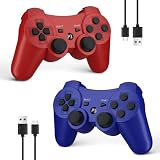
- Compatible with P3 and PC Windows 7/8/10:Wireless Controller for PS3. Plug and Play. No installation is required. To use it on a PC, a USB cable is required(NOTE: Please activate device with USB cable for the first match connection
- High sensitivity & Durable Buld:Upgraded for ultra-responsive control with zero delay. Built with premium materials and precise 360° analog sticks,The controller uses high-quality materials and exquisite craftsmanship, and passed 12,000,000 durability tests
- Ergonomic Design:PS3 wireless Controller with Ergonomic design and light weight construction makes you comfortable even for hours of gaming. Multi players PK or Team Games more intersting.Controller upgraded joysticks, 360-degree positioning with ultra-accuracy, perfect for all PS3 games
- Double Shock & 6-axis Motion Sensor:Real game experience due to dual vibration motors that provide real-time feedback and the motion sensing 6-axis technology during gameplay. fit for racing, sports and action games. Enhance your game experience
- SPECIAL GIFT:This Wireless Bluetooth controller can be a good gifts for Christmas,friend's birthday, Valentine's Day and Children Day, will make your family, friends and children happy every day
In compatible apps, the controllers provide tracked movement, buttons, joystick and trigger input, finger-touch detection, and vibration feedback. Apple’s developer explanation describes spatial interaction using the Vision Pro’s cameras together with sensors in the controllers, so an app can use controller position and rotation—not just button presses. That distinction matters: an app that accepts a game controller may not use its spatial tracking.
Examples of supported apps
Apple’s App Store feature highlights Ping Pong Club, Spatial Rifts, Fishing Haven, FunFitLand, Porta Nubi, and Pickle Pro as examples of experiences for spatial accessories. This is a selected set, not evidence that all Vision Pro games support the controllers. Apple’s feature page identifies these examples. Pickle Pro’s U.S. App Store listing requires visionOS 26 or later and showed a $7.99 price when checked; prices can change. See the Pickle Pro listing.
How to pair each controller
Pair the left and right controllers separately through Bluetooth. The pairing indicator must be blinking when you select a controller on Vision Pro.
Rank #2

- All-in-One Charging Solution: Charge both your PSVR2 and PS5 controllers simultaneously with a single, convenient station. No more clutter or multiple chargers—just plug in and power up with ease.
- Space-Efficient Vertical Design: Save valuable space in your gaming setup with a vertical design that minimizes its footprint. This stand not only charges your controllers but also securely displays your PSVR2 headset, keeping your area tidy and organized.
- Stable and Secure Construction: Designed for maximum stability, the station features a non-slip silicone base and a balanced structure that prevents tipping. Your headset and controllers stay securely in place, giving you peace of mind.
- Fast and Reliable Charging: Equipped with a powerful 22.5W adapter, this station ensures fast and efficient charging for all your devices. Fully charge your controllers in just 1.5-2 hours, so you’re always ready for your next gaming session.
- Real-Time LED Charge Indicators: Stay informed with built-in LED indicators that show the charging status of each controller in real-time. Know at a glance when your devices are fully charged and ready to go.
- Put the left controller in pairing mode: Press and hold the PlayStation button and Create button together. Create is to the left of the joystick. Keep holding until the pairing indicator on the bottom blinks.
- Pair the left controller: On Vision Pro, open Settings > Bluetooth, turn Bluetooth on if needed, then tap the controller when it appears.
- Put the right controller in pairing mode: Press and hold the PlayStation button and Options button together. Options is to the right of the joystick. Keep holding until its indicator blinks.
- Pair the right controller: In Settings > Bluetooth, tap the right controller separately.
If an indicator stops blinking before you select the controller, repeat that controller’s button combination. After pairing, check battery levels and controller customization at Settings > General > Game Controller. Apple’s pairing instructions provide the button combinations and settings path.
What these controllers do not do
Buying PSVR2 Sense controllers does not make Vision Pro a PSVR2 headset, connect it to a PS5, or unlock PlayStation VR2 games. Sony’s PSVR2 compatibility guidance covers the PlayStation hardware and software the controllers are designed to work with; Vision Pro support is a separate Apple feature for compatible apps.
- Vision Pro apps: Work only when the app supports the relevant controller functions.
- PS5 and PSVR2 games: Require the applicable PlayStation hardware and software; the controllers alone are not a substitute for the headset.
- PC VR: A third-party route is available through ALVR, which streams OpenVR content from a compatible Windows or Linux computer to Vision Pro and advertises PSVR2-controller support. It is not an Apple or Sony guarantee of universal compatibility. ALVR notes limitations including incomplete button-touch support and possible instability with older streamer versions. See the ALVR App Store listing.
ALVR is an enthusiast setup, not plug-and-play PC VR. It depends on a compatible PC and OpenVR/SteamVR setup, a shared local network, and a strong connection; a 5 GHz Wi-Fi network and Ethernet connection from the PC to the router are preferable. Performance and game compatibility depend on the computer, network, software versions, and individual titles.
Rank #3

- [Comfortable foam pads] Crafted from memory foam and soft PU, it provides a softer, more comfortable feel.
- [Flexible Installation Options] There are two installation methods: use the included Globular Cluster strap for a secure fit or the stock wrist strap for familiarity. Try both and choose your preferred style for comfort.
- [Two Included Thicknesses] This mod comes with two foam pads of different thickness. You can choose the one that best matches your hand size and preferred fit for ideal comfort and support.
- [Full Charging Dock Compatibility] Seamlessly charge your controller on the dock without removing the mod. Ensure the foam pad is aligned flush with the controller’s edge to maintain proper charging functionality.
- [Easy to Install ] For best results, apply as many dots as possible as shown in the product image, wait 2 hours after application to allow the adhesive dot to set, then attach the foam pad.
Is the $249.95 bundle worth it?
If you own Vision Pro but no other VR system
Consider it only if you specifically want physical tracked controllers and plan to play apps that support them. The hardware offers more than buttons, but the useful experience depends on a relatively select app catalog. If your apps are designed for hand tracking or ordinary gamepads, this bundle may add little.
If you also own a PS5 and PSVR2
The bundle is more appealing if you can reuse the controllers across your systems and want the included charging station. Do not assume switching between Vision Pro, PS5, and PC will be seamless: pairing behavior depends on the host, and changing systems may require pairing again. Sony provides separate PSVR2 support information for its hardware.
If you have a gaming PC
ALVR makes PC streaming a possibility for technically comfortable owners, but it adds network and software setup and is not a universal compatibility promise. It is a weak reason to buy the controllers if you do not already have a suitable PC and are expecting a straightforward official PC-VR solution.
Rank #4

- 【Compatibility for PSVR2】The VR protector cover set is specially designed for PlayStation VR2, perfectly fit the VR2 headset, bringing you a comfortable gaming experience. The VR2 silicone cover sets include PSVR2 headset protector cover, Face Cushion Cover Pad, Lens Dust Cover and 2 Pack Controller Thumb Grips, The complete PS5 VR2 headset protector kit can perfectly protect the VR2, which is an ideal choice for PS VR gamers.
- 【Exclusive Design- Full Protection】The VR shell protective cover can be tightly adapted to VR headset , thereby effectively preventing your PSVR2 accidentally damaged; The PSVR2 silicone face cover adopts a completely closed design to effectively prevent light leakage and worked well for keeping sweat off of the stock pad, allowing you to enjoy a wider field of vision and bring your better immersive VR gaming experience. The thickness of the premium lens cover is 0.6 inches, which is thicker than the classic lens protector cover to absorb the shock effectively.
- 【Premium Silicone Material】The PlayStation VR2 Headset cover ,fitness facial pad ,lens dust protector and controller thumb grips are made of high-grade environmentally friendly silicone, It has the advantages of durable, pull-resistant, sweat-proof, washable, and reusable.The safe and hygienic silicone cover is very friendly for long-term use, whether it is for adults or children, long or short term wearing it will not cause any damage to your skin. This is also a great gift for your family and friends to play PS5 VR for playStation vita accessory kits.
- 【Easy to Install and Clean】The PSVR2 cover accessories is very convenient to install and remove, light weight, easy to carry and easy to store. Just put VR headset cover and VR face cushion on the PSVR2 headset, and the VR2 thumb grips cover can protect the sticks from scratches and dirt, and it is very comfortable to touch. When not used, just install the lens dust cover on the lens according to the R and L, and then apply pressure to put it on the VR lens to protect the lens. You can easy to clean them after use, so you can have fun with your friends and families with no worries.
- 【What You Get & Service】Our aim is to provide you with high-quality PlayStation VR2 accessories, which can perfectly protect your PSVR2 machine. You can get 1* PSVR shell cover, 1 * VR face cover, 1* lens dust cover and 2 * controller thumb grips, the PS5 VR cover set is also a gift choice for your friend and family at the festival. If you have any questions, We offer friendly customer service.
Alternatives and troubleshooting
Hand tracking or a standard game controller
Vision Pro hand tracking suits navigation and apps designed around eyes and hands. An MFi-compatible controller, or a supported Xbox or PlayStation gamepad, can suit games that need conventional buttons. Apple’s controller compatibility guidance covers supported game controllers; ordinary gamepads do not provide the same spatial tracking and finger-touch features as PSVR2 Sense.
Logitech Muse for creative work
Apple also highlights Logitech Muse as a spatial accessory in visionOS 26. It is aimed at writing, drawing, design, and 3D creative tasks rather than gaming, so it is a more relevant option for creative workflows than for controller-focused games. Apple lists it alongside other accessories on its spatial-accessory feature page.
If pairing succeeds but a game does not respond
First check the app’s listing or developer guidance for explicit PSVR2 Sense or spatial-accessory support. A successful Bluetooth connection confirms pairing; it does not mean the app implements controller input or spatial movement.
What’s actually slowing this PC down?
Pick the symptom - the matching free tool is one click away.
If Vision Pro cannot find a controller
- Use the left- or right-specific button combination and confirm the pairing indicator is blinking.
- Pair each controller separately; repeat the button combination if the indicator stops.
- If Vision Pro reports possible Bluetooth or Wi-Fi interference, disconnect unused Bluetooth accessories and try again. Apple’s Bluetooth and controller guidance covers connection considerations.
If a controller needs charging
The built-in batteries recharge using the included station, which is designed to charge both controllers together.
Quick Recap
Product prices and availability are accurate as of the date/time indicated and are subject to change. Any price and availability information displayed on Amazon at the time of purchase will apply.




