Do these 3 things before closing this tab:
1Scan for outdated or missing drivers - takes under a minute2Repair Windows errors before they cause bigger problems3Fix the driver behind crashes, sound loss and screen glitchesYes—BlueStacks 5 can often install and launch on an Intel Core i3 PC with 4GB of RAM, but that is a minimum configuration, not a comfortable gaming setup. Lightweight Android apps and simple games are the realistic targets. Modern 3D games may stutter, freeze, or fail, particularly on an old i3, integrated graphics, a hard drive, or Windows 11. Hardware virtualization, the exact i3 model, graphics drivers, storage, and the Android game all determine the result.
Installable is not the same as playable
BlueStacks separates four questions that are often confused:
- Can it install? Usually, if the PC meets the stated operating-system, storage, CPU, RAM, and driver requirements.
- Can it launch? This depends heavily on virtualization, available memory, drivers, security software, and Windows configuration.
- Can it run light apps? Messaging, utilities, and simple 2D games are the most plausible workloads.
- Can it run demanding 3D games smoothly? A 4GB system with integrated graphics is generally a poor fit, especially with an older i3.
BlueStacks lists 4GB RAM as a minimum, while its recommended configuration calls for 8GB or more and an SSD. Meeting the minimum establishes baseline compatibility; it does not promise smooth gameplay. See the current BlueStacks requirements at BlueStacks’ Android 11 requirements page.
BlueStacks requirements: minimum versus recommended
| Component | Minimum listed by BlueStacks | Recommended configuration |
|---|---|---|
| Operating system | Windows 7 or later on the general requirements information | Windows 10 or later |
| Processor | Intel or AMD processor | Multi-core Intel or AMD CPU with a single-thread benchmark score above 1,000 |
| Memory | 4GB RAM | 8GB or more |
| Storage | At least 5GB free | SSD or fusion/hybrid storage |
| Graphics | Up-to-date graphics drivers | GPU benchmark score of at least 750 |
| Other | Administrator access; virtualization strongly recommended | Broadband internet for online content; virtualization enabled |
These are broad BlueStacks requirements, not a guarantee for every game or Android instance. Renderer support, drivers, game-specific requirements, and available memory can change the outcome. BlueStacks also provides general product information at its BlueStacks 5 page.
#1 Best Overall

- 4 cores (4 P-cores + 0 E-cores) and 8 threads. Integrated Intel UHD Graphics 730 included.
- Performance two core microarchitecture, prioritizing and distributing workloads to optimize performance
- Up to 4.7 GHz unlocked. 12MB Cache
- Compatible with Intel 600-series (with potential BIOS update) and 700-series chipset-based motherboards
- PCIe 5.0 & 4.0 support. DDR4 and DDR5 Memory support. RM1 thermal solution included.
Why 4GB RAM is a severe constraint
Your installed 4GB is shared by Windows, antivirus, drivers, browser tabs, launchers, and BlueStacks. Integrated Intel graphics can reserve part of system memory as video memory. On Windows 11, 4GB is the operating system’s own minimum according to Microsoft’s Windows 11 requirements, so there is little headroom left for an emulator and a game.
Allocating more RAM to BlueStacks is not automatically better. If the emulator takes too much, Windows begins paging to storage and the whole computer becomes slower. Do not assign the full 4GB to BlueStacks. Multiple instances, recording, streaming, or keeping many browser tabs open are unsuitable for this memory capacity.
The exact i3 model matters more than the label
“Core i3” covers many generations, desktop and laptop chips, and very different integrated GPUs. A recent i3 can be several times more capable than an early-generation mobile i3; a low-power laptop model may also behave differently from a desktop part. BlueStacks’ recommended CPU criterion is a single-thread benchmark score above 1,000, not simply the i3 name.
Rank #2

- Intel® Core® i3 3.30 GHz processor uses less power and the hyper-threading architecture delivers high performance for demanding applications at an affordable price
- 12 MB of L3 cache rapidly retrieves the most used data available to improve system performance
- Built-in Intel UHD Graphics 730 controller for improved graphics and visual quality. Supports up to 4 monitors.
Find your complete processor name
- Press Ctrl + Shift + Esc to open Task Manager.
- Select Performance.
- Click CPU.
- Record the full model, such as i3-3110M, i3-6100, i3-7100U, or i3-1215U.
Generation, core and thread count, clock behavior, laptop versus desktop design, integrated-GPU model, and virtualization support all affect the result. Without the exact game and hardware, an FPS promise would be misleading.
The Tool Desk
Outbyte Driver Updater FREEScan for outdated or missing drivers - takes under a minuteDriver Scan →Outbyte PC Repair FREEClear out junk files and repair common Windows errorsFree Scan →Check virtualization before changing game settings
Intel hardware virtualization is normally called Intel Virtualization Technology or VT-x. BlueStacks strongly recommends it because it can use multiple CPU cores more effectively. BlueStacks describes a potential fivefold improvement when virtualization is enabled, but that is not a guaranteed result for every PC or game.
See whether it is enabled
- Press Ctrl + Shift + Esc.
- Open Performance and select CPU.
- Look for Virtualization.
- Confirm that it says Enabled.
BlueStacks documents this check at its virtualization support article.
Rank #3

- Intel Core i3-12100F Desktop Processor 4 (4P-0E) Cores Up to 4.3 GHz Turbo Frequency LGA1700 600 Series Chipset 58W Processor Base Power
Enable it in BIOS or UEFI
- Restart the computer and enter BIOS/UEFI using the manufacturer’s key.
- Open an advanced CPU or processor-configuration menu.
- Find Intel Virtualization Technology, Intel VT-x, or a similar label.
- Set it to Enabled, save, and restart.
One example path is Advanced → CPU Configuration → Intel Virtualization Technology, but menus vary by manufacturer. Use the appropriate BlueStacks guide for Windows 11 or Windows 10.
If virtualization is unavailable, BlueStacks says a Nougat 32-bit instance may still work, although performance can suffer; 64-bit and newer instance types require virtualization enabled.
Quick wins for a faster PC:
Fix the driver behind crashes, sound loss and screen glitchesFind Drivers →Clear out junk files and repair common Windows errorsFree Scan →Windows 10, Windows 11, and older editions
A 4GB Windows 11 machine is already at Windows 11’s memory minimum, making severe memory pressure more likely than on a lightly configured Windows 10 installation. BlueStacks has separate Hyper-V guidance for Windows 10 version 1903 or later and Windows 11; consult the current requirements page before enabling or disabling Windows virtualization features: BlueStacks Hyper-V requirements.
Rank #4
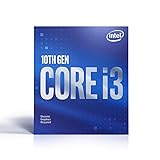
- Country Of Origin :China
- Package Dimensions :7.3Cm L X10.7Cm W X11.8Cm H
- Package Weight :9.9Ounces
- Product Type : Computer Processor
Do not assume every current BlueStacks feature is available on Windows 7 or Windows 8. Older operating systems may be limited to particular BlueStacks releases or Android instance types; verify support for the exact release you intend to install.
Independent reader supportYour contribution helps us test, update, and keep practical guides available for everyone.A conservative 4GB configuration
These are practical starting points, not universal BlueStacks settings.
Before launching
- Close browsers, launchers, cloud-sync tools, and unnecessary background applications.
- Disable unneeded startup programs.
- Install current graphics drivers and Windows updates.
- Leave more than the 5GB installation minimum free if possible.
- Use an SSD and, on a laptop, connect AC power and select a performance-oriented power mode.
- Run one BlueStacks instance only.
BlueStacks’ slow-performance guidance covers these steps at its troubleshooting page.
What’s actually slowing this PC down?
Pick the symptom - the matching free tool is one click away.
Best Value
- Intel UHD Graphics 630
- Compatible only with Motherboards based on Intel 300 Series Chipsets
- Cores: 4, Threads: 4
- 3.60 GHz Base Frequency / 6 MB Cache
- Intel Optane Memory Supported
Performance settings
Open the gear icon, then Settings → Performance. Start with one or two CPU cores (depending on the i3), approximately 1.5–2GB of memory, and a 30 FPS limit. Use the lowest in-game graphics preset. Increase one setting at a time only if Windows remains responsive. BlueStacks lists CPU, memory, frame-rate, high-frame-rate, VSync, and FPS-display controls in the Settings menu documentation. Its separate allocation guide explains that suitable values depend on the application: CPU and RAM allocation guide.
Graphics settings
Use Settings → Graphics. On newer Pie, Android 11, and Android 13 instances, BlueStacks documents Vulkan & OpenGL and OpenGL Only choices. Start with the default renderer; if a game has visual corruption or will not start, try the alternative and restart BlueStacks after saving. On Nougat, try Performance mode first and Compatibility if the game requires it or crashes. See the graphics-settings guide.
What is realistic on an i3 with 4GB?
| Workload | Likely experience |
|---|---|
| Utilities, messaging, and simple Android apps | Usually the most realistic use case |
| 2D and older casual games | May be playable at reduced settings |
| Light 3D games | Depends on i3 generation, GPU, drivers, and virtualization |
| Modern competitive 3D games | Often poor, unstable, or below comfortable performance |
| High-resolution gaming | Poor fit for integrated graphics and 4GB RAM |
| Multiple instances, recording, or streaming | Not recommended |
“Runs” can mean that an app opens and loads, not that it maintains smooth gameplay. Integrated graphics are not automatically incompatible, but their shared-memory limits and driver support matter.
Troubleshoot failures in a logical order
BlueStacks will not open
- Restart the PC.
- Confirm virtualization in Task Manager.
- Check the requirements and free memory.
- Update graphics drivers and Windows.
- Reduce CPU and memory allocation.
- Temporarily check whether antivirus software is interfering.
- Use BlueStacks’ built-in repair option when offered.
BlueStacks’ startup guidance is at this support article.
Free tools Windows power users keep installed
One-click scans. No signup required.
It is stuck loading or a game crashes
Close background programs, restart, recheck virtualization, update drivers, and reduce allocation if Windows is paging. Then try the other graphics renderer, a lighter Android instance, or a repair/reinstall from the official installer. Crashes can also reflect a game’s Android-version requirements, security software, or incompatibility that settings cannot fix.
Performance worsened after increasing allocation
Return to the conservative profile. On a 4GB PC, extra emulator memory can starve Windows; higher allocation is not inherently faster.
Quick Recap
Should you upgrade?
- RAM first: moving to 8GB is the most useful practical improvement if the computer supports it. Check the exact model, DDR generation, laptop SO-DIMM or desktop DIMM type, maximum capacity, and whether memory is replaceable.
- SSD second: replacing a mechanical drive improves boot and loading responsiveness, but it does not replace RAM or a capable CPU/GPU. SATA and NVMe compatibility depends on the machine.
- Replace very old hardware: if the i3 is obsolete, the computer is already slow in Windows, or you need modern 3D gaming, a newer PC may be better value than incremental upgrades.
Product prices and availability are accurate as of the date/time indicated and are subject to change. Any price and availability information displayed on Amazon at the time of purchase will apply.




