The Minecraft message “You need to authenticate to Microsoft services” means the game cannot validate the Microsoft/Xbox sign-in session required by an online feature. It does not, by itself, prove that your account is hacked, permanently locked or invalid. Start by checking service status, then sign out completely, restart the device and sign back in with the Microsoft account that owns Minecraft. The exact menus depend on your edition and platform.
What the message blocks
Authentication is used for Bedrock multiplayer, Realms, featured and private servers, Marketplace purchases, downloadable content and cross-platform play. The same wording can result from an expired session, the wrong account, a Microsoft or Xbox outage, family privacy settings, a console subscription issue, an incorrect device clock, an outdated app or a local network problem.
| # | Preview | Product | Price | |
|---|---|---|---|---|
| 1 |

|
Minecraft | Standard Edition | XBOX Digital | $19.99 | Buy on Amazon |
| 2 |

|
Minecraft - Xbox One (Renewed) | $28.59 | Buy on Amazon |
| 3 |
|
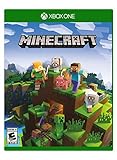
Minecraft – Xbox One | $84.96 | Buy on Amazon |
| 4 |

|
Minecraft: Starter Collection – Xbox One | $43.90 | Buy on Amazon |
| 5 |

|
Minecraft - Xbox One (Renewed) | $49.98 | Buy on Amazon |
Bedrock and Java share Microsoft-account identity but do not have identical launchers or menus. Minecraft for Windows is Bedrock; Java uses a separate launcher path. Microsoft’s platform requirements are listed in the official account matrix.
First, determine whether it is an outage
Check official Minecraft, Xbox and platform service-status information before changing files or reinstalling. If several people on different devices see the message at once, or Microsoft/Xbox sign-in fails in other services, a service-side incident is more likely. A historical Microsoft support case shows this exact message has coincided with outages, but that report does not establish a current outage.
#1 Best Overall
- Create and shape an infinite world, explore varied biomes filled with creatures and surprises, and go on thrilling adventures to perilous places and face mysterious foes.
- Play with friends across devices or in local multiplayer.
- Connect with millions of players on community servers, or subscribe to Realms Plus to play with up to 10 friends on your own private server.
- Get creator-made add-ons, thrilling worlds, and stylish cosmetics on Minecraft Marketplace; subscribe to Marketplace Pass (or Realms Plus) to access 150+ worlds, skin & textures packs, and more—refreshed monthly.
- Everyone affected: wait for Minecraft/Xbox or Realm services to recover; local reinstalls cannot repair an outage.
- One account affected on several devices: investigate account, ownership, session or family restrictions.
- One device affected: investigate local sessions, clock, updates, network and firewall filtering.
- One Realm or server affected: check its availability, permissions and version compatibility separately from your account.
Reset the sign-in session
Minecraft’s official sign-out instructions recommend resetting the Microsoft-account session. Use the section for your platform.
Windows PC
- Open Minecraft Launcher.
- Open the gamertag dropdown in the upper-left and choose Log out.
- Select Microsoft Login, then sign in with the account that owns Minecraft. Choose Sign in with a different account if necessary.
- Open the Xbox app. Sign out if it shows another account, then sign in with the same Microsoft email and verify the gamertag.
- Relaunch the relevant Minecraft edition and test the online feature again.
The Microsoft Store, Xbox app, Launcher and Minecraft for Windows can retain different sessions. Compare the email address, gamertag and purchase account before switching again. Microsoft’s sign-in guidance specifically recommends signing into the Xbox app first and checking ownership.
Xbox console
- Close Minecraft: Bedrock Edition.
- Press the Xbox button and open Profile & system.
- Select the current profile, choose Sign out, then sign back in to the intended Xbox profile.
- Open Minecraft again. The profile remains saved on the console for the next sign-in.
PlayStation, Nintendo Switch, Android and iOS
- Open Minecraft and select Settings → Account.
- Choose Sign out of your Microsoft Account.
- Select Sign in for free! to display an alphanumeric code.
- Open the official Microsoft remote-connect page shown by Minecraft, enter the code and sign in with the intended account.
Enter the code only on the official page displayed by the game. Do not give your Microsoft password or code to an unofficial “Minecraft login” site.
Rank #2
- This renewed game has been cleaned, tested, and shows minimal wear. It may come repackaged in a generic case.
- Create and explore your very own world where the only limit is what you can imagine
- Play on your own, or with up to 4 players split screen, or 8 players online
- Import your favorite Xbox 360 worlds to the Xbox One Edition
- Play in Creative Mode with unlimited resources or mine deep into the world in Survival Mode, crafting weapons and armor to fend off the dangerous mobs
Confirm account ownership and identity
A visible gamertag does not prove that Minecraft, Marketplace content or a Realm belongs to that account. Check the original purchase-confirmation email or Microsoft account order history, then compare it with the account shown in the Xbox app. Do not create a new Microsoft account as a quick fix: purchases, Realms and gamertags can remain attached to the original account.
Quick wins for a faster PC:
Scan for outdated or missing drivers - takes under a minuteDriver Scan →Repair Windows errors before they cause bigger problemsFix Now →If the account cannot sign in through a browser, use Microsoft’s account recovery and sign-in resources linked from Minecraft account support. An account-access problem must be resolved before Minecraft can obtain a valid token.
Review child-account and privacy permissions
A child or teen account can authenticate successfully but still be blocked from multiplayer. A parent should review the account’s Xbox privacy and online-safety controls, including:
Rank #3
- Create your very own world and build to the limits of your imagination
- Explore mighty mountains and living oceans of Infinite worlds, amazing community-made maps, servers, thrilling mini games and more!
- Survive online with friends on Console, mobile, and Windows 10, or share the Adventure at home in split-screen multiplayer
- Join multiplayer games
- Join cross-network play
- Add friends and follow others
- Communicate by voice, text or invites
Use Microsoft’s Minecraft child-account multiplayer guidance and restart Minecraft after changing a permission. These restrictions apply even when the player is not using an Xbox console. They most directly explain blocked multiplayer or Realms access, not necessarily every launch-time authentication message.
Check the platform’s online entitlement
Console multiplayer requires both a linked Microsoft account and the platform’s online entitlement. Current requirements are:
| Platform | Requirement for online multiplayer |
|---|---|
| Xbox | An eligible Xbox online multiplayer entitlement, currently associated with Game Pass Core or an equivalent plan. |
| PlayStation | PlayStation Plus, where required by the platform. |
| Nintendo Switch | Nintendo Switch Online. |
| Windows and mobile | No console online-subscription requirement; Microsoft sign-in and service access are still required. |
See Minecraft’s multiplayer requirements. Buying a subscription will not correct a wrong account, an outage, a stale token or a family restriction.
Rank #4
- This collection includes: The Minecraft base game, 700 Minecoins and the Starter Pack DLC, an amazing selection of Mash-ups, Texture Packs, Skin Packs and other fun content to discover.
- Create your very own world and build to the limits of your imagination.
- Explore mighty mountains and living oceans of infinite worlds, amazing community-made maps, servers, thrilling minigames and more
- Survive online with friends who are on console, mobile, and Windows 10, or share the adventure at home in split-screen multiplayer.
Perform a complete restart
- Close Minecraft.
- On Windows, close the Launcher, Xbox app and Microsoft Store.
- Sign out of Minecraft and any related app that shows the wrong account.
- Restart the device fully; do not merely sleep or close the lid.
- Restart the router if other Microsoft-connected services also fail.
- On Windows, sign into the Xbox app first, then open Minecraft.
Minecraft’s general troubleshooting guidance recommends signing out, shutting down the device and restarting the internet connection: official troubleshooting steps.
Update every relevant component
Update Minecraft, the Launcher, the Xbox app, the Microsoft Store, console firmware or mobile operating system. Everyone joining the same Bedrock world or server should use a compatible current release. A version mismatch can block multiplayer without being an account-authentication failure; “newest version” changes over time, so use your platform’s current update control rather than a fixed version number. Minecraft’s multiplayer guidance also recommends updating: official multiplayer help.
Independent reader supportYour contribution helps us test, update, and keep practical guides available for everyone.Check the device clock
Token validation and secure connections can fail when a device clock is substantially wrong. Treat this as a secondary diagnostic, not a guaranteed official fix. On Windows use Settings → Time & language → Date & time → Set time automatically → Sync now. On consoles and mobile, enable automatic date and time. Community reports associate clock synchronization with this message, including this Microsoft Q&A discussion.
Outdated Drivers Are Slowing You Down
One free scan finds every outdated or missing driver and matches the right update for your exact hardware.Free scan · exact hardware matchWindows Errors? Fix Them Before They Spread
Repair common Windows errors and clear accumulated junk for a smoother, more stable PC - no reinstall needed.Free scan · no reinstallBest Value
Test the network without risky changes
- Try another connection, such as a phone hotspot.
- Restart the router.
- Temporarily test without restrictive firewall, DNS-filtering or parental-control software.
- Check whether another Microsoft service signs in successfully.
Do not treat a VPN as a standard fix: it can add NAT, latency, geolocation and account-security complications. DNS flushing, Winsock resets and port forwarding are not established universal fixes for this message; use them only for a separately diagnosed Windows networking problem.
When the symptom points somewhere else
Single-player works, multiplayer does not
Investigate the sign-in session, Xbox/Microsoft service status, privacy permissions, console subscription and the specific Realm or server. This pattern does not prove that the installation is corrupted.
Marketplace content also fails
Widespread Marketplace and online failures point more strongly to Microsoft-account authentication or entitlement validation than to one multiplayer server.
Only a private server or Realm fails
Check server or Realm availability, owner permissions, version compatibility and configuration. Official Minecraft services can be healthy while one destination is unavailable.
Do these 3 things before closing this tab:
1Clear out junk files and repair common Windows errors2Scan for outdated or missing drivers - takes under a minute3Repair Windows errors before they cause bigger problemsWhat not to do first
- Do not repeatedly reinstall during a suspected outage.
- Do not delete Minecraft worlds, app-package folders or
.minecraftdata without a verified backup and a specific reason. - Do not use registry cleaners, credential-cleaning utilities or unofficial launchers.
- Do not enter passwords or remote-connect codes on third-party websites.
- Do not assume running a dedicated-server executable as administrator fixes a normal player’s authentication problem; that advice concerns a particular server setup, not the standard client.
When to contact support
Escalate after the sign-out and restart sequence fails across a second network or device:
- Confirm that the Microsoft account signs in through a browser.
- Use Microsoft’s Sign-in Helper if the account is locked, compromised or inaccessible.
- Recheck the Xbox gamertag, Minecraft purchase ownership and family permissions.
- Check official Minecraft/Xbox service status again.
- Contact Minecraft Support with the platform, edition, game version, exact message, affected features, whether single-player works, whether other accounts are affected, screenshots and timestamps.
The Bottom Line
For most players, the safest sequence is: check for an outage, sign out everywhere, restart the device, sign into the correct Xbox/Microsoft account, then check family permissions, platform online entitlement, updates, clock and network. Reinstalling, deleting data or buying software should not be the first response.
Quick Recap
Product prices and availability are accurate as of the date/time indicated and are subject to change. Any price and availability information displayed on Amazon at the time of purchase will apply.




