What’s actually slowing this PC down?
Pick the symptom - the matching free tool is one click away.
Use a 40 FPS cap at 40 Hz as your starting point. It is usually the best balance between smooth camera movement, readable image quality, and battery use on Steam Deck. Choose 30 FPS for the most consistent and efficient experience, or 45 FPS only when your Deck can hold it in towns, events, loading transitions, and multiplayer combat. A locked 60 FPS at attractive settings is not a realistic general expectation.
The Steam release is the simplest way to play because it integrates with SteamOS, but it still requires a Battle.net account and an internet connection. The settings below are practical starting profiles, not an official Blizzard Steam Deck preset.
Quick profiles
| Goal | Resolution | Preset | Textures | Shadows | Upscaling | Frame cap |
|---|---|---|---|---|---|---|
| Battery and consistency | 1280×800 or 1280×720 | Low | Low or Medium | Low | Quality or Balanced | 30 FPS |
| Best overall | 1280×800 or 1280×720 | Low, then Custom | Medium | Low | Quality or Balanced | 40 FPS |
| Smoother handheld feel | 1280×800 or 1280×720 | Low, then Custom | Medium | Low | Balanced | 45 FPS |
| Experimental performance | 1280×720 | Low | Low | Low | Balanced or Ultra Performance | 50–60 FPS |
These caps are targets, not promises. A large world event, crowded town, loading transition, or asset-streaming hitch can still cause a drop.
Before changing settings
Install the Steam version when possible
The Steam listing (app ID 2344520) requires a Battle.net account and online access: Diablo IV on Steam. Steam avoids manually installing Battle.net in Desktop Mode and gives you normal Steam updates, controller profiles, achievements, and overlay support. The game remains always-online, so Steam Deck settings cannot fix server latency, disconnects, or rubber-banding.
The Tool Desk
Outbyte Driver Updater FREEFix the driver behind crashes, sound loss and screen glitchesFind Drivers →Outbyte PC Repair FREERepair Windows errors before they cause bigger problemsFix Now →#1 Best Overall

- Steam Deck & ROG Ally Carrying Case: This carrying case is designed for Steam Deck (OLED) , ROG Ally and ROG Ally X (2024), PlayStation Portal Remote Player, providing safe daily protection, sturdy and durable. Giving you convenient storage and portable travel.
- Newly Upgraded Large Capacity: Built-in expanded storage space can accommodate more accessories. You can put original AC charger, docking station, small power bank, headphones and other accessories at the same time. Plenty of space to easily place the Steam Deck or ROG Ally without removing the protective case. Keeps everything in order. Note: Accessories not included
- Multiple Protection: JSAUX ROG Ally X Case uses a thickened EVA shell to resist external extrusion, effectively preventing collisions and falls. With groove design, it will not press on the handle. The built-in fleece compartment protects the screen from scratches
- Double Zipper Design: The zipper is smooth and can be easily opened and closed when using. A good closure ensures that accessories will not fall out. Concealed chain, prevent rust and beautiful design
- Handable and Fixed: Reinforced handle, will not fall off. Velcro straps inside can secure the body. You can easily take this Steam Deck Case anywhere
The listing specifies 90 GB of available storage. Its Windows minimum tier describes 8 GB RAM, DirectX 12, an SSD, low settings, 720p render resolution, and 30 FPS; the recommended tier describes 16 GB RAM, medium settings, and 60 FPS. Those are Windows PC targets, not Steam Deck guarantees. See the Steam support page for the published requirements.
Choose storage deliberately
Internal SSD storage is the useful comparison point when troubleshooting streaming stutter. A fast, reliable microSD card is supported and can work well, but performance varies by card, capacity, filesystem, and condition; do not assume every card behaves like the SSD. Keep substantial free space and test the internal drive if hitching follows a move to microSD.
LCD and OLED expectations
LCD and OLED Decks have the same broad rendering target. OLED improves the display, acoustics, and efficiency characteristics, but it does not turn Diablo IV into a high-refresh 60 FPS game. Use whichever 40 Hz or 45 Hz option your current SteamOS build exposes and select the frame cap that remains stable.
Update first
Install current game and SteamOS updates before judging performance. Proton behavior can change after a game, launcher, or SteamOS update. Guidance here reflects information and user reports available through August 18, 2026; record your exact game build, SteamOS version, Proton runtime, Deck model, storage type, and test date when documenting a result.
Quick wins for a faster PC:
Fix the driver behind crashes, sound loss and screen glitchesFind Drivers →Clear out junk files and repair common Windows errorsFree Scan →Set a frame-rate target before tuning graphics
40 FPS at 40 Hz: the default recommendation
Forty frames per second gives noticeably smoother camera movement than 30 without demanding the sustained workload of 60. Set the Deck display to 40 Hz and cap the game at 40 FPS. Do not call it locked: dense towns, world events, and multiplayer encounters can exceed the available frame-time budget.
30 FPS: the consistency and battery profile
Choose 30 FPS when you want longer sessions, lower heat and fan noise, or when 40 FPS repeatedly dips. A lower target leaves room to use Medium textures and a less aggressive upscaler while preserving consistent frame pacing.
Rank #2
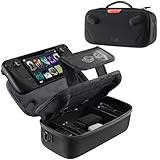
- Upgraded Design for Steam Deck: Fits Steam Deck and Steam Deck OLED. JSAUX designed this next gen carrying case for handheld gamers, built to keep your console and essentials protected for commuting, travel, and gaming on the go
- Dual Layer Storage: Upper layer stores your Steam Deck and microSD cards. Lower layer fits a charger, power bank, cables, dock, earbuds, and more. Removable hook and loop divider lets you customize the layout and keep everything organized. Note: Accessories not included
- Charge Ready Cable Port: Built in cable port lets you connect to your power bank for on the go charging while the case is open. Includes a right angle USB C to USB C cable to help reduce bending at the connector. Note: Power bank not included
- Visible Details for Daily Carry: The center panel folds into a stand for desk mode play. A recessed top groove helps reduce joystick pressure. Secure straps help keep your Steam Deck in place, and the comfortable carry handle makes grab and go travel easy
- Everyday Protection Inside Out: Durable exterior helps resist daily wear and light splashes, while the soft padded lining cushions bumps and helps prevent scuffs and minor scratches during travel
45 FPS at 45 Hz: only with evidence from your own play
Forty-five FPS can feel excellent on a Deck that actually sustains it. Community reports describe 45 FPS with low settings, but they are user-specific rather than controlled benchmarks. Test towns, open world travel, a large combat encounter, a loading transition, and multiplayer activity before adopting this cap.
60 FPS: an experiment, not a baseline
Some players report roughly 50–58 FPS on low settings, while others see major drops or uneven pacing. A short run through an empty area cannot establish a locked 60 FPS profile, and a 60 FPS cap increases power use even when the game cannot maintain it.
Recommended Free Tools
Recommended in-game graphics settings
Start with Low, select your frame target, then change one option at a time. Blizzard explains that texture and shadow quality have a comparatively large effect on memory use: its graphics overview.
| Setting | Starting value | Why or when to change it |
|---|---|---|
| Display resolution | 1280×800 if cleanly supported; otherwise 1280×720 | 800p uses the Deck’s native 16:10 panel. Try 720p if you see black bars, scaling artifacts, or UI problems. The Deck specification is documented in Valve’s technical sheet. |
| Render scale | Near 100% | Lower this before resorting to an extremely aggressive upscaler. Lower internal resolution improves GPU headroom but softens item text, distant enemies, and small interface elements. |
| Texture quality | Low or Medium on 8 GB models; Medium on 16 GB models | Raise to High only if memory use and hitching remain acceptable. Texture quality is different from Blizzard’s Ultra high-resolution asset pack. |
| High-resolution/Ultra assets | Off | Blizzard says Ultra assets require at least 32 GB system memory and target 4K-oriented use; they are not appropriate for a standard Deck profile. |
| Shadows | Low | Try Medium only after frame pacing is stable. Shadows consume memory and performance for relatively little benefit on a small screen. |
| Geometry, clutter, foliage, environment detail | Low or Medium | Lower these when towns or dense outdoor areas cause dips. Their CPU and GPU effects differ, so watch the overlay while changing one setting. |
| Effects and particles | Low or Medium | Lower first if a large fight becomes unstable. Keep them higher only when spell readability matters and your target remains sustainable. |
| Fog, reflections, screen-space effects | Low or Medium | Reduce these for additional GPU headroom; do not assume every individual option has a large impact. |
| Anti-aliasing and FSR | FSR Quality for a quality-oriented 30–40 FPS profile; Balanced for 40–45 FPS | Use the least aggressive mode that meets your target. Reserve Ultra Performance for emergency cases because it can look very soft. Check the current game’s exact labels, which can change between builds. |
| VSync and frame limit | Use one clear limiter strategy | Prefer an in-game cap matched to refresh rate, or use the SteamOS cap if the in-game limiter misbehaves. Avoid stacking conflicting caps without testing. |
Textures are not the same as Ultra assets
High textures can be a reasonable test on a 16 GB Deck, while Blizzard’s Ultra/high-resolution asset package is a separate, much heavier option. If hitching appears, lower textures and shadows first; most other settings have less memory impact according to Blizzard.
Do not double-upscale by accident
Use either the game’s FSR path or SteamOS-level scaling as your primary scaler while testing. Activating both can make the image noticeably softer. If the picture is blurry, move from Ultra Performance to Balanced or Quality, restore render scale toward 100%, and check that 720p is not being upscaled again by the compositor.
Configure SteamOS and measure the right scenes
- Launch Diablo IV.
- Press the Steam button and open Performance.
- Enable Performance Overlay at an informative level.
- Set refresh rate and frame limit to the same target: 40 Hz/40 FPS, 45 Hz/45 FPS, or 30 Hz/30 FPS.
- Test a town hub, an open-world route, a large combat encounter, a loading transition, and multiplayer or a world event.
- GPU near 95–100%: reduce render scale, FSR quality, effects, shadows, or geometry.
- GPU underused while FPS is low: investigate CPU load, shader compilation, streaming, launcher overhead, or a network symptom rather than blindly lowering every setting.
- Frame-time spikes: lower the cap and investigate Proton, storage, shader cache, or a recent patch.
- Memory pressure or hitching: lower textures and shadows first.
SteamDB currently lists the default configuration as performing well on Steam Deck and Proton Experimental as its recommended runtime: Diablo IV configuration. Treat that as current configuration metadata, not a guarantee for every update or Deck installation.
Crashes, No Sound, or Screen Glitches?
Random freezes, missing sound and display glitches usually trace back to one bad driver. Find and replace yours safely.Free scan · under a minutePC Slower Than It Used to Be?
A free scan shows the junk files, broken settings and background clutter dragging Windows down - then fixes them in one click.Free scan · Windows 10 & 11Rank #3
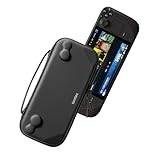
- Slim Steam Deck carrying case: Specially designed for Steam Deck/ Steam Deck OLED players to travel and carry. Super thin and lightweight. Whether it is commuting to work or long-distance travel, it is your best choice
- Super protection: The durable hard shell Protects your Steam Deck Console free from scratches, providing maximum protection for your Steam Deck against the knocks, bumps, and drops that might happen on the go
- Excellent design: The hard shell has raised areas, the accurate design perfectly fits the curves of the steam deck console, and prevents the joystick and buttons from being mis-touched; a built-in padded buffer avoids compression on shoulder buttons
- High quality: Made of splash-proof PU and felt hard shell material and equipped with heavy-duty YKK zippers, this Steam Deck travel case is portable, sturdy, and durable; to provide customers with the best experience from the details
- What you get: A slim Steam Deck carrying bag; Worry-free 12-month warranty, and friendly customer service. (Steam Deck and other accessories not included, for demonstration purposes only)
Steam versus Battle.net through SteamOS
Steam release
- Native Steam library integration, controller profiles, updates, achievements, and overlay.
- No manual Desktop Mode launcher installation.
- Still requires Steam authentication, a Battle.net account, and online access.
- Uses storage for the Steam installation and its launcher components.
Battle.net alternative
Running Battle.net generally involves Desktop Mode, installing the launcher, adding it or the game to Steam, and selecting a compatible Proton runtime. It can be more fragile after launcher, Proton, or game updates. Dated July 2026 forum reports describe users switching to Proton Experimental bleeding-edge or Proton Hotfix, but those reports are not an official Blizzard compatibility guarantee: Blizzard forum discussion.
When the normal configuration fails, test the current stable Proton, Proton Experimental, and Proton Hotfix one at a time. Do not assume one runtime remains permanently correct.
Independent reader supportYour contribution helps us test, update, and keep practical guides available for everyone.Troubleshooting by symptom
The game will not launch
- Exit the game and Steam completely, then reboot the Deck.
- Verify game files.
- Confirm adequate free space and healthy storage.
- Retry the default Proton configuration.
- Test Proton Experimental or Proton Hotfix.
- Check whether the failure began after a game, SteamOS, launcher, or Proton update.
- If using Battle.net, test the Steam release or reinstall the launcher integration.
Very low FPS despite Low settings
Check for an overly aggressive SteamOS cap, mismatched refresh rate, or competing in-game and SteamOS limiters. Temporarily leave SteamOS uncapped and use the in-game limiter as a troubleshooting test; community reports describe this helping some installations, but it is not universal. Also consider shader compilation, CPU limits in towns, storage stalls, and server behavior.
Stutters and hitching
- Lower textures and shadows.
- Compare internal SSD and microSD storage if possible.
- Allow shader processing to settle after changing Proton or reinstalling.
- Change one graphics option at a time.
- Note whether the hitch occurs during asset streaming, transitions, or combat.
Increasing swap space, changing UMA buffer size, or installing a third-party optimizer is not a guaranteed fix.
Loading-screen drops
A brief drop during a loading or area transition is not the same as sustained gameplay performance. Reports describe severe loading-screen drops even when regular play appears near 50–58 FPS; judge the cap by the complete route you actually play.
Online lag mistaken for low FPS
- Low FPS: local rendering or frame-time problem.
- Rubber-banding and delayed actions: network or server problem.
- Brief freezes while assets appear: possible storage, memory, shader, or streaming problem.
After a major patch
- Restore the game’s graphics settings to the known Low baseline.
- Confirm the selected Proton runtime and SteamOS cap.
- Retest the five demanding scenarios: town, open world, large fight, loading transition, and multiplayer activity.
- Raise textures first, then individual visual settings, stopping when frame pacing degrades.
- Record game build, SteamOS version, Proton version, Deck model, storage type, and date so your result remains meaningful.
FAQ
Can Diablo IV run at 60 FPS on Steam Deck?
It can reach high frame rates in some situations with low settings, but 60 FPS is not a dependable whole-game target. Towns, events, loading, and multiplayer can produce substantial drops.
Rank #4

- Comprehensive Protection: Individually Protected Independent cabin for your Steam Deck, ROG Xbox Ally X (2025) , ROG Xbox Ally (2025), ROG Ally, ROG Ally X, PlayStation Portal or Switch. Efficiently protect the screen from scratch by other sharp devices such as keys, metal goods, etc
- Large Storage: Multiple-layer space that meets different demand, including unique cabin for Steam Deck, Steam Deck OLED & ROG Ally. Separated rooms for different sizes of goods such as JSAUX Steam Deck docking station, powerbank, AC adapter, cellphones, USB C cables, Switch, etc
- Unigue Design: The anti-sloshing belt will keep your bag closely fit with your body while riding or running. The two-side resistance band will prevent your goods from pouring out when open totally the carrying case bag
- Durable Fabric & Fashion Appearance: JSAUX Steam Deck case bag is made of premium durable oxford fabric. The hard shell is made of EVA material with a fashionable appearance
- What You Get: JSAUX BG0105X Carrying Case is compatible with ROG Xbox Ally X (2025) / ROG Xbox Ally (2025) / Steam Deck / ROG Ally / ROG Ally X / PS5 Portal / Switch 2 / Switch , with an 18-Month worry-free period and 24/7 friendly client consultation, if you have any questions, we will resolve your issue within 24 hours
Is the Steam version better than Battle.net?
For most Deck owners, yes as an installation path: it avoids manual launcher integration. Both versions still require Battle.net authentication and internet access.
Should textures be Low or High?
Use Low or Medium first. Test High only on a 16 GB model after confirming that memory use and streaming hitching remain acceptable.
Should I use SteamOS FSR or in-game FSR?
Test one scaler at a time. In-game FSR is generally the clearer place to begin; stacking both can soften the image.
Is 30 FPS better than unstable 45 FPS?
Yes. A consistent 30 FPS usually feels better than a 45 FPS cap with repeated frame-time spikes.
Does the game work offline?
No. Diablo IV is always-online, and the Steam release requires a Battle.net account.
Is a microSD card adequate?
A fast, reliable card can be adequate, but results vary. Use the internal SSD as a troubleshooting comparison when streaming stutter appears.
What should I change after a major patch?
Return to the Low baseline, verify Proton and refresh-rate settings, and retest demanding scenes before raising individual options.
Quick Recap
Product prices and availability are accurate as of the date/time indicated and are subject to change. Any price and availability information displayed on Amazon at the time of purchase will apply.




