Recommended Free Tools
Some Intel 13th- and 14th-generation Core desktop processors can crash Unreal Engine games because of Intel’s Vmin Shift Instability. Intel traces the problem to reliability aging in an IA-core clock-tree circuit exposed to elevated voltage and temperature. The current fix is to install the newest BIOS from your motherboard or system manufacturer containing microcode 0x12F or later, then use the board’s relevant Intel Default Settings.
That does not mean every Unreal Engine crash, every 13th- or 14th-gen chip, or every Intel laptop is affected. Treat this as a targeted troubleshooting possibility, not a diagnosis by game title alone.
What the crashes look like
Dovetail Games says its support team has seen unexpected crashes in Unreal Engine games on systems with Intel 13th- and 14th-generation CPUs. In its April 22, 2026 support article, the company says crashes may happen at any time and are often reported after 10–20 minutes of play. That timing is a support observation, not a reliable test: a crash sooner, later, or in a non-Unreal game can have many other causes.
Intel’s issue applies to some 13th- and 14th-generation Core desktop processors, including listed Core i5, i7 and i9 families. Intel’s root-cause update said 13th- and 14th-generation mobile processors were unaffected by this Vmin Shift issue at the time of that statement. Other causes—drivers, memory errors, overheating, damaged game files, unstable overclocks and failing hardware—remain possible.
#1 Best Overall

- 13th Gen Intel Core processors offer revolutionary design for beyond real-world performance. From extreme multitasking, immersive streaming, and faster creating, do what you do
- 14 cores (6 P-cores plus 8 E-cores) and 20 threads
- Up to 5.1 GHz unlocked. 24M Cache
- Integrated Intel UHD Graphics 770 included
- Compatible with Intel 600 series (might need BIOS update) and 700 series chipset-based motherboards
What Intel says is happening
Intel localized Vmin Shift Instability to an IA-core clock-tree circuit “particularly vulnerable to reliability aging under elevated voltage and temperature.” As the circuit’s timing margin shifts, the processor can become unstable and the operating system or game may crash.
Intel identified four contributors:
- Motherboard power delivery beyond Intel guidance: board defaults or enthusiast profiles can apply power behavior outside Intel’s recommended limits.
- eTVB behavior on high-temperature i9 desktop parts: an algorithm could keep 13th- and 14th-gen i9 processors in higher performance states at high temperatures.
- SVID voltage requests: voltage requests at particular frequencies and durations could contribute to the shift.
- Elevated voltage during idle or light activity: microcode and BIOS behavior could request higher core voltage even when the workload was not heavy.
These are the conditions in Intel’s technical explanation, not proof that any one motherboard, game or processor has failed. Intel has published no prevalence percentage in the cited materials.
Rank #2

- 10 cores (6 P-cores plus 4 E-cores) and 16 threads
- Performance hybrid architecture integrates two core microarchitectures, prioritizing and distributing workloads to optimize performance
- Up to 4.7 GHz unlocked. 20MB Cache
- Compatible with Intel 600-series (with potential BIOS update) and 700-series chipset-based motherboards
- PCIe 5.0 and 4.0 support. DDR4 and DDR5 Memory support. RM1 thermal solution included. Discrete graphics required.
Microcode fixes and what the version numbers mean
| Microcode | Intel’s stated role | How it relates to current advice |
|---|---|---|
| 0x125 (June 2024) | Addressed the eTVB algorithm behavior described for high-temperature 13th- and 14th-gen i9 desktop processors. | Historical mitigation; do not stop updating here. |
| 0x129 (August 2024) | Addressed SVID algorithm behavior associated with high requested voltages. | Historical mitigation; later releases include newer changes. |
| 0x12B | Included the 0x125 and 0x129 changes and addressed elevated-voltage requests during idle or light activity. | Historical mitigation; superseded by newer guidance. |
| 0x12F or later | Version threshold in Intel’s current support guidance. | Use the newest vendor BIOS that contains this version or a later one. |
The current Intel support article, last reviewed July 21, 2026, supersedes the older version-specific instructions for troubleshooting today. A microcode number is delivered through BIOS firmware; you do not normally install it as a separate Windows utility.
How to check and update your system
- Identify the exact hardware. In Windows, press Win + R, enter
msinfo32, and note “Processor,” “BaseBoard Manufacturer,” “BaseBoard Product” and “BIOS Version/Date.” For a prebuilt PC, record the complete model and serial information shown by the manufacturer. - Open the manufacturer’s support page. Use the motherboard maker’s page for a self-built system, or the system maker’s page for a prebuilt. Do not use a BIOS for a similar-looking board revision.
- Read the BIOS release notes. Choose the newest release that explicitly includes Intel microcode 0x12F or later, or states that it contains the current Intel 13th/14th-gen instability mitigation. Availability and naming differ by vendor.
- Follow that vendor’s update procedure exactly. Keep stable power connected, return the machine to the vendor’s required preparation state, and do not interrupt flashing. Some boards update from an in-BIOS utility; others use a USB-based process. Intel does not require a particular USB drive.
- Load Intel Default Settings. In the firmware setup, select the option whose wording identifies Intel Default Settings or the vendor’s Intel-recommended profile. Save and reboot. Avoid automatically re-enabling motherboard “enhanced,” unlimited-power or overclocking presets while diagnosing the issue.
- Retest without changing several variables at once. Run the affected game and note whether crashes continue. Keep a record of the BIOS version, settings and symptoms so the manufacturer or Intel support can assess the case.
If you are not comfortable entering firmware setup or flashing BIOS, use the system or motherboard maker’s support service or a qualified local technician. An interrupted or incorrect BIOS update can make a system unbootable.
Do these 3 things before closing this tab:
1Clear out junk files and repair common Windows errors2Fix the driver behind crashes, sound loss and screen glitches3Repair Windows errors before they cause bigger problemsRank #3
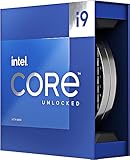
- Stream, create, and compete at the highest levels with industry leading features and the latest hybrid architecture
- 24 cores (8 P-cores + 16 E-cores) and 32 threads
- Up to 5.8 GHz unlocked. 36MB Cache
- Integrated Intel UHD Graphics 770 included
- Compatible with Intel 600 series (might need BIOS update) and 700 series chipset-based motherboards
What to do if games still crash
First separate firmware symptoms from ordinary game problems
- Remove CPU, memory and GPU overclocks while testing, including automatic motherboard enhancement profiles.
- Install current graphics drivers and verify the game’s files using the platform’s repair or verification function.
- Check Windows Event Viewer and the game’s crash logs for repeatable patterns, but do not treat an Unreal Engine error message alone as proof of Vmin Shift Instability.
- Test more than one demanding application. A crash limited to one title may indicate a game, driver or asset problem; instability across several workloads warrants broader hardware support.
Escalate after the current BIOS
If instability persists with a BIOS containing 0x12F or later and Intel Default Settings enabled, contact the system maker or Intel support with the exact processor, board or prebuilt model, BIOS version, crash details and proof of purchase. Firmware cannot reverse physical degradation if it has already occurred, so support may need to determine whether the processor is eligible for replacement or another remedy.
Independent reader supportYour contribution helps us test, update, and keep practical guides available for everyone.Warranty coverage
Intel says eligible processors received a two-year warranty extension, up to five years from the original purchase. Eligibility is determined for the specific processor; it is not an automatic five-year guarantee for every chip in the listed generations. Check Intel’s current support process and retain the processor’s identification and purchase documentation.
Quick Recap
Best Value

- Game Without Compromise. Play harder and work smarter with Intel Core 14th Gen processors
- 20 cores (8 P-cores plus 12 E-cores) and 28 threads. Discrete graphics required
- Up to 5.6 GHz with Turbo Boost Max Technology 3.0 gives you smooth game play, high frame rates, and rapid responsiveness
- Compatible with Intel 600-series (with potential BIOS update) or 700-series chipset-based motherboards
- DDR4 and DDR5 platform support cuts your load times and gives you the space to run the most demanding games
Rank #4

- Built for the Next Generation of Gaming. Game and multitask without compromise powered by Intel’s performance hybrid architecture on an unlocked processor.
- Discrete graphics required
- Compatible with Intel 600 series and 700 series chipset-based motherboards
- The processor features Socket LGA-1700 socket for installation on the PCB
- 30 MB of L3 cache memory provides excellent hit rate in short access time enabling improved system performance
Which systems and crashes are in scope?
| Situation | How to interpret it | Best next step |
|---|---|---|
| 13th/14th-gen Core desktop CPU with an old BIOS or non-Intel board defaults | Matches the platform and conditions Intel is addressing, but is not proof of damage. | Update through the board/system maker and enable Intel Default Settings. |
| Prebuilt PC with continuing crashes | The vendor controls BIOS delivery and may need to diagnose or service the system. | Contact the system maker, then Intel if directed; check processor eligibility. |
| 13th/14th-gen mobile processor | Intel’s cited root-cause update said mobile parts were unaffected by this specific Vmin Shift issue at that time. | Investigate normal laptop causes unless the manufacturer identifies a different issue. |
| Any other Intel generation or an isolated Unreal Engine crash | The cited evidence does not establish Vmin Shift Instability as the cause. | Use standard game, driver, thermal, memory and hardware troubleshooting. |
Official references
- Intel Support: Intel® Core™ 13th and 14th Gen Desktop Processor Vmin Shift Instability Issue – Latest Information (last reviewed July 21, 2026).
- Intel Community: Intel Core 13th and 14th Gen Desktop Instability Root Cause Update (September 25, 2024).
- Dovetail Games Support: What causes crashes on Intel 13th & 14th Gen CPUs? (updated April 22, 2026).
Product prices and availability are accurate as of the date/time indicated and are subject to change. Any price and availability information displayed on Amazon at the time of purchase will apply.



