Recommended Free Tools
There is no single factory-reset procedure for every PowerA wired controller. If custom rear buttons are wrong, use the controller’s Program button to clear Advanced Gaming Button (AGL/AGR) assignments. If the controller is frozen or undetected, power-cycle the USB connection and troubleshoot the console or PC. Calibration and firmware recovery are separate procedures, and a paper-clip reset hole should not be assumed on wired models.
Identify the reset you actually need
| Problem | Correct remedy | What it changes |
|---|---|---|
| Rear AGL/AGR buttons perform the wrong actions | Program-button assignment reset | Clears one or both programmed rear-button mappings; it is not necessarily a full factory reset. |
| No input, frozen controller or failed detection | USB power-cycle and host troubleshooting | Restarts the wired connection; it does not erase stored mappings. |
| Incorrect stick center or trigger response | Calibration in compatible PowerA software | Adjusts input readings; it cannot repair worn hardware. |
| Firmware corruption or a model-specific defect | Exact-model firmware recovery or update | Reinstalls or updates firmware only when PowerA provides a procedure for that model. |
PowerA organizes manuals and troubleshooting by platform and product family, so identify the exact SKU before applying a button sequence: check the rear label, packaging or receipt, the cable type, AGL/AGR buttons, and whether the product is branded for Xbox, Nintendo Switch, Nintendo Switch 2 or PC. The PowerA product-support hub lists the relevant manuals.
Clear programmed rear buttons
Xbox Advantage Wired controllers
- Hold Program for approximately 2 seconds.
- Wait for the connection indicator to flash slowly, indicating Assign Mode.
- Press AGL or AGR to clear that individual assignment.
- To clear both assignments, hold Program for 5 seconds.
The procedure is documented in the PowerA Advantage Wired Controller for Xbox Series X|S manual. Assignments can remain in memory after the controller is disconnected.
Nintendo Switch Enhanced Wired controllers
- Hold Program for 2–3 seconds.
- Wait for the status LED to flash slowly.
- Press AGL or AGR to reset one assignment.
- Hold Program for 5 seconds to reset both.
See the Nintendo Switch Enhanced Wired manual. These mappings may remain stored when unplugged.
#1 Best Overall

- Now Including Hall Effect Modules – Say goodbye to stick drift with contract-free magnetic sensors in the thumbsticks giving you smoother control, enhanced precision, and increased longevity
- Advanced Gaming Buttons – Get an edge over the competition with two mappable buttons you can program on-the-fly, mid-game—no system settings to configure
- 3-Way Trigger Locks – Set the travel distance of the triggers with three different positions to pull off quicker actions in your favorite FPS games or go full throttle in a high-end race car
- Dual Rumble Motors – Take your gaming experience to the next level, providing tactile feedback and sensations that bring your virtual worlds to life
- Immersive Impulse Triggers – Provides reactive rumble sensations using built-in motors so you can feel the action of the game*
Nintendo Switch 2 Advantage Wired controllers
- Hold Program for 3 seconds.
- Wait for the LED bar to blink blue slowly.
- Press AGL or AGR to clear one assignment.
- Hold Program for 5 seconds to clear both simultaneously.
The exact sequence appears in the PowerA Advantage Wired Controller for Nintendo Switch 2 manual. Older Xbox Enhanced models may use different controls; use their own manual rather than assuming the Advantage sequence.
If the wired controller will not connect
- Unplug the USB cable from both the host and controller.
- Shut down or restart the Xbox, Switch or PC.
- Reconnect directly to a console USB port or PC port, avoiding hubs, extensions and adapters.
- Check that the cable is fully seated and that an indicator light appears.
- Try another USB port. On detachable-cable models, test a known-good data cable, not a charge-only cable.
- Test on another compatible host if available.
Xbox Series X|S and Xbox One
Turn on the Xbox before connecting the controller, insert the USB cable into an available console port, and secure both ends. If it connects but does not control the console, check that it is assigned as the Player 1 controller, as recommended in the Xbox wired manual.
Nintendo Switch, Switch OLED and Switch 2
Place the console in its dock, turn it on, connect the USB cable to the dock, and ensure the dock is connected to an external display. Install the latest console system update. If connection fails, temporarily remove any headset and retry. These requirements are described in PowerA’s Nintendo Switch 2 FAQ and current manuals. An Xbox/XInput controller is not automatically compatible with Nintendo Switch.
Rank #2

- Multi-Zone RGB Lighting – Customize you controller with 4 individual lighting zones and 3 lighting modes for thousands of color combinations
- Built-In IR Transmitter –Allows you to control compatible Lumectra Zone RGB lighting accessories from your gamepad
- Advanced Gaming Buttons – Get an edge over the competition with two mappable buttons you can program on-the-fly, mid-game—no system settings to configure
- 3-Way Trigger Locks – Set the travel distance of the triggers with three different positions to pull off quicker actions in your favorite FPS games or go full throttle in a high-end race car
- Dual Rumble Motors - Take your gaming experience to the next level, providing tactile feedback and sensations that bring your virtual worlds to life
Windows PC
Compatibility depends on the controller. Xbox-licensed PowerA wired controllers generally use Xbox/XInput support; PC-specific OPS and Battle Dragon models use PowerA’s PC HQ software. PowerA says PC HQ does not support PowerA Xbox controllers.
Do these 3 things before closing this tab:
1Repair Windows errors before they cause bigger problems2Scan for outdated or missing drivers - takes under a minute3Clear out junk files and repair common Windows errorsUse PowerA software when the model supports it
PowerA Gamer HQ supports compatible PowerA Xbox controllers on Windows 10/11, Xbox One and Xbox Series X|S. Depending on the model and firmware, it can test buttons and analog controls, update firmware, calibrate sticks and triggers, adjust dead zones and trigger settings, remap controls, and change vibration or audio options. Availability varies by generation; do not install it automatically for every PC controller.
For compatible Xbox models, PowerA documents this calibration mode in its Gamer HQ FAQ:
Rank #3
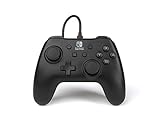
- Matte black design
- Ergonomic controller shape with Nintendo Switch button layout
- Instant plug and play connection (no sync required)
- Detachable 10ft (3m) USB cable with Velcro strap
- Disconnect the controller.
- Hold Xbox, Menu and View while reconnecting it to a Windows 10/11 PC.
- Wait for the LED to flash.
- Rotate each analog stick fully three times.
- Fully press each trigger three times.
- Press D-pad Down and Y together to finish.
This is model- and firmware-dependent calibration, not a universal reset. Calibration may correct an incorrect center reading or response curve, but it will not restore a physically worn stick, damaged button membrane or failing cable.
PowerA also provides a model-specific Xbox Enhanced Wired Controller firmware recovery. It returns certain legacy Xbox Enhanced controllers to factory specifications and is not a general update; the article excludes Fusion Pro 2 for Xbox Series X|S.
Can you use a paper clip in a reset hole?
Only if the manual for your exact model explicitly identifies a reset hole and supplies the procedure. PowerA documents paper-clip resets for some wireless controllers, including instructions in its Nintendo Switch 2 FAQ and a wireless Xbox controller manual. Do not insert a paper clip into an unlabeled opening on a wired controller.
Rank #4

- Quick-Twist Thumbsticks – Easily adjust the height for each thumbstick in the middle of a game with a simple twist: no need to swap out parts. Three height settings for each thumbstick let you customize them to your gameplay style
- Hall Effect Modules – Contact-free magnetic sensors in the thumbsticks provide a more fluid pro-level feel to help with precision and longevity
- Advanced Gaming Buttons – Get an edge over the competition with 4 mappable buttons that you can program on the fly, mid-game—no system settings to configure
- 3-Way Trigger Locks – Set the travel distance of the triggers with three different positions to pull off quicker actions in your favorite FPS games or go full throttle in a high-end race car
- Immersive Gaming – Dual rumble motors and impulse triggers add lifelike tactile details to your games while a 3.5mm stereo jack delivers clear dynamic audio*
When the problem is probably hardware
- No light or detection on several known-good ports and compatible systems.
- Disconnects when the cable moves, suggesting a damaged cable, connector or USB port.
- A detachable cable works only intermittently; replace it with a matching data-capable cable.
- A permanently attached cable is damaged; a cable swap is not possible.
- One button or stick remains faulty after assignment clearing and compatible testing.
Do not open the controller before checking warranty terms. Contact PowerA support with the model, SKU, purchase information and troubleshooting results. Current wired-model manuals reviewed for this guide state a 2-year limited warranty, subject to the applicable product and region.
If replacement is necessary, check PowerA’s official Nintendo Switch wired-controller and Xbox Series X|S controller categories after confirming compatibility. A replacement is unnecessary when only an AGL/AGR mapping needs clearing.
Quick Recap
Quick checklist
- Identify the exact model and platform.
- For wrong rear-button actions, use the model-specific Program sequence.
- For no connection, unplug both ends, restart the host, reconnect directly and try another port.
- Use the correct app: Gamer HQ for supported Xbox controllers; PC HQ for supported OPS/Battle Dragon PC controllers.
- Calibrate only when the model and firmware support it.
- Do not treat a wireless paper-clip procedure as a wired-controller reset.
- Escalate persistent cable, USB, button or stick faults to warranty support or replacement.
Product prices and availability are accurate as of the date/time indicated and are subject to change. Any price and availability information displayed on Amazon at the time of purchase will apply.




