Apple does not currently document a separate Game Center-only delete button on iPhone. To stop using the service on this device, open Settings > Game Center > Sign Out. Signing out is not the same as deleting your Apple Account, erasing every game save, or deleting a publisher’s account.
The right action depends on what you are trying to remove: Game Center access, public activity, one game, a game-specific profile, the phone’s contents, or all Apple data.
Sign out of Game Center on your iPhone
- Open Settings.
- Tap Game Center.
- Scroll down and tap Sign Out.
- Confirm if iPhone asks you to do so.
Apple lists this as the current account action in its iPhone guide: Change game-related settings on iPhone. Before signing out, note the Apple Account shown on the Game Center screen if you may need to restore your games later. Menu names can vary by iOS version, language, region, and device.
What signing out changes—and what it does not
Signing out stops this iPhone from using the Game Center profile until an Apple Account is signed in again. While signed out, Game Center social features such as friends, challenges, leaderboards, achievements, and multiplayer invitations may not be available on the device.
Recommended Free Tools
#1 Best Overall

- The iRecovery Stick extracts messages, call history, contacts, web history, calendar appointments, photos, voice memos, email accounts, and map history directly from iPhone and iPad devices. Running entirely from the USB stick with no software installed on the device or computer, it leaves no trace that an extraction was performed.
- Uncover images concealed using photo-hiding apps and use the iSearch keyword function to search for specific words, names, phone numbers, or symbols across the entire device at once, eliminating the need to manually browse through individual apps and folders. Bookmark important findings and export content for reporting and analysis.
- The iRecovery Stick processes phone backup files stored on your Windows PC or copied from a Mac computer. If a device was backed up to a computer before items were deleted, those items may still be recoverable from the backup. Photos sent in text message conversations but deleted from the photo library may also be recovered if the conversation was not deleted.
- The iRecovery Stick requires physical access to the target device. The user must be able to disable the passcode, Touch ID, or Face ID before extraction begins. If the device was previously backed up to a computer using a password, that password will also be required to process the backup data.
- Use the iRecovery Stick on as many iPhone and iPad devices as needed with no per-device fees. Free lifetime updates ensure ongoing compatibility with future iOS versions, backed by 25+ years of data software expertise from Paraben Consumer Software.
Supported games can synchronize progress, high scores, and saves through iCloud and Game Center, but this is game-dependent. Apple explains the requirement for supported titles in its iCloud and Game Center guidance. If progress appears to vanish after signing out, signing back in with the same account may restore access; do not delete the game or erase the phone until you know where its save is stored.
- Signing out does not delete installed games.
- It does not automatically delete a game publisher’s login, purchases, character, or cloud data.
- It does not cancel Apple Arcade or other subscriptions.
- It does not delete your Apple Account, iCloud, App Store history, or purchases.
- Apple’s sign-out instructions do not establish that historical Game Center records are permanently erased.
Choose the action that matches your goal
| Your goal | Use this action | What to expect |
|---|---|---|
| Stop using Game Center on this iPhone | Settings > Game Center > Sign Out | The profile remains associated with the Apple Account and can be used again by signing in. |
| Hide your gaming activity | Set Activity Sharing to Only You | Changes visibility; it does not necessarily erase existing scores or achievements. |
| Block multiplayer or friend features | Game Center controls or Screen Time restrictions | Limits features without deleting the profile. |
| Remove one game from the iPhone | Delete the game from Apple Games or the Home Screen | Removes the app; cloud saves and publisher data may remain. |
| Reset a game or delete its account | Use the game’s account settings or contact its developer | Game Center sign-out does not control every third-party account. |
| Prepare the phone for another person | Back up, sign out of Apple services, then erase all content and settings | Erases the device, not content already stored in iCloud. |
| Delete all Apple data | Apple’s Data and Privacy account-deletion process | Broad, potentially irreversible loss of Apple services and associated data. |
Hide your Game Center identity instead of signing out
If privacy is the concern, less destructive controls may be enough. In Settings > Game Center, set Activity Sharing to Only You, where that option is available. Apple also provides controls for friend-list access, friend discovery by email address or phone number, invitations from nearby players, and related multiplayer features. See Apple’s Game Center settings guide.
You can also change the public nickname or avatar through Game Center settings or the Apple Games app, as described in Apple’s Game Center profile guide. A new nickname, hidden activity, or a removed friend does not guarantee that old achievements, scores, or Apple-held records are deleted.
Restrict Game Center features with Screen Time
For a child-managed or shared iPhone, use restrictions rather than account deletion:
Do these 3 things before closing this tab:
1Fix the driver behind crashes, sound loss and screen glitches2Repair Windows errors before they cause bigger problems3Scan for outdated or missing drivers - takes under a minuteRank #2

- J-BOX Unlock Box Automatic iOS Jailbreak & Flash Tools For Bypass ID iCloud NEW
- Open Settings and tap Screen Time.
- Tap Content & Privacy Restrictions.
- Open App Store, Media, Web & Games, then Game Center.
- Adjust the available controls for multiplayer games, adding or connecting with friends, private messaging, nearby multiplayer, screen recording, profile-privacy changes, and avatar or nickname changes.
Apple documents these controls at Use parental controls on your iPhone or iPad. Restrictions limit actions; they are not a request to erase Game Center data.
Delete one game from your iPhone
To remove an installed title, Apple’s current Apple Games instructions are:
- Open the Apple Games app.
- Tap Library.
- Touch and hold the game.
- Tap Delete Game.
See View and manage your game library in the Apple Games app. This removes the app from the iPhone, not the Game Center profile. Local save data may be removed, retained, or restored after reinstalling depending on the game. iCloud saves and a publisher’s online account can remain untouched.
Delete a game-specific account or progress
First identify which data you mean:
- Game Center data: achievements, leaderboards, friends, and challenges linked to the Apple Account.
- Publisher account: the game’s login, character, purchases, social identity, or online inventory.
- Save data: a local file, iCloud data, or a server-side save, depending on the developer.
Use the game’s in-app account or privacy settings, its documented reset process, or the developer’s support channel. Do not assume deleting the app deletes cloud data, and do not assume Game Center sign-out deletes a publisher account.
What’s actually slowing this PC down?
Pick the symptom - the matching free tool is one click away.
Rank #3

- Compatibility: Specifically designed for the iPhone X model.
- Face ID Repair: Use this flex cable to fix Face ID issues and restore functionality.
- Seamless Integration: Works with the iCopy Plus Programmer and the Face ID Recovery and Activation Board for a comprehensive Face ID repair solution.
- Premium Replacement: Crafted with high-quality materials for durability and long-lasting performance.
- Easy Installation: Designed for a perfect fit and seamless operation with your iPhone X.
When you are selling or giving away the iPhone
Signing out of Game Center alone is not a secure transfer procedure. Apple recommends backing up, moving your information to the replacement device, signing out of the Apple Account and related services, and then choosing Erase All Content and Settings. Follow Apple’s iPhone sale, giveaway, and trade-in guidance.
Erasing the iPhone turns off services including Game Center on that device. It does not delete photos, documents, or other content that is already stored in iCloud.
Deleting the Apple Account is a different, last-resort action
Apple’s Data and Privacy tools let you request a copy of your information, temporarily deactivate an Apple Account, or permanently delete the account and associated data. This is the broadest option and can remove access to Apple services, purchases, subscriptions, and other account data. Review Apple’s warnings and download anything you need first; it is not a Game Center-only reset.
Troubleshooting
“Sign Out” is missing
Make sure you are in Settings > Game Center, not only in the Apple Games app. Screen Time, Family Sharing, or a school or employer management profile may block profile or account changes. Check restrictions, update iOS, restart the iPhone, and try again. If the control remains absent or an error appears, contact Apple Support; there is no single fix for every managed-device or account state.
Free tools Windows power users keep installed
One-click scans. No signup required.
Rank #4
![FOOBONG for iPhone 12 Pro Max OLED Screen Replacement [NOT LCD] 6.7 inch](https://m.media-amazon.com/images/I/519jLfNm60L._SL160_.jpg)
- Compatibility : This for iPhone 12 Pro Max OLED screen replacement full assembly is only for iPhone 12 Pro Max 6.7 inch black. Model: A2411, A2342, A2410, A2412. Replace any for iPhone 12 Pro Max display damage, replacing cracked, broken, dead pixel, damaged, touch response issues, wrong color issues, non-functioning screen
- OLED Screen : This for iPhone 12 Pro Max replacement screen is an OLED display, the quality just like the original. With its ultra-thin frame, perfect fit for iPhone 12 Pro Max. Four-layer FPC makes high gamut true color. HDR brightness of OLED digitizer is better than LCD screen
- Premium Quality : All for iPhone 12 Pro Max screen replacements OLED are inspected by the professional QC team before shipping to ensure the quality
- About Face ID : Face ID only works with the original earpiece sensor, when make the replacement, you need to transmit the original earpiece from the old screen to our new OLED screen for iPhone 12 Pro Max
- Note : 1. Before testing, please disconnect the power and unplug the battery to ensure that the screen will not turn black due to a short circuit. 2. Do not pull or tug on flexible cables to avoid 90 degree bending, otherwise it may cause black screen, blurring or inability to display. 3. Clean the screen with alcohol before installation, keep it flat, avoid unevenness that may damage the screen, and confirm that it is well connected before testing the screen's operation
The wrong Apple Account is shown
Do not sign out impulsively if game progress matters. Record the account shown and verify which account your games and iCloud use. Supported progress may only return when the original account is used.
A game still recognizes me after Game Center sign-out
The title may use its own publisher login, a console account, or server-side credentials. Sign out or request deletion inside that game or through its developer.
The old save returns after reinstalling
The game may be restoring an iCloud or server save. Check the game’s save-management options and developer instructions before deleting anything further.
Independent reader supportYour contribution helps us test, update, and keep practical guides available for everyone.Frequently Asked Questions
Can I permanently delete only my Game Center account?
Apple’s current iPhone documentation provides Sign Out but does not document a separate self-service Game Center-only deletion button. Permanent Apple Account deletion is much broader.
The Tool Desk
Outbyte PC Repair FREERepair Windows errors before they cause bigger problemsFix Now →Outbyte Driver Updater FREEScan for outdated or missing drivers - takes under a minuteDriver Scan →Best Value
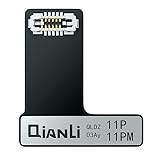
- iPhone 11 Pro/11 Pro Max Compatibility: This repair flex cable is specifically designed for the iPhone 11 Pro and 11 Pro Max models.
- Comprehensive Face ID Repair: Use the Cybirt iCopy Face ID Repair Ribbon along with the iCopy Plus and the Face ID Recovery and Activation Board for a complete solution to repair Face ID issues.
- Perfect Fit and Seamless Operation: The flex cable is specifically designed for the iPhone 11 Pro/11 Pro Max, ensuring a perfect fit and optimal performance.
- Versatile Functionality: When used with the iCopy Plus, the flex cable can read, write, detect, and burn data, offering versatile capabilities for Face ID repair.
- Enhance Your Repair Capabilities: Take your iPhone repair services to the next level with the Cybirt iCopy Face ID Repair Ribbon for iPhone 11 Pro/11 Pro Max. Upgrade your toolkit and provide comprehensive Face ID repair solutions.
Will signing out delete my achievements?
Signing out removes active access on that iPhone, but Apple’s instructions do not say it permanently erases achievements, scores, or other historical records.
Does deleting a game delete its Game Center account?
No. Deleting the app is separate from Game Center and from the developer’s account and cloud data.
The Bottom Line
For most people, use Settings > Game Center > Sign Out. Hide activity instead if privacy is the goal, use the developer for a game-specific deletion, and back up and erase the entire iPhone when transferring it to someone else.
Quick Recap
Product prices and availability are accurate as of the date/time indicated and are subject to change. Any price and availability information displayed on Amazon at the time of purchase will apply.




