Windows Errors? Fix Them Before They Spread
Repair common Windows errors and clear accumulated junk for a smoother, more stable PC - no reinstall needed.Free scan · no reinstallOutdated Drivers Are Slowing You Down
One free scan finds every outdated or missing driver and matches the right update for your exact hardware.Free scan · exact hardware matchYou can’t assign Warzone a fixed amount of system RAM through a supported game setting. Windows manages memory as the game needs it. If memory pressure is causing stutter or crashes, close unnecessary apps, check the page file, or upgrade compatible RAM; if the limit is your GPU, VRAM, CPU, or network, more system RAM may not help.
Activision’s PC requirements, updated March 11, 2026, list 8 GB RAM as minimum, 12 GB for the recommended configuration, and 16 GB for competitive/high-refresh and Ultra 4K configurations. Those are requirements, not a promise of a particular frame rate. See Activision’s current Warzone PC requirements.
Can you allocate more RAM to Warzone?
No supported Warzone setting lets you reserve a chosen amount of system RAM for the game. Windows allocates memory dynamically among Warzone, itself, drivers, and other running applications. There is no Task Manager control that assigns Warzone a fixed RAM quota.
A page file is disk-backed virtual memory, not additional physical RAM. It can give Windows more committed-memory capacity and help prevent allocation failures, but it is much slower than RAM and is not an FPS upgrade. Microsoft explains the relationship between physical storage and virtual memory in its virtual address space and physical storage documentation.
Recommended Free Tools
#1 Best Overall

- Blazing Fast 3200MHz Speed & Low Latency: Unleash your system's full potential with a lightning-fast 3200MHz frequency and tight CL16-18-18-42 timings. Experience smoother gameplay, faster application loads, and superior multitasking compared to standard 2666MHz or 3000MHz memory.
- High-Capacity 32GB (2x16GB) Kit: This dual-channel kit is the ideal upgrade for modern gaming and demanding software. With 32GB of DDR4 RAM, run memory-intensive games, stream seamlessly, and handle video editing, 3D rendering, and heavy multitasking without slowdowns.
- Wide Compatibility & Ready for Intel XMP 2.0: Features pre-programmed Intel XMP 2.0 profiles for automatic, hassle-free overclocking. Simply enable XMP in your BIOS to instantly run at the advertised 3200MHz speed. Also compatible with AMD Ryzen platforms for a stable, high-performance experience.
- Enhanced Stability & Cooling: Engineered with a high-quality PCB and rigorous testing to ensure reliable performance and long-term stability. The efficient aluminum heat spreader effectively dissipates heat, preventing thermal throttling even during extended gaming sessions or heavy workloads.
- Easy Installation & Lifetime Warranty: A simple plug-and-play upgrade that breathes new life into your desktop PC. We stand behind our product with a limited lifetime warranty, guaranteeing your investment and providing peace of mind.
Avoid undocumented launch commands, configuration-file edits, and third-party “RAM allocation” or cleaner tools. They do not provide a supported way to give Warzone more physical RAM and can introduce instability, stutter, or settings resets.
How much RAM does Warzone need?
| Installed system RAM | Practical interpretation |
|---|---|
| 8 GB | Activision’s listed minimum. Windows and background applications have little headroom, so multitasking and gameplay may feel sluggish. |
| 12 GB | Activision’s recommended configuration for 60 FPS in most situations at high settings. |
| 16 GB | Activision’s listed amount for competitive/high-refresh and Ultra 4K configurations; also a reasonable minimum for a focused gaming PC. |
| 32 GB | A practical headroom target for Warzone alongside Discord, browser tabs, recording software, launchers, or overlays. It does not guarantee higher average FPS. |
| 64 GB | Usually unnecessary for Warzone alone; more useful for heavy multitasking, production workloads, virtual machines, or other memory-intensive tasks. |
The 8 GB minimum, 12 GB recommended configuration, and 16 GB competitive/Ultra 4K figure are from Activision’s requirements page, updated March 11, 2026. For most modern Windows gaming systems, 16 GB is a sensible floor and 32 GB offers more room for multitasking; that 32 GB guidance is practical advice, not an official requirement.
Rank #2

- Extreme performance DDR4 notebook memory for laptop gamers and performance enthusiasts with systems that support XMP 2.0
- Superior gaming with quicker response times and better visuals for a better gaming experience
- XMP 2.0 support delivers easy overclocking once activated, will run at slower speeds if system does not support XMP 2.0
- Exceptional overclocked 3200MHz performance, and backwards compatible with lower frequencies
- CAS Latency of 20, 1.2 Volts
Check whether RAM is causing your stutters
- Start Warzone and use its benchmark, firing range, or a repeatable location in a match.
- Press Ctrl + Shift + Esc to open Task Manager, then select Performance → Memory.
- Note total installed RAM, in-use and available memory, and committed memory. Compare the readings with Warzone closed and while playing; watch whether committed memory approaches the displayed limit.
- In Task Manager’s Processes view, sort by Memory to find browsers, launchers, recording tools, and overlays using substantial memory.
- Likely memory pressure: RAM is close to full, the disk is busy, the desktop becomes sluggish, or frame times vary substantially. If stutters ease when background apps are closed, that also points to pressure.
- Likely GPU limit: GPU utilization is high while system RAM still has room. Reduce GPU-heavy settings or investigate the graphics card and its VRAM.
- Possible CPU limit: A CPU core or thread is saturated while GPU utilization is low. More RAM alone is unlikely to resolve it.
- Not a RAM fix: Network latency, packet loss, or server performance are not corrected by changing memory allocation.
Free memory before buying anything
- Close unneeded browser tabs, launchers, RGB utilities, hardware monitors, recording apps, and overlays, then test again.
- Disable startup programs you do not need during a match and avoid running a large download or cloud sync at the same time.
- If memory use remains unusually high after closing apps, restart Windows and retest before changing settings.
- Avoid “RAM cleaner” utilities. Forcibly emptying standby memory can cause Windows to fetch data from disk again, adding disk and CPU activity.
- Keep Windows and graphics drivers current. Check Activision’s live Warzone PC troubleshooting guidance for current driver and system advice rather than relying on a driver number that may become outdated.
Upgrade RAM the right way
If testing shows memory pressure, consider at least 16 GB for a dedicated gaming system. A matched 2×16 GB kit is a practical 32 GB choice when you play with Discord, a browser, capture software, or other demanding apps open. Buy only after checking your platform’s compatibility.
- Confirm your motherboard and CPU support the memory type and capacity. DDR4 and DDR5 are not interchangeable.
- Check laptop upgradeability first: some models have soldered memory or only one accessible slot.
- Where supported, two matched modules generally enable dual-channel operation. Mixing modules can reduce speed or prevent the advertised memory profile from working.
- After installation, confirm Windows recognizes the full capacity. XMP on Intel platforms or EXPO on compatible AMD platforms may enable a supported memory profile; names and menus vary by motherboard.
- Test stability after enabling a profile. If crashes begin, return to default settings or select a lower supported speed.
Capacity, a compatible dual-channel configuration, and stability matter more than chasing extreme memory speeds. Faster RAM will not fix a system limited by its GPU, CPU, or VRAM.
Do these 3 things before closing this tab:
1Scan for outdated or missing drivers - takes under a minute2Clear out junk files and repair common Windows errors3Fix the driver behind crashes, sound loss and screen glitchesRank #3

- Capacity – 32GB RAM KIT (2 x 16GB Modules) Speed up to 3200MHz Non-ECC Unbuffered 260-Pin 1.2V SODIMM.
- Specs – PCB Color (Green or Black, or Blue) and Rank (1Rx8 or 2Rx8) may vary depending on production batch. Performance and quality remain consistent across all Timetec products. 3200MHz Memory RAM can automatically downclock to 2933MHz or 2666MHz if system specification only supports 2933MHz or 2666MHz.
- Compatibility – Designed for selected DDR4 Laptop, Notebook, Mini PCs, and All-In-One systems(AIO) that support 260-Pin SODIMM memory. NOT compatible with Desktop DIMM slots.
- Installation – Plug-and-Play Upgrade, Quick and Easy to Install, no expertise required (please refer to your system's manual for guidelines).
- Warranty – All Timetec products are high-quality and rigorously tested to meet stringent standards. Backed by Timetec Limited Lifetime Warranty and professional technical support based in the United States.
Configure the Windows page file safely
Use system-managed sizing by default
Leave Windows set to manage the paging file automatically unless you are troubleshooting a specific allocation error. To check the setting in Windows 10 or 11:
- Press Win + R, enter
sysdm.cpl, and press Enter. - Open Advanced. Under Performance, select Settings, then open that dialog’s Advanced tab.
- Under Virtual memory, select Change.
- Prefer Automatically manage paging file size for all drives. If setting it for a drive, select the system or game SSD and choose System managed size; select Set, then OK.
- Restart if Windows requests it.
For persistent memory-allocation errors
Microsoft documents a manual page-file workaround for allocation errors associated with slow page-file growth. It is troubleshooting guidance, not a universal gaming optimization. In the same Virtual Memory dialog, clear Automatically manage paging file size for all drives, select the relevant drive, choose Custom size, and set the initial size to approximately 1.5 times installed RAM. Apply the change and restart. If errors continue, Microsoft advises increasing the initial size. The calculation examples below are approximate conversions of that guidance:
Rank #4
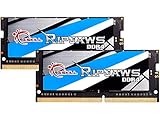
- G.SKILL Ripjaws DDR4 SO-DIMM Series DDR4 SO-DIMM Memory Kit, Model: F4-3200C22D-32GRS
- Non-ECC, DDR4 SO-DIMM, 260-pin, for Laptop/Notebook
- Do not mix memory kits. Memory kits are sold in matched kits that are designed to run together as a set. Mixing memory kits will result in stability issues or system failure.
- Refer to G.SKILL memory QVL or RAM Configurator tool on the G.SKILL website for more details on validated motherboard and hardware.
- Usage in any manner inconsistent with manufacturer specifications, warnings, designs, or recommendations will result in lower speeds, system instability, or damage to the system or its components.
| Installed RAM | Approximate initial page-file size |
|---|---|
| 8 GB | 12,288 MB |
| 16 GB | 24,576 MB |
| 32 GB | 49,152 MB |
These figures are not required settings for every PC. See Microsoft’s instructions on memory allocation errors caused by slow page-file growth. Keep the page file enabled and leave enough free space on the drive; disabling it can reduce commit capacity.
Independent reader supportYour contribution helps us test, update, and keep practical guides available for everyone.Make sure the problem is not VRAM
System RAM is the computer’s main memory. VRAM is dedicated graphics-card memory. Resolution, textures, shadows, lighting, and texture streaming can put pressure on VRAM even when system RAM is available. An in-game video-memory target is a graphics-memory budget, not a control that allocates system RAM.
If you see texture warnings, graphics-memory errors, or stutter as assets stream, try lowering texture quality or resolution, reducing the video-memory target if the current build offers one, or reducing/disabling on-demand texture streaming. In Warzone, open Settings → Graphics → Quality and look for texture-streaming and video-memory controls; exact labels and options can differ by game build. Adding system RAM may not resolve a VRAM limit.
Test changes for consistency, not just peak FPS
- Before changing anything, record average FPS, 1% lows, RAM use, VRAM use, and GPU and CPU utilization during a repeatable segment.
- Change one setting or hardware variable at a time. Restart Warzone if the game requires it.
- Repeat the same benchmark or comparable gameplay segment and compare frame times, 1% lows, and stability as well as average FPS.
- Keep a change only if it improves consistency or resolves crashes without creating a new problem.
A high average FPS can still feel poor if 1% lows worsen or traversal stutter persists. Test through a full match, not just the menu or firing range.
Quick Recap
If Warzone still stutters or crashes
- Compare your PC with Activision’s current requirements. The page lists an SSD and 116 GB available at launch; updates may require additional space.
- Install current Windows updates and graphics drivers, using Activision’s PC troubleshooting guidance for current advice.
- Verify or repair game files in the launcher you use, and temporarily disable overlays to test whether one is involved.
- Close background applications, then check Task Manager’s Memory view and the committed-memory limit. Confirm the page file is enabled and the drive has free space.
- If GPU memory is constrained, reduce textures or streaming settings rather than changing the system page file.
- If the issue started after enabling XMP, EXPO, or an overclock, test at stock BIOS settings. After a game or driver update, allow shader compilation to finish before judging performance.
- Only consider an antivirus exception as a controlled troubleshooting step and follow Activision’s guidance. Exclusions reduce scanning coverage, so do not add them casually.
- If the problem began after a patch, check the Warzone support hub for current known issues before treating it as a RAM problem.
Quick guidance by installed RAM
- 8 GB: This is the listed minimum, but headroom is limited. Close background apps and consider a compatible upgrade if you want to play comfortably.
- 16 GB: A reasonable focused-gaming configuration. If memory usage is regularly near capacity or you multitask, 32 GB may improve headroom and consistency.
- 32 GB: If plenty remains available during gameplay, investigate GPU/VRAM, CPU, drivers, shaders, storage, or network conditions instead of adding RAM automatically.
- 64 GB: Usually more than Warzone alone needs; consider it for other demanding workloads, not as a guaranteed FPS upgrade.
Product prices and availability are accurate as of the date/time indicated and are subject to change. Any price and availability information displayed on Amazon at the time of purchase will apply.




