The Tool Desk
Outbyte PC Repair FREERepair Windows errors before they cause bigger problemsFix Now →Outbyte Driver Updater FREEScan for outdated or missing drivers - takes under a minuteDriver Scan →The Stealth 700 Mode button does not do the same thing on every generation. On standard Stealth 700 Gen 2 Xbox and PlayStation headsets, a quick press toggles Superhuman Hearing by default. On Gen 3, the button is remappable in Turtle Beach’s Swarm II app. The original Stealth 700 uses a different control layout, and Gen 2 MAX behavior can depend on the edition and connection mode—so identify your headset before following button instructions.
Identify your Stealth 700 first
Check the model name on the headset, box, or purchase listing. “Stealth 700” alone is not enough to determine what a button does.
- Stealth 700 Gen 2: The Xbox and PlayStation editions have a Mode button, a mappable wheel, a volume dial, a Bluetooth multifunction button, and a charge/update port. The Xbox quick-start guide shows this layout: Turtle Beach Stealth 700 Gen 2 Xbox Quick Start Guide.
- Stealth 700 Gen 2 MAX: The Mode button and lower wheel are mappable, but the controls available can vary between Xbox transmitter mode and USB mode. Consult the guide for your exact MAX edition rather than assuming it behaves exactly like standard Gen 2.
- Stealth 700 Gen 3: This generation uses Swarm II for customization. Turtle Beach describes it as compatible with Xbox, PlayStation, PC, Steam Deck, and Bluetooth-equipped mobile devices, with edition-specific platform behavior: Stealth 700 Gen 3.
- Original Stealth 700: The original Xbox One and PS4 headsets have a different control layout. Their documentation describes a dedicated Superhuman Hearing control rather than the Gen 2-style Mode-button system. See the original Xbox controls or original PS4 quick-start guide.
What the Mode button does by default
| Headset | Default or documented behavior | Customization |
|---|---|---|
| Stealth 700 Gen 2 Xbox | A quick press toggles Superhuman Hearing on or off. | Mode button can be reassigned in the Audio Hub mobile app. |
| Stealth 700 Gen 2 PlayStation | A quick press toggles Superhuman Hearing on or off. | Mode button can be reassigned in the Audio Hub mobile app. |
| Stealth 700 Gen 2 MAX | Mode button is mappable; a universal factory assignment is not established across editions and connection modes. | Use the instructions for the exact MAX edition and mode. |
| Stealth 700 Gen 3 | Remappable. Turtle Beach lists EQ preset selection, PC multimedia controls, noise gate, and chat boost among supported functions. | Swarm II; available options depend on edition, platform, app state, and firmware. |
| Original Stealth 700 Xbox One / PS4 | Separate Superhuman Hearing control in the original layout, not the Gen 2 Mode-button arrangement. | Follow the original model’s documentation. |
For standard Gen 2, the Xbox default and mapping details are in Turtle Beach’s Xbox mappable-buttons guide; the PlayStation equivalents are in its PlayStation mappable-buttons guide.
Do not assume the Stealth 700 Gen 2 Mode button cycles EQ presets. Turtle Beach’s Gen 2 Stealth 700 documentation identifies Superhuman Hearing as its default function; EQ cycling appears in documentation for some Stealth 600 Gen 2 models, which are a different headset: Stealth 600 Gen 2 Xbox Quick Start Guide.
#1 Best Overall

- COMPATIBILITY: Fit perfectly on Microsoft Xbox Series Wireless Headset(Xbox X|S, Xbox One,)
What Superhuman Hearing changes
Turtle Beach describes Superhuman Hearing as audio processing intended to make subtle in-game sounds—such as footsteps and weapon reloads—easier to pick out. That is the feature’s stated purpose, not a guarantee that you will detect every cue or perform better.
Because the mode emphasizes selected sounds rather than preserving a neutral presentation, it may sound less natural. Try it for a competitive match if you find the effect useful; turn it off for music, films, or games where you prefer the ordinary mix. Gen 2 EQ choices documented by Turtle Beach include Signature Sound, Bass Boost, Bass + Treble Boost, and Vocal Boost. Compare the sound you prefer rather than treating the most processed option as automatically best.
Rank #2
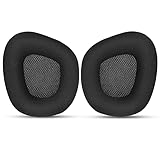
- 【Perfectly Compatibility】The ear pads cushions replacement perfectly fit on your Corsair Void & Corsair Void PRO RGB / CorsairVoid Elite & Surround Wired & Wireless RGB Gaming Headsets, make it a brand new look.
- 【Superior Material】The corsair void earpads are made of durable mesh fabric, which have a soft surface and comfortable touch, enjoy long gaming sessions without the pain with the Corsair Void series headset.
- 【Excellent Noise Isolation】The headphones ear cushions constructed of premium memory foam, this headphone ear covers set insulates your ears with a perfect fit, enhance noise blocking, forms an important acoustic seal, which brings you more quietness.
- 【Easy to Install】No special tools are needed with a easy installation. Just remove the broken earpads, then put new earpads inside the headphone ear cups, snap the earpads easily into place.
- 【Satisfaction Guarantee】GEVO for corsair void earpad replacement package included: 2 x ear pads( SIZE: 4.3 * 3.9 * 1.2 inches), 4 x wipe pad. Please contact us for replacements or refunds if there is any issue with your purchase, we will reply you within 24 hours.
Use or remap a Gen 2 Mode button
Toggle the factory function
- Turn on the headset.
- On a standard Gen 2 Xbox or PlayStation model, press the Mode button once briefly.
- Listen for a confirmation tone or prompt if you have them enabled, then compare the sound with Superhuman Hearing off.
- Press the button again to switch back. If the button was remapped, it will perform its assigned function instead.
Change the assignment in Audio Hub
- Install the Turtle Beach Audio Hub mobile app on an iOS or Android device.
- Turn on Bluetooth on the phone or tablet and pair the headset with it.
- Open Audio Hub and swipe to the second settings screen.
- Tap the arrow beside the Mode button or other control you want to change.
- Select a supported function. The headset saves the new configuration.
These steps are documented for Gen 2 Xbox and Gen 2 PlayStation. If you have Gen 2 MAX, verify the instructions for your MAX edition and transmitter mode.
Customize a Gen 3 Mode button
Gen 3 uses Turtle Beach’s Swarm II desktop/mobile app, not the Gen 2 Audio Hub instructions above. Open the headset’s controls in Swarm II and assign the Mode button to one of the functions the app offers. Turtle Beach lists EQ preset selection, PC multimedia controls, noise gate, and chat boost as possible assignments, but does not establish one universal press, double-press, or long-press chart for every edition and firmware. Follow the controls shown for your connected headset in Swarm II.
Free tools Windows power users keep installed
One-click scans. No signup required.
Rank #3

- Experience the FreeZe: Do your ears get hot after several hours of using your headphones? WC FreeZe cooling gel ear pads compatible with Sony Playstation 5 Pulse 3D Wireless Headset keep your ears cool for longer periods of time. A combination of Dual Layer cooling gel (interior layer, top layer), and a breathable hybrid of sports fabric and leather help you get through those long listening sessions
- Enhanced Comfort, Larger Ear Opening, and Increased Thickness: Our professional-grade PU leather is partnered with an extremely breathable sports fabric, ensuring these earpads provide long-term, crack-free comfort. Specifically designed with a larger ear opening, these cushions perfectly accommodate various ear sizes. To further enhance your experience, we've increased the thickness of the earpads for maximum comfort. Ideal for extended gaming or listening sessions.
- Enhanced Sound: Your old, beat-up ear cushions are negatively affecting the sound performance of your headphones. With Dual Layer cooling gel and improved memory foam, these earpads comfortably conform to your ear, blocking out noise and dialing in the sound, so you can drift off into the beats
- Easy Installation: Detailed, step-by-step video will guide you through removing your old ear pads and installing your brand new WC FreeZe PS5 Replacement Earpads, making the entire process short and pain-free
- Fits Like a Glove: These upgraded replacement earpads were made to be compatible only with the Sony Playstation 5 Pulse 3D headset
Do not confuse Mode with the other controls
| Control | What to know |
|---|---|
| Mode | On standard Gen 2, toggles Superhuman Hearing by default and can be remapped. On Gen 3, it is remappable through Swarm II. |
| Power | Turns the headset on or off; original models may use power-button actions for other features. It is not the Mode control. |
| Bluetooth multifunction button | Handles Bluetooth-related functions; it is separate from Mode. |
| Connect or pairing control | Used for wireless pairing or connection, depending on model. |
| Volume dial | Separate from the Mode button. On Gen 2 Xbox, the upper dial controls game/headset volume. |
| Lower mappable wheel | On Gen 2 Xbox its factory assignment is chat volume; on Gen 2 PlayStation it defaults to variable mic-monitor volume, which lets you hear your own voice. |
| Transmitter or platform control | Platform switching depends on the model and transmitter. Gen 3’s CrossPlay Dual Transmitter is distinct from the Mode button. |
See Turtle Beach’s Gen 2 Xbox quick-start guide and Gen 2 PlayStation quick-start guide for the edition-specific layouts.
Independent reader supportYour contribution helps us test, update, and keep practical guides available for everyone.Troubleshoot a Mode button that seems unresponsive
Check whether it was remapped
Reconnect the headset to the correct app and inspect the Mode-button assignment. If it is set to another supported function, restore the factory function if that choice is offered. Power-cycle the headset and test again; app versions do not all present the same reset controls.
Rank #4

- Premium Leather Look: The replacement ear cushions for your on-ear headphones feature durable faux leather on the outside and soft foam padding on the inside for maximum comfort and protection.
- Refresh Like New: The replacement ear pad set is the ideal solution to replace damaged, worn or lost cushions and give your on-ear headphones a fresh feel and improved comfort.
- COMPATIBILITY: Compatible with Recon 70 / Recon 50 60P / Stealth 500 / 600 / 700
- Easy Installation: For fitting the headphone pads, simply align the covers with the matching retaining rings on the earcups, remove the old cushions and press the new ones into place.
- Note on old Pads: Please consider the specific design of your headphone/headset model when removing the old foam cushions.
Confirm the model and app
A Gen 3 headset needs Swarm II for its customization workflow; Gen 2 mapping instructions use Audio Hub. An original Stealth 700 may not have the same Mode-button layout at all. Make sure the app is connected to the headset, not merely that the phone is paired with it.
Account for silent feedback and platform differences
If you hear no confirmation, the assignment may still have changed: older Audio Hub documentation says tone levels can be adjusted, and setting tones to minimum can make them inaudible. Platform and connection mode also affect what controls are available. For example, Turtle Beach says Gen 2 Xbox controls behave differently on PC and separate game/chat control is not available there in the same way as on Xbox. See its Gen 2 Xbox PC compatibility guide. The Gen 2 PlayStation PC guide explains its PC setup.
Windows Errors? Fix Them Before They Spread
Repair common Windows errors and clear accumulated junk for a smoother, more stable PC - no reinstall needed.Free scan · no reinstallOutdated Drivers Are Slowing You Down
One free scan finds every outdated or missing driver and matches the right update for your exact hardware.Free scan · exact hardware matchBest Value

- 🎧ESPECIALLY MADE for PS5 Pulse 3D Wireless Headset only. Please confirm your headset model before purchase.
- 🎧FLAWLESS INSTALLATION: Besides the earpads and a user guide, you will get a plastic tool, making the entire installation easy and fast (usually 5 mins).
- 🎧OUR INGENUITY: Adopting the High-density foam and the High-grade protein leather, our earpads will seal around your ears brilliantly, ensuring you an excellent gaming experience.
- 🎧TIME TO CHANGE YOUR OLD ONES: Your old earpads negatively affect the sound quality of your headphones, while our precisely modeled earpads will not affect the sound performance of your headphones and make your headphones look brand-new again.
- 🎧WE CONTINUE TO develop more professional and ergonomic earpads. Please contact us at any time if there is an issue with your purchase.
Refresh app or firmware state
For older models, Turtle Beach’s Audio Hub instructions describe connecting the headset to Audio Hub to update firmware and customize controls. Do not disconnect while an update is in progress: Xbox Audio Hub update and customization guide. For the original PS4 model, see the corresponding PS4 Audio Hub guide. Use the app and update instructions for your generation rather than applying an older headset’s procedure to Gen 3.
Choose an assignment that suits how you play
- Competitive matches: Keep Superhuman Hearing assigned if you prefer its emphasis on quiet cues; switch it off when it makes the mix harder to enjoy.
- Music and general media: Prefer a neutral or familiar EQ, or assign the button to a function you use more often.
- PC use on Gen 3: Multimedia controls may be convenient when supported by Swarm II for your edition.
- Team chat or streaming: Chat boost or noise gate may be useful Gen 3 assignments if they appear for your setup.
These are practical preferences, not evidence that one assignment improves performance for every game or listener.
Quick Recap
Product prices and availability are accurate as of the date/time indicated and are subject to change. Any price and availability information displayed on Amazon at the time of purchase will apply.



