Recommended Free Tools
To connect a DUALSHOCK 4 to Android over Bluetooth, turn the controller off, hold SHARE + PS until its light bar flashes, then open Settings → Connected devices → Pair new device and select Wireless Controller (or a similar DUALSHOCK 4 name). Sony documents DUALSHOCK 4 support for compatible devices running Android 10 or later, but the game or app must also support controllers.
What you need before pairing
- A DUALSHOCK 4 controller with some charge and an Android phone or tablet with Bluetooth.
- Sony’s documented compatibility baseline is Android 10 or later; this is not a guarantee for every device or game. See Sony’s DUALSHOCK 4 compatibility guidance.
- A game or app that accepts external controller input. Android recognizing the controller does not mean every game will use it.
- For wired play, a data-capable Micro-B USB cable and, if needed, an OTG adapter compatible with your phone’s port.
Google’s generic Android Bluetooth route is Settings → Connected devices → Pair new device. Manufacturers may place Bluetooth under headings such as Connections or Bluetooth; see Google’s Android controller and Bluetooth help.
Connect the DUALSHOCK 4 over Bluetooth
- Charge the controller if needed. It charges through its USB Micro-B port; a low battery can contribute to unreliable connections. Sony’s controller reference describes charging and device pairing.
- Disconnect its USB cable. If the light bar is on, hold the PS button until the controller turns off.
- Enter pairing mode. Hold SHARE and PS together until the light bar flashes.
- Open Android’s Bluetooth pairing screen. Use Settings → Connected devices → Pair new device, or your phone maker’s equivalent.
- Choose the controller. Tap Wireless Controller, DUALSHOCK 4 Wireless Controller, or the corresponding controller entry that appears while its light bar is flashing. Confirm the pairing prompt if one appears.
- Test it in a supported game or app. Sony says the light bar blinks during pairing and becomes steady when pairing completes. Check the sticks, D-pad, face buttons, shoulders and Options button in the app itself.
Android’s home screen is not a reliable test: a phone can pair successfully even if a particular game ignores gamepad input. When finished, hold PS until the light bar turns off to avoid leaving the controller on.
Connect it with a USB cable
- Connect a data-capable Micro-B cable to the controller.
- Connect the other end to the phone or tablet, using an OTG adapter if the device’s port requires one.
- Wait for Android to recognize the controller, then test it in an app that supports gamepads.
Wired input depends on the phone supporting USB host mode, the adapter supporting OTG and the cable carrying data—not just power. Android’s USB host documentation explains the host-peripheral relationship; actual compatibility depends on the device and its configuration. Sony also documents USB connections for supported devices in its DUALSHOCK 4 guidance.
#1 Best Overall

- Seamless Mobile Gaming Setup: Easily connect your PS4/DualShock 4 controller to your smartphone with this smart clip holder, delivering an authentic gaming experience on the go.
- Wide Compatibility: Compatible with PS4, PS4 Slim, and PS4 Pro controllers, and fits smartphones up to 6 inches wide (88mm), including iPhone and Android devices.
- Durable and Easy to Install: Made of high-quality ABS material, the holder securely snaps onto your controller with a satisfying click for hassle-free installation.
- Adjustable Viewing Angle: The mount’s adjustable range from 0 to 180 degrees lets you find the perfect angle for comfortable gaming sessions.
- Full Access to Controller Functions: Designed with a flexible clamp, this holder ensures all buttons, ports, and features remain fully accessible while your phone is mounted.
Know what “connected” means
There are three separate checks: Android has paired with the controller; the app accepts controller input; and the app maps the buttons the way you expect. Some games support full gamepad control, some accept only selected inputs or menus, and some do not support controllers at all. Check the game’s settings or support information if pairing succeeds but gameplay does not respond.
Use the controller with PS Remote Play
With compatible devices and app versions, a DUALSHOCK 4 can control PS Remote Play on Android. In this case, the PS4 runs the game and streams it to the Android device; the controller is connected to the Android device. This differs from a native Android game, which runs locally and needs its own controller support. Sony’s Remote Play support information, updated January 22, 2026, covers compatibility and restrictions. Some PS4 games or functions are unavailable through Remote Play, including titles requiring certain hardware such as PlayStation Camera. Do not assume every Android device or Remote Play version behaves identically.
Rank #2

- PS4 controller phone mount enables you to clip your cell phone, Android or Iphone to a PS4 dualshock 4 controller for a better gaming experience. Use the PS4 controller you've grown accustomed to as your chosen mobile game controller.
- PS4 controller mount is compatible with Iphone, HTC, Motorola, LG, Samsung Galaxy Series, Sony Xperia phones and other android smartphones. Connect the PS4 bluetooth controller with your IOS or Android device through Bluetooth for use with PS4 Remote Play.
- PS4 dualshock 4 phone mount can be adjusted to give the perfect viewing angle. Adjust the angle of the phone controller to rotate the screen from 0-180 degrees and beyond for the perfect remote play PS4 mobile game experience. PS4 Phone Clip can also be used as a portable mount for your phone when watching movies.
- Please remember to update your PS4. The PS4 system software was recently updated. To benefit from the app, you need to download the new version.
- What's Included : 1 x PS4 Controller Phone clip. Does not include PS4 controller or cell phone. Maximum cellphone size is 3.46 inch or 88 mm in width. The Ps4 controller phone holder may not be compatible with 3rd party controllers.
Which controller features may be unavailable?
On many non-Xperia Android devices, Bluetooth use may not provide the DUALSHOCK 4 touchpad, adjustable light-bar color, rumble, motion input or audio through the controller’s headphone jack. Sony identifies these limitations in its connection guidance and Xperia controller support information. Results vary with device, software and app; an absent feature does not necessarily mean the controller is faulty. Xperia behavior also varies by model and software version.
Troubleshoot pairing and input problems
The controller does not appear
- Turn Bluetooth off and back on in Android settings.
- Turn the controller off, disconnect its cable, then hold SHARE + PS until the light bar flashes again.
- Move it closer to the phone and temporarily turn off Bluetooth on nearby devices that might reconnect to it.
- Remove an old saved controller entry from Android’s Bluetooth list, then retry pairing.
- Restart the phone and repeat the pairing steps if it still does not appear.
Sony’s wireless-adapter troubleshooting guidance recommends bringing devices closer and reducing possible wireless interference.
Rank #3

- Great Phone Gaming Experience Solution - Exclusive phone clip made for the Dual Shock 4 controller, allowing you to play smartphone games pairing with a PS4 controller, providing a smoother gaming experience
- Simple Assembly - This lightweight yet sturdy clamp can easily snap on to your PS4 controller and holds your PS4 controller securely
- Universal Compatibility - Phone holder maximum width: 3.4" (88mm). Fits most 6-inch smartphones such as Apple iPhone with iOS 13, iPhone 11 Pro Max, 11 Pro, 11, Xs, Xs Max, X, 8 Plus, 8, 7, 7 Plus, 6 Plus.
- Adjustable - 180-degree rotation phone clip for your favorite choice of viewing angle when playing games
- Compact Design - Easily folds down when not in use for great portability, you can carry the clip and enjoy gaming anytime anywhere.
It appears but will not connect
Use Android’s Forget or Unpair option for the saved controller, then put it into pairing mode again. Also check whether it is connected to a PS4 or another device. Switching between devices generally requires pairing again; Sony’s pairing guidance covers connecting to another device.
It connects, but the game does nothing or buttons are wrong
- Confirm the game supports an external controller; pairing alone cannot add support.
- Check whether controller input must be enabled in the game’s settings, or whether support is limited to menus or particular modes.
- Some games show Xbox-style prompts or interpret the DUALSHOCK 4 as a generic gamepad. Look for in-game remapping options.
- Google documents controller customization on supported Android versions, but available options and menus depend on the device and whether the controller is wired or wireless: Android controller help.
It disconnects during play
- Check the controller’s charge and keep it close to the phone.
- Reduce nearby wireless interference and check that another paired device is not reclaiming the connection.
- If using USB, check that the cable and adapter are secure and support data and OTG.
- If the game or Remote Play app is being restricted in the background, check your phone maker’s battery-management settings. Names and locations vary, so there is no single Android menu path.
The controller will not work with the PS4 afterward
Turn on the PS4, connect the controller to it with a compatible USB cable, then press PS. Once the console pairs with it, disconnect the cable for wireless play. This is Sony’s documented reconnection method: DUALSHOCK 4 pairing guidance.
Rank #4

- Designed for PS4 DualShock 4 controllers, this mount securely holds iPhone 12 and newer models with MagSafe. Includes a metal ring for older iPhones and Android devices.
- ltra-Strong Magnetic Hold - Equipped with high-grade N52H magnets, ensuring your phone stays firmly in place during intense gaming sessions.
- Adjustable Viewing Angles - Features a single locking articulation point, allowing easy adjustment to minimize glare and enhance comfort.
- Scratch-Free Secure Fit - Padded clamp prevents scratches and accommodates smartphones between 1.88" (48mm) and 3.34" (85mm) in width.
- Quick and Easy Setup - Tap and mount with the 360° ring of magnets aligning perfectly with MagSafe systems, ensuring a hassle-free setup.
Consider a reset only as a last resort
If other steps fail, consult the manual for your controller revision before resetting it. Do not assume a reset timing or procedure is identical across revisions; Sony’s CUH-ZCT2 manual applies to that specified model.
Independent reader supportYour contribution helps us test, update, and keep practical guides available for everyone.Bluetooth or USB: which should you use?
| Method | Advantages | Trade-offs |
|---|---|---|
| Bluetooth | No adapter or cable while playing; straightforward for phones. | Uses controller battery and can be affected by wireless interference; feature support varies. |
| USB | Avoids Bluetooth pairing and can provide a direct wired connection. | Needs a data-capable cable and sometimes an OTG adapter; depends on USB host support and may be less convenient. |
When an alternative controller makes sense
Try the DUALSHOCK 4 you already own before buying anything. A replacement is sensible if yours is damaged, unreliable or has a worn battery—not if the real issue is that the game lacks controller support. A phone-focused controller may suit someone who wants a clamp-style setup or more dependable Android mapping, but compatibility is still app-dependent. For wired play, an OTG adapter is useful only when the phone supports USB host input; a mount is relevant mainly to readers who want a more handheld-style Remote Play setup.
Quick Recap
Best Value
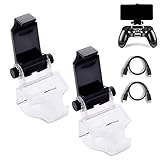
- COMPATIBLE WITH MOST ANDROID SMART PHONES: All Android cell phones from 4 - 6.5 inches can easily fit in the clip of the holder with rubber pads, which can grip the phone so firmly that the phone will not fall off easily without scratching your phone (Note: It DOES NOT support iPhone.)
- NO WORRY ABOUT DROPPING YOUR PHONE: Just enjoy amazing games on the go! Not only does the holder has a powerful grip to grab your phone, but also has a well-designed controller grip for the controller to be set in the holder snugly
- COME WITH A MICRO USB CABLE: This Clip comes with a OTG Micro USB to Micro USB Cable for you to connect your phone with your PS4 Controller. Enjoy mobile phone games with the most popular controllers in the world!
- 180-DEGREE VIEWING ANGLE: The holder features a 180-degree viewing angle so you can adjust it to the angle that fits you. With the wide angle for foldable design, you can just fold it up when you don't need to use it
- PERFECT FOR PS4 GAMERS ON ANDROID SMARTPHONE: The holder works perfectly with controller for PS4 Slim and Pro, providing you the perfect mobile gaming experience!
Product prices and availability are accurate as of the date/time indicated and are subject to change. Any price and availability information displayed on Amazon at the time of purchase will apply.



