Do these 3 things before closing this tab:
1Repair Windows errors before they cause bigger problems2Scan for outdated or missing drivers - takes under a minute3Clear out junk files and repair common Windows errorsIf your Steam Deck says it can’t connect to Steam, first check whether Steam is having a wider outage, then connect the Deck to a phone hotspot. Those two checks quickly separate a likely Steam or device issue from a problem with your home or public network. Next, reconnect Wi-Fi, restart the Deck and router, try another Wi-Fi band, and undo custom DNS, VPN, or proxy settings. Avoid a factory reset until you have tested another network and collected the results.
First, check whether Steam is down
A message about Steam servers does not by itself mean Valve’s servers are down. The Deck may be connected to Wi-Fi without having working internet access, or a network may block Steam while allowing websites to load.
- On another device, check Steamstat.us. It is a third-party status monitor, not a definitive report for every Steam service or region.
- Try opening the Steam Store and Steam Community in a browser.
- Check whether Steam works on another device using the same network, and, if practical, another network.
If multiple Steam services fail across devices and networks, wait and check status again rather than changing Deck settings or resetting it. Valve recommends checking Steam Server Status when investigating connection timeouts: Steam Deck network troubleshooting. If Steam works elsewhere but not on the Deck, continue below.
Try a phone hotspot to isolate the network
- Enable your phone’s personal hotspot.
- On the Deck, open the network controls and connect to the hotspot.
- Retry the specific action that failed: sign in, open the Store, or start a small download.
- Steam works on the hotspot: the original network is the leading suspect. Check its Wi-Fi settings, DNS, filtering, captive portal, or ISP restrictions.
- Steam fails on both networks: check Steam status, the Deck’s update channel, account access, time settings, and client state.
- The hotspot connects but Steam still fails: the cellular provider or hotspot may restrict or mishandle Steam traffic. That result does not prove the Deck is faulty.
A hotspot is an isolation test, not a guarantee that the device is problem-free. It may also use mobile data, and carrier restrictions or weak signal can affect the result.
Recommended Free Tools
#1 Best Overall
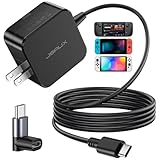
- Intelligent Output Adjustment: The JSAUX 45W USB C Power Delivery charger passed the UL 62368-1 test, with intelligent output adjustment function, support 45W 36W 27W 15W output, has the power to charge your steam deck, phone, tablet, and MacBook
- Fast Charge for Steam Deck & Switch: Equipped with 45W output, this USB C fast charger fully replaces the original Steam Deck charger and charges the device to 100% in about 2.5 hours. Also supports full-speed charging for Steam Frame / Nintendo Switch / Switch OLED models (up to 39W), ensuring fast, reliable power for uninterrupted gaming
- 5FT USB C Charging Cable: Come with an extra-long 5 Feet type C Integrated cable giving you plenty of cord to reach an outlet. Passed 10000+ times swing tests, the built-in USB C cable is more durable & flexible to bend at any angle and withstand daily wear. No low-power issue while you playing time
- Universal Compatibility: High-speed charging, compatible with Steam Frame, Steam Deck, Nintendo Switch 2, Switch, Switch OLED/Lite, iPhone 18 Pro/18 Pro Max/Air/17/16/15 Series, Samsung Galaxy S26/S25/S24/S23/S22/S21/S20 Series, Galaxy Note 10/Note 20, Google Pixel 2/3/4/5/6/7/8/9, Pixel XL, LG G5/G6/G7, LG V20/V30, iPad Pro 11"/12.9", Galaxy Tab S8 S7, MacBook Pro/Air and more USB C devices. Note: Does not support the Switch 2 console mode, does not support full-speed charging for Switch 2.
- Universal Compatibility: High-speed charging, compatible with Steam Deck, Nintendo Switch 2, Switch, Switch OLED/Lite, iPhone 18 Pro/18 Pro Max/Air/17/16/15 Series, Samsung Galaxy S26/S25/S24/S23/S22/S21/S20 Series, Galaxy Note 10/Note 20, Google Pixel 2/3/4/5/6/7/8/9, Pixel XL, LG G5/G6/G7, LG V20/V30, iPad Pro 11"/12.9", Galaxy Tab S8 S7, MacBook Pro/Air and more USB C devices. Note: Does not support the Switch 2 console mode, does not support full-speed charging for Switch 2.
Reconnect Wi-Fi and restart the Deck and router
- Open the Deck’s network settings and turn Wi-Fi off. Wait several seconds, then turn it back on.
- Select the affected network and reconnect. If the option is available, forget the saved network and enter its password again.
- Restart the Deck, then restart the router or access point. Restart the modem too if it is a separate device.
- Move closer to the router and test again, to rule out weak signal or local interference.
Menu wording can vary by SteamOS version and mode. Use the current on-screen network controls rather than relying on an old screenshot or exact label from a different release.
Test both Wi-Fi bands
If your router offers separate 2.4 GHz and 5 GHz networks, connect the Deck to each in turn and retry Steam. Valve specifically recommends testing both bands when available: Valve’s Steam Deck network guidance.
- 2.4 GHz can provide better range and compatibility, though it may be more congested.
- 5 GHz can be faster or less congested in some homes, but range, channel congestion, and router settings matter.
If one band works and the other does not, focus on wireless configuration, interference, or band-specific compatibility. It does not point to a Steam outage by itself.
Undo custom DNS, VPN, proxy, and filtering changes
If you or someone managing the network recently changed its configuration, temporarily reverse those changes and retry Steam. Check for:
Rank #2
![65W Fast Charger for Steam Deck & Nintendo Switch 2 with 6.6FT(2M) Cable - PD3.0 Foldable AC Adapter for ROG Ally, Switch 2 Charger Support TV Dock PS Console[Original Steam Deck Charger Replacement]](https://m.media-amazon.com/images/I/41Jp8CObAZL._SL160_.jpg)
- [One Charger is Enough] -- MEENEA 65W USB C charger is design for Steam Deck/Quest 3/ Play-station Portal/ ROG Ally ( do not support turning on the 30W enhancement mode)/ Nintendo Switch 2/ Switch Lite/ XBX Switch Pro controller, Play-station Consoles controller,USB C phones, tablets, laptops and other devices that support PD protocol, one charger for multiple device charging.[Since the ROG Ally console must use the original charger to enable 30W Enhanced Mode, our charger, like other 65W chargers, cannot support 30W Enhanced Mode]. Consoles for PlayStation Systems
- [65W Super Fast Charging] --Built-in advanced PD 3.0 smart chip enables adaptive intelligent power distribution for stable and smooth charging. It delivers max 65W high power output, serving as an ideal original charger replacement for Steam Deck, Switch 2 and ROG Ally
- [Extra 6.6ft Charging Cable] -- With the 6.6ft/2m extra long charging cord, it can meet the needs of charging and data transfer in various scenarios at home or outside, more convenient. The high quality nylon braided charging cable ensures faster charging and synchronization, safe and reliable
- [Multiple Protection] -- Over-voltage/short-circuit/over-current/over-temperature/EMF protection, five tough defense standards for various devices charging such as Steam Deck/ROG Ally/Nintendo Switch2/1/Switch Lite/XBX controller, protecting devices from getting hot and charging quickly
- [Special Foldable Design] -- The adapter is foldable for easy carrying and storage. Simplifying life into simplicity. Charge multiple devices with 1 charger at the office, at home or travel. pursuing quality life. Package contains 1*65W USB C power adapter, 1* charging cable. We also provide 12 months replacement
- Manually configured DNS servers or modified SteamOS network files.
- A VPN or proxy on the Deck or router.
- Pi-hole or another network-wide ad blocker.
- Router parental controls, firewall rules, security filters, or traffic-shaping features.
- Third-party networking tweaks or developer changes on the Deck.
Valve’s troubleshooting guidance specifically advises reverting custom DNS changes. Do not assume that switching to a particular public DNS provider is a universal fix: DNS changes may help a name-resolution problem, but cannot repair an outage, failed Wi-Fi authentication, blocked Steam traffic, or a faulty router. Make network-filter changes only as a temporary test, then restore protections you turned off.
Use Ethernet as a stronger network test
Connect the Deck to a wired network with a USB-C Ethernet adapter or a dock that has Ethernet, then retry Steam. Valve recommends testing a wired connection where possible; additional USB-C-to-Ethernet hardware may be needed (Valve troubleshooting guidance).
- Ethernet works but Wi-Fi does not: concentrate on router wireless settings, signal, interference, band selection, or Wi-Fi authentication.
- Ethernet also fails: investigate Steam availability, account or client state, SteamOS updates, and router or ISP restrictions.
A dock is not required for a one-time test if you have a compatible USB-C Ethernet adapter. Ethernet is useful because it removes Wi-Fi from the diagnosis, not because it guarantees faster Steam service.
Use the results to narrow down the cause
| What you observe | Likely area to investigate | Next step |
|---|---|---|
| Steam fails on every device and network | A wider Steam service issue or an account-wide problem | Check Steam status and wait if services are broadly affected; do not reset the Deck. |
| Other devices work, but the Deck fails on home Wi-Fi | Saved network state, Wi-Fi band, DNS, or Deck/router compatibility | Reconnect, try the other band, undo custom DNS, and test a hotspot or Ethernet. |
| The Deck works on a hotspot but not home Wi-Fi | Home router, ISP, filtering, captive portal, or blocked traffic | Test Ethernet, review router settings, and contact the network administrator or ISP if needed. |
| Ethernet works but Wi-Fi fails | Wireless configuration, interference, or authentication | Review the router’s Wi-Fi settings and test both bands. |
| Websites open in Desktop Mode, but the Steam client fails | Steam client, session, or authentication state | Restart the client or Deck, install pending updates, and verify account access elsewhere. |
| Only downloads fail | A download-specific service or network issue, rather than total Steam connectivity | Test another network and check whether Store, Community, and sign-in still work. Do not treat a failed download alone as proof that all Steam servers are unreachable. |
| Only one school, hotel, work, or public network fails | Captive portal, enterprise authentication, proxy, or network policy | Complete the portal sign-in or ask the network administrator whether Steam Deck is supported. |
Check public, school, hotel, and work networks
Some networks require a browser-based captive-portal sign-in, enterprise credentials, or certificates. Others restrict gaming services or use a proxy or firewall that prevents Steam connections. In Desktop Mode, open a browser and look for a portal or acceptance page.
What’s actually slowing this PC down?
Pick the symptom - the matching free tool is one click away.
Rank #3

- Intelligent Output Adjustment: The JSAUX 45W USB C Power Delivery charger passed the UL 62368-1 test, with intelligent output adjustment function, support 45W 36W 27W 15W output, has the power to charge your steam deck, phone, tablet, and MacBook.
- Fast Charge for Steam Deck & Steam Frame: Equipped with 45W output, this USB C fast charger fully replaces the original Steam Deck charger and charges the device to 100% in about 2.5 hours. Also supports full-speed charging for Steam Frame / Nintendo Switch / Switch OLED models (up to 39W), ensuring fast, reliable power for uninterrupted gaming.
- 10FT USB C Charging Cable: Come with an extra-long 10 Feet type C Integrated cable giving you plenty of cord to reach an outlet. Passed 10000+ times swing tests, the built-in USB-C cable is more durable & flexible to bend at any angle and withstand daily wear. No low-power issue while you playing time.
- Multiple Protection: The built-in Smart charging chip and IOA 2.0 intelligent charging system in the JSAUX USB C Wall charger efficiently protect your phone and personal safety by preventing over-current, over-voltage, overheating, and short-circuit.
- Universal Compatibility: High-speed charging, compatible with Steam Deck, Steam Frame, Nintendo Switch 2, Switch, Switch OLED/Lite, iPhone 18 Pro/18 Pro Max/Air/17/16/15 Series, Samsung Galaxy S26/S25/S24/S23/S22/S21/S20 Series, Galaxy Note 10/Note 20, Google Pixel 2/3/4/5/6/7/8/9, Pixel XL, LG G5/G6/G7, LG V20/V30, iPad Pro 11"/12.9", Galaxy Tab S8 S7, MacBook Pro/Air and more USB C devices. Note: Does not support the Switch 2 console mode, does not support full-speed charging for Switch 2.
Valve identifies possible connectivity problems with PEAP and WEP authentication and notes that university networks or proxies may block Steam’s required ports. Valve also says those ports cannot simply be remapped to HTTP or changed to a custom range. See Valve’s Steam Deck network guidance and Steam network troubleshooting.
If a network requires enterprise authentication or a certificate, ask its administrator whether Steam Deck and SteamOS are supported. Do not bypass a school, employer, hotel, or university’s security controls; use another permitted connection if one is available.
Investigate router and ISP problems
If the Deck fails on your home network, test another device on that same network and compare results. Valve notes that wireless or powerline interference can cause intermittent failures, and that some ISPs may block or shape Steam traffic. It suggests testing at different times: Valve’s troubleshooting guidance.
- Restart the router and modem before considering a reset that would erase router settings.
- Try a less congested wireless channel only if you know how to change it safely.
- If you temporarily disable a router filter to test, restore it afterward.
- Note whether failures happen repeatedly at particular times and whether other devices are affected.
If Steam fails across devices at predictable times, contact your ISP with those details. Valve’s examples of ISP behavior in its support article are not a current or exhaustive list of providers.
Rank #4
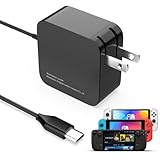
- 【Rapidly Charge for Your Steam Deck】This 45W USB-C Fast Charger can full charge your steam deck about 2.5 hours.
- 【Intelligent Output Adjustment】The 45W USB-C charger comes with intelligent output adjustment function, has the power to charge your steam deck, phone, tablet, and laptoop.
- 【Universal Compatibility】High-speed charger for Steam Deck, Switch OLED, Switch Lite, Switch Charging Station, Switch Dock Set, Switch Controller, XBX Controller, PS5 Controller, Samsung Galaxy S23 Ultra/S23 Plus/S23 +/S23/S22 Ultra/S22 +/S21/S20/S10/S9/S8, Galaxy Note 10/Note 20, Google Pixel 2/3/4/5/6/7, Pixel XL, LG G5/G6/G7, LG V20/V30, Galaxy Tab S8 S7, MacBook Pro, MacBook Air and more USB-C devices.
- 【Durable 5.7FT Charging Cable】Come with an extra-long 5.7 Feet cable giving you plenty of cord to reach an outlet. Passed 10000+ times swing tests, durable & flexible cable ensure that there is No low-power issue while you playing time.
- 【Multiple Protection】The built-in Smart charging chip and intelligent charging system in the 45W USB-C charger efficiently protect your phone by preventing over-current, over-voltage, overheating, and short-circuit.
Update SteamOS and check the update channel
- Open Settings > System > System Update and install any pending update.
- Check Settings > System > System Update Channel. If you are on Beta or Preview and the problem began after an update, switch to Stable if the option is available.
- Restart the Deck and test Steam again.
Valve says Beta and Preview builds include changes still being tested, so Stable is a sensible baseline while diagnosing connectivity (Steam Deck release notes). Valve listed SteamOS 3.8.16 as a Stable release on July 16, 2026, but that dated listing does not establish the latest version on your Deck or at a later date; check the Deck itself for updates (release listing). A pending update is worth installing, but do not assume a specific release fixes every Steam-server error.
Use Desktop Mode to distinguish browser access from Steam client trouble
Switch to Desktop Mode, connect to the network, and open a browser to test Steam websites. Then return to Game Mode and retry. The comparison helps identify what is failing:
- Browser and Steam both fail: investigate internet access, DNS, a captive portal, router or ISP restrictions, or system configuration.
- Browser works but the Steam client does not: focus on client/session or authentication state and pending updates.
- Desktop Mode works but Game Mode does not: restart the Deck and check for updates before considering a client-specific issue.
A browser test is diagnostic, not a repair. Avoid destructive terminal commands or instructions copied from old community posts: they may not apply to the installed SteamOS version and can damage configuration.
Check account access and time before contacting support
If Steam fails across networks, try signing in from another device and check for an account security prompt, Steam Guard request, or password issue. On the Deck, make sure date and time are set automatically. These are general troubleshooting checks rather than fixes established in Valve’s Deck networking article. Repeated password changes are unlikely to help if sign-in works elsewhere.
Best Value

- 60W Fast Charging for Handhelds: Equipped with advanced fast technology, this 60W USB-C charger delivers ultra-fast and stable power for your devices. It intelligently matches the optimal charging speed—providing up to 60W for high-performance handhelds for Ayaneo, MSI Claw/GPD Win/Onexplayer, for Switch 2 / Switch OLED / Switch Lite, for Steam Deck and so on, while safely charging consoles at their ideal wattage. Input Volt : 100-240V | Output Max : 60W 20V 3A (also for 15V 2.6A, 12V 3A, 9V 3A, 5V 3A )
- Universal Compatibility: Designed for seamless compatibility with the latest gaming devices, Compatible with Steam Deck, for Switch 2 / Switch OLED / Switch Lite, for Ayaneo, MSI Claw/GPD Win/Onexplayer and all other USB-C powered gaming handhelds.
- Smart Charging Chip for Device Safety: Built with an intelligent charging IC, this adapter automatically detects your device's power requirements and adjusts the output (from 15W to 60W) to ensure safe, efficient, and overheating-free charging. Charge your Gaming Handhelds at full speed, it's always optimized and protected.
- Removable Design & Travel-Ready Power Cord: The compact and removable power cord design makes it easy to slip into your backpack or travel case. Whether you're gaming on the go for Steam Deck, visiting friends with for Switch 2, or commuting with your devices, this lightweight USB-C power cord ensures you never run out of battery.
- What You Get & Reliable Support: Package includes: 1 x 60W USB-C Wall Charger. We stand by our product with a commitment to quality and customer satisfaction. If you have any questions about compatibility with your device, our support team is always here to help.
Before contacting Steam Support, record the exact error and whether the Deck reports Wi-Fi connected. Include whether websites open in Desktop Mode, whether the issue occurs on home Wi-Fi, a hotspot, and Ethernet, and which SteamOS update channel and version the Deck shows. This evidence makes it easier to distinguish a network restriction from a Deck-specific fault.
Reserve a factory reset for a last resort, after you have tested other networks and reversible fixes and have backed up anything you need. It can remove local data, settings, and installed games; Valve’s network guidance directs users toward Steam Support rather than presenting a reset as a first-line connection fix.
What you can do offline
Valve says installed games can generally be played offline unless the game itself requires an internet connection (Steam Deck FAQ). A game may still need an initial successful launch, online authentication, its own servers, a launcher, or anti-cheat services. Offline mode also does not provide normal access to downloads, the Store, multiplayer, cloud saves, achievements, or account synchronization.
Quick Recap
Product prices and availability are accurate as of the date/time indicated and are subject to change. Any price and availability information displayed on Amazon at the time of purchase will apply.



