Do these 3 things before closing this tab:
1Clear out junk files and repair common Windows errors2Scan for outdated or missing drivers - takes under a minute3Repair Windows errors before they cause bigger problemsStart by checking Epic’s service status and, on PC, making sure the Epic Games Launcher is not limiting download speed. Then identify whether the bottleneck is your network, the launcher or the storage drive: Fortnite can show 0 MB/s while the launcher writes downloaded files to disk. This guide covers downloads and updates—not high ping or low in-game frame rates, which are separate connection and performance problems.
First, find out what is actually slow
A slow Fortnite download can come from Epic’s service, your internet connection, a launcher setting, competing network activity or the drive installing files. On PC, compare the launcher’s download rate with disk activity in Task Manager. On a console, close the game and other running software before testing; some downloads can pause while software is in use.
Read the units correctly
Internet plans are usually advertised in megabits per second (Mbps), while a launcher may show megabytes per second (MB/s). The mathematical conversion is 8 bits per byte: 100 Mbps is a theoretical maximum of about 12.5 MB/s, and 1,000 Mbps is about 125 MB/s. These are not Fortnite requirements or promised download rates. Protocol overhead, Wi-Fi conditions, Epic’s servers and file installation all reduce real-world results.
Use activity to distinguish downloading from installing
- Low network activity and modest disk activity: the connection, server, launcher or another network bottleneck may be limiting the download.
- Network rate near zero while disk activity rises: the launcher may be writing or installing files. Epic says it can pause downloading during this work; wait while disk activity continues rather than repeatedly restarting. Epic: why downloads can drop to 0 MB/s.
- Other services download normally, but Epic does not: check Epic’s status, launcher settings, cache and connection route.
- Several devices or services are slow: look for Wi-Fi trouble, network congestion, router issues or an ISP problem.
Try these low-risk fixes first
- Check Epic’s status. Visit Epic Games Public Status and note the time and any service incident. If Epic reports a problem, local changes may not help until it is resolved. An operational status makes a broad outage less likely; it does not prove that your individual route or download endpoint is healthy. Epic’s own connection guidance begins with checking service status: Epic connection troubleshooting.
- Remove the launcher speed cap on PC. Follow the steps below. This removes an intentional cap if one is enabled; it cannot guarantee a faster server or connection.
- Pause Fortnite and stop competing traffic. Close other game launchers, browser downloads, cloud-sync jobs, torrents and large uploads. Check your operating system’s network monitor for activity from other apps or devices.
- Restart the launcher and device. Then restart the router and modem, allow them to reconnect, and resume the download.
- Try Ethernet or another connection. Connect directly to the router if possible, avoiding a weak signal, congested 2.4 GHz Wi-Fi or an extender for the test. If Ethernet helps, investigate Wi-Fi signal, interference, router placement or the wireless adapter. Ethernet does not increase the speed of your internet plan. Testing another connection can help distinguish a home-network issue from an Epic or ISP route problem.
Epic recommends a wired connection, trying another internet connection, restarting network equipment and closing background applications as connection troubleshooting steps. Epic slow-download troubleshooting.
#1 Best Overall

- Fortnite Cobalt Star pack includes:
- Cobalt Snowfoot Outfit (with LEGO Style), Sapphire Star Back Bling, Indigo Inverter Pickaxe
- Weathered Snow Stripes Wrap, Cobalt Crash Drums, Krackle Boost (Gold Painted Style)
- Discotheque Wheels (Gold Painted Style), Stella Trail (Gold Painted Style, 1,000 V-Bucks
- PlayStation 5 Experience lightning fast loading with an ultra-high speed SSD, deeper immersion with support for haptic feedback, adaptive triggers, and 3D Audio2, and an all-new generation of incredible PlayStation games.
PC: remove the Epic Games Launcher download limit
- Open the Epic Games Launcher and select your profile icon in the top-right corner.
- Select Settings, then scroll to Download Settings.
- Uncheck Limit Download Speeds.
- Fully exit and restart the launcher, then resume the Fortnite download or update.
Labels can vary by launcher release or language. If the option is missing, restart or update the launcher before editing configuration files. If the launcher shows IS-INFO-THROTTLED, Epic also documents removing its download throttle through Download Manager settings: Epic: IS-INFO-THROTTLED. The setting only removes a launcher-side cap; it does not guarantee that the download will use all available bandwidth. Epic download-speed limit instructions.
PC: clear the Epic Games Launcher cache
Clearing the launcher cache is a reasonable next step if Epic alone is slow or the launcher behaves inconsistently. It is not the same as deleting Fortnite.
Windows
- Exit the Epic Games Launcher completely. Open the hidden-icons menu in the notification area, right-click the Epic Games icon and choose Exit.
- Press Windows + R, enter
%localappdata%and press Enter. - Open
EpicGamesLauncherSaved. - Delete only the folders that exist from this list:
webcache,webcache_4147andwebcache_4430. - Relaunch the Epic Games Launcher and resume the download.
macOS
- Exit the Epic Games Launcher.
- In Finder, select Go → Go to Folder, then enter
~/Library/Caches/com.epicgames.EpicGamesLauncher. - Move the
webcachefolder to the Trash, empty the Trash and relaunch the launcher.
Epic notes that not all listed Windows cache folders will necessarily be present; the launcher rebuilds cache folders when it starts. Do not delete the entire EpicGamesLauncher folder. If Windows reports that a file is in use, make sure the launcher is closed or restart the PC and try again. Epic cache-clearing instructions.
Rank #2

- Fortnite Cobalt Star pack includes:
- Cobalt Snowfoot Outfit (with LEGO Style), Sapphire Star Back Bling, Indigo Inverter Pickaxe
- Weathered Snow Stripes Wrap, Cobalt Crash Drums, Krackle Boost (Gold Painted Style)
- Discotheque Wheels (Gold Painted Style), Stella Trail (Gold Painted Style, 1,000 V-Bucks
- PlayStation 5 Experience lightning fast loading with an ultra-high speed SSD, deeper immersion with support for haptic feedback, adaptive triggers, and 3D Audio2, and an all-new generation of incredible PlayStation games.
PC: check VPN, proxy and DNS only if connection is unreliable
These are connection troubleshooting steps, not general bandwidth upgrades. Try them if Epic repeatedly disconnects or fails to connect while other services work.
Test without a VPN or proxy
Temporarily disconnect a VPN and test again; its route can either help or hurt, depending on distance and congestion. Disable a proxy for the test if you use one. Security software can also inspect or delay downloads, but do not leave antivirus or firewall protection disabled. If there is reason to test an exception, use a narrowly scoped application rule and restore your usual protections afterward. Epic recommends disabling proxy servers and allowing required Epic domains where applicable: Epic slow-download troubleshooting.
Flush DNS on Windows
Open Command Prompt as an administrator and run:
ipconfig /flushdnsRestart the launcher and test again. Flushing DNS clears cached name-resolution records; it does not raise the maximum speed of your internet plan. Trying a public DNS service is an optional connection test, not a required setting or a guaranteed way to improve sustained download throughput. Epic lists flushing DNS and trying a public DNS as possible connection fixes.
Rank #3

- Includes a uniquely designed Nintendo Switch system with special art on the system and Nintendo Switch dock, a yellow Joy-Con (L) and blue Joy-Con (R), the Fortnite game pre-installed, 2,000 V-Bucks, and a download code for The Wildcat Bundle
- The Wildcat Bundle is an in-game pack that includes cosmetic items like the Sleek Strike Back Bling and the Wildcat Outfit
- 3 Play Styles: TV Mode, Tabletop Mode, Handheld Mode
- 6.2-inch, multi-touch capacitive touch screen
- Connects over Wi-Fi for multiplayer gaming
PC: try Epic’s documented Engine.ini settings carefully
If the simpler steps fail, Epic documents these launcher configuration values as a download troubleshooting procedure. Back up Engine.ini before editing; the settings are not guaranteed to improve every connection, and they do not increase your ISP plan, server capacity or disk speed.
- Select Start, enter
%localappdata%and openEpicGamesLauncherSavedConfigWindows. - Make a copy of
Engine.inias a backup, then open the original in a text editor. - Add the following settings, save the file and reopen the launcher:
[HTTP]
HttpTimeout=10
HttpConnectionTimeout=10
HttpReceiveTimeout=10
HttpSendTimeout=10
[Portal.BuildPatch]
ChunkDownloads=3
ChunkRetries=20
RetryTime=0.5
Epic’s cited support procedure is available in Spanish, but the file path and values above reproduce its documented settings: Epic launcher-file download settings. If Engine.ini does not exist, do not invent another location or add unofficial values; restart or update the launcher, then use Epic Support for guidance.
What’s actually slowing this PC down?
Pick the symptom - the matching free tool is one click away.
PC: check storage, then verify Fortnite files
Make sure the installation drive has enough free space and check Task Manager for sustained high disk use or errors. A slow or unreliable drive can make updates appear stalled even when the network is not the bottleneck.
Rank #4

- 【All-in-One Handheld】 The ultimate portable console in your hands. Enjoy retro games, remote play, cloud gaming, and Android titles on a lightweight handheld with responsive controls and a stunning 7” display. More than just a game console — it's a powerful all-in-one entertainment device.
- 【Cloud Gaming + Remote Play】 Cloud Gaming – Instantly play AAA titles over Wi-Fi with subscriptions to Xbox Cloud Gaming (Beta), GeForce NOW, Amazon Luna, PlayStation Plus Premium, and Boosteroid. Remote Play – Stream games locally from your own devices using Moonlight, PlayStation Remote Play, Steam Link or PXPlay.【Need buyer's subscriptions to Xbox or PlayStation.】
- 【Emulator Retro Games + Android Games】 Emulation – Enjoy retro classics with enhanced compatibility and smoother performance on PS2, GameCube, and other popular systems. Android Games – Run most local games with ease, offering more ways to play on a larger screen with console-style controls."
- 【Capacitor Digital Joystick + Switchable Modes】 abxylute One Pro is the first handheld to feature cutting-edge digital joysticks—taller, larger, and more advanced, with an extended input range. Switch between Circle Mode for ultra-precise 0.2% tracking, or Square Mode for broader input—tailored to different play styles."
- 【4K Video Output + Dual Speakers】 Connect to an external display or AR glasses for up to 4K gaming with full controller support, or enjoy immersive gameplay on the built-in 1080P 7” display—perfect for couch play or gaming on the go. Upgraded audio drivers deliver deeper, clearer vocals, and rich, immersive sound in every in-game moment."
If the download has stopped progressing and installation or corruption is suspected, verify the game:
- Open the Epic Games Launcher and select Library.
- Find Fortnite, select its three-dot menu and choose Manage.
- Select Verify and wait for validation to finish.
Epic says verification checks for damaged or corrupted files and repairs differences without affecting saved data. It is an installation-repair step, not a general internet-speed fix. Epic: verify game files.
Independent reader supportYour contribution helps us test, update, and keep practical guides available for everyone.PlayStation: restart and check the download before using Safe Mode
- Pause and resume the download once; close Fortnite and other running applications.
- Restart the console and router, then check available storage and try Ethernet if practical.
- If the download remains stuck, follow PlayStation’s download troubleshooting flow.
- For persistent download or storage-database problems, PlayStation documents Safe Mode → Clear Cache and Rebuild Database as an escalation option. Use the official instructions and do not make this the first step.
PlayStation download troubleshooting.
Xbox: close other activity and check Xbox services
- Close Fortnite and other games, then pause and resume the update.
- Restart the console and router; check free storage and whether other downloads or updates are queued.
- Try a wired connection and check Xbox network status. Contact Microsoft Support for Xbox-specific errors.
Epic specifically directs Xbox users who see “Error Connecting to Epic Services Queue” to Microsoft Support. Epic connection troubleshooting.
Best Value
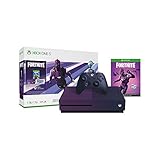
- Bundle includes: Gradient purple 1TB Xbox One S console, matching purple Xbox Wireless Controller, download of the free to play Fortnite Battle Royale mode, Dark Vertex Cosmetic Set which includes a Legendary Outfit, an Epic Glider, a Rare Pick Axe, 2000 V bucks, a 1 Month Xbox Game Pass trial, and 1 Month Xbox Live Gold trial
- Battle to be the last one standing in the worldwide Fortnite phenomenon; Fight in 100 player Battle Royale PVP mode on a giant map, building and destroying the environment as you go
- Enjoy instant access to over 100 games out of the box with the included 1 Month trial of Xbox Game Pass
- Xbox One family settings let you choose privacy, screen time, and content limits for each member of your family
- Watch 4K Blu ray movies; Stream 4K video on Netflix, Amazon, and YouTube, among others; and listen to music with Spotify
Nintendo Switch and Switch 2: close Fortnite during the download
- Close Fortnite while downloading. Nintendo notes that some software downloads can pause while that software is being played.
- Restart the console, check the network connection and confirm there is enough storage.
- If the problem continues, clear the system cache only through Nintendo’s documented procedure. Nintendo says clearing cache does not affect downloaded games or save data.
Switch and Switch 2 have distinct Fortnite versions, so use instructions that match your console generation when following platform-specific guidance. Nintendo’s support pages explain stuck software downloads and cache clearing: Nintendo: software download is stuck and Nintendo: Fortnite troubleshooting and cache guidance.
When to reinstall or contact support
Reinstalling Fortnite or the launcher is a last resort, not a response to every temporary zero-speed reading. It costs time and bandwidth and will not fix an Epic service incident, weak Wi-Fi, an ISP route problem or a drive bottleneck. Consider it if verification fails, the installation repeatedly errors or the drive is unreliable; confirm free space first. Epic’s PC troubleshooting flow includes cache clearing, verification, launcher repair or reinstallation, trying another drive and checking drive errors: Epic PC troubleshooting sequence.
Quick Recap
- Epic status shows an incident: wait for service recovery and check the status again.
- Ethernet or another network changes the result: investigate your Wi-Fi, router, ISP or route rather than reinstalling first.
- Disk activity rises while the network pauses: let installation work finish and check storage if it repeatedly stalls.
- Only Epic fails after local checks: contact Epic Support with the platform, error message and time of the problem.
- Console-specific error or recovery issue: use PlayStation, Xbox or Nintendo support for that platform.
Product prices and availability are accurate as of the date/time indicated and are subject to change. Any price and availability information displayed on Amazon at the time of purchase will apply.



