If YouTube reports “RTMP publish rejected with error code 2,” the exact phrase does not have a documented meaning in the YouTube Help pages located. Don’t assume it always means a bad stream key, blocked port, or codec mismatch. Start by capturing the precise encoder and Live Control Room messages, then check the stream key and active ingest URL before investigating connection or stream-format problems.
First, identify which failure you have
The words around the code matter. A connection failure, a publish rejection after connecting, and a stream that reaches YouTube but has health errors point to different checks. Record the full message instead of troubleshooting from “code 2” alone.
- Note the encoder or app name and version, the complete error text, and whether it says it could not connect or that publishing was rejected.
- Check the corresponding message in YouTube Studio’s Live Control Room.
- Keep any stream key private. Do not post it in screenshots, logs, or support forums; redact it before sharing diagnostics.
YouTube’s public documentation located for this issue does not define the exact phrase “publish rejected with error code 2.” An OBS forum report from 2020 describes a different RTMP connection log ending in -2; that historical report is not an authoritative explanation of a YouTube publish-rejection code.
Work through the checks in order
-
Refresh the stream key
In YouTube Studio, open the Live Control Room, select Stream, and copy the key for the active stream. Replace the key in your third-party encoder and try again. YouTube recommends getting a new stream key in the Live Control Room and updating the encoder when an error occurs as the encoder starts.
Recommended: PC Feels Slow? A Free Scan Shows What's Dragging Windows Down →Recommended: Crashes or Glitches? A Free Driver Scan Usually Finds the Culprit →Recommended: Fix Windows Errors and Clear Junk Files in Minutes - Free Scan →Special offer. See more information about Outbyte and uninstall instructions. Please review EULA and Privacy policy.#1 Best Overall
Sale Capture Card, 4K HDMI Video Capture Card, Game Capture Card, 1080P 60FPS Video Capture Device, HDMI to USB 3.0 Capture Card for Streaming, Work with Camera/Xbox/PS4/PS5/PC/OBS
- 【1080P HD High Quality】Capture resolution up to 1080p for video source and it is ideal for all HDMI devices such as PS4, PS3, Xbox One, Xbox 360, Wii U, DVDs, DSLR, Camera, Security Camera and set top box. Note: Video input supports 4K30/60Hz and 1080p120/144Hz. Does not support 4K120Hz/144Hz. Output supports up to 2K30Hz.
- 【Plug and Play】No driver or external power supply required, true PnP. Once plugged in, the device is identified automatically as a webcam. Detect input and adjust output automatically. Won't occupy CPU, optional audio capture. No freeze with correct setting.
- 【Compatible with Multiple Systems】suitable for Windows and Mac OS. High speed USB 3.0 technology and superior low latency technology makes it easier for you to transmit live streaming to Twitch, Youtube, Facebook, Twitter, OBS, Potplayer and VLC.
- 【HDMI LOOP-OUT】Based on the high-speed USB 3.0 technology, it can capture one single channel HD HDMI video signal. There is no delay when you are playing game live.
- 【Support Mic-in for Commentary】Rybozen capture card has microphone input and you can use it to add external commentary when playing a game. Please note: it only accepts 3.5mm TRS standard microphone headset.
-
Copy the active stream URL and confirm the protocol
Use the stream URL shown in the active Live Control Room setup; don’t rely on a saved or remembered endpoint. If you’re using RTMPS, reveal and copy the RTMPS URL and make sure the encoder supports RTMPS. For certain SSL errors, YouTube suggests port 443. Don’t change ports unless the error or setup points to that issue.
-
Determine whether the encoder connects
If the encoder cannot establish a connection, check the endpoint, protocol, network path, and encoder compatibility first. If it connects but YouTube rejects the publish or reports ingest errors, use the Live Control Room’s message to guide checks of the stream settings.
Rank #2
Sale Capture Card 4K HDMI Video Streaming to USB 3.0 1080P 60FPS Capture Device
- High-Quality Video Capture, 4K HDMI Capture Card Ready: Capture smooth and vibrant video with this 4K HDMI capture card, engineered for gamers and content creators who demand crisp 1080P 60FPS video quality. Whether you're streaming to Twitch or recording gameplay for YouTube, your footage will look professional and detailed
- Plug-and-Play USB Capture Card, No Drivers Needed: Designed as a USB capture card for streaming, this device works instantly out of the box, just plug into your PC or laptop and start capturing. Fully compatible with popular software like OBS Studio, Streamlabs, and XSplit, making setup quick and stress-free for beginners and pros alike
- Universal Compatibility PS5, Xbox, Switch & More: Stream or record gameplay from virtually any HDMI-enabled device including Nintendo Switch, PS5, Xbox Series X, DSLR cameras, and PCs. The video capture card for gaming supports seamless passthrough so you can play without lag while your audience watches every frame in real time
- Low-Latency Performance for Smooth Streaming: This capture card for streaming minimizes delay between gameplay and broadcast, so you get reliable, low-latency capture that works well for competitive gaming, live broadcasts, and podcast sessions. Suitable for those building their channel with high-quality, engaging content
- Compact & Portable Design for Content Creators: Lightweight and portable, this USB 3.0 capture card works well for creators who travel or switch gaming setups often. Throw it in your bag and stream or record wherever you are, at home, events, LAN parties, streaming or studio sessions
-
Check the encoder and outbound connection
Update the encoder, inspect its local output, review dashboard errors, and check CPU load. If the encoder looks healthy but the stream is not reaching YouTube reliably, test the outbound internet connection. Trying another encoder can help isolate an encoder-specific problem; contact your ISP if the outbound connection appears faulty.
-
Adjust stream settings only when the evidence points to ingest
YouTube documents ingest problems involving codec, container, bitrate, video-stream settings, and keyframe frequency. Its guidance recommends a two-second keyframe interval and says it should not exceed four seconds. Compare your output with the Live Control Room’s current message and YouTube’s live-stream setting guidance rather than changing unrelated settings to guess at the code’s meaning.
Special offer. See more information about Outbyte and uninstall instructions. Please review EULA and Privacy policy.Rank #3
Sale Elgato 4K S Capture Card for PS5, Xbox Series X/S, Switch 2
- 4K60 Capture: Record in cinematic quality with crisp detail and vivid colors
- HFR Support: Play and capture in 1440p120 or 1080p240
- HDR10 Support: Capture brilliant HDR content with tone mapping on Windows
- Cross-Platform Compatible: Works with PS5, Xbox Series X/S, Switch 2, and more
- Analog Audio In: Capture in-game chat or commentary with 3.5mm input
How to read the result
| What you see | What to check next |
|---|---|
| The encoder cannot connect to the ingest endpoint | Confirm the active stream URL and protocol, then check network access and encoder compatibility. |
| The encoder connects, but YouTube rejects publishing | Refresh the stream key and compare the full encoder message with the Live Control Room status. |
| The stream reaches YouTube, but health or ingest errors appear | Follow the dashboard’s specific guidance; relevant categories include codec, container, bitrate, video settings, and keyframe frequency. |
These branches are diagnostic distinctions, not a published decoding of error code 2. The same short code may appear in different software or contexts, so use the full log and dashboard message to choose a fix.
If the error persists
- Retry after replacing the key and confirming the current endpoint and protocol.
- Update the encoder and test whether another encoder produces the same result.
- Save the exact error text, encoder version, and relevant Live Control Room status for support. Redact the stream key first.
- If the log shows a connection problem and outbound connectivity tests fail, contact your ISP. If YouTube shows a specific ingest warning, address that warning rather than treating it as proof of a generic code-2 cause.
Or let it run in the cloud
If your goal is to keep uploaded videos playing as a continuous YouTube live stream, StreamNeo is a separate cloud option, not a decoder for this error. Upload a recording or build a playlist, add your YouTube stream key once, and go live. It loops the uploaded video from the cloud, so no computer or home connection has to stay on. Each slot streams the uploaded quality up to 4K 60fps at one flat price, with automatic recovery if YouTube drops the stream. The first day is free with no card. Monthly: $9.99 per month. See StreamNeo or start the free day.
Quick Recap
Best Value
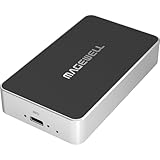
- Network Source to USB UVC Output – Decodes one NDI, NDI HX2/HX3, H.264 or H.265 stream over Ethernet and outputs it via USB as a standard UVC webcam device up to 1080p60.
- Wide Protocol Compatibility – Supports NDI High Bandwidth, NDI HX2/HX3, RTSP, RTMP, SRT, HTTP, RTP, and UDP streams for flexible IP-video integration.
- USB-C 3.0 Interface – Outputs video and audio through USB as a driver-free UVC/UAC device on Windows, macOS, and Linux — works instantly with most software.
- High-Quality Video & Audio – Decodes and outputs uncompressed YUY2/NV12 at 1080p60 or MJPEG at 1080p30, with 2-channel, 16-bit 48 kHz audio for reliable conferencing or streaming.
- PTZ Control & Remote Management – Supports PTZ control via NDI or VISCA over UDP, plus a web-based configuration interface and HTTP API for remote administration.
Rank #4

- 【1080P 60FPS Smooth Capture】Record and stream crystal-clear HDMI video at full HD 1080p 60fps with low latency. Perfect for live gaming, video conferencing, and online teaching
- 【Real-Time HDMI Loop-Out】Play without delay thanks to the HDMI loop-out port, allowing you to enjoy your gameplay on an external display while capturing simultaneously
- 【Support Mic-in for Commentary】Audio capture card has microphone input and you can use it to add external commentary when playing a game. Please note: it only accepts 3.5mm TRS standard microphone headset
- 【Easy to Use & Plug and Play】No need to install any drivers, no need to provide external power, the usb capture card is plug and play, easy to use. You can use any third-party software(OBS) to capture or stream your HD gameplay, or other HD video source
- 【Wide Compatibility】Works with Windows, macOS, and Linux. Compatible with OBS, VLC, Zoom, and more. Compatible with PS4, PS5, Xbox, Switch, DSLR cameras, and set-top boxes
Product prices and availability are accurate as of the date/time indicated and are subject to change. Any price and availability information displayed on Amazon at the time of purchase will apply.



