Free tools Windows power users keep installed
One-click scans. No signup required.
Short answer: Steam’s official Steam Link app for supported VR headsets lists Windows 10 or newer as the host operating system, not Linux. Steam’s published pairing steps therefore do not establish an officially supported Linux-to-headset setup. If you have a Windows host, the app’s setup is straightforward; if your gaming PC runs Linux, do not assume the official headset app will work based on those instructions.
Can Steam Link stream from a Linux PC to a VR headset?
Steam’s official Steam Link headset requirements name Windows 10 or newer as the computer’s operating system. The page also requires Steam and SteamVR on the computer, but does not list Linux as a supported host OS. This applies to the official Steam Link headset app; the published requirements do not prove that every other streaming method is impossible.
Steam’s documented instructions can be followed for a supported computer, but they are not Linux setup instructions. The available official information here does not verify a Linux-specific alternative or provide commands for one.
Which headsets and software versions does Steam list?
Steam’s support page lists these headset families and minimum headset software versions. Compatibility details can change, so check the live page for your exact model and current firmware before installing.
#1 Best Overall

- CARDBOARD MONKENAUT — Get our best Gorilla Tag bundle yet with this Amazon exclusive deal. Purchase Meta Quest 3 to get exclusive items, including the Gorilla Space Program Suit and Helmet, plus 2,000 SHINY ROCKS.
- NEARLY 30% LEAP IN RESOLUTION — Experience every thrill in breathtaking detail with sharp graphics and stunning 4K+ Infinite Display.
- NO WIRES, MORE FUN — Break free from cords. Game, play and explore in immersive worlds — untethered and without limits.
- 2X GRAPHICAL PROCESSING POWER — Enjoy lightning-fast load times and next-gen graphics for smooth gaming powered by the Snapdragon XR2 Gen 2 processor.
- EXPERIENCE VIRTUAL REALITY — Blend virtual objects with your physical space and experience two worlds at once in your VR headset.
| Headset family | Models listed by Steam | Minimum headset software shown |
|---|---|---|
| Meta | Quest 2, Quest 3, Quest Pro | OS v74 |
| PICO | PICO 4 Ultra, PICO 4, PICO Neo 3 | v5.13 |
| HTC | Vive Focus Vision, VIVE XR Elite | v7.0.999.344 |
How to pair Steam Link on a supported Windows computer
- On the computer, sign in to Steam and make sure Steam and SteamVR are installed.
- Connect the computer and headset to the same network. For better streaming conditions, Steam recommends a wired connection for the computer when possible and 5 GHz Wi-Fi for the headset.
- Install the free Steam Link app from the headset’s app store.
- Open Steam Link on the headset and follow the on-screen pairing instructions.
This procedure describes Steam’s supported computer setup; it does not extend the listed host support to Linux.
What hardware and network setup does Steam recommend?
Steam publishes the following requirements for the headset app’s Windows setup. They should not be treated as tested Linux requirements.
Rank #2

- CARDBOARD MONKENAUT — Get our best Gorilla Tag bundle yet with this Amazon exclusive deal. Purchase Meta Quest 3S to get exclusive items, including the Gorilla Space Program Suit and Helmet, plus 2,000 SHINY ROCKS.
- NO WIRES, MORE FUN — Break free from cords. Game, play and explore immersive worlds — untethered and without limits.
- 2X GRAPHICAL PROCESSING POWER — Enjoy lightning-fast load times and next-gen graphics for smooth gaming powered by the Snapdragon XR2 Gen 2 processor.
- EXPERIENCE VIRTUAL REALITY — Take gaming to a new level and blend virtual objects with your physical space to experience two worlds at once in your VR headset.
- 2+ HOURS OF BATTERY LIFE — Charge less, play longer and stay in the action with an improved battery that keeps up. *Based on the graphic performance of the Qualcomm Snapdragon XR2 Gen 2 platform vs the Meta Quest 2 platform.
| Category | Steam’s published requirement or recommendation |
|---|---|
| Minimum graphics card | GTX 970 or better, or RX 570 or better; RX 6400 and RX 6500 XT are excluded |
| Recommended processor | i5-4590 / FX-8350 equivalent or better |
| Recommended memory | 16 GB RAM |
| Recommended graphics card | NVIDIA RTX 2070 or better |
| Minimum router | 5 GHz Wi-Fi 5 or better |
| Other network recommendation | Broadband internet; Wi-Fi 6 or 6E recommended |
Troubleshoot lag or connection problems
Steam’s networking advice concerns Remote Play generally. It can help diagnose a weak or unstable stream, but does not change the official headset app’s listed host operating system.
- Use wired networking for the host: Connect the computer to the router by Ethernet when possible.
- Prefer 5 GHz Wi-Fi: Steam recommends it over the more congested 2.4 GHz band. Wi-Fi 6 or 6E is a recommendation for the headset app, not a guarantee of smooth streaming.
- Check router isolation: Make sure client or access-point isolation is disabled so devices on the same network can communicate.
- Check firewall and router rules: Steam identifies UDP ports 27031 and 27036, TCP ports 27036 and 27037, and UDP ports 10400 and 10401 for VR streaming. Do not open ports indiscriminately; adjust rules only as needed for your network.
- Reduce stream quality if needed: Steam suggests trying Balanced or Fast when troubleshooting performance.
- Use the performance overlay: Enable it to look for variable network time, and check whether router firmware is current.
These network changes can improve connectivity or reduce streaming problems on a supported setup, but buying a faster router cannot make Linux a supported host under Steam’s published headset requirements.
Quick wins for a faster PC:
Clear out junk files and repair common Windows errorsFree Scan →Fix the driver behind crashes, sound loss and screen glitchesFind Drivers →Rank #3
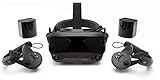
- Displays - Dual 1440 x 1600 LCDs, full RGB per pixel, ultra-low persistence global backlight illumination (0.330ms at 144Hz)
- Ergonomic Adjustments - Head size, eye relief (FOV), IPD, speaker positions. Rear cradle adapter included.
- Inter-pupillary Distance (IPD) - 58mm - 70mm range physical adjustment
- Optics - Double element, canted lens design
- NOTE - PC compatible with Valve Index is required
What Linux users should do next
If your PC runs Linux, treat the official Steam Link headset route as unsupported unless Steam updates its requirements to list Linux. Check the current Steam support page for changes, and do not rely on unverified alternative instructions as though they were official or universally compatible.
Quick Recap
Best Value

- VISUALS: 2880 x 2880 per eye resolution and 16.6 million pixels, enjoy the pinnacle of clarity
- SCREEN TECHNOLOGY: QLED display, supporting local dimming and HDR, achieving high contrast and vivid colors
- LENS: Glass aspheric lens, providing edge-to-edge clarity and reducing distortion
- ULTRA-LOW LATENCY: Up to 120Hz, Experience minimal lag with high refresh rates, providing a fluid and responsive VR environment for immersive simulations
- COMPATIBILITY: Seamlessly integrate with your existing SteamVR setup, including compatibility with controllers like the Valve Index Knuckles or HTC VIVE
Rank #4

- All-In-One VR Solution: The VIVE Focus series offers standalone and PC VR experiences. Harness the power of virtual reality with high-resolution displays, versatile tracking features, and immersive applications. Base station-free.
- PC VR Gaming Headset: Immerse yourself in low-latency VIVEPORT and SteamVR gameplay. DisplayPort mode delivers lossless, high-fidelity visuals straight from your PC.(1) Connect your PC directly to your Wi-Fi router using an Ethernet cable for PC VR streaming.
- Make Interactions Real: Connect in VRChat like never before. With built-in eye tracking and low-light hand tracking; plus face and body tracker support, movement in VR is intuitive and lifelike.(2)(3)
- Immersive 5k Headset Display: The immersive display puts you right at the heart of the action with a 5K resolution of 2448 x 2448 pixels per eye, up to 120° field of view, and 90 Hz refresh rate.
- Personalize Your Fit: Auto-IPD adjustment aligns the XR headset's lenses with the centers of your pupils, giving your eyes the clearest, most comfortable viewing experience.(4)
Product prices and availability are accurate as of the date/time indicated and are subject to change. Any price and availability information displayed on Amazon at the time of purchase will apply.




